

What MCP tokens are for
An MCP token lets an AI tool, such as Claude Desktop, Cursor, Windsurf, or n8n, use the apps a customer has connected in Knotie AI Pro. Each token belongs to one customer, and you decide which of that customer’s apps and tools it can reach. Use MCP tokens when you want to:- Let an AI assistant act for a customer, for example reading their Gmail or updating their CRM.
- Automate workflows in tools like n8n.
- Keep access narrow, by giving each tool its own token limited to the apps it needs.
Where to find it
Go to AI Gateway → MCP Tokens in the sidebar.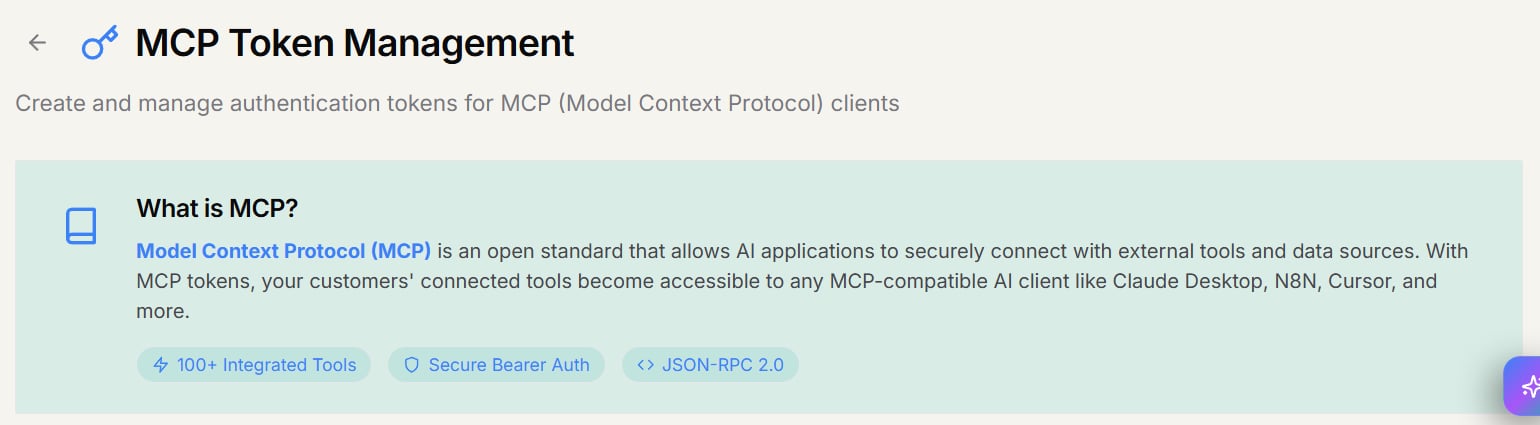
- Server URL:
https://mcp.knotie-ai.pro/api/mcp - Authentication: Bearer token (the MCP token you create)
- Cost: each tool call uses 0.1 Knotie credits (about 1,000 calls = 100 credits ≈ $1)
Create a token
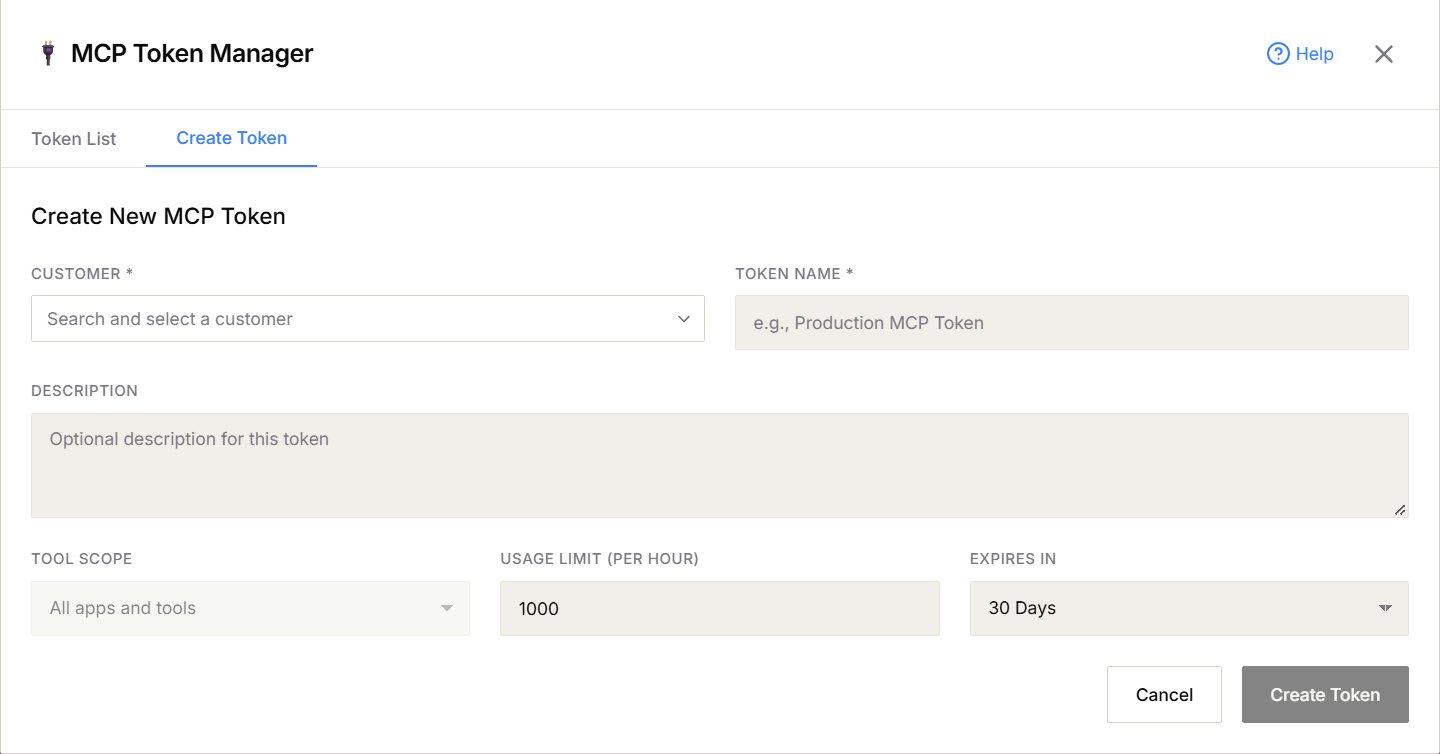
- On the MCP Tokens page, select Create New Token. The MCP Token Manager opens.
- Open the Create Token tab.
- Choose the Customer the token is for.
- Enter a Token Name (for example, “Claude Desktop – Sales”) and, if you like, a Description.
- Choose the Tool Scope (see below).
- Set the Usage Limit (per hour) and when the token Expires In (1 day to 1 year).
- Select Create Token.
- Copy the token straight away and store it somewhere safe, such as a password manager. It won’t be shown again.
Choose what a token can reach
Tool Scope becomes available once you’ve picked a customer. It has three options:
Specific apps is the easiest way to keep a token narrow. Each app shows how many tools it includes:
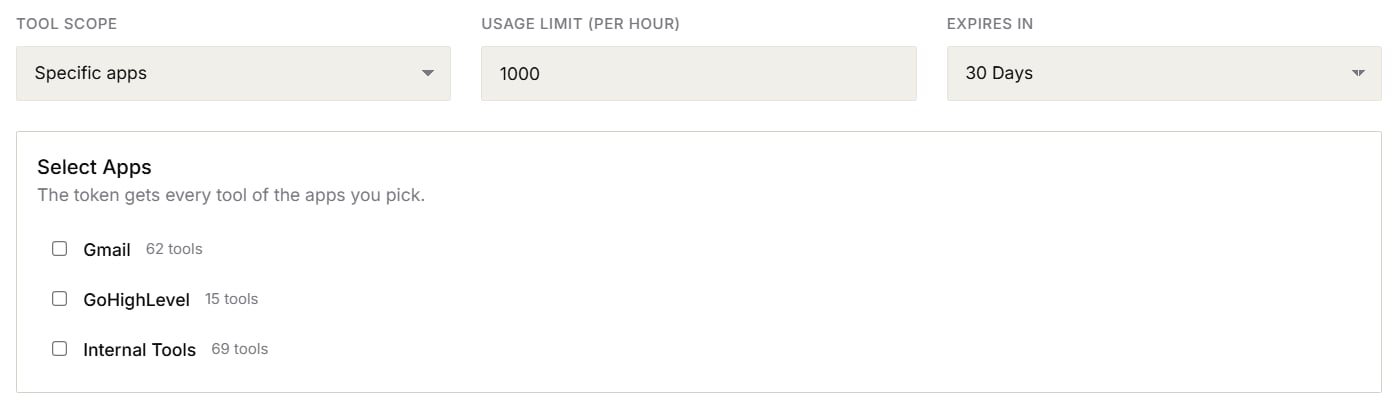
apps and mailbox options.
Connect an AI tool
In your AI tool’s MCP settings, add a server with:- The Server URL shown on the MCP Tokens page.
- An
Authorizationheader set toBearerfollowed by your token.
Tool modes (full vs meta)
By default, a token gives the AI tool the complete list of tools at once (full mode). If you create tokens through the API, you can choose meta mode instead, where the tool searches for what it needs as it goes. Rate limits and credit charges are the same either way. See MCP tool modes.Keep tokens safe
- Never share tokens. Treat them like passwords.
- Use one token per tool, so you can revoke one without affecting the others.
- Keep scope narrow. Only give a token the apps it needs.
- Set an expiry and replace tokens regularly.
- Revoke tokens you no longer use.
Revoke a token
- Go to AI Gateway → MCP Tokens and open the MCP Token Manager.
- On the Token List tab, find the token.
- Revoke or delete it, then confirm.
Troubleshooting
- Token not working: check you copied the whole token with no extra spaces, and that it hasn’t expired.
- A tool is refused: the token’s Tool Scope may not include that app or tool. Create a new token with the right scope.
- Tool Scope is greyed out: choose a Customer first.
Related pages
- API Keys – partner API keys for general automation
- MCP API reference – endpoint documentation
- MCP tool modes – full vs meta mode, and API options for limiting apps
- AI Assistant in the portal (WebMCP)