

What Support Keywords are for
When you contact the Knotie support team — by voice, Discord, or any other channel — the team needs to confirm they’re speaking with the real account owner before discussing sensitive account details. The Support Keyword system gives you a memorable phrase plus a 6-digit code that proves who you are, without sharing a password:- The keyword (something like
swift-tiger-42) is short enough to say out loud or type in a chat message. - The 6-digit code changes every 30 seconds and can only come from your own authenticator app (such as Google Authenticator, Authy, or 1Password).
Where to find it
- In the Partner Portal sidebar, click Get Support.
- In the modal that opens, switch to the Support Keyword tab.
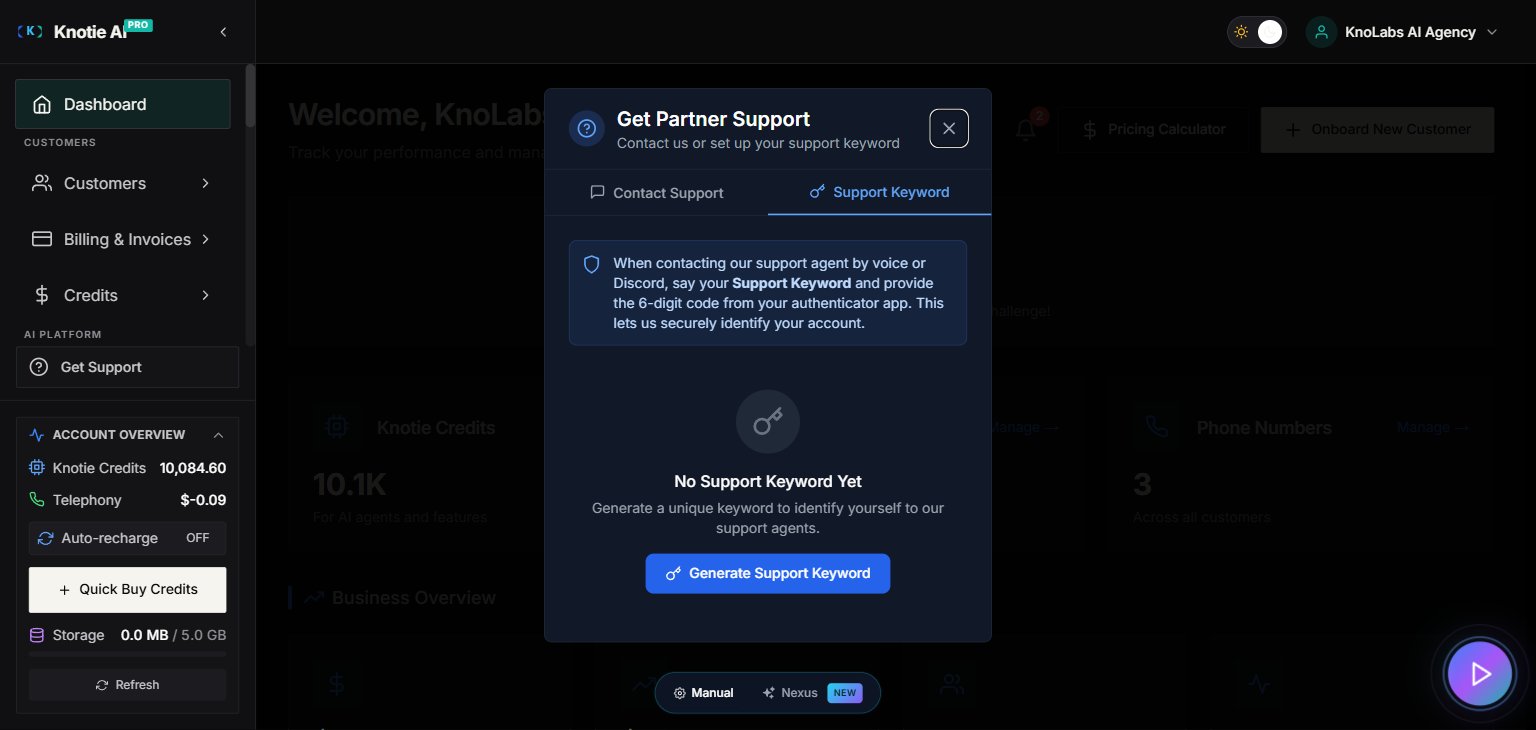
First-time setup
Step 1 — Generate your keyword
Click Generate in the Support Keyword tab. Knotie creates:- A unique, easy-to-read keyword (something like
swift-tiger-42). - A QR code you can scan right away to set up your authenticator app.
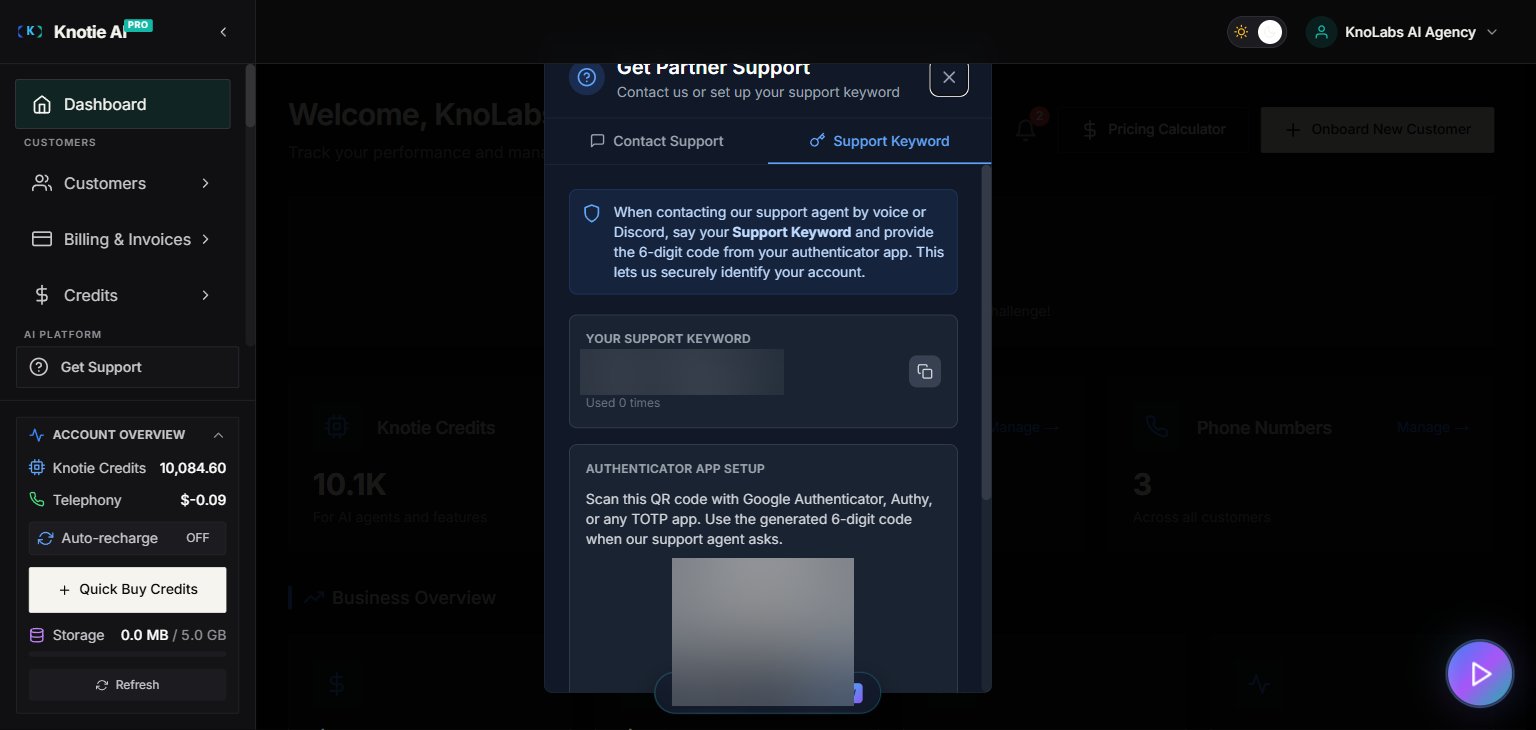
Step 2 — Set up your authenticator app
Scan the QR code with any authenticator app, such as:- Google Authenticator (Android / iOS)
- Authy (Android / iOS / Desktop)
- 1Password, Bitwarden, or Microsoft Authenticator
Step 3 — Save your keyword somewhere accessible
Your keyword is always visible in the Support Keyword tab when you return. You do not need to write it down unless you prefer to, but make sure you have your authenticator app available whenever you plan to contact support.Using your keyword with the support team
When you open a support request:- Give your keyword to the support agent (voice, chat, or form).
- The agent will ask for your 6-digit code from your authenticator app.
- The system checks the two together. When they match, your account and business name are confirmed — with no passwords exchanged.
Auto-rotate
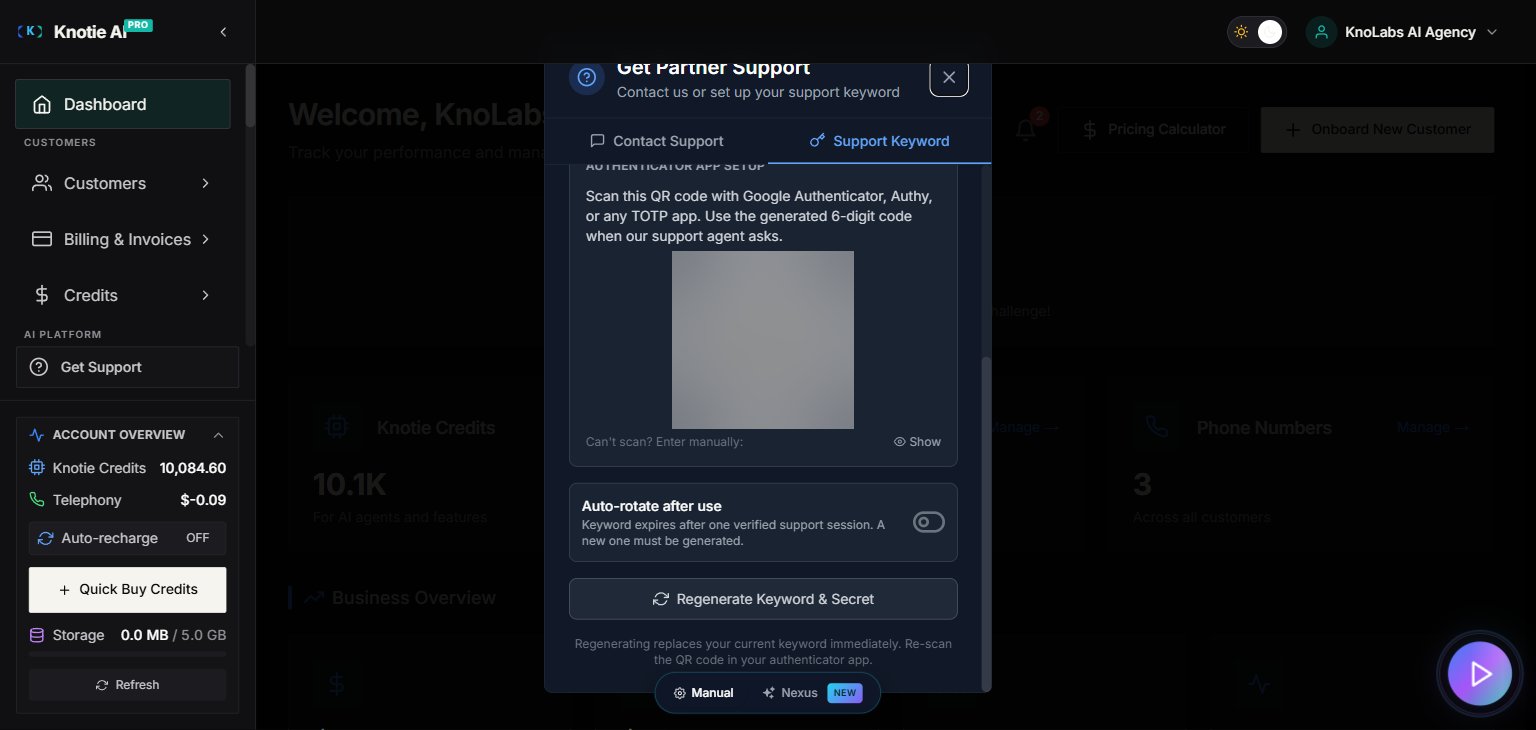
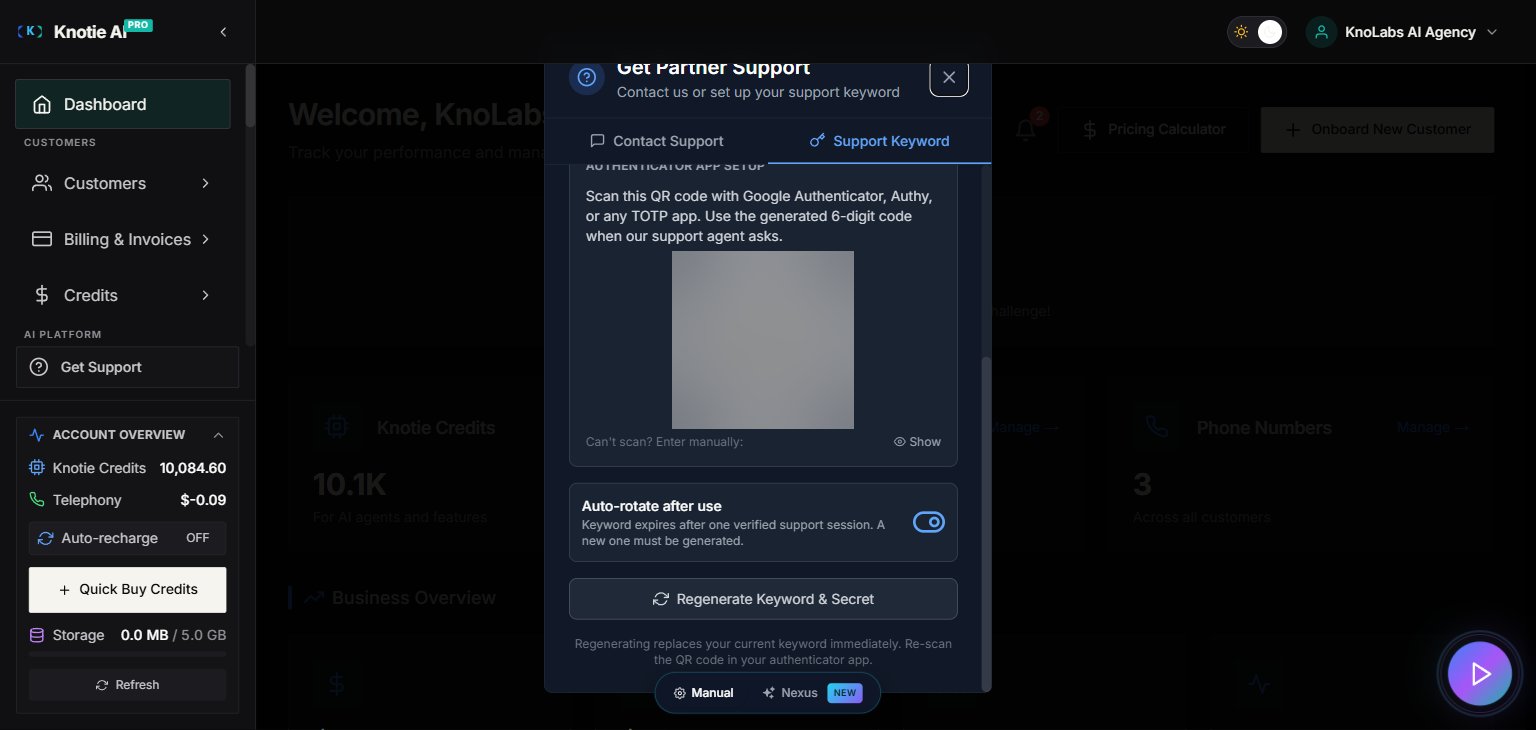
If you enable Auto-rotate, your keyword is automatically deactivated after the first successful verification. The next time you need support, return to the Support Keyword tab and click Generate again to get a fresh keyword and QR code. This is useful if:- You want maximum security and are happy to regenerate before each support session.
- You suspect your keyword may have been seen by someone else.
Regenerating or deactivating your keyword
- Regenerate — click Generate again at any time. A new keyword and TOTP secret replace the old ones. Your authenticator app’s old entry will stop working; scan the new QR code.
- Deactivate — click Deactivate to disable the current keyword without creating a new one. The support team will be unable to verify your identity until you generate a fresh keyword.
Troubleshooting
Verify by email link instead
If you reach Knotie support through a channel where reading a 6-digit code aloud is awkward — such as Discord, Slack, or a web chat — you can confirm your identity with a one-time email link instead of the keyword-and-code method.How it works
- During the conversation, the support agent starts a verification. Knotie sends a secure link to the email address on your account.
- The email also shows a short confirmation code, and the support agent reads you that same code at the same moment. Checking that the two codes match protects you from anyone trying to trick you into approving a request that isn’t really yours.
- Open the link in the email. A page opens showing the confirmation code and asks you to confirm.
- Click Confirm identity. Your support session is now verified, and the agent can see your account details to help you.
Which method should I use?
Security notes
- Your codes are protected with strong encryption — the setup key is never stored in plain text.
- Every keyword is unique — no two accounts ever share the same one.
- If you think your keyword or authenticator entry has been seen by someone else, regenerate it right away from the Support Keyword tab.