

What AI Credit Management is for
The AI Credit Management tab allows you to manage customer credits when using AI Credit-based pricing instead of traditional dollar pricing. Use this when:- Customer pays using credits instead of invoices
- You want to control usage limits
- You offer prepaid credit packages
Where to find it
- Go to Customers (sidebar — expands to Active Customers + Prospects).
- Select a customer.
- Click Manage.
- Go to the Credits tab.
Enable AI Credits for a customer
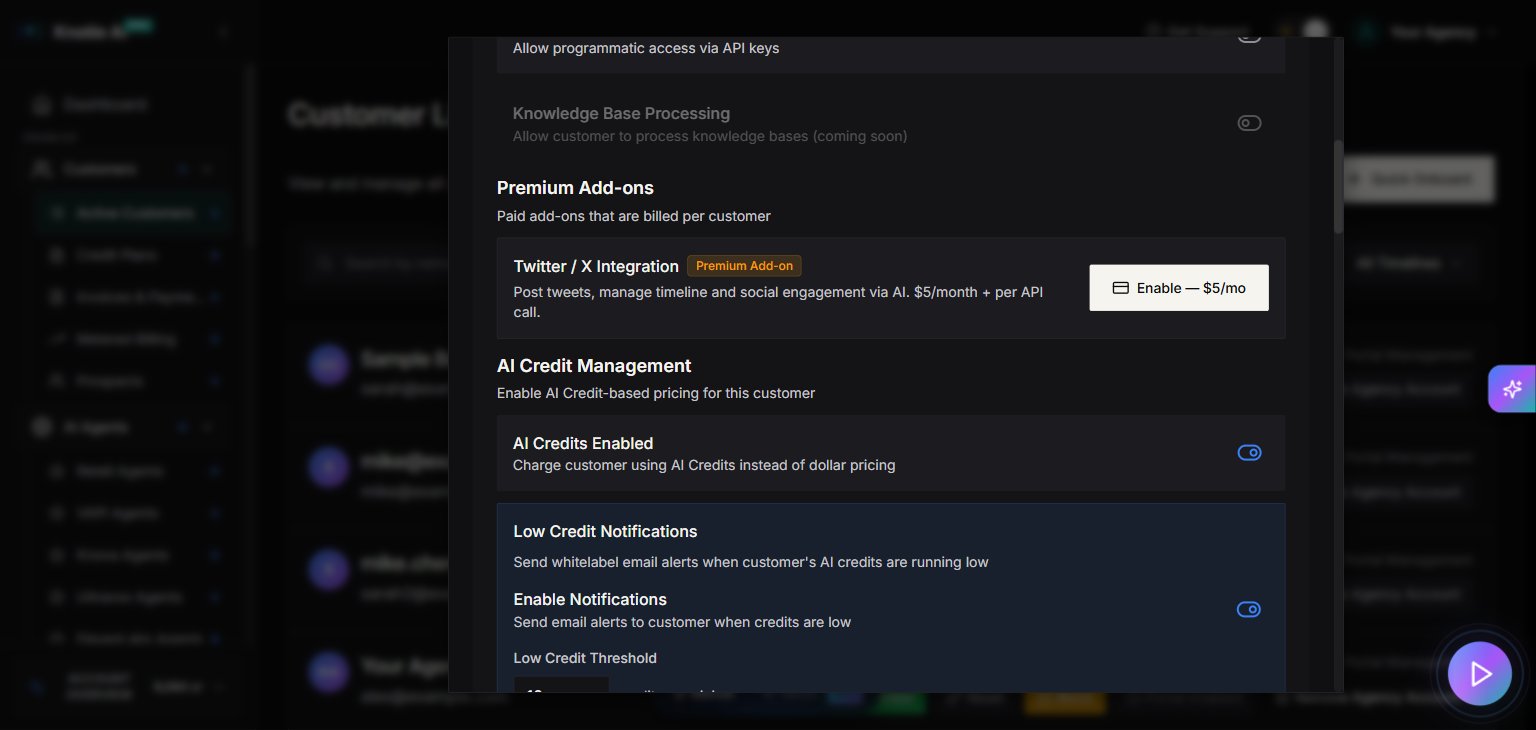
Before managing credits, you must enable AI Credits for the customer:- Open the customer’s Manage modal.
- Go to the Features & Add-ons tab.
- Find AI Credit Management section.
- Toggle AI Credits Enabled to ON.
- Configure credit settings:
- Enable Notifications – Toggle whitelabel email alerts on or off
- Low Credit Threshold – Send alerts when balance reaches this amount (in credits remaining)
Add credits to a customer
Manual credit addition
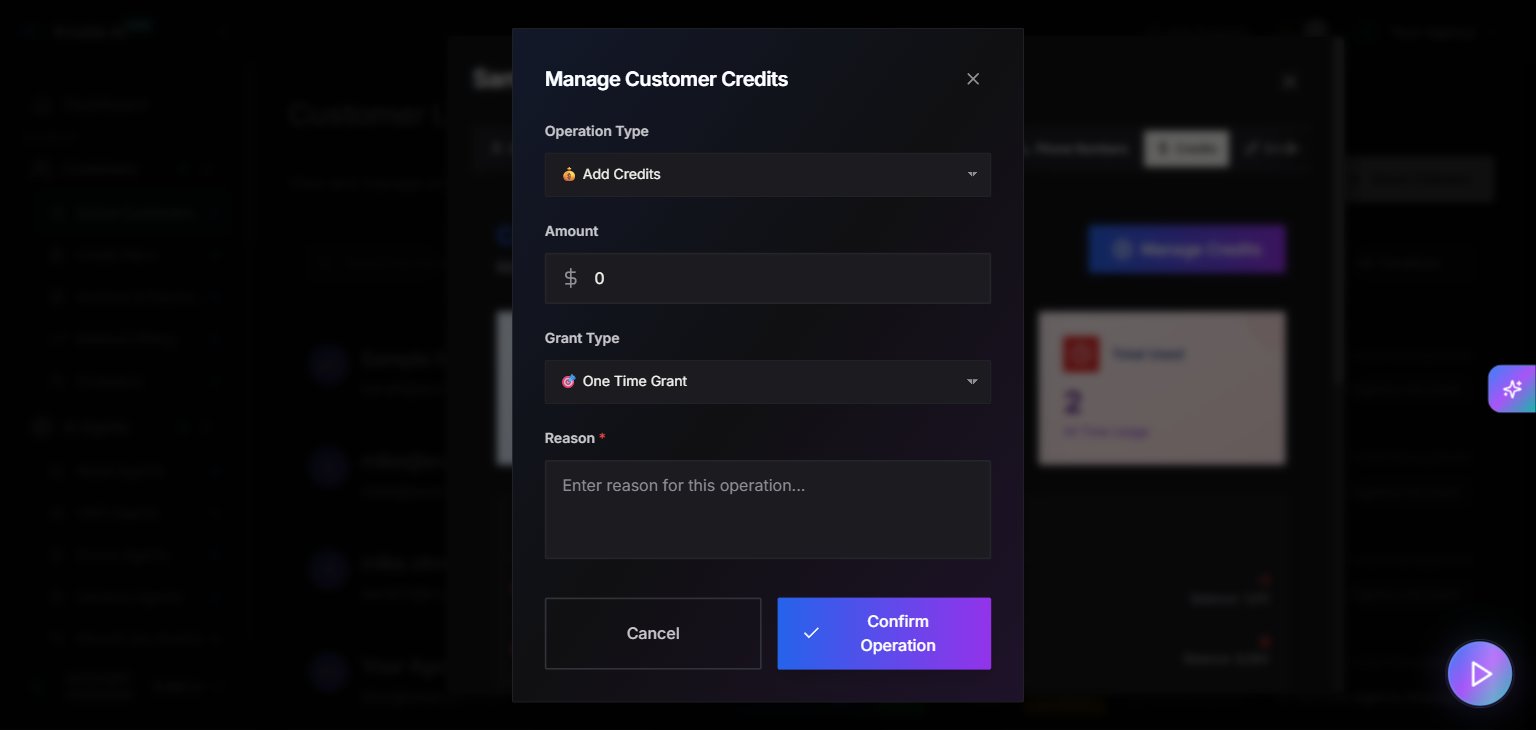
- Open the Credits tab in the customer’s Manage modal.
- Click Add Credits.
- Enter the amount of credits to add.
- Add a note (e.g., “Monthly package - 1000 credits”).
- Click Confirm.
Quick Buy credits
You can also add credits from the Billing tab:- Go to the Billing tab.
- Find the Quick Buy section.
- Select Knotie Credits.
- Choose the amount.
- Complete the purchase.
Deduct credits from a customer
You may need to deduct credits for:- Refunds
- Corrections
- Manual adjustments
How to deduct credits
- Open the Credits tab in the customer’s Manage modal.
- Click Deduct Credits.
- Enter the amount to deduct.
- Add a reason (e.g., “Refund for failed calls”).
- Click Confirm.
View credit history
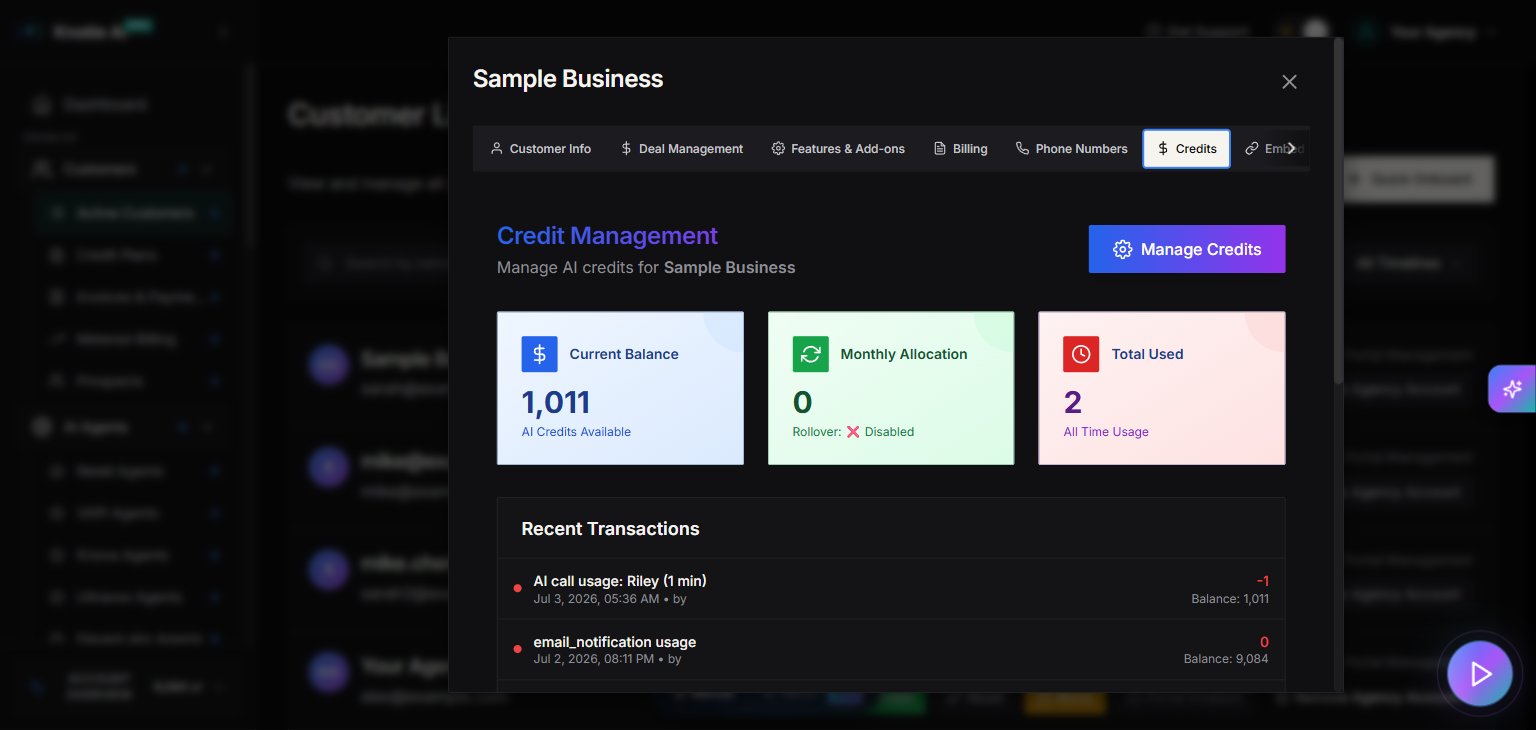
Track all credit transactions for a customer:- Open the Credits tab.
- View the transaction history table.
- See:
- Type – Added, Deducted, Used
- Amount – Credits involved
- Balance – Balance after transaction
- Note – Description of transaction
- Date – When it occurred
Check customer credit balance
View the current balance at the top of the Credits tab:- Current Balance – Total credits available
- Last Updated – When balance was last modified
Low credit alerts
When enabled, customers receive email notifications when their balance is low.Configure low credit alerts
- Go to Features & Add-ons tab.
- Find Low Credit Notifications section.
- Toggle Enable Low Credit Alerts to ON.
- Set the threshold (e.g., 100 credits).
- Save.
Credit pricing vs dollar pricing
When to use AI Credits
- Prepaid packages – Customers buy credits upfront
- Usage control – Limit how much a customer can use
- Flexible pricing – Different rates for different customers
When to use dollar pricing
- Traditional billing – Monthly invoices
- Enterprise customers – Who prefer invoices over credits
- Unlimited plans – No usage caps
Credit usage tracking
Credits are consumed based on:- Call minutes – Charged per minute according to credit price
- AI processing – LLM, STT, TTS costs converted to credits
- Tool calls – Each integration tool call consumes a small amount of credits
Best practices
- Set appropriate thresholds – Alert customers before they run out completely.
- Document transactions – Always add notes when adding or deducting credits.
- Monitor usage patterns – Use Agent Analytics to spot unusual consumption.
- Offer packages – Bundle credits into packages (e.g., 1000, 5000, 10000).
Troubleshooting
- Cannot add credits – Ensure AI Credits are enabled for the customer.
- Credits not deducted during usage – Verify AI Credits are enabled and your Profit Multiplier is set on the AI Gateway page.
- Low credit alerts not sent – Verify email domain is configured and alerts are enabled.
- Balance shows incorrect amount – Check credit history for unauthorized transactions.
Related pages
- Billing for a Customer – Quick Buy credits
- Features & Add-ons – Enable AI Credits
- Credits Management – Partner-level credit management