

What is the Knova AI Agent Builder?
The Knova AI Agent Builder is a conversational interface that lets partners and customers create a configured Knova voice or chat agent through natural language — no manual form-filling required. You describe the business, paste a website URL, or explain the use case, and the builder proposes an agent with a system prompt, voice, tools, and configuration already filled in. Use the builder when you want to:- Spin up an agent quickly from a business description
- Draft a system prompt from a live website (paste a URL)
- Configure multi-agent routing (triage + specialists)
- Iterate on a draft in plain English instead of editing fields
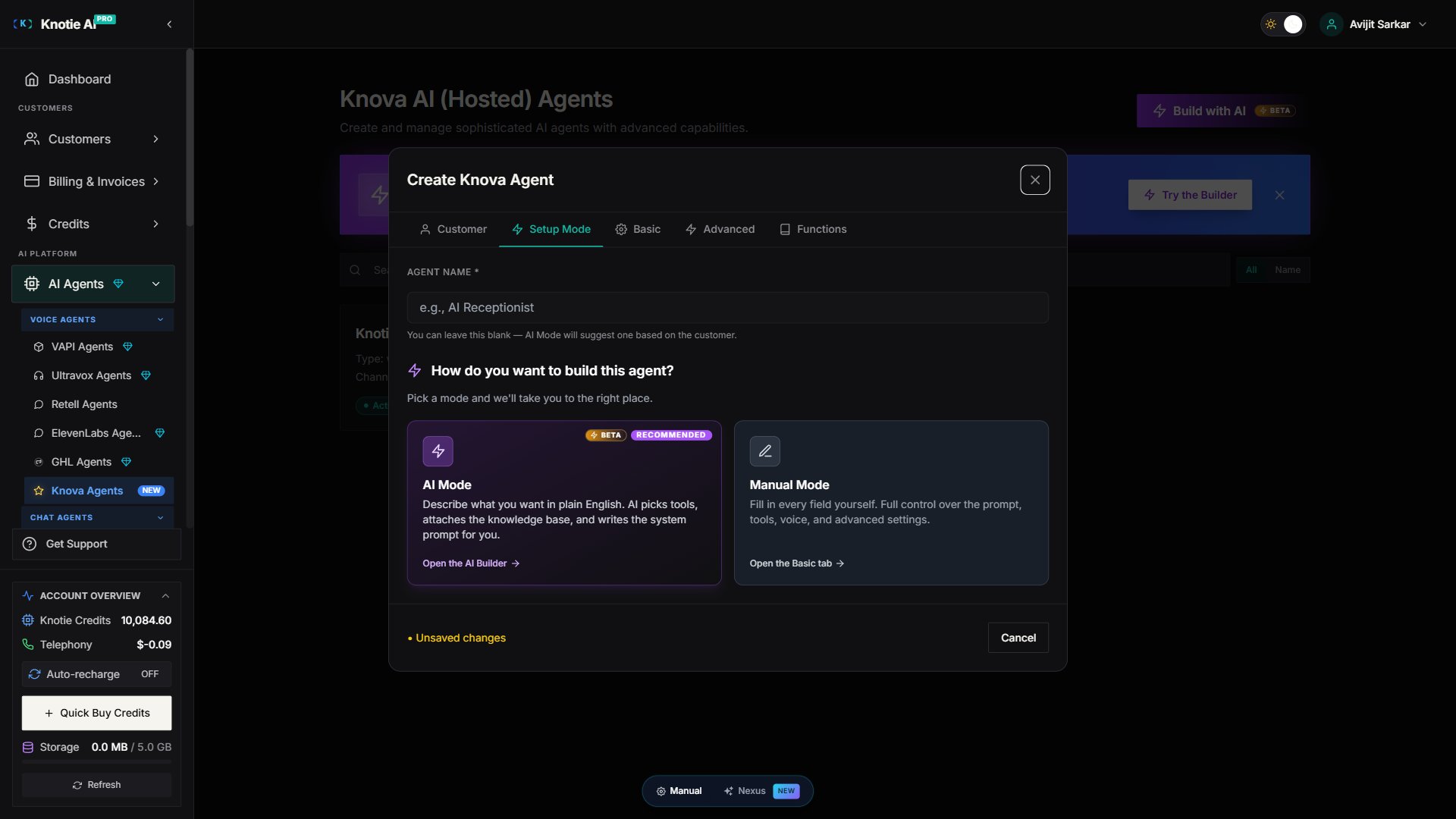
Opening the builder
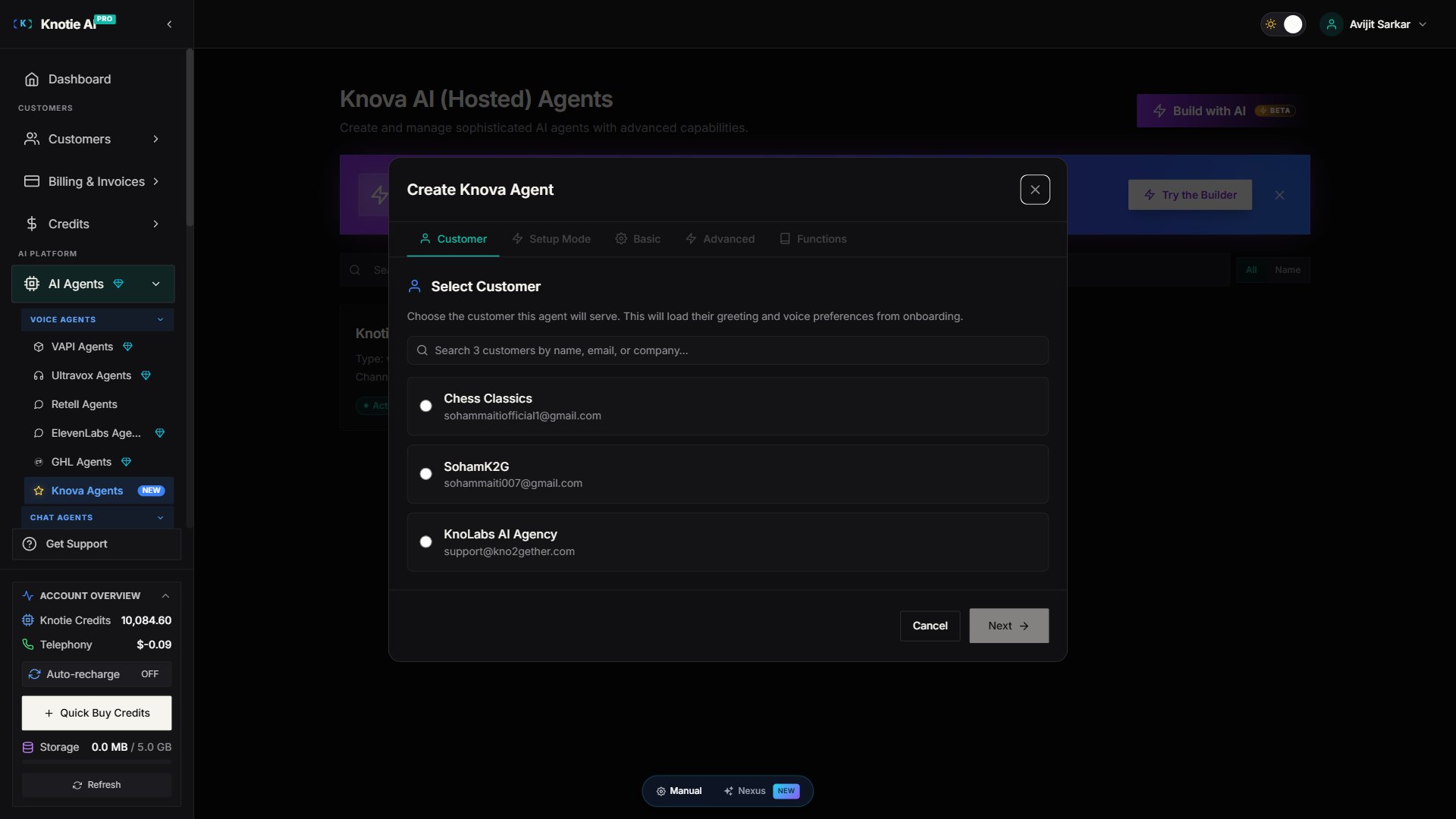
The Create Agent modal for Knova is a 5-tab sequential flow, not a single Basic form:- Customer — pick the customer this agent belongs to.
- Setup Mode — choose AI Builder (chat-driven) or Manual (fill fields yourself). If you pick Manual, the AI Builder tab is hidden for the rest of the flow.
- Basic — agent name, system prompt, greeting, voice (only reached after you choose a Setup Mode).
- Advanced — tools, knowledge base, advanced config.
- Functions — function calls / tool wiring.
- In the Partner Portal, navigate to AI Agents (or open a customer record and click Manage Agents).
- Click + Create Agent (top right).
- Walk through tabs 1–5 in order; each tab gates the next.
Building an agent
Basic flow
-
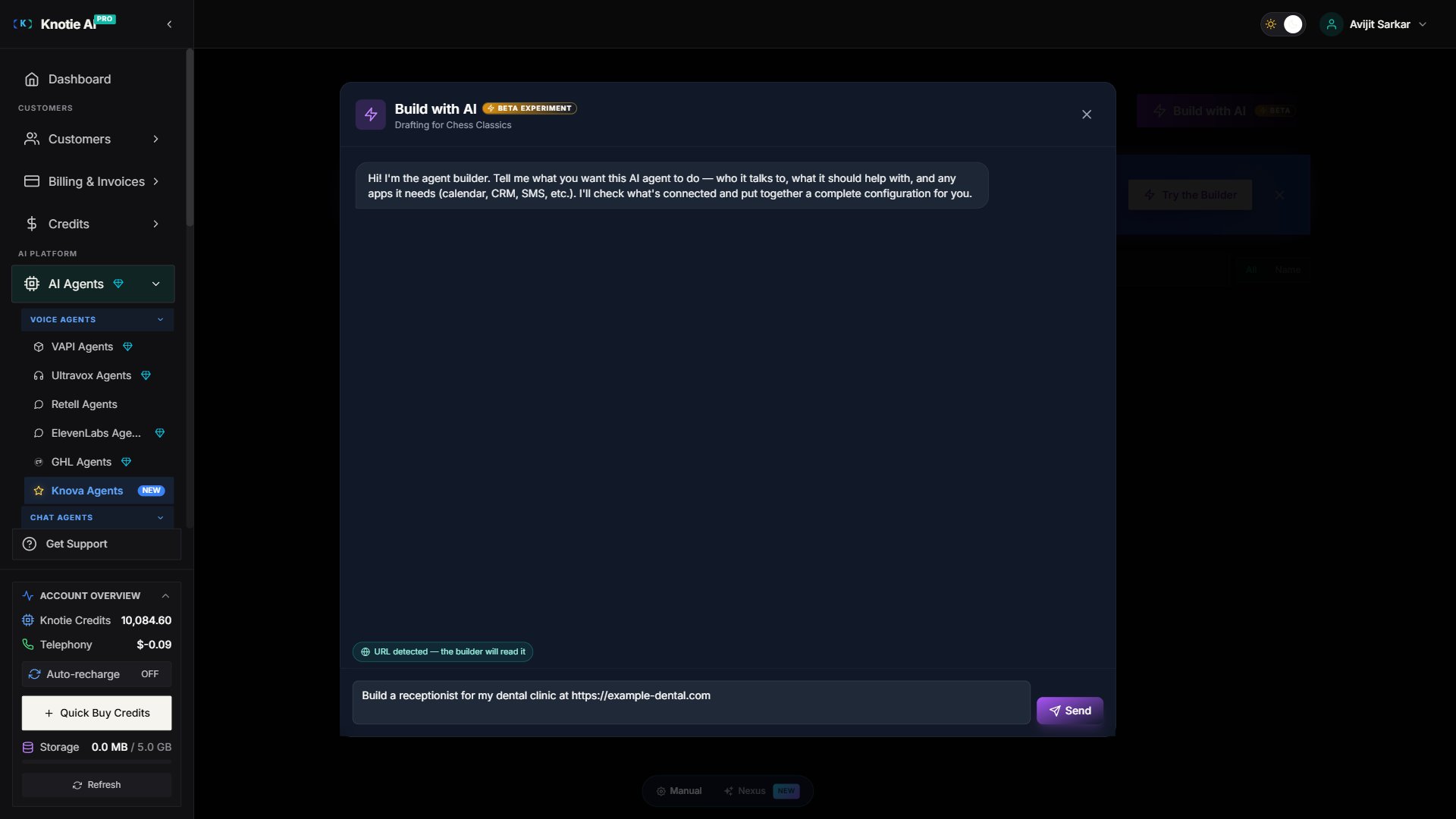
Describe the business or use case. For example:
An inbound receptionist that books cleanings on Calendly and texts confirmations.
-
Paste a URL if you have one. When the builder detects a URL in your message it will read the page automatically and use it to populate the agent.
Or paste your business URL and I’ll read it.
- Review the draft. The builder streams its reasoning, then presents a proposed agent configuration.
- Refine or accept. Ask for changes in plain English, or click Accept to save the agent.
What’s in the proposal
The builder produces a complete agent configuration with:- Agent name and type (inbound, outbound, web, or multi-agent)
- Communication channel (phone or web)
- Agent mode (essential, moderate, or premium)
- System prompt and greeting message
- Function calls (tool integrations)
- Multi-agent personas and routing (if applicable)
Autonomous web access — no toggle required
The builder can read web pages and run searches on its own, without any partner-facing toggle. (Earlier “Web search” / “Keep Web search on” toggles have been removed.)URL detection indicator
When the builder detects a URL in your input field, a teal badge appears above the text area:URL detected — the builder will read itThis is informational only — no action is required. The builder will fetch the page as part of its reasoning.
What happens when a fetch fails?
If a site blocks the crawler, returns a 4xx error, or times out, the builder:- Acknowledges the failure briefly in its response
- Asks you to paste the relevant text in plain English
- Continues building the best draft it can without blocking
Progress indicators
While the builder is working, phase labels appear above the chat to show what it is doing:Multi-agent configurations
The builder supports creating multi-agent setups where a routing agent hands off to specialised persona agents (e.g. sales, support, billing).Routing modes
Requirements for multi-agent proposals
- At least 2 personas defined
- A routing setup with a valid mode
- An entry persona that takes the first turn
- Every persona named in the routing must exist in the persona list
- All personas are loaded correctly into the builder
- The entry (routing) persona is preserved
- The builder can update individual personas or the routing logic
AI Analytics gate
Knova agents support AI Analytics (call metrics and insights). The Partner Portal reflects your account’s AI Analytics status:- Enabled: you can configure and save metrics for any Knova agent.
- Disabled: the Configure Metrics modal shows a warning banner and the Add / Save buttons are disabled, so you know the settings won’t take effect until AI Analytics is turned on at the partner level.
Saving behaviour
- While the agent is being saved (the save operation is in flight), closing the modal does not trigger an “unsaved changes” confirmation. The save will complete normally.
- If you attempt to close the modal before saving, a confirmation dialog asks whether you want to discard your changes.
- Once the save completes, the modal closes automatically.
Customer assignment after building
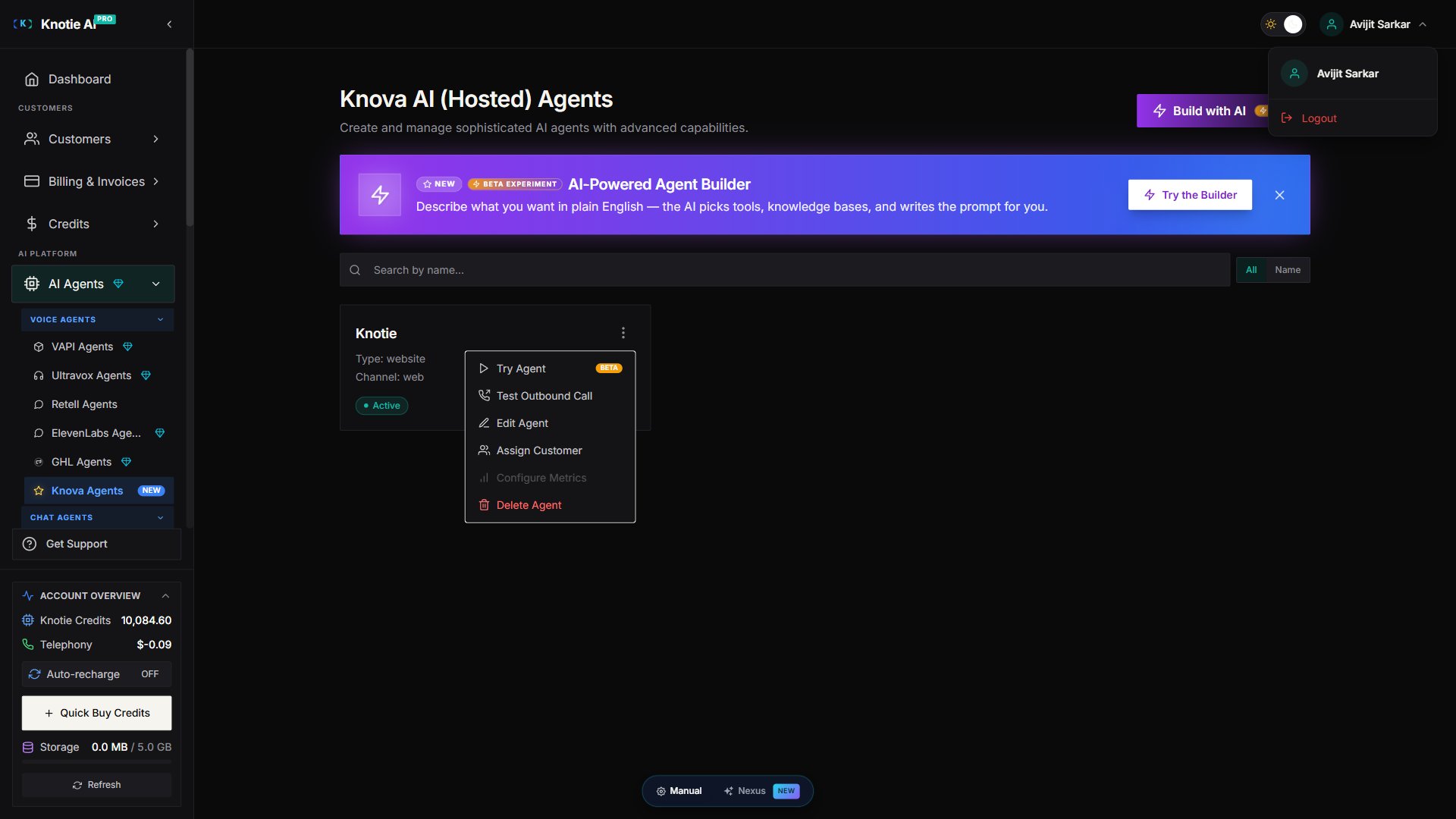
After the builder creates an agent, you map it to a customer from the agent’s three-dot menu using Assign Customer to Agent (not a step inside the agent modal itself). The kebab entry opens a modal with a Customer dropdown and a Profit Multiplier field — no phone-number selection happens here. Phone-number assignment is a separate step that happens later in the agent’s edit flow under the assigned customer (not in the Knova agent modal). When a phone number is assigned to a Knova agent, the phone numbers listing now correctly shows the associated customer — the number will no longer appear as “Unassigned” after the assignment is saved (thePhoneNumber.customerId is backfilled if it was previously unset).
Builder reliability
- Simple single-agent builds typically complete in under 30 seconds.
- Complex multi-agent builds may take 60–90 seconds.
- If the builder appears stuck for more than 2 minutes, close the modal and try again.
Proposal validation
Every proposal is checked before being presented:
If a proposal doesn’t meet a rule, the builder corrects itself on the next turn rather than showing you an error.
Per-call variable rule
If the builder adds a per-call variable, such asname, but never uses {{name}} in the prompt or greeting, it fixes the proposal before showing it to you. Otherwise the calling system could send a value the agent never uses.
If you edit the agent yourself, either use each variable in the prompt or remove the ones you don’t need. See Personalize individual calls.
Troubleshooting
Builder chat shows a spinner for a long time The builder is working through a multi-step turn. Wait up to 2 minutes before closing. Builder times out before finishing Complex multi-agent builds take longer. If you hit repeated timeouts, split the request into smaller steps — build one persona at a time for multi-agent setups. Input field has no cursor when the modal opens This has been fixed. The input now focuses automatically even when the builder is opened from inside another modal. If you still see this, make sure your browser is up to date. Fetch fails on every URL I paste Some sites block automated readers by design. Paste the relevant text from the page directly into the chat and the builder will use it. “No personas yet” when editing an existing multi-agent This has been fixed. Re-open the agent in the builder to reload the persona list. Applied proposal but form fields are empty Click Apply to form in the builder chat — the proposal does not populate the form automatically.Related pages
- AI Agent Builder Chat — Chat UX, session resume, rate limits, and the “Re-checked context” noise-reduction pill
- Manage Knova agents — Create, configure, and edit Knova agents
- Knova AI Receptionist agent — How the agent runs in production (routing, tools, credits)
- MCP Tokens — Manage agents programmatically via MCP