

What Platform Configuration is
The Platform Configuration card in Partner Settings gives you two controls in one place:- Dashboard Mode selector — picks the overall layout and feature set your customers’ portal uses.
- Default menu customizer — controls exactly which sidebar menu items new customers have toggled on when they are created.
Dashboard Modes
Knotie AI Pro supports five dashboard modes. Four can be selected today; JARVIS is coming later.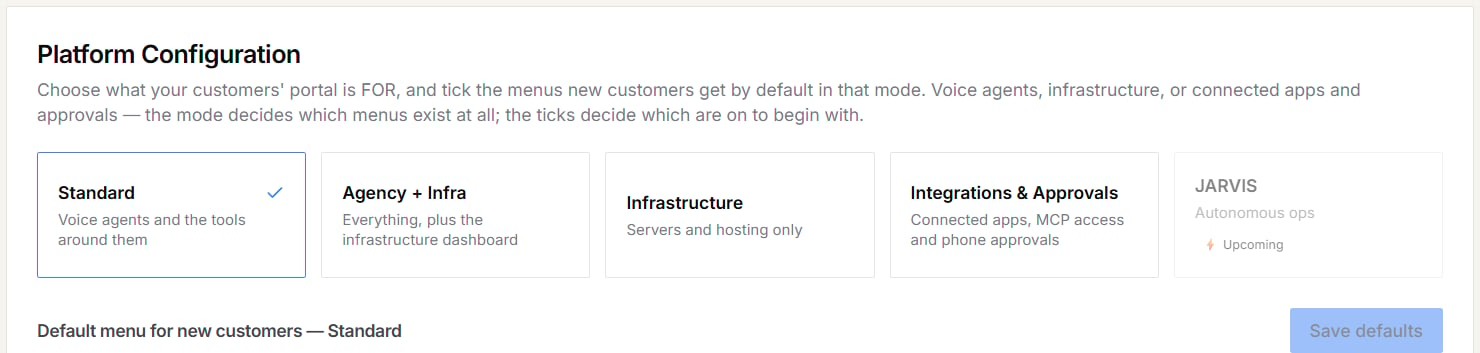
Only one mode is active at a time. JARVIS is shown but can’t be selected yet.
Integrations & Approvals mode
Choose this mode if your customers buy connected apps rather than voice agents. Their portal is built around:- Integration — connecting apps such as Gmail, Slack, and HubSpot
- MCP Access — connecting AI assistants and automations to those apps
- Approvals — approving risky agent actions from their phone. See Phone approvals for agent actions.
How to set a Dashboard Mode
- In the Partner Portal sidebar, open Settings.
- Scroll to Platform Configuration.
- Click the mode card you want — Standard, Agency + Infra, Infrastructure, or Integrations & Approvals.
- The selected card shows a check-mark (✓) and a blue border.
- The change is saved immediately when you click.
- The Default menu grid below updates automatically to show the features available for the new mode.
Customizing default menus
Below the mode cards is the Default menu for new customers grid. Each item is a sidebar menu entry (or capability flag) that will be toggled on or off for every new customer created under the active mode.Feature groups
The grid has three groups:Standard features
Integrations & Approvals features
These are available in every mode.
Infrastructure features
Partner-gated features
AI Gateway and AI Memory require a partner-level master switch to be on first. If the switch is off, the toggle shows a lock icon (🔒) and cannot be changed:- AI Gateway → enable AI Gateway in your partner account settings first.
- AI Memory → enable AI Memory / My Minds in your partner account settings first.
Feature dependencies
API Keys requires API Access to be on — enabling API Keys without API Access has no effect. The UI enforces this automatically: the API Keys toggle is grayed out until API Access is enabled.Saving your defaults
After toggling features, click Save defaults to persist the profile for the active mode. The button is disabled (grayed out) when there are no unsaved changes.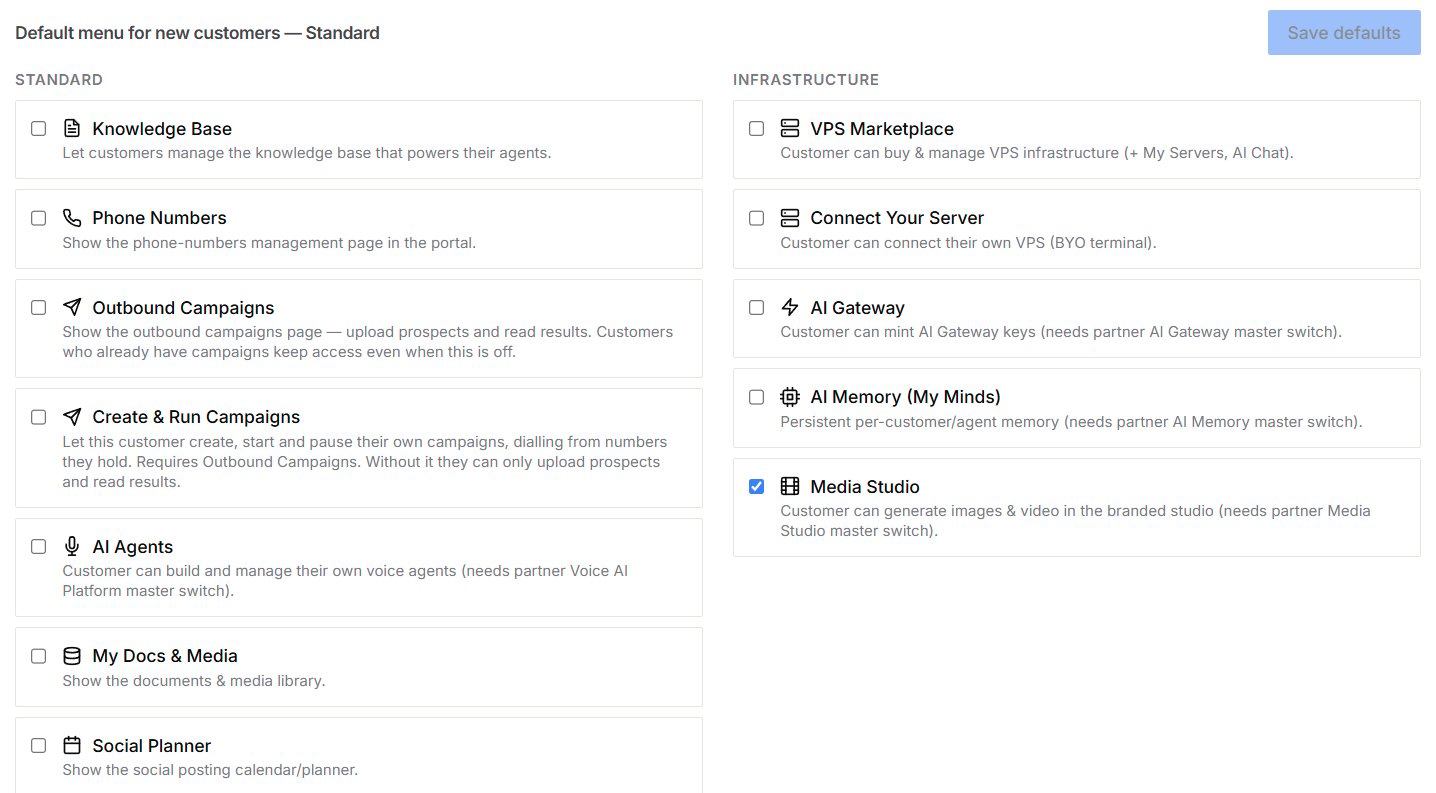
How new customers inherit these defaults
When you create a new customer — via Quick Onboard, the Add Customer modal, or the experience-booking signup flow — the platform resolves the customer’s starting feature set in this order:- Catalog baseline — each feature has a built-in default (most features default off; Pricing Information defaults on).
- → Your per-mode profile — your saved Platform Configuration settings for the active mode override the baseline.
- → Subscription plan overrides — the customer’s plan may enable or lock features.
- → Experience-level overrides — e.g., signing up via the AI Gateway experience enables AI Gateway regardless of the mode profile.
Frequently asked questions
Will changing the mode affect existing customers?
Will changing the mode affect existing customers?
No. Switching the active Dashboard Mode or saving a new default profile only affects new customers created after the save. Existing customers retain their individual feature settings.
Can I turn off a feature for all existing customers at once?
Can I turn off a feature for all existing customers at once?
Platform Configuration only sets defaults for new customers. To turn some features on for everyone, use Apply to Existing Customers under Customer Portal Defaults on the same Settings page — it covers AI Gateway, VPS Purchase, Integration, and MCP Access & Approvals. These bulk actions can’t be undone automatically. For anything else, change each customer in Features, Add-ons & Menu Visibility.
What happens if I have no saved profile for a mode?
What happens if I have no saved profile for a mode?
New customers fall back to the built-in defaults — most features off, with Pricing Information on. Any older AI Gateway or VPS settings on your account are still honored, so nothing breaks if you haven’t saved a profile yet.
JARVIS says 'Upcoming' — when will it be available?
JARVIS says 'Upcoming' — when will it be available?
JARVIS is a future autonomous-operations tier currently in design. There is no ETA yet. The card is shown so you can see where it fits in the mode lineup.