

What this page covers
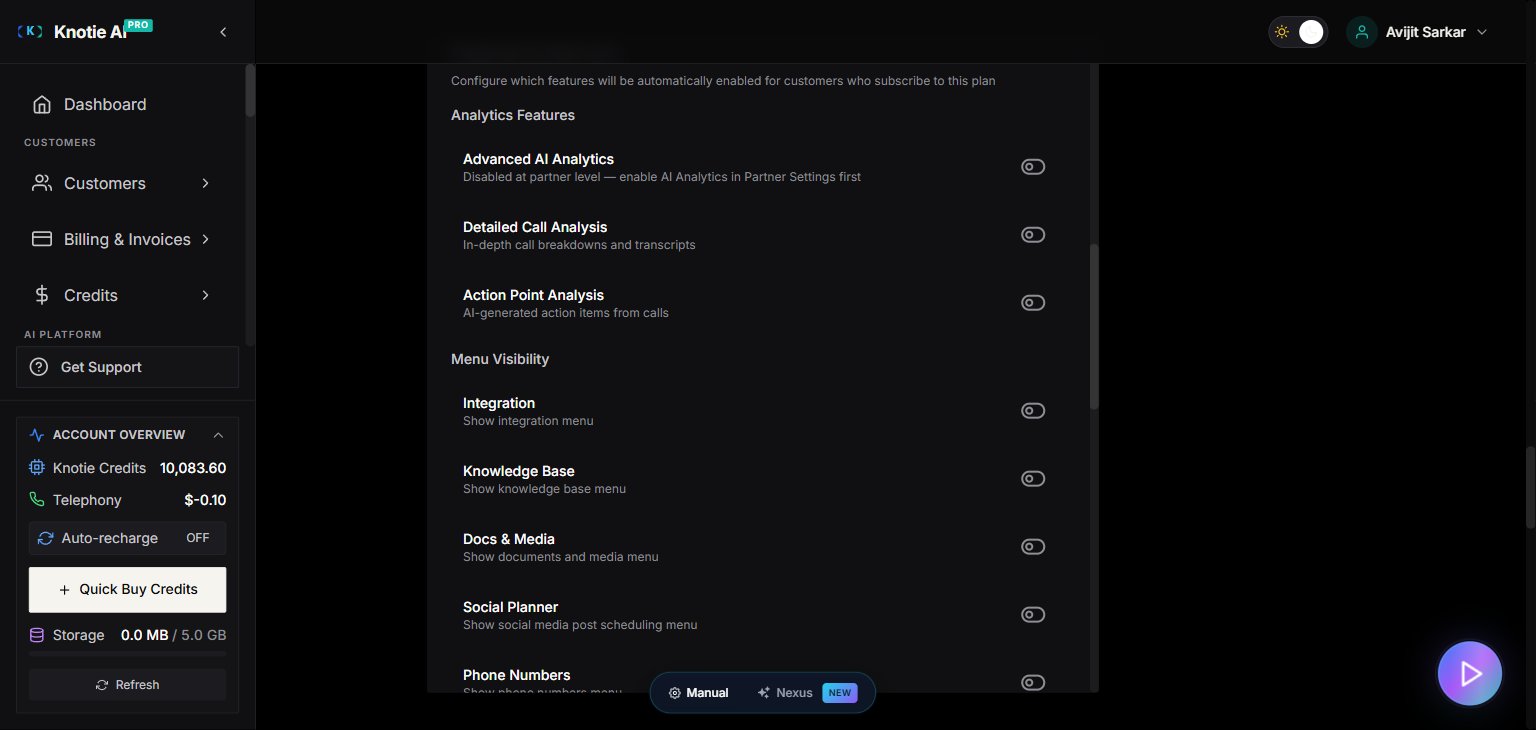
When you create or edit a Subscription Plan, the plan modal includes a Features & Add-ons section. This is where you configure which platform capabilities a customer automatically receives when they subscribe to that plan, so every new subscriber on a tier gets the right capabilities from day one — without you having to toggle them per customer after sign-up. This page is the reference for that section. For the plan’s basic fields (name, price, billing interval, landing-page visibility) and how to reach the modal, see Subscription plans.Where to find it
- Open Settings in the Partner Portal sidebar.
- Click White-Label Portal.
- In the Section Nav Rail, click Subscription Plans.
- Click Create Plan (or Edit on an existing plan).
- Scroll down to the Features & Add-ons section, below Features (Display Text).
How it works
When a customer subscribes to a plan (or you assign them one), Knotie applies the plan’s feature settings to that customer’s account. Updating a plan does not change existing customers — it only affects new subscribers from that point on. You can always change individual features later for a single customer via the per-customer Features & Add-ons screen — see Features & Add-ons per customer. Every toggle starts off when you click Create Plan. When you edit an existing plan, its currently-saved values load into the modal — nothing is reset.Available toggles
The section is grouped by category. Each row is a single on/off toggle unless noted.Analytics Features
Menu Visibility
Turning on Docs & Media (or Knowledge Base) reveals a Default storage (MB) field — “Applied to new subscribers; overridable per customer.”
Knowledge Base Processing (revealed by Knowledge Base)
Enabling Knowledge Base expands a Knowledge Base Processing sub-group:AI & Automation
API Access
Team Management
Turning on Team Members reveals a Max team members field — “Seat cap applied to new subscribers; overridable per customer.” Leave it blank for no cap.
Servers & Infrastructure
AI Credits
When AI Credits Enabled is on, additional fields appear:
Tips
The Advanced AI Analytics, AI Gateway, and AI Memory (Mind) toggles only take effect if you’ve enabled those features at the partner level first. A gated toggle shows a “Disabled at partner level…” note until then.
Related pages
- Subscription plans — basic plan fields, pricing, and landing-page visibility
- Features & Add-ons per customer — override plan features for individual customers
- Customer credit plans — pay-as-you-go credit packs (separate from subscription plans)
- AI Memory — enable AI Memory at the partner level before using it in plans