

Check your email logo
The company logo under Settings → White-Label Portal → Portal Branding is also used in supported customer emails. If an older logo cannot be included reliably, the branding section shows a warning. Emails use your business name as text until you upload the logo again, so the rest of the message remains available.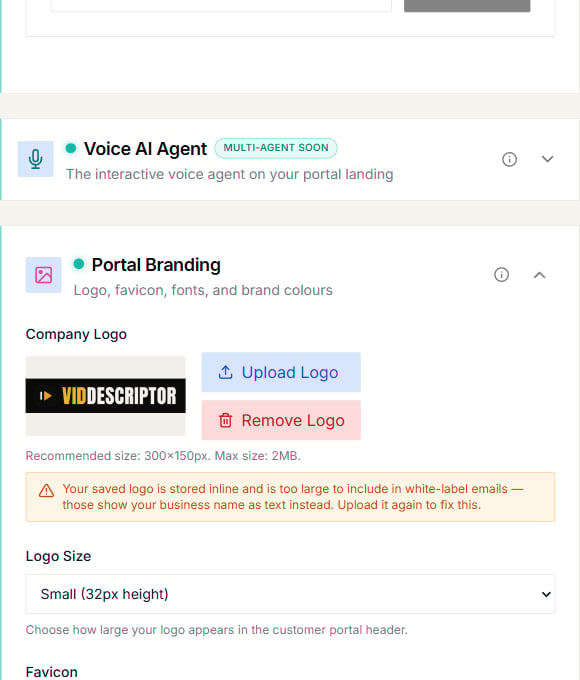
Upload the logo again
- Open Settings → White-Label Portal.
- Expand Portal Branding.
- Under Company Logo, select Upload Logo.
- Choose the logo file again.
- Save the settings.
Check the result
Send a new customer email that normally uses your branding, then check it in the recipient’s inbox. Previously delivered emails do not change. Some email apps hide downloaded images until the recipient allows them. If the business name appears but the image does not, use the email app’s option to display images before changing your portal settings again.Troubleshooting
- The warning remains: refresh the branding page, then upload a freshly exported copy of the logo and save again.
- The portal shows the new logo but an email does not: make sure you are checking an email sent after the new upload.
- The email shows the business name instead: return to Portal Branding and confirm the warning is no longer present.