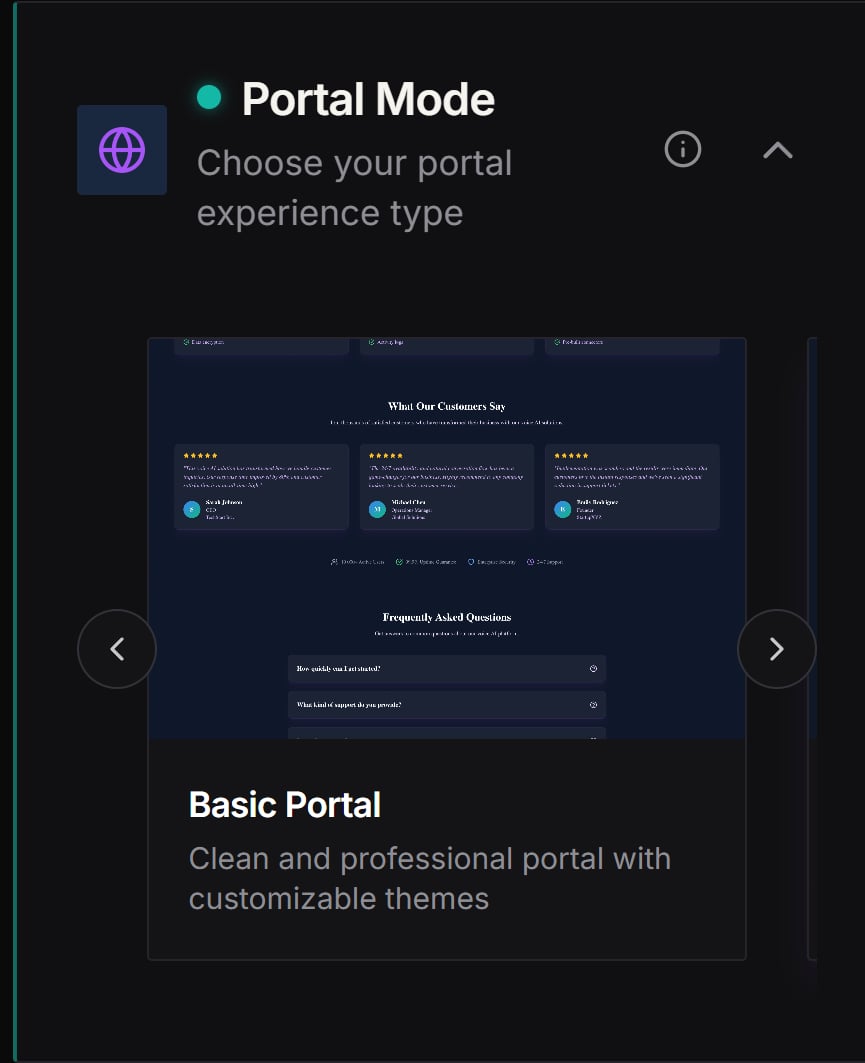
What portal modes are
Portal modes control the overall layout and “style” of your Customer Portal experience. In the Partner Portal you can choose from these modes:- Basic Portal: a clean, professional portal with customizable themes.
- Professional Portal: an advanced layout with enhanced features (marked as upcoming in the UI).
- SaaS Portal: an enterprise funnel-style portal experience designed for conversion.
Plan access (what you can select)
- Free Forever
- Basic Portal
- SaaS Portal
- Starter / Pro / Lifetime
- Basic Portal
- Professional Portal (premium / upcoming)
- Enterprise
- Basic Portal
- Professional Portal
- SaaS Portal
Free Forever partners can choose SaaS Portal mode. Experiences offered inside the portal may have separate availability or subscription requirements; check each experience before publishing it.
How to change portal mode
- In the Partner Portal, open Settings.
- Go to White-Label Portal.
- Scroll to the Portal Mode selector in the left navigation panel.
- Click the mode you want:
- You’ll see labels like Premium, Upcoming, or Locked depending on availability.
- Click Save.
When to use each mode
- Basic Portal
- Best for most partners.
- Fast to configure.
- Great for a simple branded login + portal experience.
- Professional Portal (Coming Soon)
- Offers a premium layout and enhanced presentation.
- Plan your workflow around this feature, but note that it is still in development.
- SaaS Portal
- Best for teams that want a full funnel-like portal experience.
- Designed for partners selling access as a SaaS-style offering.
Screenshots