

What the Developer Console is
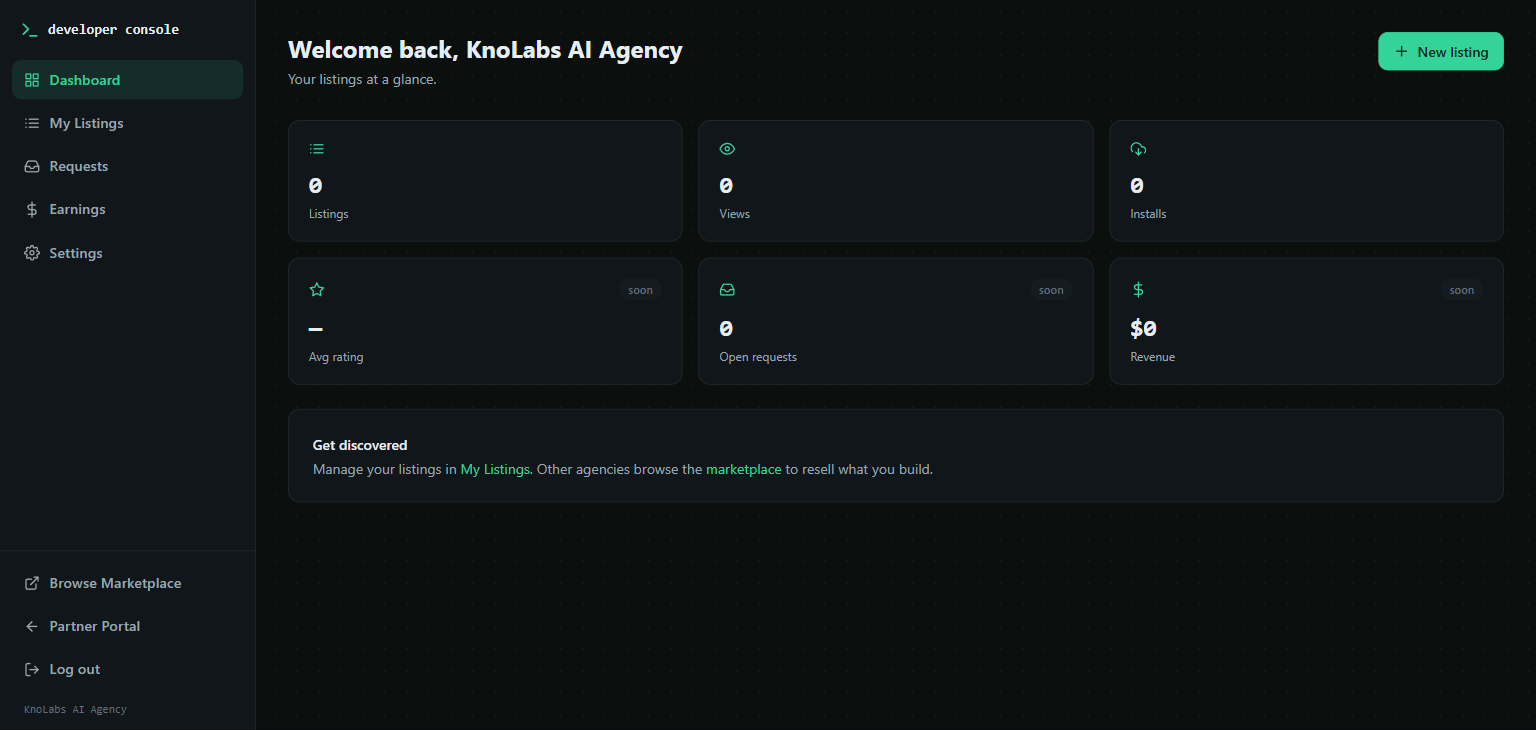
The Developer Console is a standalone portal for partners who want to build and sell AI solutions to other Knotie AI Pro partners. It is separate from the main Partner Portal — it has its own navigation, terminal-style theme, and role: you are the developer/seller here, not the agency owner. Access the Developer Console at/developer (or via the Partner Portal → Developer Console in the sidebar).
Prerequisites
Before you can list anything, you must:- Connect Stripe — Go to Partner Settings → Stripe Connect and connect your Stripe account. This is required to receive payments for priced listings.
- Accept the Developer Agreement — The first time you open the Developer Console, a full-screen agreement gate presents the platform terms (including the shared-responsibility model and the requirement that all payments run through the Knotie platform). You must accept to proceed. If the terms are updated, you’ll be prompted to re-accept.
The Developer Agreement only appears if you haven’t accepted the current terms. Once you accept, it won’t show again unless the terms are later updated.
Creating a listing
- In the Developer Console sidebar, go to Listings → New Listing.
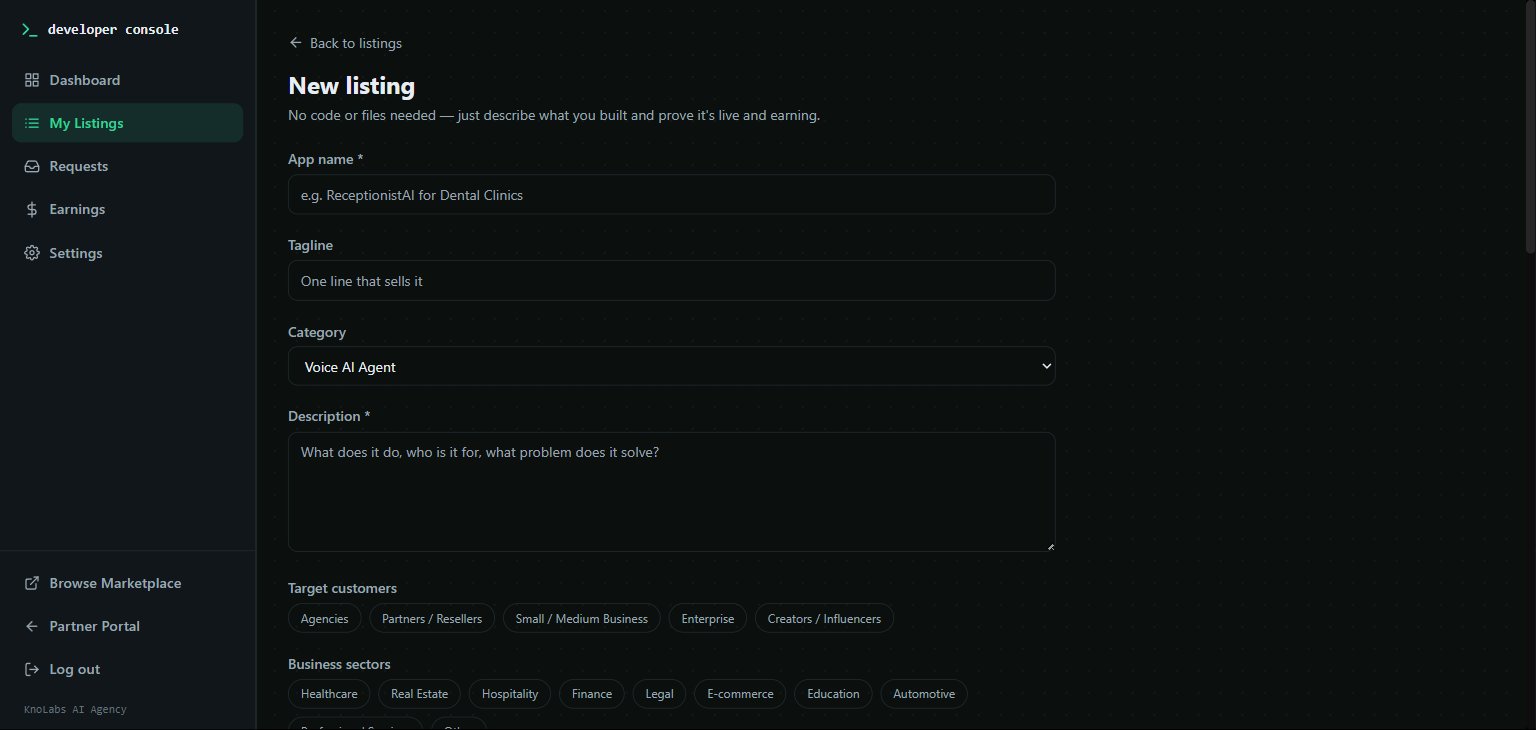
- Fill in the listing details:
- Name — Public-facing title of your solution
- Description — Markdown-supported description of what it does and why partners should use it
- Category — Helps buyers find your listing
- Save as draft before setting a price (required).
Setting a price
After saving a draft, the Pricing section unlocks (only if your Stripe account has charges enabled):
If your Stripe account does not have charges enabled, the pricing controls are hidden and the listing will be free until you complete Stripe setup.
Adding media
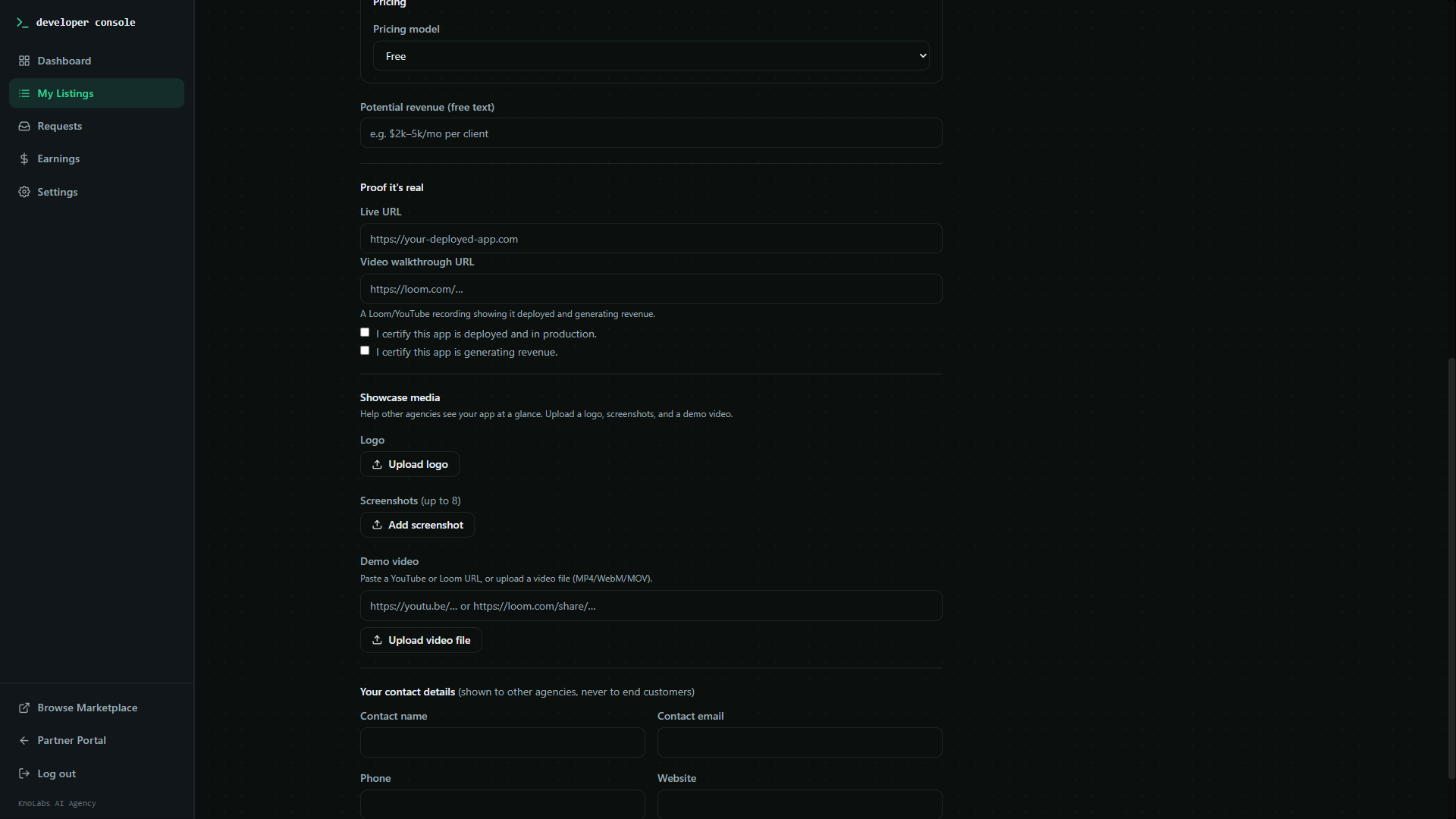
Make your listing stand out with rich media:- Product images — Add several images to showcase your solution
- Logo — A square logo that appears on listing cards in the marketplace
- Video — Paste a YouTube or Loom URL, or upload a short video clip directly
Publishing a listing
Once your listing is complete, click Publish. Published listings appear in the public marketplace immediately. You can unpublish at any time to take a listing offline.Managing your listings
In Listings, your dashboard shows:- Total active listings
- Total revenue earned
- Average rating
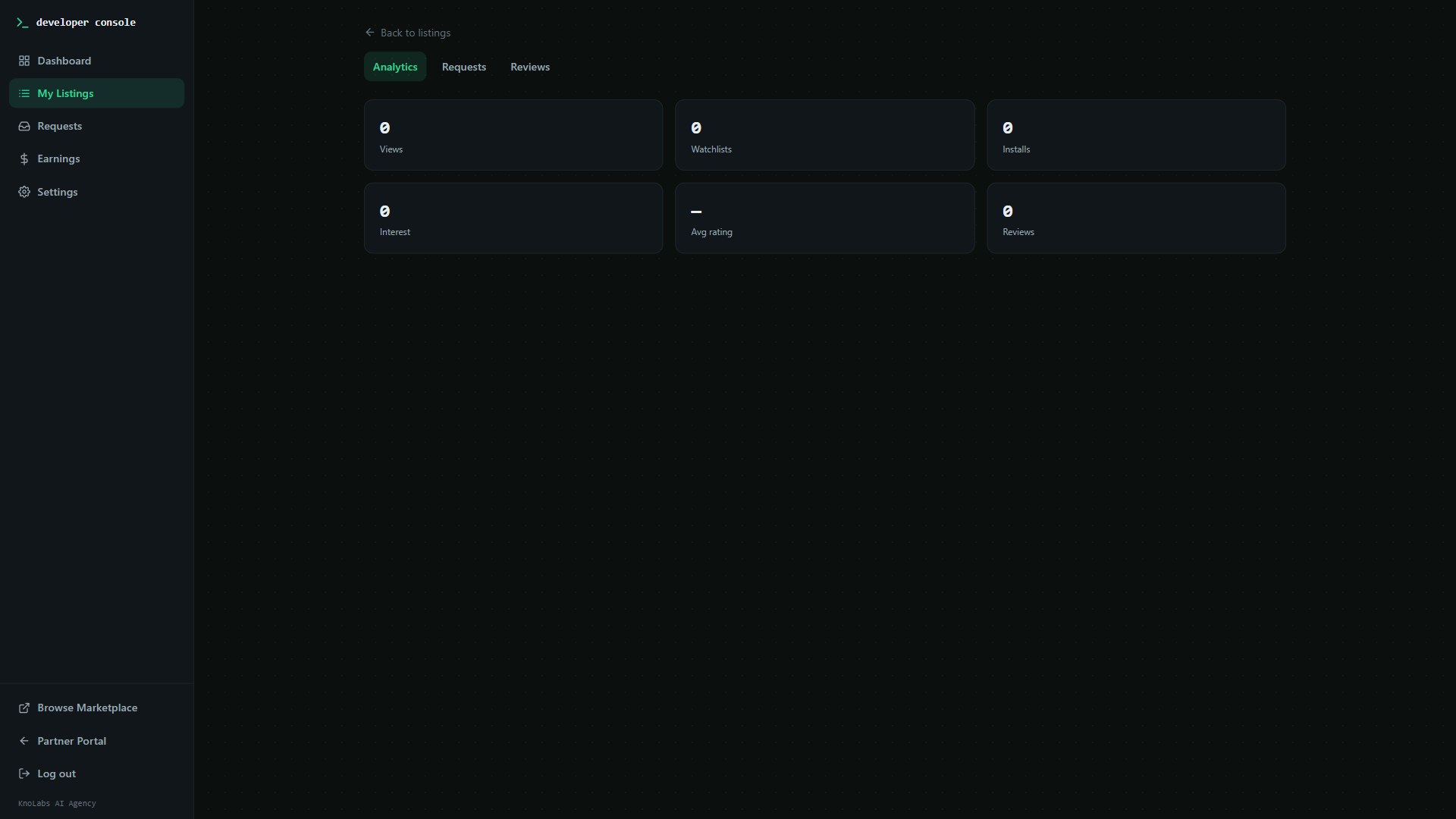
- Per-listing analytics (views, purchases, conversion)
Handling buyer requests
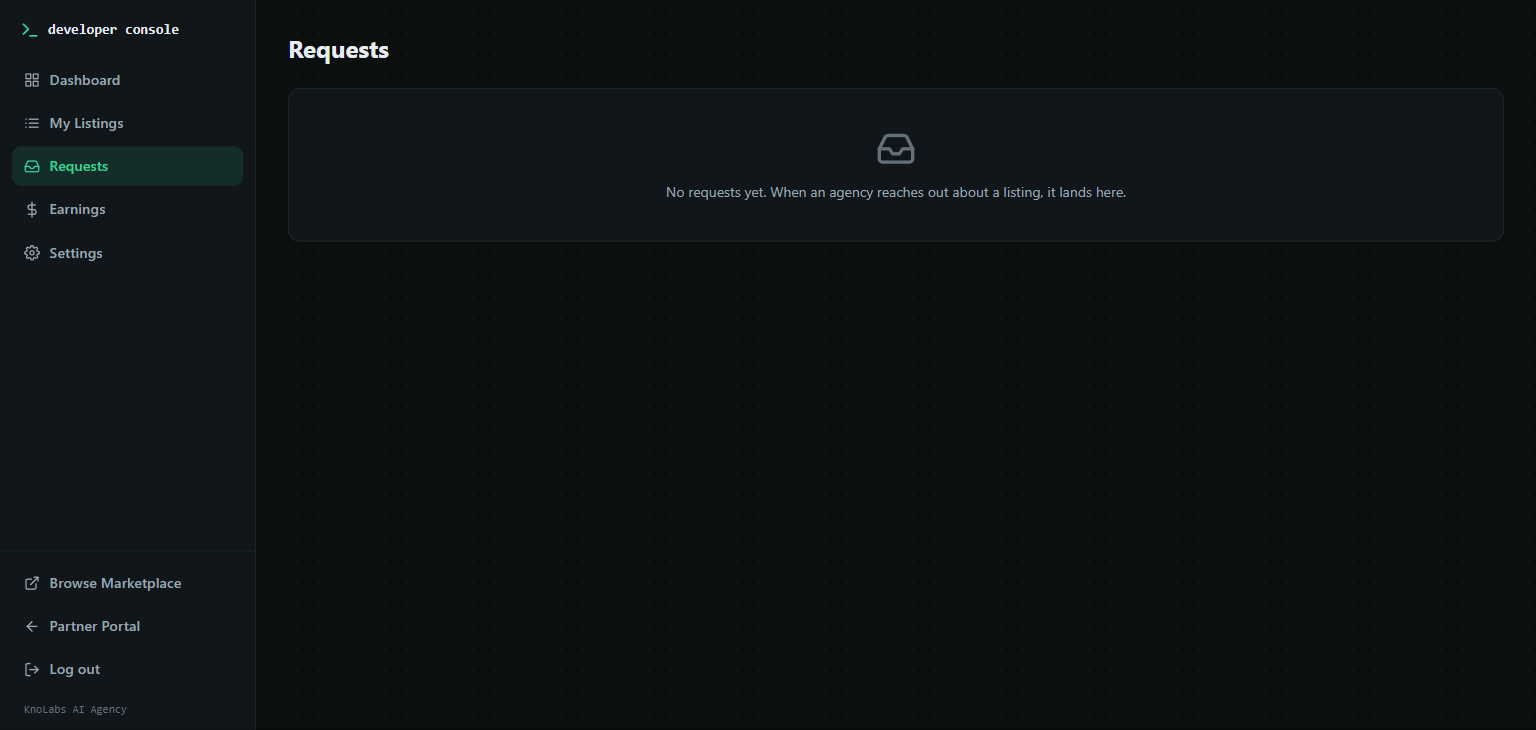
When a buyer submits a request or question about your listing, it appears in:- The Requests tab of that listing
- The Requests Inbox in the Developer Console sidebar (shows all pending requests across all listings)
Earnings
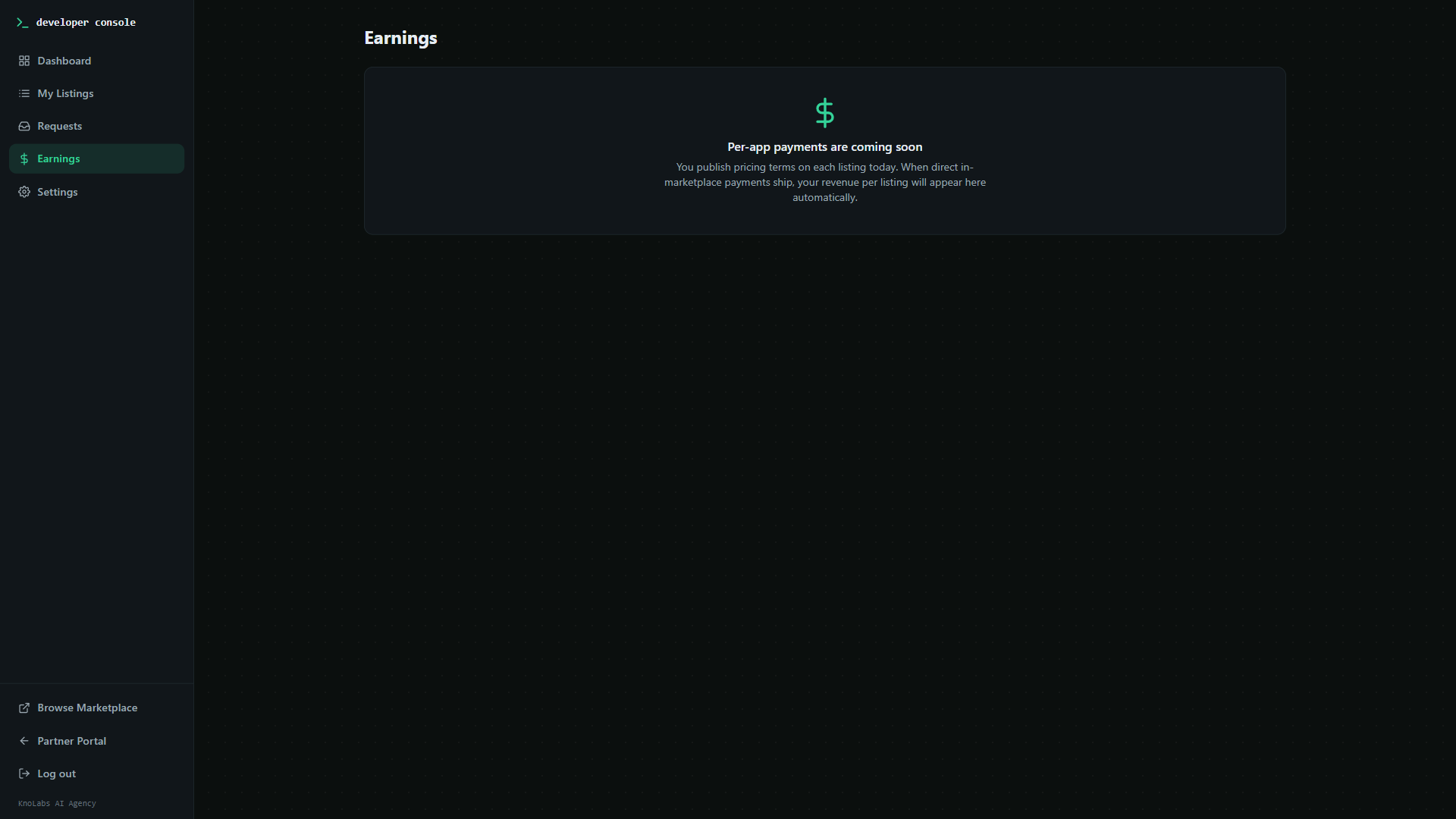
Go to Earnings in the Developer Console sidebar to see:- Total lifetime revenue
- Revenue per listing
- Recent transactions
Developer Console settings
In Settings (inside the Developer Console), you can:- Update your developer display name and bio
- Review the accepted Terms of Service version
- Re-accept terms if prompted after an update
Privacy and buyer data
The Developer Console is designed to protect end-customer privacy:- No developer-facing screen exposes the identity of end-customers.
- Buyer interactions (reviews, requests, purchases) are partner-to-partner — you see the buying partner, not their customers.
- The customer-facing view of any listing shows only public details (no cost breakdown, no developer account details).
Troubleshooting
Pricing controls are greyed out.Your Stripe account does not have charges enabled. Complete Stripe onboarding at Partner Settings → Stripe Connect. I can’t access the Developer Console.
Make sure you have accepted the Developer Agreement. If the page redirects you back to the agreement gate, read and accept the terms to proceed. I updated terms but the agreement gate keeps reappearing.
The platform bumped the terms version. You must re-accept the new version before continuing. My listing isn’t appearing in the marketplace.
Check that the listing status is Published (not Draft or Unpublished) in the Listings panel.
Related pages
- App Marketplace (buying) — Browse and purchase listings as a buyer
- Stripe Connect — Required for accepting marketplace payments
- New Solutions — How buyers use purchased listings in their portals