

What this page covers
This page documents the customer-facing whitelabel portal after a customer has portal access. It focuses on three things:- Which sidebar items are always visible
- Which items are controlled by Features & Add-ons
- How Billing & Payments, AI Credits, Payment Methods, and AI Gateway appear for the customer
Core sidebar items
These items are always shown in the client portal:- Dashboard
- Detailed Usage
- Conversations
Management section
These items only appear if the partner enables them for the customer:- Knowledge Base
- Phone Numbers
- Integration
- My Docs & Media
- My Docs & Media is currently marked Coming Soon in the client portal.
- Integration only appears if the partner enables it in the customer’s Features & Add-ons settings.
- The customer only sees the integration apps the partner allowed for that account.
Settings & Security section
The client portal always includes:- Settings
- Billing & Payments
- API Keys
- AI Gateway
- Team members without settings permissions may not see the full Settings & Security section.
When Billing & Payments appears
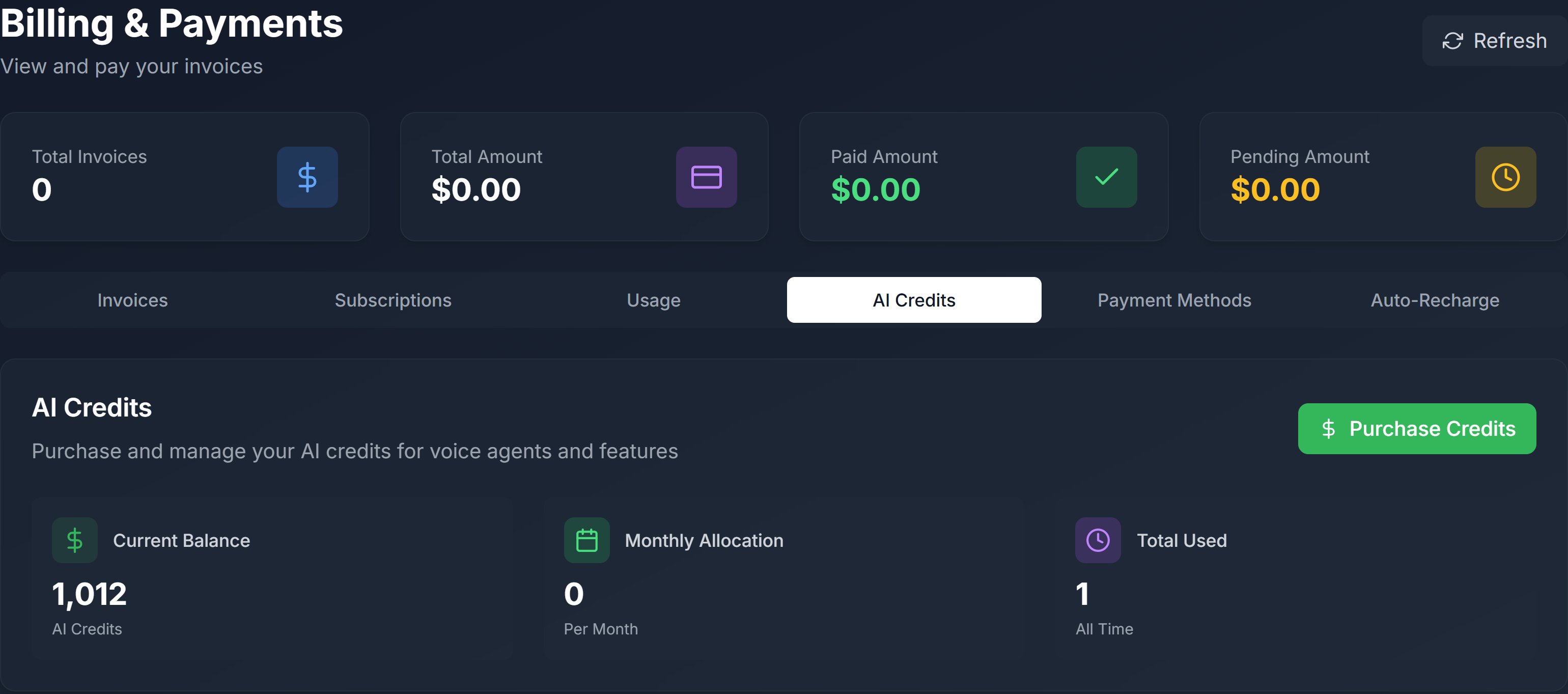
Billing & Payments is not a manual menu toggle in Features & Add-ons. It appears once the customer has active portal credentials / portal access. Inside Billing & Payments, the customer can access these tabs:- Invoices
- Subscriptions
- Usage
- AI Credits
- Payment Methods
What customers can do in Billing & Payments
Invoices
Customers can:- View invoice history
- Open hosted invoice pages
- Pay eligible invoices
- See payment status updates
Subscriptions
Customers can:- Review active subscriptions
- See billing periods or next billing dates
- Cancel eligible subscriptions
Usage
The Usage tab shows customer-side usage reporting.AI Credits
The AI Credits tab lets customers:- View Current Balance
- View Monthly Allocation
- View Total Used
- Review recent credit transactions
- Click Purchase Credits
Payment Methods
The Payment Methods tab lets customers:- Add a payment method
- Set a default payment method
- Delete saved payment methods
When API Keys appears
The API Keys menu appears only when both of these are enabled for the customer:- API Access
- API Keys menu visibility
When AI Gateway appears
The AI Gateway menu appears only when all of these conditions are true:- The partner enabled Customer Self-Service API Keys in the partner AI Gateway page
- The customer has AI Credits Enabled
- The customer has AI Gateway enabled in Features & Add-ons
AI Gateway depends on AI Credits
If the customer does not have AI Credits enabled:- The AI Gateway menu should not appear
- The partner-side AI Gateway visibility toggle remains disabled
Pricing visibility interaction
When AI Credits Enabled is turned on for a customer:- Show Pricing Information is turned off
- The pricing-information toggle stays disabled while AI Credits remain enabled
What customers see on the AI Gateway page
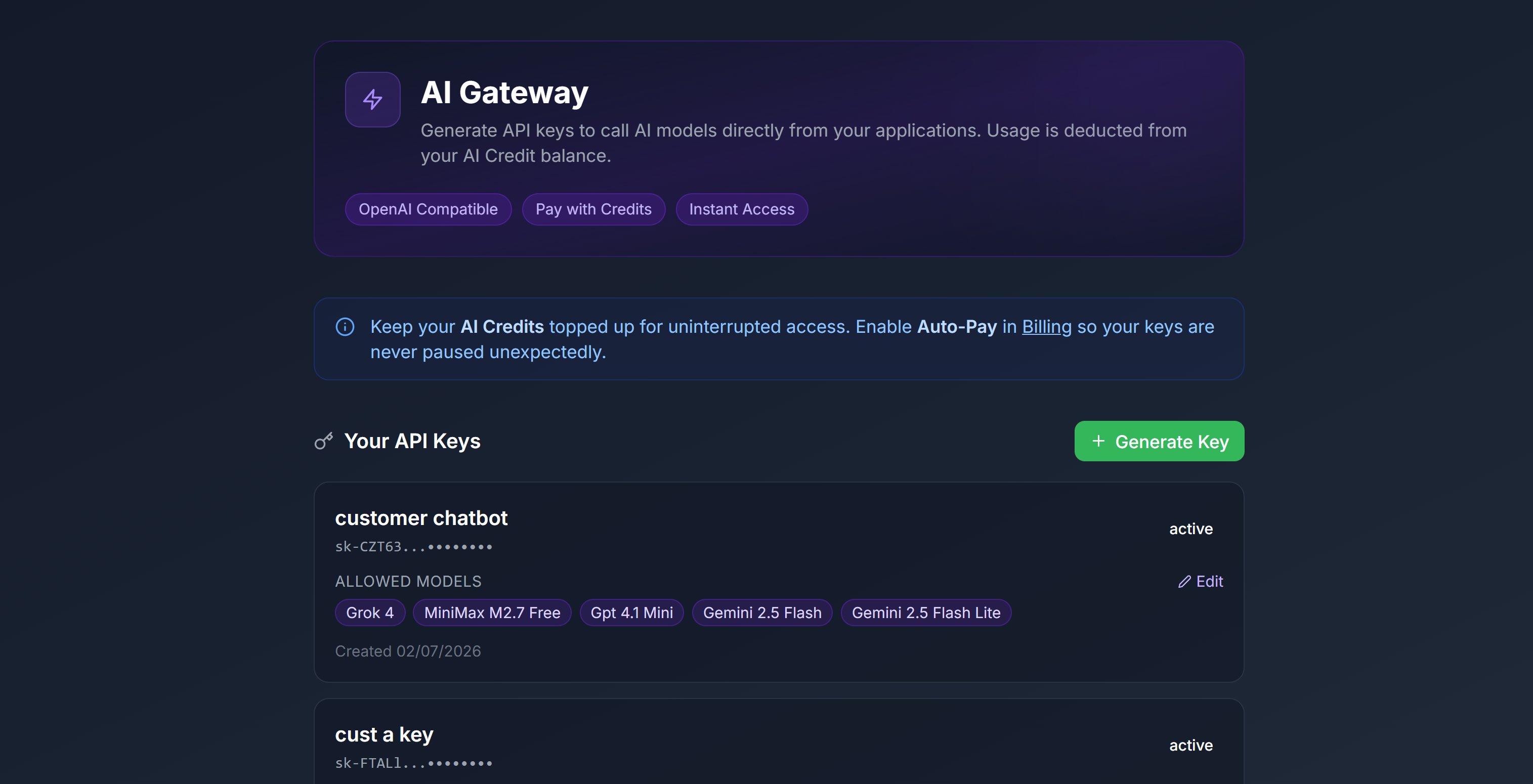
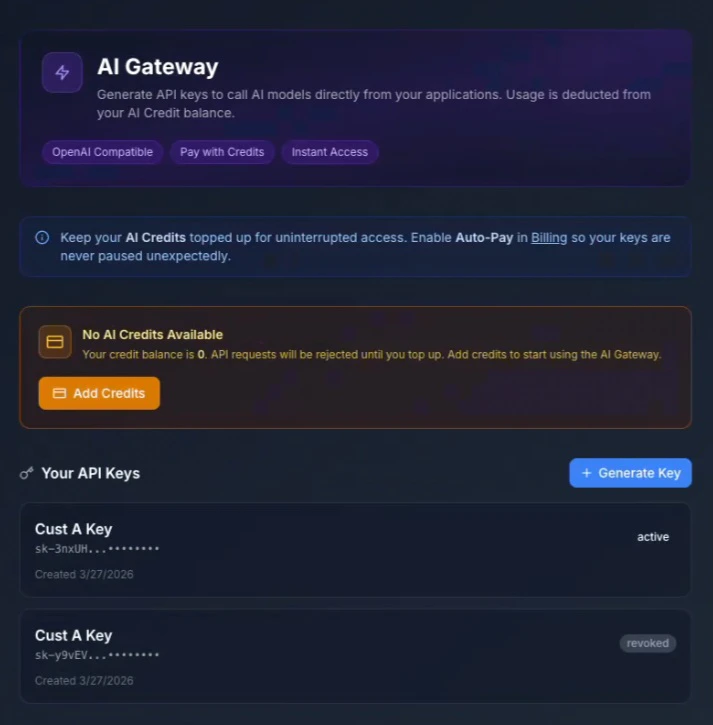
The customer-side AI Gateway page includes:- A hero card with OpenAI Compatible, Pay with Credits, and Instant Access
- A credits reminder that links back to Billing
- A zero-credit warning state when balance is
0 - A Generate Key action
- A list of the customer’s existing gateway keys
Zero-credit state
If the customer’s AI Credit balance is zero, the page warns that:- API requests will be rejected
- The customer must add credits before using AI Gateway
How customer key creation works
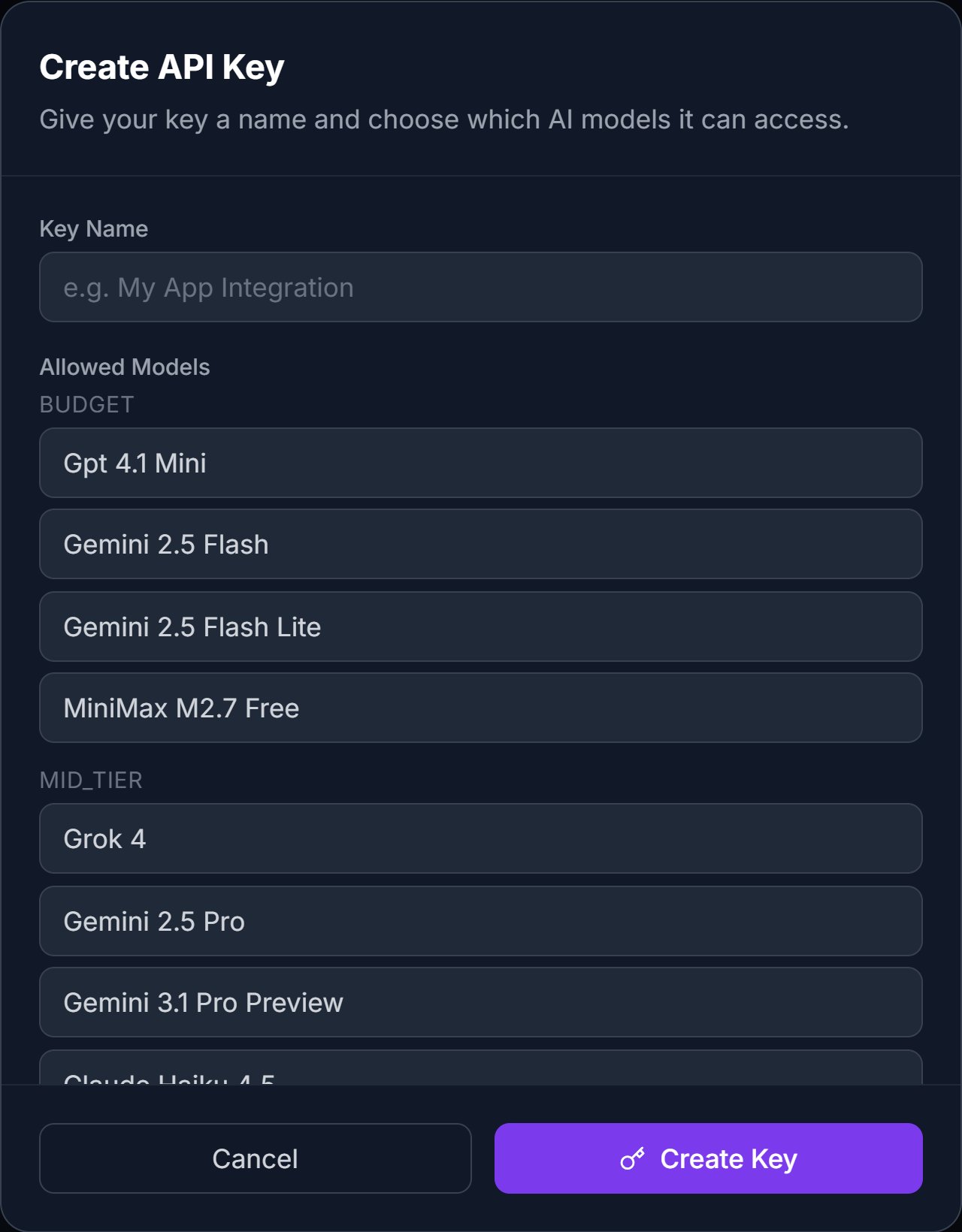
When the customer clicks Generate Key, the customer-facing modal asks for:- Key Name
- Allowed Models
After creation
After a key is created:- The virtual key is shown once
- The customer must copy it immediately
- The key then appears in the Your API Keys list
Request API Gateway URL
The customer page also includes a helper card for requesting the gateway base URL from the team. Use this when the customer has a key but still needs the full connection URL for their application.Partner deposit behavior behind customer self-service
Even though customers create their own keys, the partner-side system still reserves a fixed deposit per customer-created key. Current behavior:- Each customer-created key reserves 1,000 Knotie Credits from the partner balance
- If the partner balance falls below that reserve threshold, customer-created keys can be suspended until the partner tops up
If AI Gateway isn’t showing for a customer
If a customer expects AI Gateway but doesn’t see it, check these in order:- Customer portal access is enabled
- AI Credits Enabled is on for that customer
- The customer’s AI Gateway visibility toggle is on
- The partner has enabled Customer Self-Service API Keys