

What Embed URLs are for
Embed URLs provide customer-scoped tokens and URLs that allow you to embed Knotie AI experiences into websites, apps, or other platforms. Use cases:- Website widgets – Add chat widgets to customer websites
- Embedded dashboards – Display analytics in external platforms
- Custom integrations – Build customer-specific embedded experiences
- White-label embeds – Provide branded embedded tools to customers
Where to find it
- Open Customers (sidebar — expands to Active Customers + Prospects).
- Select a customer.
- Click Manage.
- Go to the Embed URLs tab.
- The customer has portal access enabled.
- The customer account is active.
- You are generating the token for the correct customer workspace.
- You understand where the embed will be used (widget, iframe, or server-side integration).
Create an embed token
Generate a new token
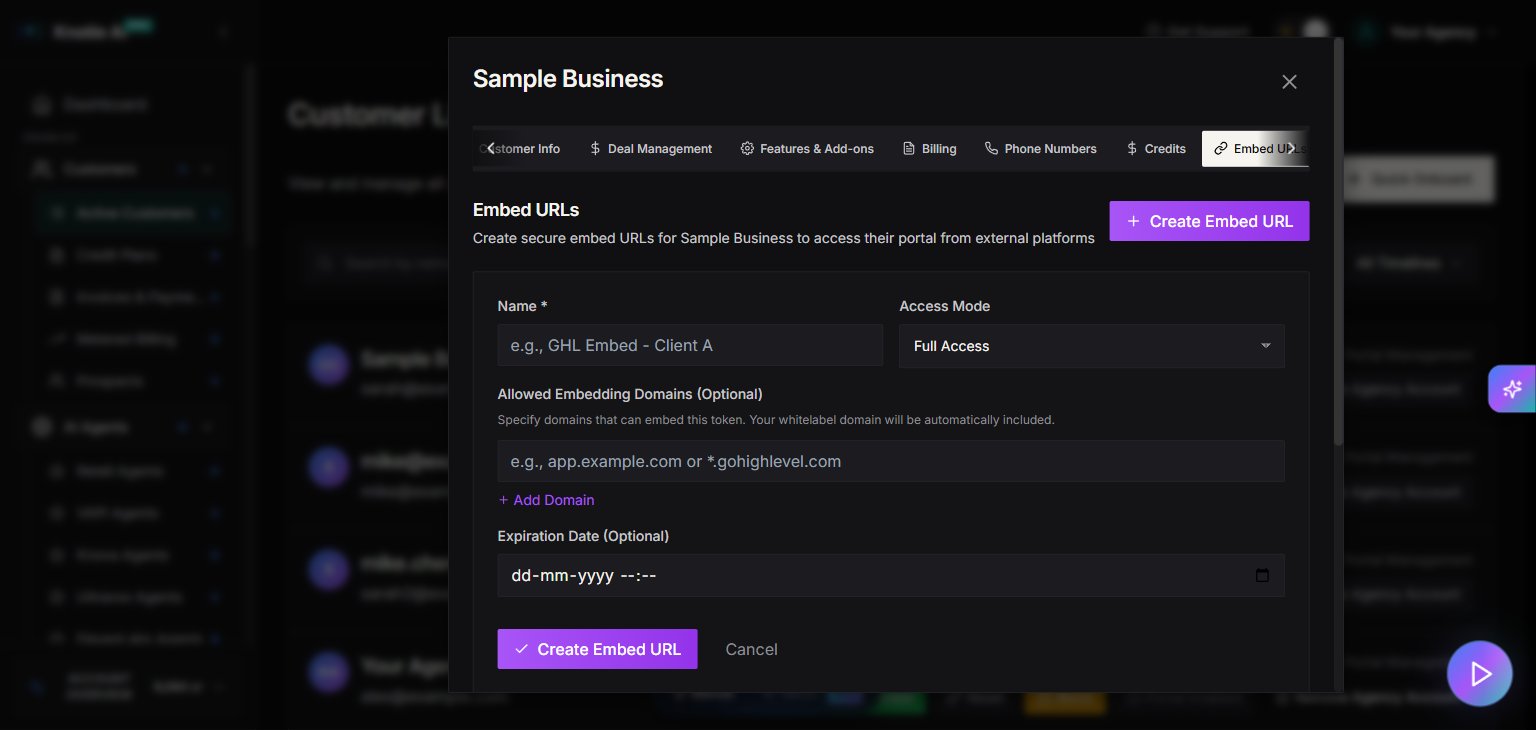
- In the Embed URLs tab, click Create Embed Token.
- (Optional) Add a description or label for the token.
- Click Generate.
- Copy the generated token immediately – it won’t be shown again.
Token structure
Embed tokens are customer-scoped and include:- Customer ID – Automatically tied to the specific customer
- Partner ID – Links to your partner account
- Expiration – Tokens may have expiration dates (if configured)
- Permissions – Scoped to what the customer can access
Important Distinction
Embed tokens are not the same as Partner API Keys.Key Differences
- Use Embed URLs / Embed Tokens for customer-scoped widgets, iframe embeds, and embedded customer experiences.
- Use API Keys for partner-level automations, backend integrations, MCP, and broader platform API access.
Use embed tokens
In website widgets
Add the token to your widget embed code:- Use the customer embed token, not a partner API key.
- Only embed on sites you control or trust.
- If the token is ever exposed publicly beyond the intended embed, revoke and rotate it.
In API requests
Include the token in API headers:- Prefer server-side usage where possible.
- Do not swap in a partner API key if the flow is meant to stay customer-scoped.
- If you are building a mobile or browser-based app, store the token in your backend and proxy requests instead of hardcoding sensitive values in the client.
In iframe embeds
Pass the token as a URL parameter:- Prefer the Copy URL action from the portal when available so you use the exact generated embed URL.
- Remember that URL tokens can appear in browser history, logs, analytics tools, and referrer flows depending on your setup.
- If an iframe URL is shared outside its intended environment, revoke the token and generate a new one.
Manage existing tokens
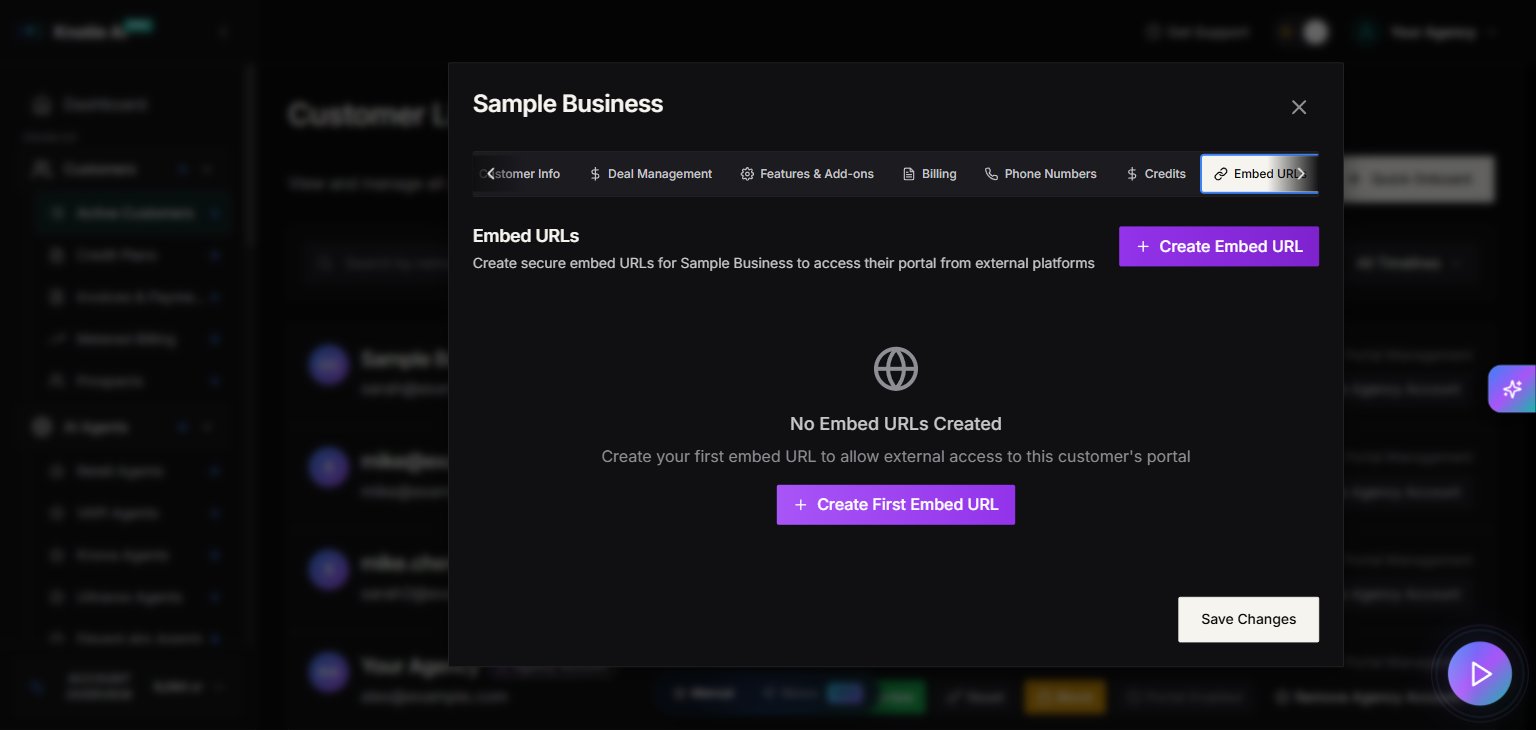
View active tokens
The Embed URLs tab displays all active tokens for the customer:- Token ID – Unique identifier
- Created date – When token was generated
- Last used – Most recent activity
- Status – Active, Expired, or Revoked
Copy embed URL
To get the full embed URL:- Find the token in the list.
- Click Copy URL.
- The complete embed URL is copied to clipboard.
- Paste it only into the destination app, site, or trusted system that should host the embedded experience.
Revoke a token
If a token is compromised or no longer needed:- Find the token in the list.
- Click Revoke or the trash icon.
- Confirm revocation.
Rotate tokens
For security, periodically rotate embed tokens:- Generate new token – Create a replacement token.
- Update embed code – Replace old token with new one in all embeds.
- Test new token – Verify embeds work with new token.
- Revoke old token – Once migration is complete, revoke the old token.
Security best practices
Keep tokens private
- Do not use partner API keys in client-side code – Keep partner-level credentials in your backend only
- Treat embed tokens as controlled customer access credentials – Only place them where the embedded experience is intentionally allowed to run
- Use environment variables – Store tokens securely on server-side
- Avoid version control – Don’t commit tokens to Git repositories
- Restrict access – Only share with authorized developers
Monitor token usage
- Track last used date – Identify inactive tokens
- Review regularly – Audit tokens monthly
- Set expiration – Use time-limited tokens when possible
- Revoke unused tokens – Clean up old or test tokens
Respond to compromises
If a token is exposed:- Revoke immediately – Stop unauthorized access
- Generate replacement – Create new token
- Update all instances – Replace in all embed locations
- Audit activity – Check for unauthorized usage
Common embed scenarios
Chat widget on customer website
- Generate embed token for customer.
- Provide customer with widget code.
- Customer adds code to their website footer.
- Widget loads with customer-specific data.
Analytics dashboard embed
- Create embed token with analytics permissions.
- Build iframe with token parameter.
- Embed dashboard in customer’s admin panel.
- Dashboard displays customer’s analytics data.
Mobile app integration
- Generate API-scoped embed token.
- Store token securely in mobile app backend.
- Use token for API requests from app.
- App fetches customer-specific content.
Troubleshooting
Embed token not working
- Token revoked – Check token status, regenerate if needed
- Wrong customer ID – Verify token matches customer
- Expired token – Create new token if expired
- Permissions issue – Ensure customer has necessary feature access
- Wrong token type – Confirm you used an embed token, not a partner API key
Widget not loading
- CORS issues – Verify domain is whitelisted
- Script blocked – Check browser console for errors
- Token format – Ensure token is correctly formatted in code
- Network connectivity – Test API endpoint availability
Unauthorized access errors
- Invalid token – Double-check token was copied correctly
- Customer disabled – Verify customer account is active
- Feature not enabled – Check customer has embed feature access
Related pages
- Customer Portal Management – Portal access setup
- Features & Add-ons – Enable embed features
- API Keys – Partner-level API access