

What Customer Credit Plans are for
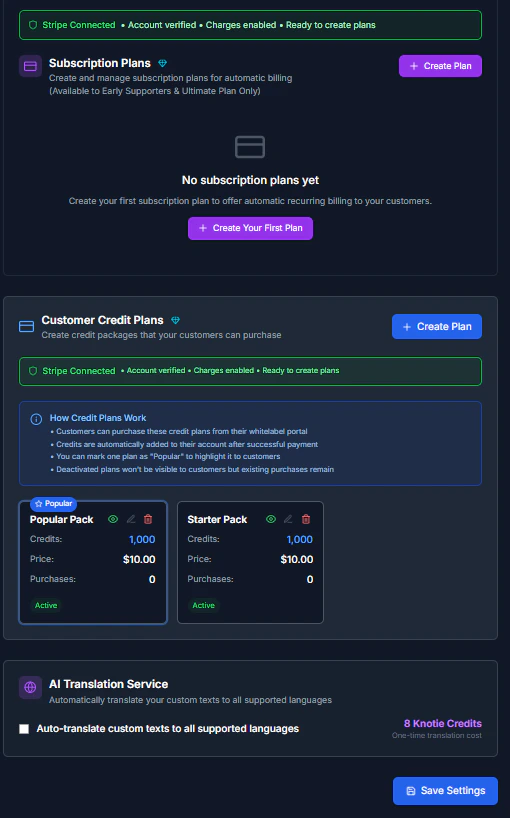
Customer Credit Plans allow you to create credit packages that customers can purchase directly from their whitelabel portal. This enables self-service credit purchasing without manual intervention. Use this when:- You want customers to buy credits on-demand
- You offer multiple pricing tiers
- You use AI Credit-based billing
Where to find it
- Open Settings in the Partner Portal sidebar.
- Click White-Label Portal (the redesigned Settings entry that owns all whitelabel configuration).
- In the Section Nav Rail on the left, click Credit Plans (under the Main column).
There is no top-level Settings → Customer Credit Plans entry. Earlier versions of this doc instructed users to scroll the main Settings page looking for a “Customer Credit Plans” section — that section doesn’t exist on the new Settings IA. The functionality now lives in the Whitelabel Settings page under the Credit Plans section in the Section Nav Rail.
Prerequisites
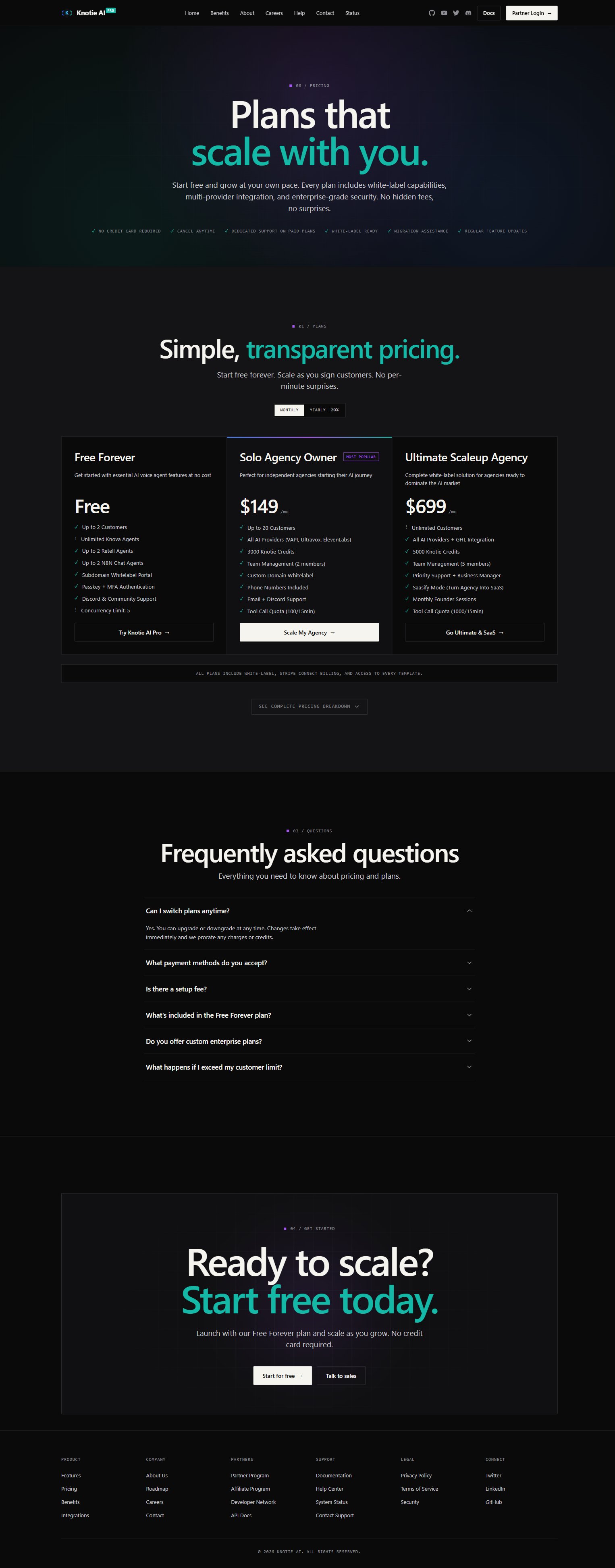
Before creating credit plans, you need:- Not on Free Forever plan – Credit plans require a paid plan (Starter, Pro, or Enterprise)
- Stripe Connect configured – Payment processing requires Stripe
- Connect Stripe account
- Complete onboarding
- Enable charges
Create a credit plan
Basic credit plan
- Click Create Credit Plan.
- Fill in the plan details:
- Name – Display name (e.g., “Starter Pack”, “Pro Bundle”)
- Credits – Number of credits in the package (e.g., 1000, 5000, 10000)
- Price – Dollar amount customers pay (e.g., 199, $899)
- Description – Optional details about the plan
- Toggle Active to make it visible to customers.
- Toggle Popular to highlight it (only one plan can be popular).
- Click Create.
Plan pricing strategy
When setting prices, consider: Cost-plus pricing- Calculate your actual credit costs
- Add your desired margin
- Set competitive pricing
- 1000 credits cost you $30
- Add 60% margin = $48
- Round to $49 for clean pricing
- Small package: $0.05 per credit
- Medium package: $0.04 per credit (20% discount)
- Large package: $0.03 per credit (40% discount)
Manage existing plans
Edit a credit plan
- Find the plan in the Credit Plans list.
- Click Edit.
- Update any fields (name, credits, price, description).
- Save changes.
Activate or deactivate a plan
To deactivate:- Toggle the Active switch to OFF.
- The plan disappears from customer portals immediately.
- Toggle the Active switch to ON.
- The plan becomes visible again.
- Preserve purchase history
- Seasonal offerings (e.g., holiday discounts)
- A/B testing different price points
Mark a plan as Popular
Highlight your best-value plan to drive sales:- Toggle Popular to ON for one plan.
- The plan displays with a “Popular” badge in the customer portal.
- Only one plan can be marked as Popular at a time.
Delete a credit plan
- Click the Delete button (trash icon) on a plan.
- Confirm deletion.
- Plan was created by mistake
- Permanently discontinuing an offering
- Cleaning up test plans
How customers purchase credits
Customer view
In the whitelabel customer portal:- Customer navigates to Credits or Billing.
- Sees available credit plans with:
- Plan name
- Credit amount
- Price
- Description
- “Popular” badge (if applicable)
- Clicks Purchase on desired plan.
- Completes Stripe checkout.
- Credits are automatically added to their account.
Payment flow
- Customer selects plan – Clicks Purchase button
- Stripe checkout opens – Secure payment form
- Payment processed – Stripe handles transaction
- Credits added – Automatically credited to account
- Confirmation email – Customer receives receipt (if email configured)
Failed purchases
If a payment fails:- Customer sees error message
- No credits are added
- Customer can retry purchase
- You can view failed attempts in Stripe dashboard
Credit plan analytics
Track plan performance
Monitor which plans customers purchase:- Go to Billing & Invoices or Analytics.
- View credit purchase metrics:
- Most purchased plan
- Total revenue per plan
- Average purchase value
- Purchase frequency
- Optimize pricing
- Retire underperforming plans
- Create targeted promotions
How credit plans work
Credit delivery
When a customer completes a purchase:- Payment validated – Stripe confirms successful charge
- Credits added – Exact amount from plan added to customer balance
- Transaction logged – Recorded in customer’s credit history
- Balance updated – New balance reflects immediately in portal
Refunds and adjustments
If you need to refund a credit purchase:- Refund in Stripe – Process refund through Stripe dashboard
- Manually deduct credits – Use the customer’s Credits tab to deduct the amount
- Add note – Document the refund reason in the transaction note
Best practices
Plan structure
- Offer 3-5 plans – Not too many, not too few (analysis paralysis vs limited choice)
- Use psychological pricing – 50, 100
- Clear differentiation – Each plan should offer clear value differences
- Bundle discounts – Larger packages should have better per-credit pricing
Naming conventions
Good names:- “Starter Pack” - 1,000 credits
- “Pro Bundle” - 5,000 credits
- “Enterprise Package” - 10,000 credits
- Generic names (“Plan 1”, “Option B”)
- Confusing names (“Super Mega Ultra Plan”)
- Overly long names
Pricing psychology
- Anchor with highest price – Show most expensive first to make others seem reasonable
- Popular badge – Nudge customers toward your preferred option
- Limited offers – Create urgency with seasonal or promotional plans
Troubleshooting
Cannot create credit plans
- Error: “Upgrade required” – You’re on Free Forever plan, upgrade needed
- Error: “Stripe not connected” – Complete Stripe Connect setup first
- Plans not saving – Check all required fields are filled
Customers can’t see plans
- Verify plans are toggled Active
- Confirm customer has portal access enabled
- Check whitelabel portal is configured
- Ensure customer’s email domain is verified
Purchases not completing
- Make sure your Stripe account has charges enabled
- Review your Stripe dashboard for failed or errored payments
- If it persists, contact support
Credits not added after purchase
- Check the transaction in the customer’s credit history
- If the payment went through but credits didn’t appear, add them manually from the customer’s Credits tab
- Contact support if it keeps happening
Related pages
- AI Credit Management – Managing customer credits
- Stripe Connect – Payment processing setup
- Credits – Partner-level credit management