What Stripe Connect is used for
Stripe Connect links your agency’s Stripe account so you can:- Collect payments from customers
- Use billing features that rely on Stripe
Where to find it
- Open Settings.
- Scroll to Stripe Connect.
Connect Stripe
- Click Connect Stripe.
- You’ll be redirected to Stripe to complete onboarding.
- After completing onboarding, you’ll return to the Partner Portal.
Complete setup (if onboarding isn’t finished)
If your status indicates onboarding is incomplete, use:- Complete Setup
Understand the status indicators
The Stripe Connect block includes indicators for:- Accept Charges (payments)
- Receive Payouts (bank transfers)
- Outstanding Requirements (missing details Stripe needs)
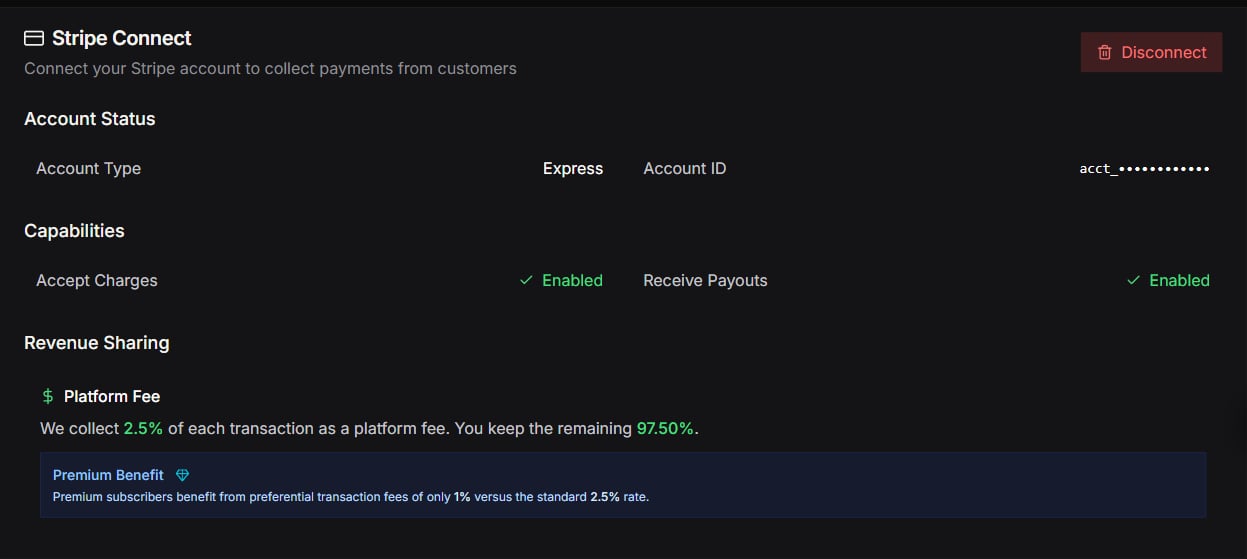
Connected state
When fully connected, the UI shows:- Account Type — e.g., Express
- Account ID — e.g.,
acct_... - Accept Charges: Enabled
- Receive Payouts: Enabled
- Disconnect button (available if you need to unlink Stripe)
Platform fee
The UI shows a Platform Fee percentage.- Standard rate is 2.5%
- Premium subscribers benefit from 1% (as shown in the “Premium Benefit” callout)
Disconnect Stripe
If needed, you can disconnect Stripe:- Click Disconnect.
- Confirm.
Security note (two-factor authentication)
While Stripe Connect is active, the Partner Portal keeps two-factor authentication on and won’t let you turn it off. This is intentional — it protects your payment processing. You’ll see this noted in your Security settings:“MFA cannot be disabled while Stripe Connect is active. This ensures secure payment processing.”
Screenshots