

Where customers ask for an app
The Request an app button appears on the customer’s Integration page:- next to Refresh, at the top of Tool Integrations, and
- in the middle of the page when no apps are enabled for them yet.
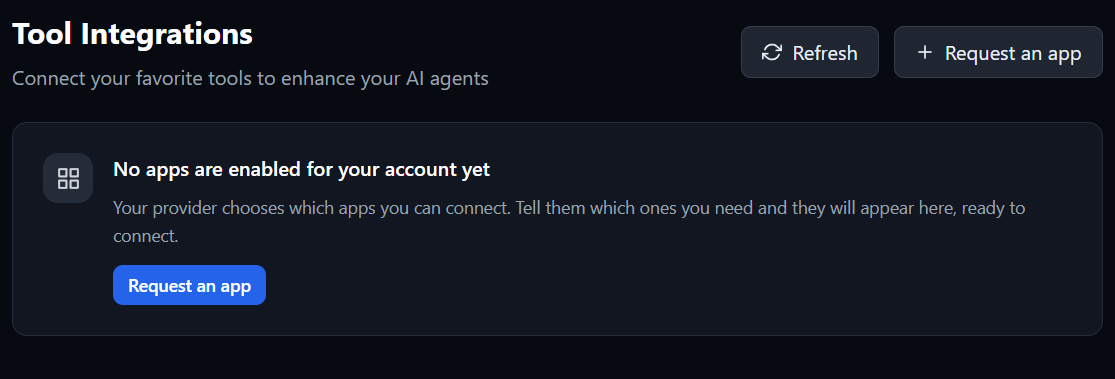
What the customer fills in
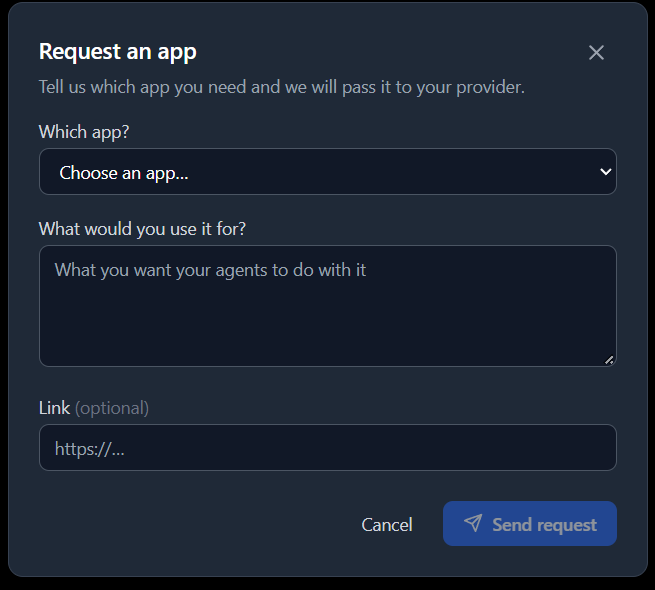
They then select Send request. The list only shows apps the customer can’t already use.
What happens next
Each request gets a reference code, such asAPP-7K3Q9D, and two emails go out:
- The customer gets a confirmation with their reference code. It’s sent from your branded email address and doesn’t mention your plan.
- You get an email saying who asked, which app, what they want it for, and a link to their customer record. If the app isn’t included in your own plan, the email says so.