

receptionist.youragency.com could open your AI Receptionist experience directly.
Before you start
- Your main custom domain must already be set up and verified. See Custom domain.
- The experience you want to use must be turned on in One-Click Experiences.
- If your plan doesn’t include this feature, you’ll see an upgrade notice in this section instead.
Add a domain
- Open Settings → White-Label Portal.
- Expand Domain Settings.
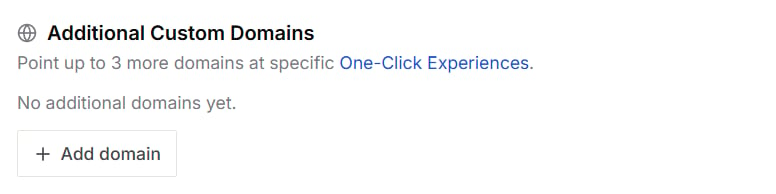
- Under Additional Custom Domains, select Add domain.
- Type the domain, for example
portal.yourbrand.com, and select Add.
Verify the domain
- Sign in to the company where you manage your domain’s DNS.
- Add the record shown in the portal.
- Wait for the change to take effect. This usually takes a few minutes but can take a few hours.
- Return to the portal and select Verify next to the domain.
Link the domain to an experience
- Open One-Click Experiences.
- On the experience you want, select Make default.
- If you have more than one domain, choose which domain should open this experience, then confirm.
What visitors see
Your main custom domain and your Knotie subdomain always open your portal’s default experience.