

Overview
The Partner Level System is a progression framework built into the Knotie Partner Portal. As you use the platform, work through onboarding tasks, and grow your agency, you earn experience through challenges that raise your partner level. Higher levels unlock:- Extra AI credits, added to your account automatically
- Platform features that aren’t available at lower levels
- A spot on the Engagement Leaderboard, where it’s enabled
Getting started
When you sign in for the first time, the portal walks you through a short setup before dropping you into the level system.Step 1 — Welcome announcement
A “What’s New” card introduces the redesigned dashboard. It explains that nothing is blocked — features are simply tucked away and unlocked as you progress.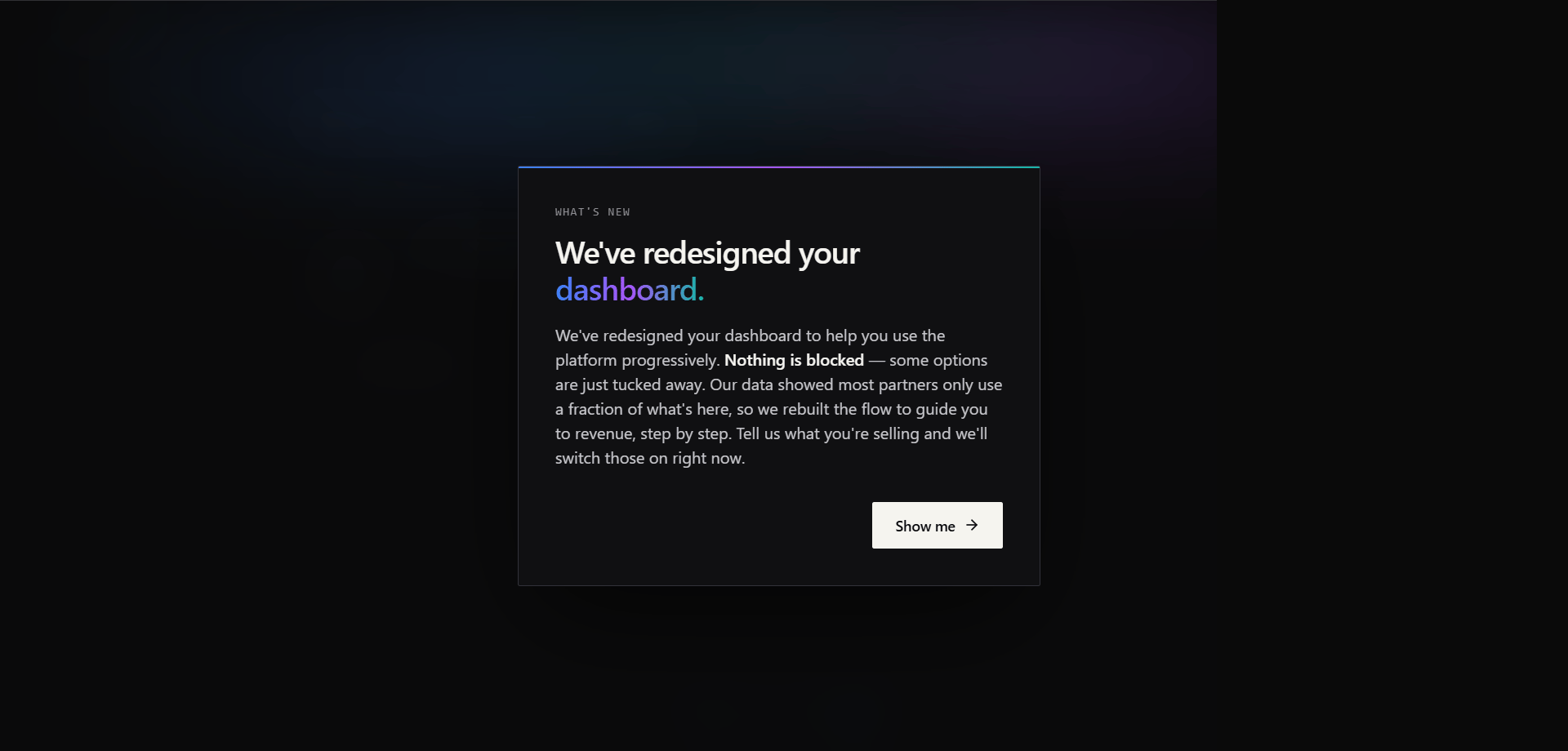
Step 2 — Workspace picker
The portal asks what kind of agency you run, so it can switch on the right tools straight away.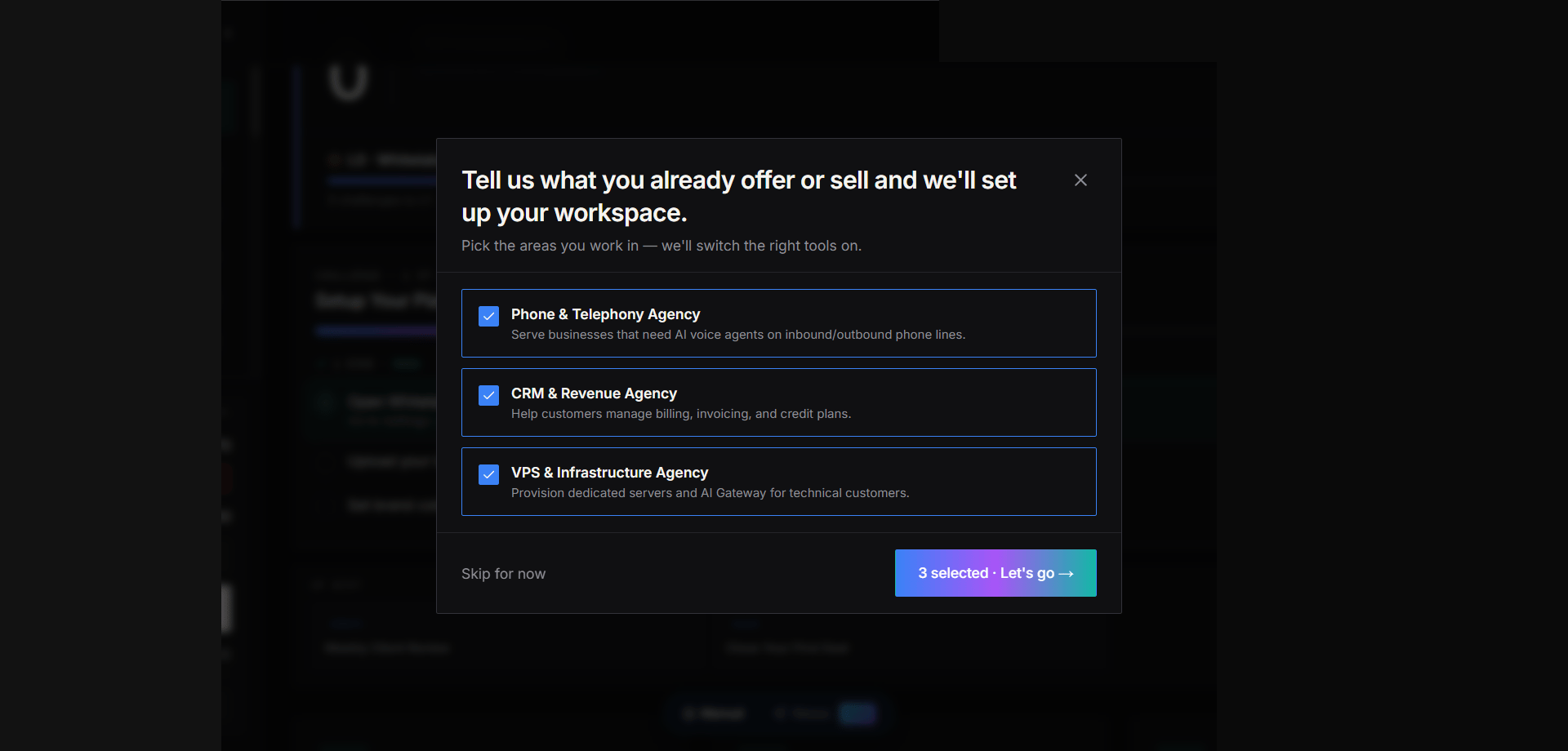
Click Let’s go (or Skip for now if you’d rather explore first) — the portal then loads your dashboard with your level badge and first challenge already queued.

Levels
Every partner starts at the lowest level and moves up by completing challenges. Each level is reached by finishing the challenges on the path to it — your dashboard shows exactly how many challenges are left before you level up. Levels are named, not just numbered. For example, the starting level is shown as L0 · Whitelabels and the next one as L1 · Activated. The name reflects the milestone you’re working toward. Your current level, its name, and how close you are to the next one are always shown at the top of your partner dashboard. The badge also shows how many challenges are still queued toward your next level.Levels and feature availability
Reaching a new level can give you:- An automatic AI credit top-up added to your account
- One or more features suggested or switched on for your portal
- Access to higher-level challenges
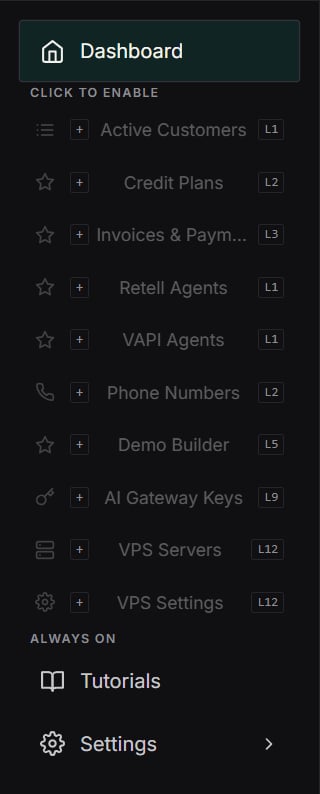
Browse all options
Select Browse all options near the bottom of the sidebar to open a grouped list of everything available to your account. Enabled items are labelled Enabled. If the portal offers an add action for another item, you can use it to place that item in the sidebar.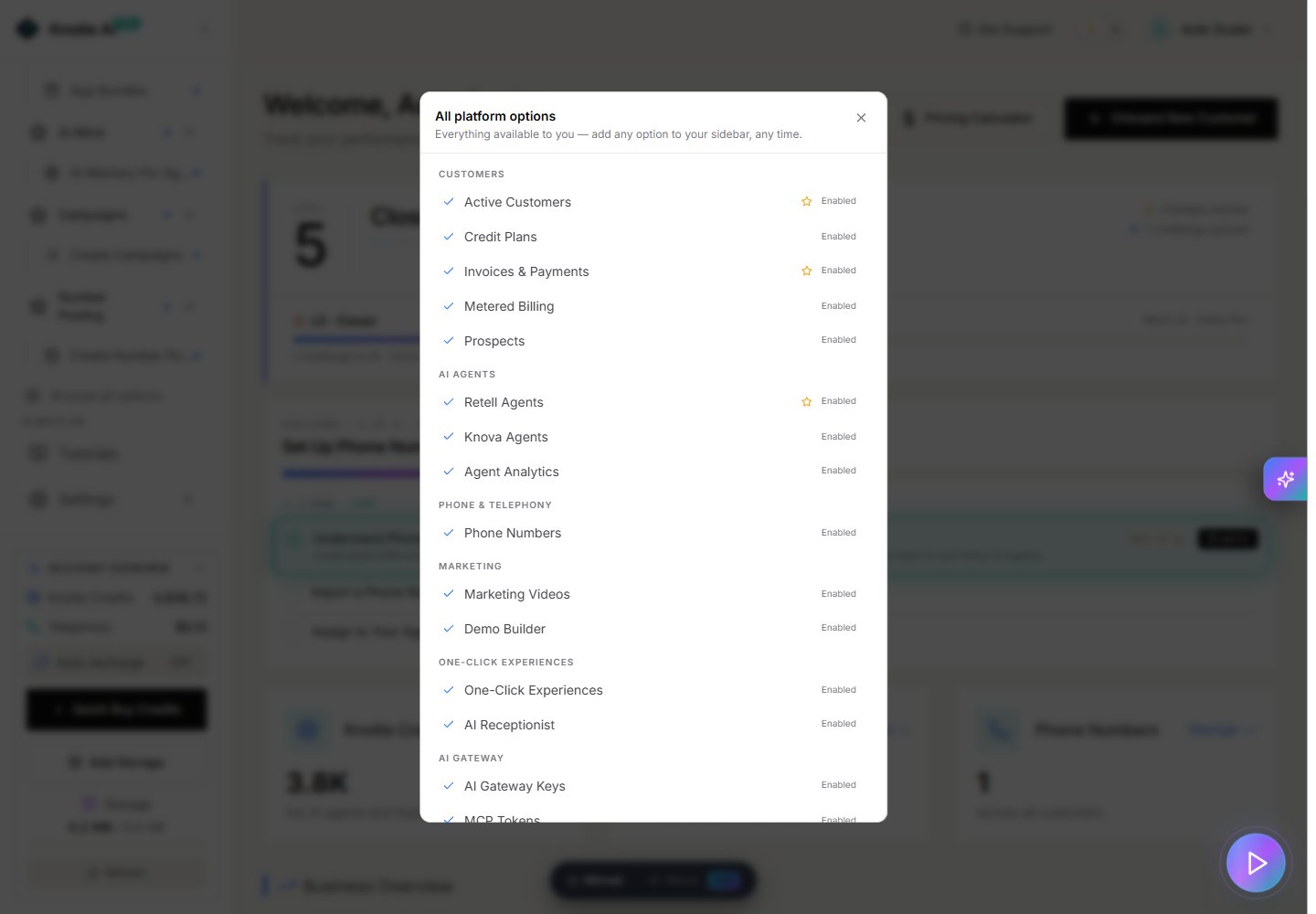
Challenges
Challenges are guided tasks that walk you through what the platform can do. They appear on your Partner Dashboard — usually one active challenge at a time, with the next ones lined up as soon as you finish.Viewing your challenges
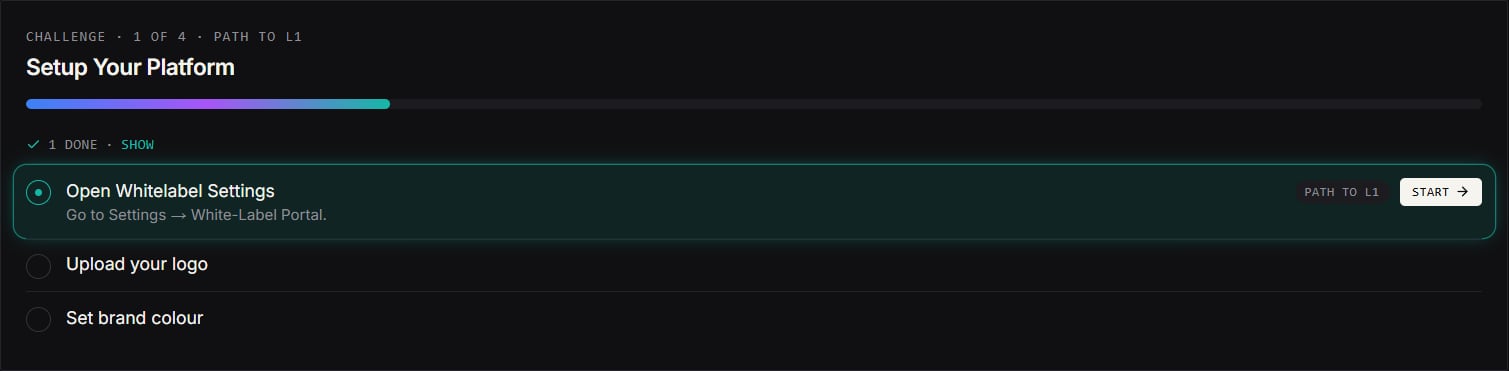
Your current challenge sits at the top of the dashboard, just below your level badge. The card shows:- A heading like “Challenge · 1 of 4 · path to L1” — where this challenge sits on the road to your next level
- The challenge title (for example, “Setup Your Platform”)
- A progress bar for the challenge
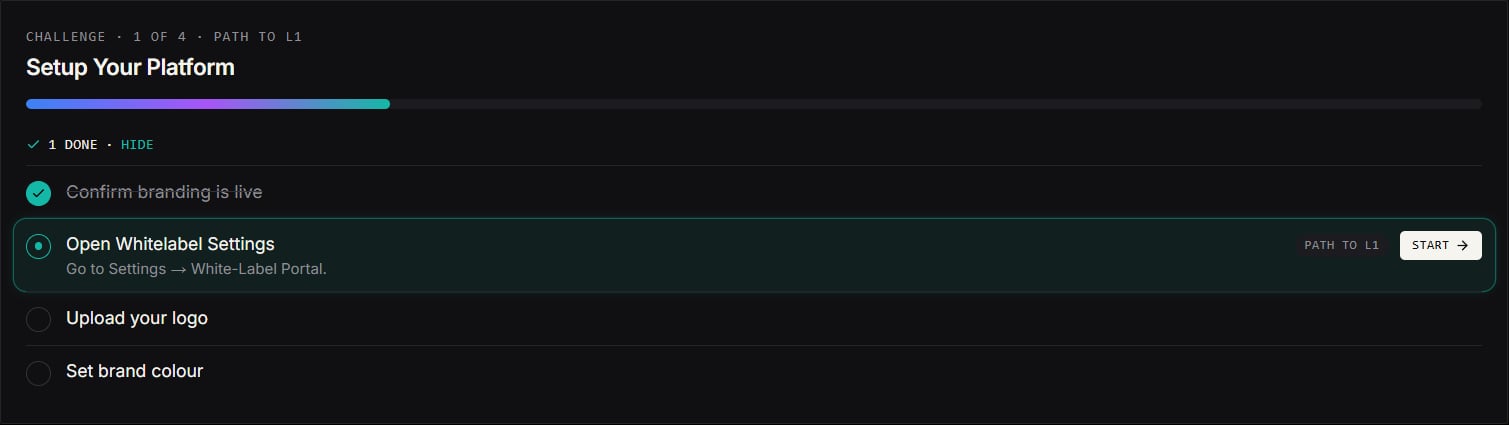
- A Show / Hide toggle that expands the full step list

How a challenge is put together
Each challenge has:- A title — what you’ll do and why it matters
- One or more steps — clear actions, each with a short instruction (for example, “Go to Settings → White-Label Portal”)
- A level path — the “path to L#” label shows which level the challenge counts toward
- Sometimes a category — challenges are grouped into areas such as Growth or Sales, so the queue reflects the parts of the platform most relevant to you
Completing a step
- Find your active challenge at the top of the dashboard and tap Show to see its steps.
- Read the current step and, when it offers a Start button, tap it to jump straight to the part of the portal where the action happens.
- Do what the step describes. Many steps tick themselves off automatically once you’ve completed the underlying action in the portal (for example, once your branding is live).
- When every step is done, the challenge closes, the next one moves up, and any rewards are added automatically.
Challenges that grant credits
Some challenges reward AI credits when you complete them. When you finish one of these, the credits are added to your balance automatically and show up in your Knotie Credits total in the sidebar.Leaderboard
Some portals also include an Engagement Leaderboard that ranks the most active partners. When it’s enabled for your portal, you join it simply by taking part in the level system — partners who haven’t started any challenges don’t appear on it.The leaderboard is rolled out gradually and may not be visible on every partner portal yet. If you don’t see it, you can still complete challenges and level up as normal.
Opting in and out
The level system is on automatically for all new partners. If you joined before it launched, you can opt in from the prompt in your partner portal. To opt out, contact Knotie support. Opting out removes you from the leaderboard and stops new challenges, but it doesn’t take away any credits or features you’ve already unlocked.Related pages
- Progressive Onboarding — How the track-based first-login experience works, and how it connects to the level system
- Partner Portal Dashboard — Where your level badge and challenge card live
- Credits — Your AI credit balance and how credits are used