

What the Dashboard shows
When you log in, the Partner Dashboard is the first page you see. It summarises your agency’s health at a glance and gives you quick access to the most common actions.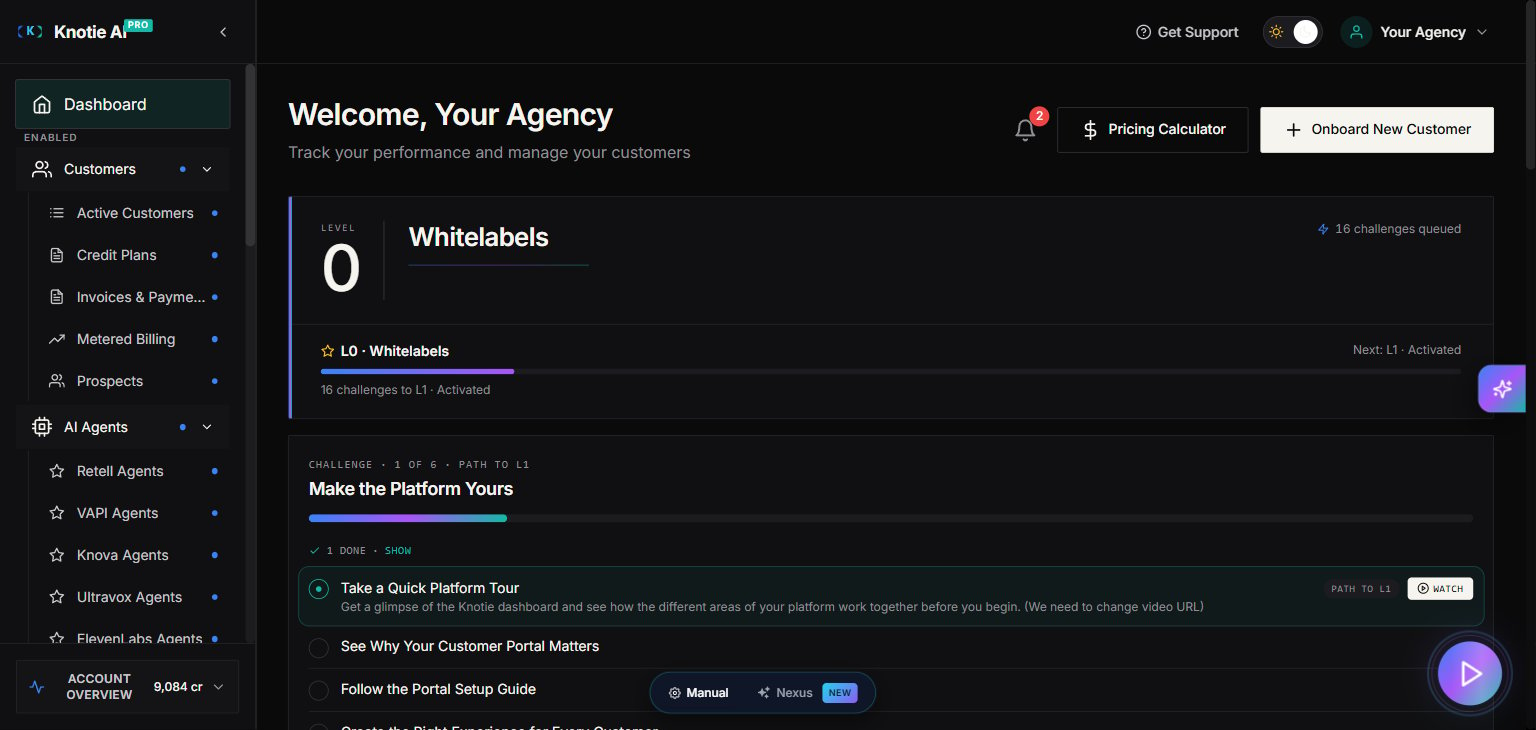
First-login introduction
New accounts may see a short introduction after the required sign-in and security dialogs are closed. If another dialog interrupts it, close the dialog and continue from the same step. The introduction runs once; after that, use the dashboard checklist to continue setup. See First-login setup for the next steps.Metrics cards
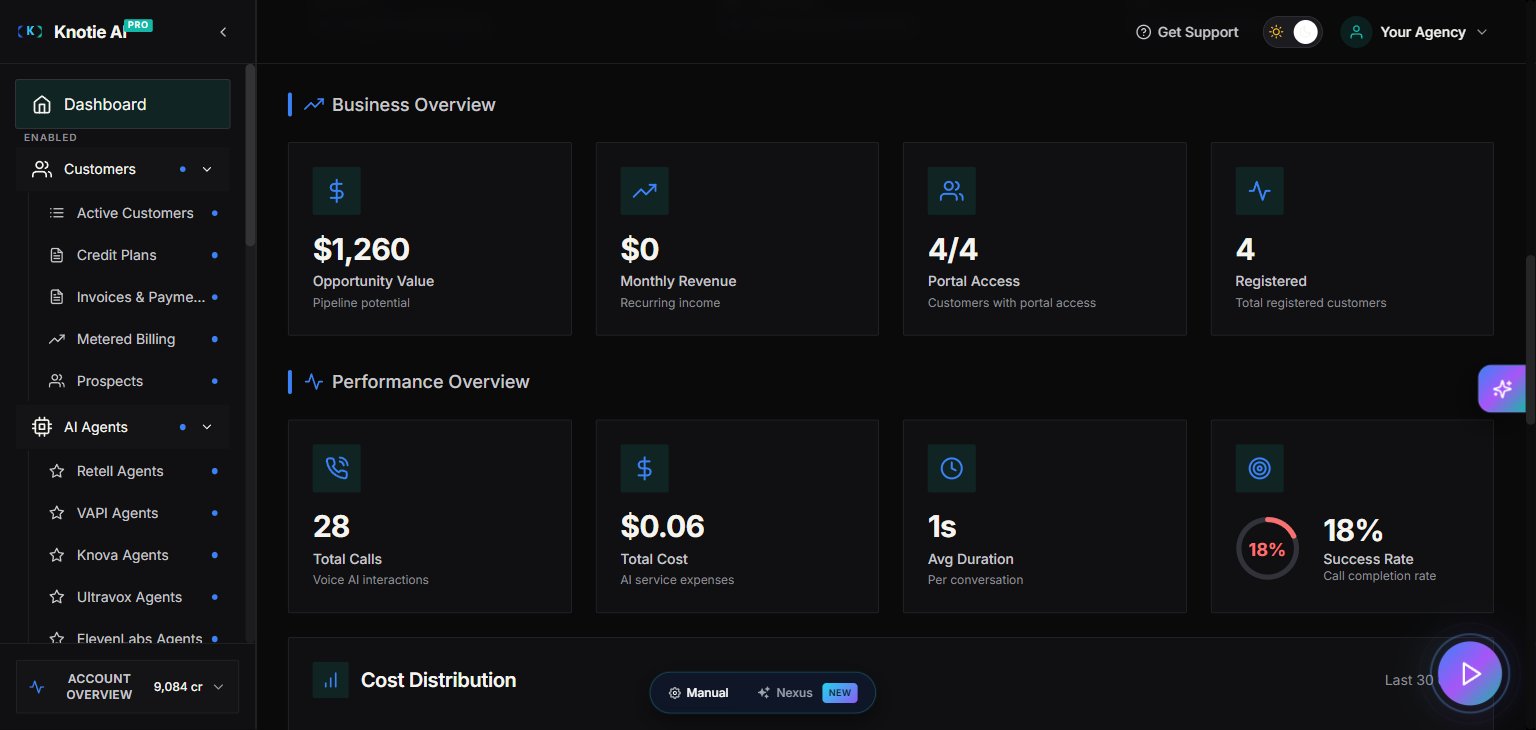
The top row of the dashboard displays key numbers:Analytics charts
Below the metrics cards, two charts show activity over time:- User Growth (Area chart) — Total registered vs. live users over time.
- Call Analytics (Bar chart) — Total calls, failed calls, success rate, and average duration using your connected AI agents.
Credit balance display
Your current AI Credits and Telephony Credits balances are visible in the dashboard. A low balance will show a warning indicator — top up from Credits in the sidebar before calls start failing. If you are eligible for a free credit claim (e.g., during an onboarding promotion), a Claim Credits button will appear.Quick actions
Add Customer
Click the + Add Customer (or Quick Onboard) button to open the Quick Onboarding modal. This walks you through creating a new customer record, setting up portal access, and assigning an agent — all in one flow.Onboarding progress bar
If you haven’t completed initial setup yet, an Onboarding Progress Bar appears below the header. Each step (add a customer, connect an agent, assign a phone number, etc.) is checked off as you complete it. The bar disappears once setup is done.Daily Challenge widget
The Daily Challenge widget surfaces one quick action each day to help you grow your agency — for example, reviewing a customer’s usage, updating their plan, or following up on a prospect. Completing challenges earns credit rewards.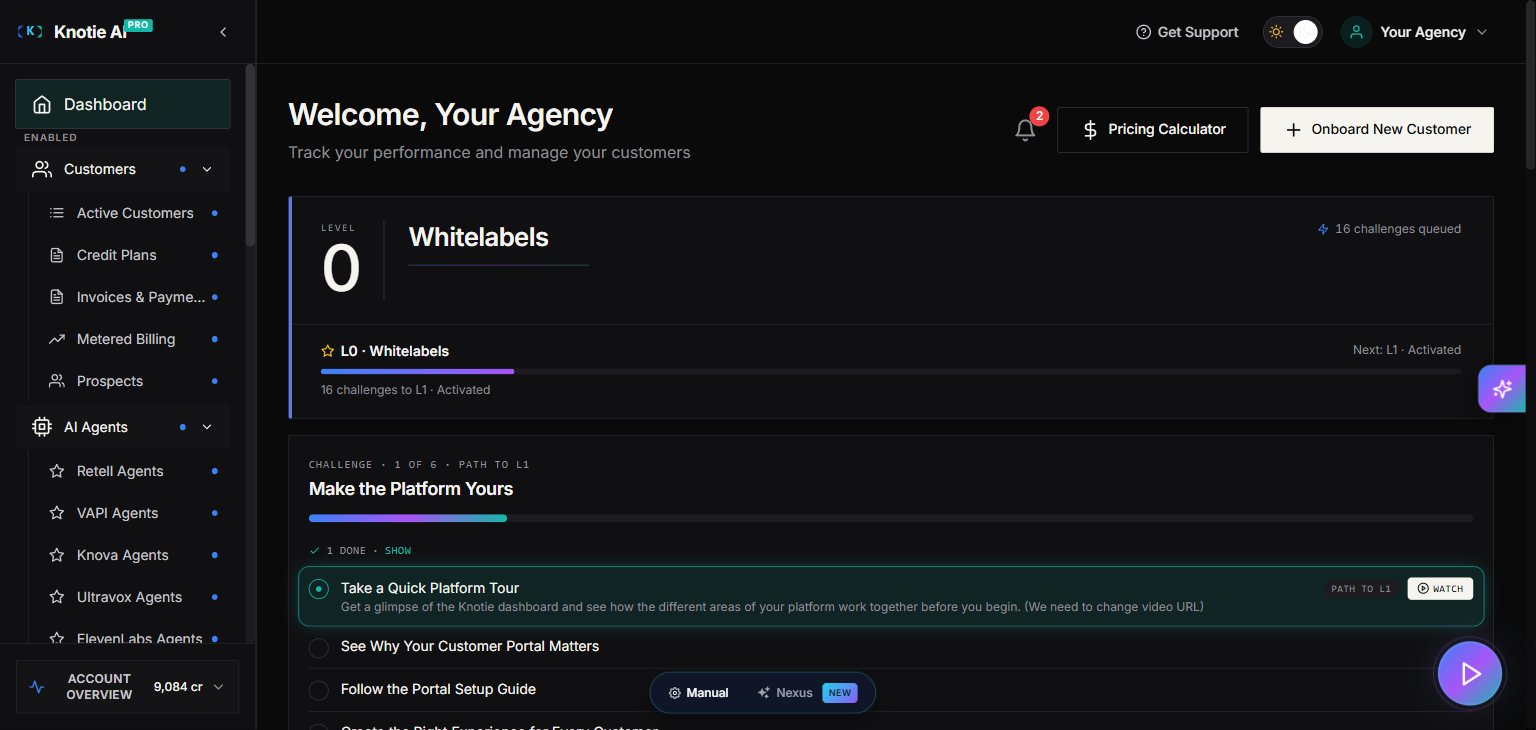
Notification Bell
The Notification Bell (top-right of the dashboard header) shows real-time alerts:- Low credit balance warnings
- Agent errors or call failures
- System announcements
Passkey prompt
If you haven’t set up a passkey yet, a prompt appears on the dashboard encouraging you to do so. Passkeys provide stronger account security than a password alone. See Passkeys for setup instructions.AI Builder popup
If you haven’t created an AI agent yet, an AI Builder popup may appear guiding you to create your first agent. This can be dismissed once you’re familiar with agent creation.Customer quick view
The dashboard includes a customer search and quick-view panel. Clicking a customer name opens a compact summary of their plan, portal status, and recent activity without leaving the Dashboard.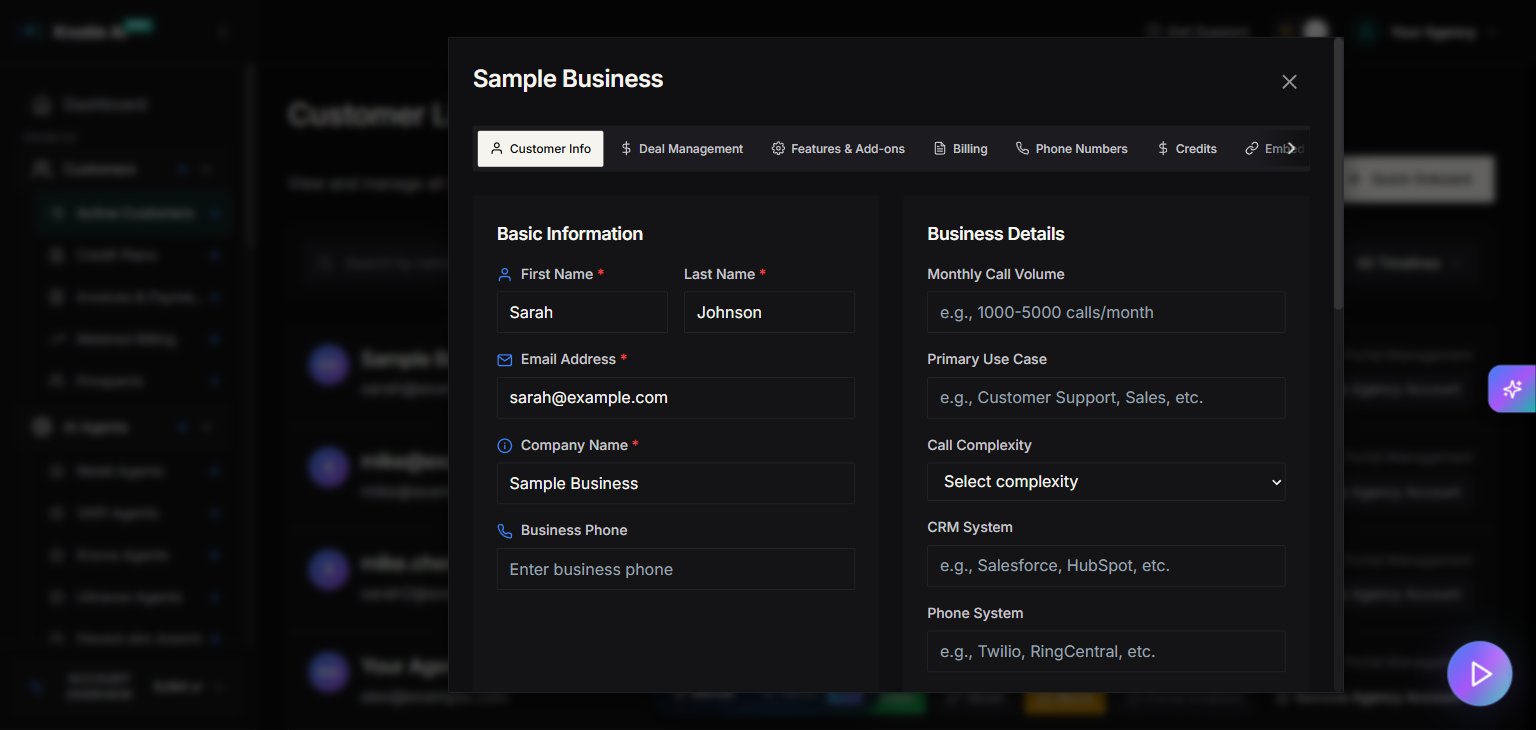
Tips
- The Dashboard is the fastest way to check your credit balances and MRR without navigating to individual pages.
- Use Pricing Calculator (accessible from the Dashboard) to estimate costs before quoting a new customer.
- The Onboarding Wizard (Get Started button, if visible) walks first-time partners through the complete setup sequence.
Related pages
- Partner Portal overview — sidebar reference and first-week checklist
- AI Agents panel — Voice / Chat / Automation groupings
- AI Gateway — manage API keys and credit budgets
- Agent Analytics — call counts, duration, cost breakdown