What you can do

The VPS section of the Partner Portal lets you:
  1. Purchase VPS servers for your customers (6 plan tiers, 6.986.98–75.57/mo)
  2. Create App Packages — bundle apps with a VPS plan and set your own customer price
  3. Reinstall instances — swap the software stack on an existing VPS without destroying customer data
  4. Control visibility — choose which plans your customers can see

Purchasing a VPS

Navigate to VPS Servers from the Infrastructure section of the sidebar. VPS Servers — all 6 plan tiers with pricing and specs

Available plans

Click any plan card → choose region (EU/US) → assign to a customer (optional) → Purchase VPS.

Managing Instances

Switch to the My Instances tab to see your VPS servers. Each instance card shows: name, IP address, status (Active / Suspended / Cancelled), which customer it’s assigned to, and the monthly cost.

Reinstalling with a new app or stack

Click Reinstall on any active instance to open the app selection modal. Reinstall modal — select Single App or Build Package, choose app, confirm The modal has two modes — toggle between them at the top:

Single App mode

Choose one application to install:
  • Clean Ubuntu — bare OS, no software pre-installed. Expert use only.
  • Docker + Portainer — the platform default stack. Installed on every new VPS unless you choose something else.
  • Any other app from the catalog (OpenClaw, n8n, Ollama, Nextcloud, etc.)
Click any app card to open the detail overlay — showing description, features, resource usage (RAM), access port, website, and GitHub link. Then click Select for Install.

Build Package mode

Build a custom stack of multiple apps that install together. Useful for pre-configured offerings like “AI Agent Stack” (OpenClaw + Ollama + n8n).
  • Click + Add to Package on any app card
  • Port conflicts are detected automatically and shown as a warning — apps sharing the same port cannot be installed together
  • Total estimated RAM is shown based on selected apps
  • Click Remove (✕) on a tag to unselect an app

Confirm and reinstall

Both modes require you to:
  1. Check the confirmation box: “I understand this will permanently delete all data on this server and reinstall the OS.”
  2. Click Reinstall VPS
The instance status changes to Reinstalling while the platform sets up the new software on the server.

App Packages (VPS Settings)

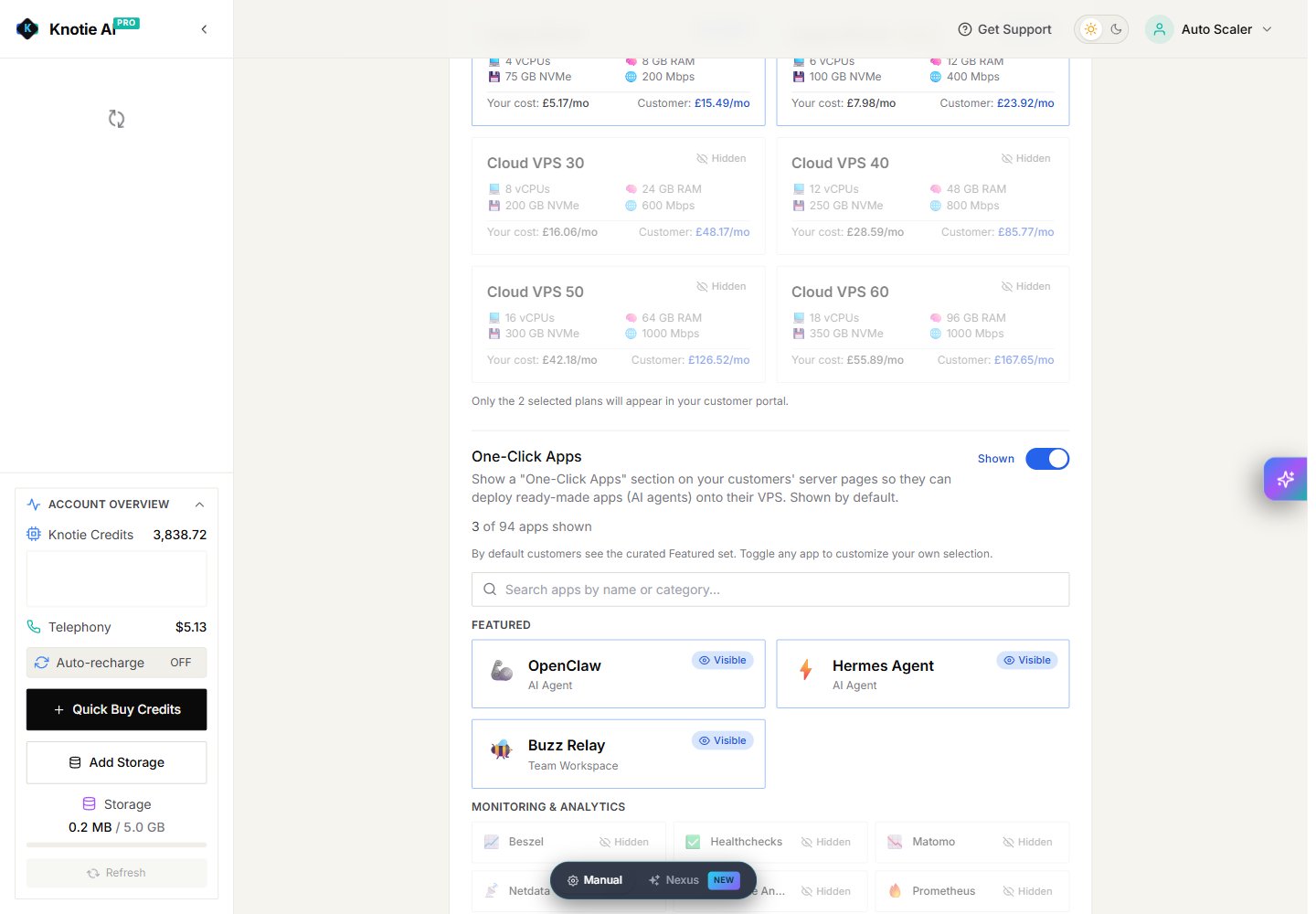
Where to find App Packages: Open VPS Servers in the sidebar, then click VPS Settings. Scroll past Enable VPS Purchase / Customer Margin / Display Currency / Plan Visibility — App Packages sits at the bottom of the same page (not a separate route).
In VPS Settings → App Packages, create pre-configured bundles you can offer customers as a single product. App Packages section — New Package button, package list, OpenClaw Auto-Deploy callout New Package sidebar — name, apps, price, plan, visibility, and Save button

Create a package

  1. Click New Package — a sidebar slides in from the right
  2. Enter a package name — e.g. “AI Starter Stack”, “Automation Pro”
  3. Choose a base VPS plan to bundle with (e.g. Cloud VPS 10, 20, 30…)
  4. Toggle which apps to include — OpenClaw is automatically provisioned with a Knotie API key for each customer
  5. Set your monthly/yearly price — shown to customers in their whitelabel portal
  6. Toggle visibility per plan (show on Cloud VPS 20+ but not VPS 10, for example)
  7. Click Save
When a customer purchases a package from their portal, the platform automatically provisions all the apps and configures OpenClaw — no manual setup needed.

VPS Settings


App Catalog (Full List)

When you click any app card in the reinstall modal, you see the full app detail view with:
  • Name + emoji/logo — unique icon for the app
  • Description — one-line summary of what the app does
  • Features — key capabilities as bullet points
  • Tags — searchable labels (e.g. #llm, #chatbot, #automation)
  • Resource estimate — approximate RAM usage
  • Access port — primary port the app listens on
  • License — open source license (MIT, Apache 2.0, etc.)
  • Links — official website and GitHub repository

App status badges

Only one badge appears in the reinstall modal:
  • Platform default — shown on the Docker + Portainer card (the default stack on every new VPS)
Other badges you may see in the full app catalog:
  • New — app added to the platform within the last ~6 months
  • Popular — widely used in the self-hosted ecosystem
  • Beta — functional but not yet verified on a production VPS