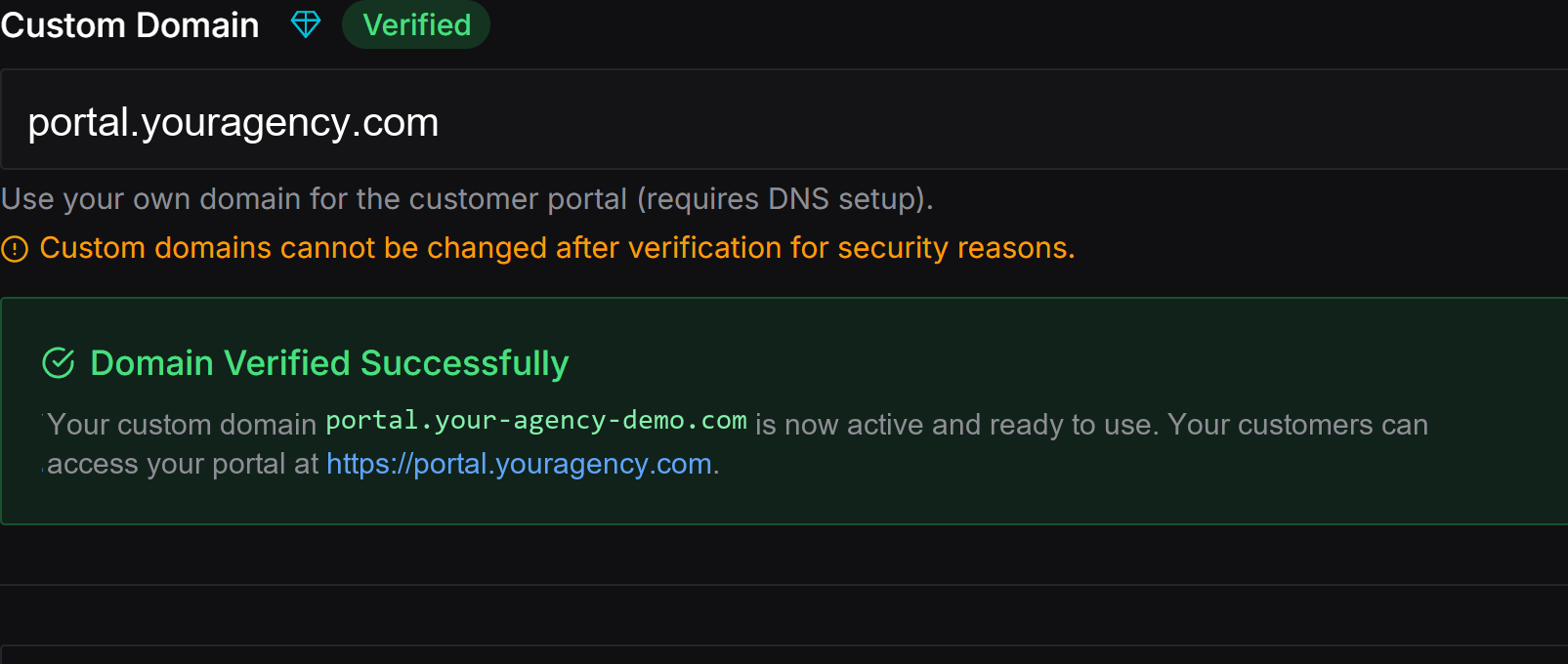
A custom domain lets your customer sign in to the portal on their own branded URL (for example, portal.customer.com).Please note that this is a Premium Feature and is not available under the Free Forever tier.
Expand the Domain section in the left navigation panel.
Enter your customer’s portal domain (for example, portal.customer.com).
Click Save.
Knotie AI Pro will show the DNS records you need to add.
Custom domains cannot be changed after verification for security reasons. Once verified, the custom domain field becomes disabled. Choose your domain carefully before verifying.
Customer portal pages use addresses that start with /platform/, for example:
portal.yourdomain.com/platform/dashboard
portal.yourdomain.com/platform/account-settings
Older links that start with /whitelabel/, such as bookmarks or links in past emails, still work. They redirect to the matching /platform/ address automatically, so neither you nor your customers need to update anything.