What Billing & Invoices is for
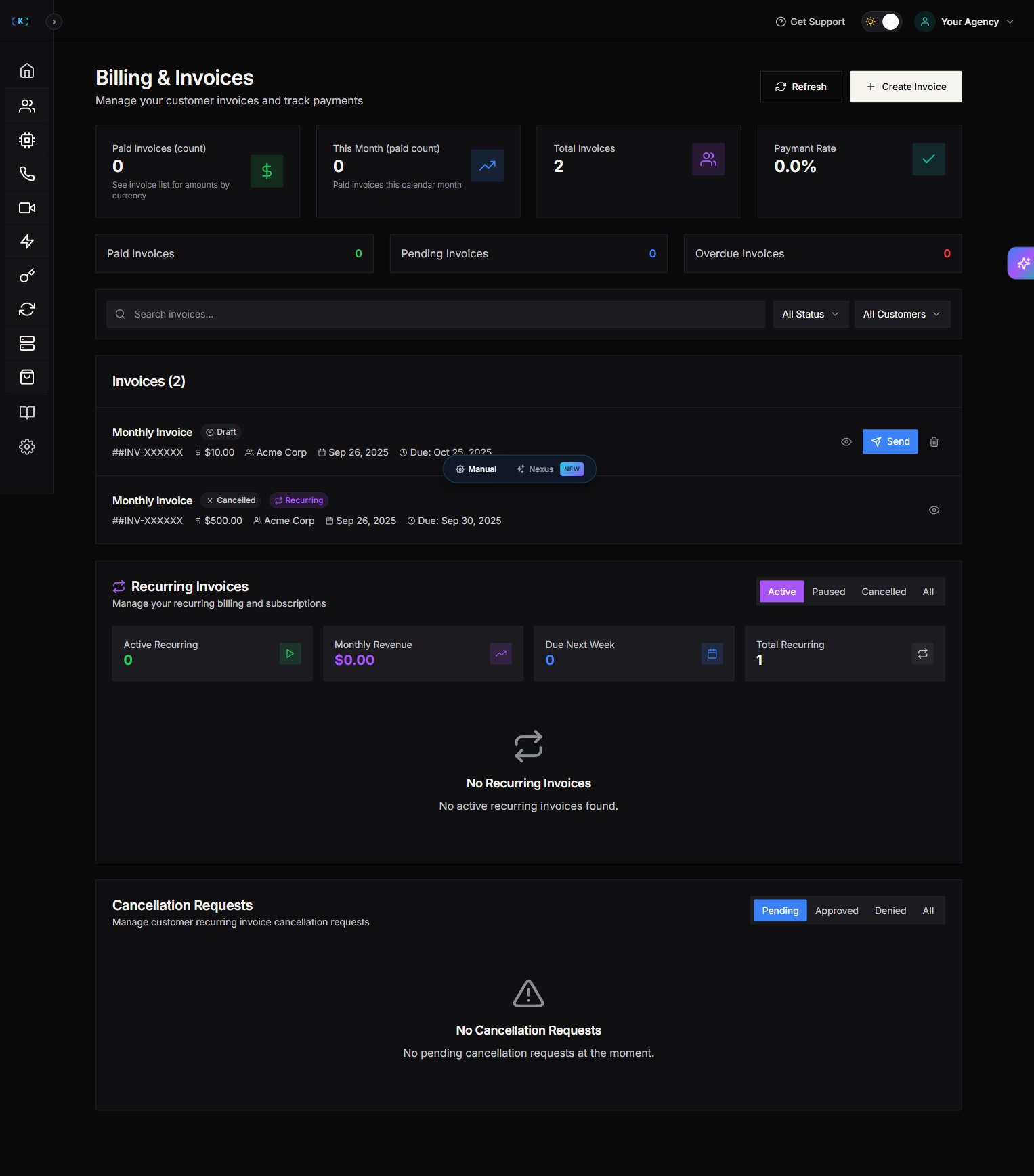
The Billing & Invoices section helps you charge customers for your services. Typical agency workflow:- Create an invoice for a customer.
- Send it.
- Track whether it’s paid.
- Follow up on overdue invoices.
Where to find it
In the Partner Portal sidebar, open Billing & Invoices. The page opens straight to your list of invoices.Create an invoice
- Go to Billing & Invoices.
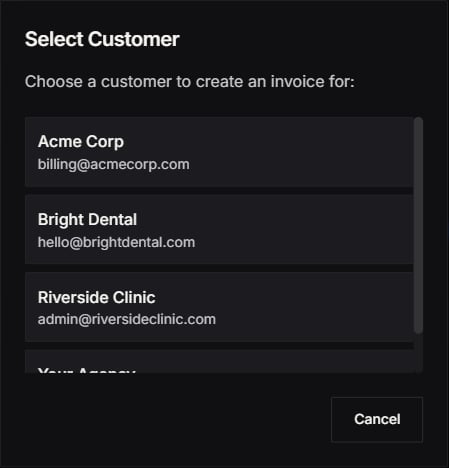
- Click Create Invoice.
- Choose the customer.
- Add line items (your services).
- Confirm the total and create the invoice.
Send an invoice
After an invoice is created:- Find it in your invoice list.
- Click Send.
- Confirm the customer email is correct.
Track invoice status
Invoices move through different statuses, such as:- Draft: created but not sent
- Sent: delivered to the customer
- Paid: payment completed
- Overdue: sent but past due
Filter and find invoices quickly
Use the filters on the billing page:- Search: find by customer or invoice
- Status filter: show only unpaid/paid/overdue
- Customer filter: view invoices per customer
Recurring invoices and cancellation requests
Some accounts will see tools like:- Recurring invoices: automate repeated billing
- Cancellation requests: track customers requesting cancellations
Troubleshooting
- I can’t send an invoice
- Confirm you’re logged in as the partner owner (or a team member with billing permissions).
- Refresh the page and try again.
- Customer says they didn’t receive it
- Verify the customer’s email address.
- Ask them to check spam/junk folders.
Screenshots