

Open Storage
Expand Credits in the Partner Portal sidebar and select Storage. You can also use Add Storage in the account overview.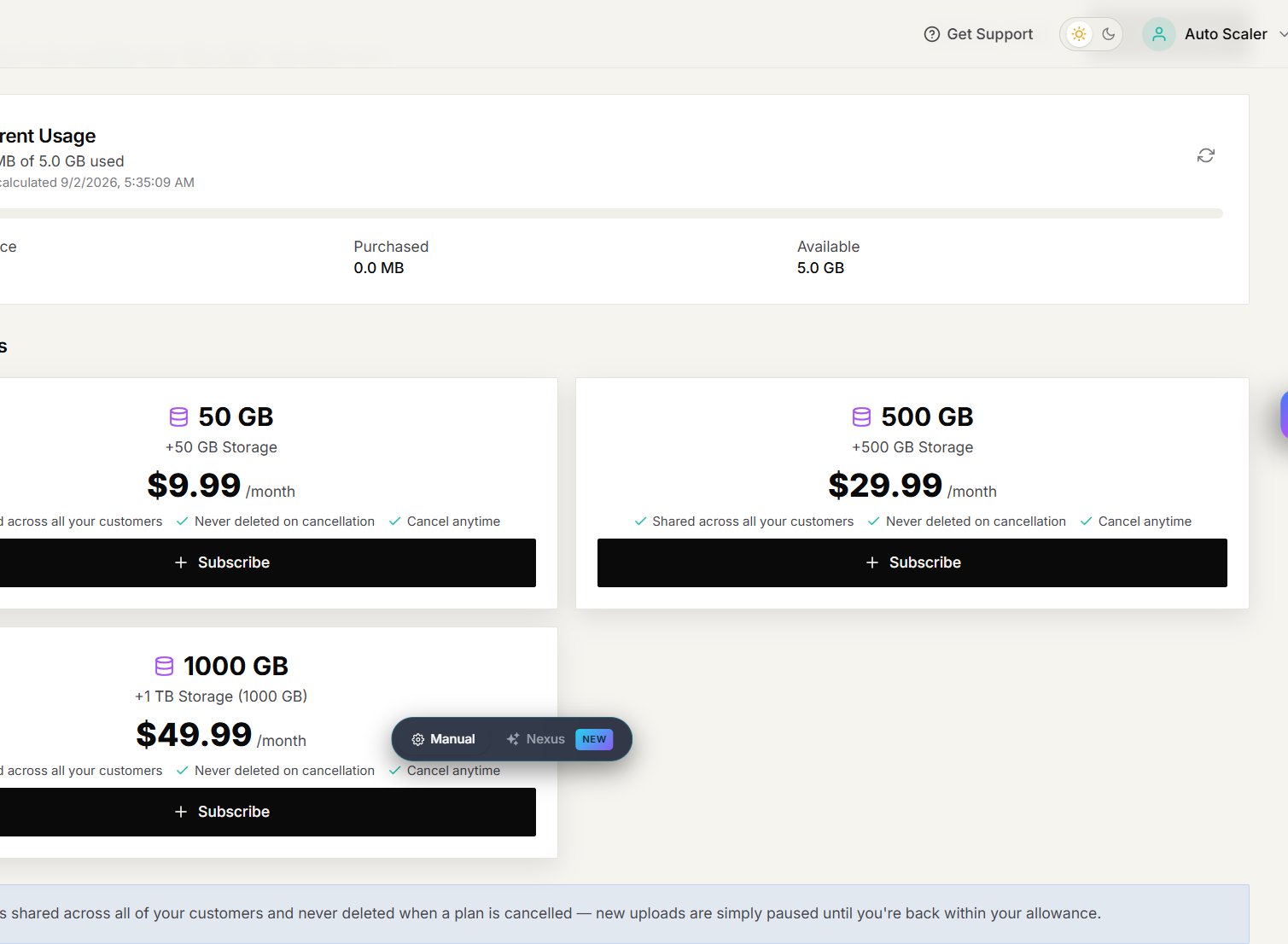
Check usage
The Current Usage card shows:- storage used and total storage available;
- the free allowance included with your account;
- storage added through active plans; and
- your remaining available storage.
Add storage
- Open Storage.
- Review the capacity and price shown on each available plan.
- Select Subscribe on the plan you want.
- Review the checkout details and complete payment.
- Return to the Storage page and confirm that the new allowance appears.
The portal shows the current plans, prices, and cancellation terms. Review those details before subscribing because available offers can change.