

Overview
AI Memory lets every customer in your portal have a Mind — a long-term memory store that your agents can write to, read from, and reason over across sessions. This means your agents remember past conversations, caller preferences, and key facts even after the call ends. Minds are powered by a hosted long-term memory service that Knotie manages for you — there’s nothing extra to set up or sign up for.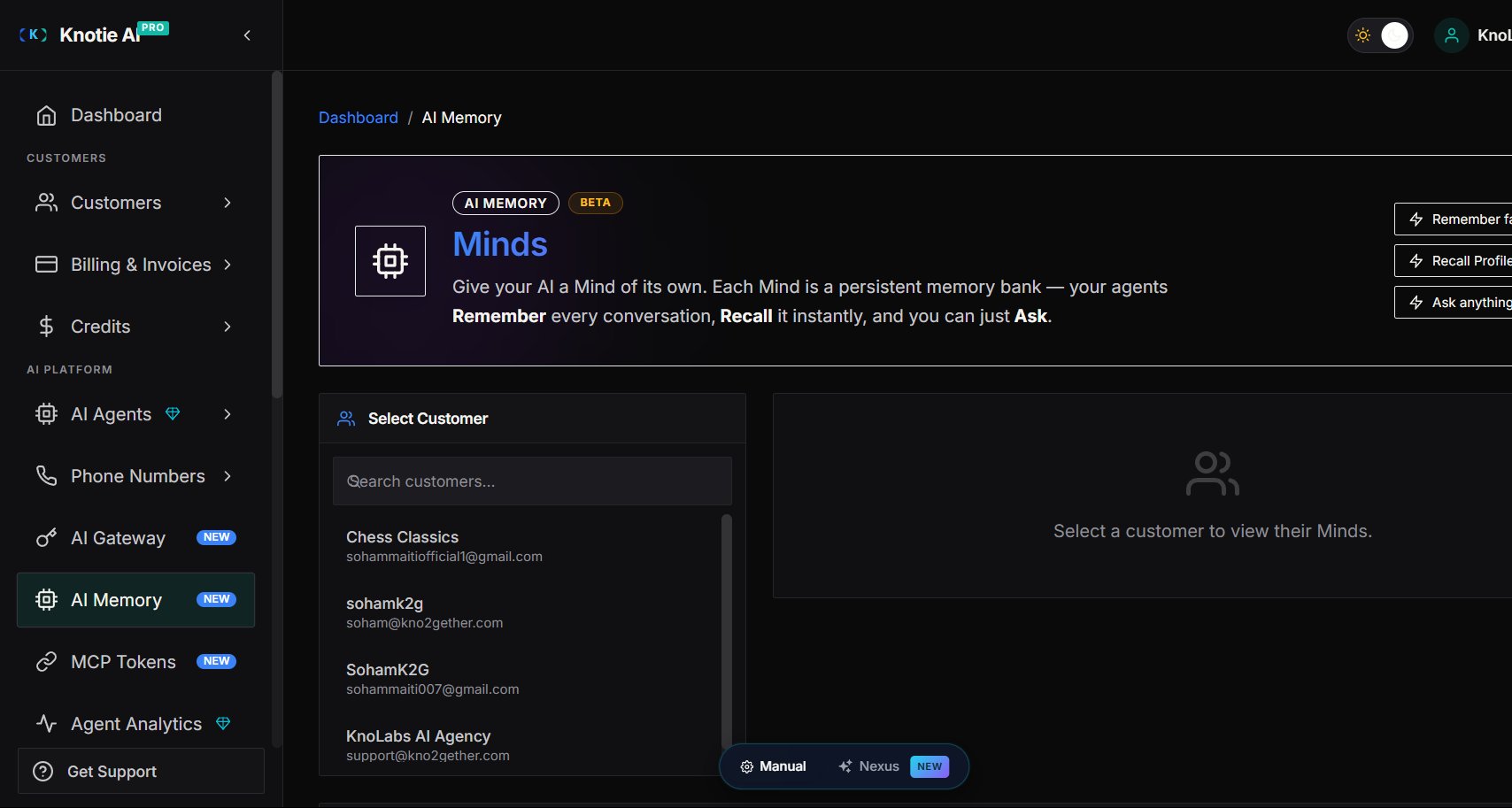
How AI Memory is charged
AI Memory uses dual-pool billing:
Recall operations are free — they never deduct from either pool.
The exact per-operation rate is set by Knotie and can be updated at any time.
If a customer does not have AI Credits enabled, only the partner’s Knotie Credits are charged. The partner absorbs the full cost in that case.
Prerequisites
Before using AI Memory:- Your Knotie plan must support AI Memory (check your plan page or contact support).
- AI Memory must be enabled at the partner level (auto-enabled on supported plans; contact support if absent).
- You must enable AI Memory per customer — see Enabling AI Memory for a customer.
- Customers who need AI Credits charged must have AI Credits enabled on their account.
Enabling AI Memory for a customer
To turn on AI Memory for a specific customer:- In the Partner Portal sidebar, go to Customers.
- Open the customer you want to enable.
- Click the Features & Add-ons tab.
- Toggle Enable AI Memory (Mind) to ON.
- Click Save.
/whitelabel/memory page in their portal, and their agents can use memory MCP tools.
Where to find the AI Memory console
In the Partner Portal sidebar, go to AI Memory (or navigate to/partner/memory).
Managing Minds
A Mind is a named memory space for a customer. A customer can have multiple Minds — for example, one for their business knowledge and one for caller history.View a customer’s Minds
- On the AI Memory page, select a customer from the dropdown.
- The Minds list shows all Minds for that customer.
Create a Mind
- Select a customer.
- Click New Mind.
- Enter a name and optional description.
- Click Save.
If the selected customer does not have AI Memory enabled, the Minds panel shows “AI Memory is not enabled for this partner” with an Enable AI Memory for [customer name] button and an “…or manage in Customer settings” link, rather than the Minds list. Use either path to turn the feature on for that customer.
Memory operations
Once you have a Mind selected, you can perform three types of operations:Remember
Remember stores a fact or conversation excerpt into the Mind.- Select a customer and open a Mind.
- Type the fact or context in the Remember input (e.g.,
"Caller Marco prefers WhatsApp; code LV-7731"). - Click Remember.
Recall
Recall fetches the current Profile, Snapshot, and recent messages stored in the Mind.- Select a customer and open a Mind.
- Click Recall.
- Review the Profile (derived), Snapshot, and message history.
The Profile section may be empty immediately after writing a new fact. Profile derivation is asynchronous — recall again after a short wait to see the derived profile.
Ask
Ask lets you pose a natural-language question against the Mind using AI reasoning.- Select a customer and open a Mind.
- Type a question (e.g.,
"How does Marco prefer to be contacted?"). - Set the reasoning depth. The console describes this as an adjustable depth from minimal → max — deeper reasoning is more thorough and costs more credits.
- Click Ask.