

Overview
Your customers can ask for their data or their whole account to be deleted, straight from their portal. The request comes to you, their provider. Nothing is deleted automatically. You review the request and act on it with the customer controls you already have.Where customers find it
The options are in the Danger zone at the bottom of the customer’s Settings page (Account Settings), below Team Management.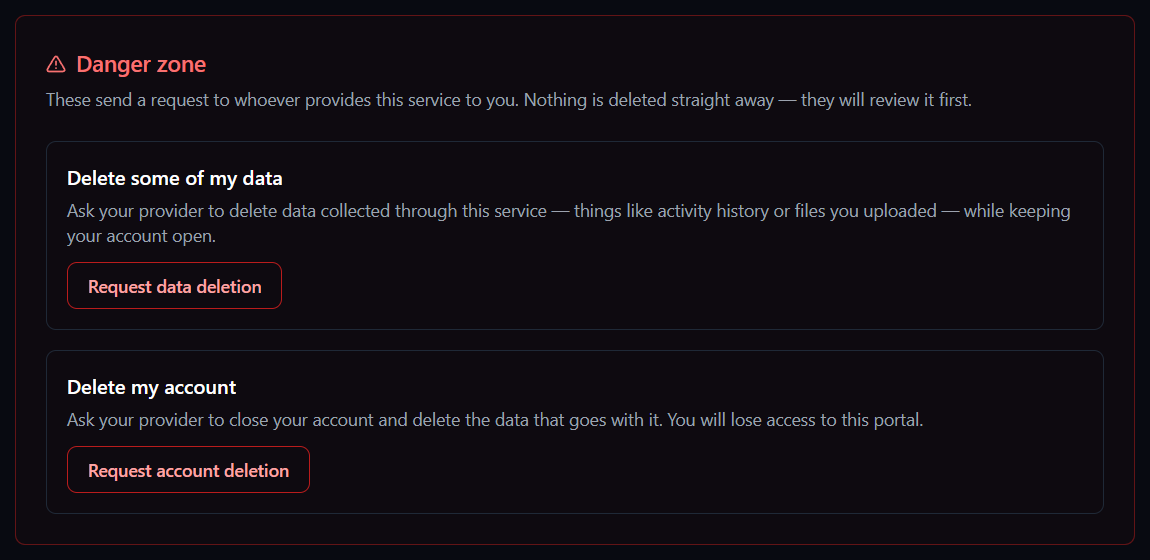
The customer confirms before the request is sent.
What you receive
You get an email with:- the customer’s name and email address
- which kind of deletion they asked for
- when they asked
There’s no list of requests inside the Partner Portal yet. The email is your record, so keep it until you’ve dealt with the request.
What to do next
- Open Customers → Active Customers.
- Find the customer and select Manage, then Features & Add-ons.
- Scroll to Customer Portal Access and use the control that fits the request:
- Block Access suspends their sign-in straight away while you prepare.
- Delete removes their portal access, for a request to close the account.
- Remove any other data they asked about, then let the customer know you’re done.