

What the media library is for
My Docs & Media is one place for a customer’s images, videos, and documents. Files can be kept in folders, and connected AI agents can use them. Use it when a customer wants to:- Store brand images, logos, or product photos for social posts
- Keep PDFs, reports, or reference documents that an agent can look up
- Build a reusable set of marketing images and videos
- Let an AI agent save call summaries or notes as documents
Before you start
Before a customer can use Docs & Media:- Turn on Docs & Media in that customer’s Features & Add-ons.
- Make sure the customer has an active portal account.
Storage limits
Each partner account has a storage pool, and each customer has an individual limit set by the partner.
When a customer reaches their own limit, new uploads are refused. When the partner pool is full, uploads are blocked for all customers until space is freed.
To change a customer’s limit, go to Customers → Manage → Features & Add-ons → Allocated Storage (MB).
Upload files
- In the customer portal, open My Docs & Media.
- Open the folder you want, or stay in Home.
- Select Upload and choose a file.
Find and manage files
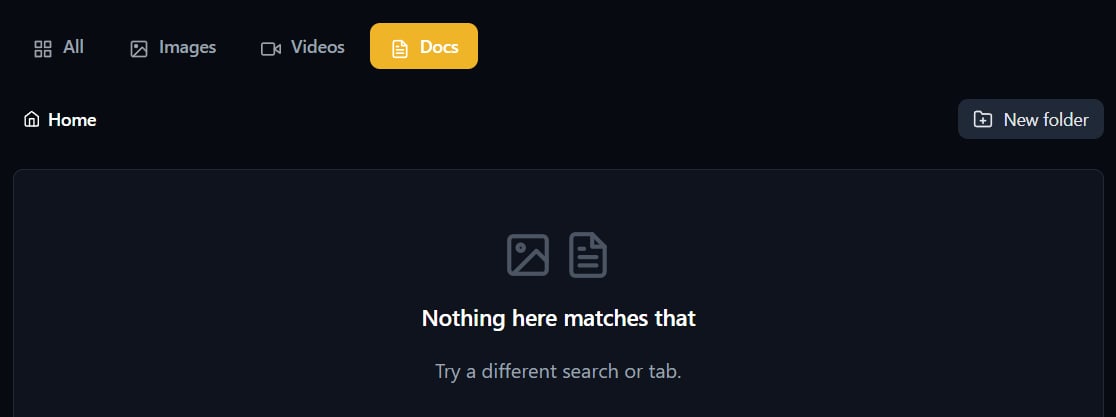
- Use All, Images, Videos, or Docs to show one kind of file.
- Use the search bar to find a file by name.
- Select New folder to create a folder, and Home to go back to the top level.
- Use Move to… on a file to put it in a different folder.
- Select Delete on a file to remove it.