

What the AI Agents panel is
The AI Agents item in the sidebar (under AI Platform) opens an expandable panel rather than a single page. It groups all your agent providers into three sections: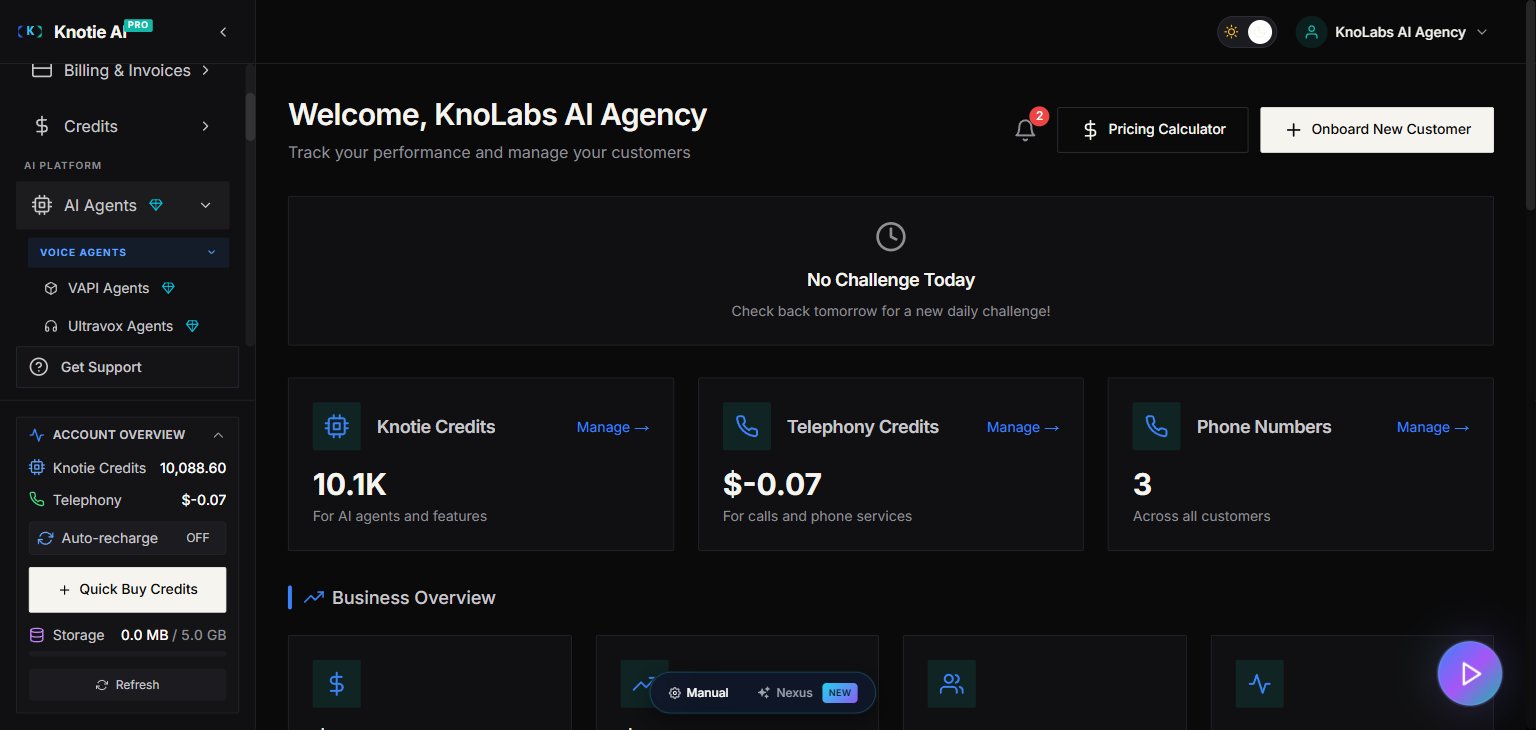
Voice Agents
Voice agents handle inbound and outbound phone calls. Each provider has its own page in this section:- VAPI Agents — Manage agents on the VAPI platform. Import existing ones or create new ones.
- Ultravox Agents — Manage Ultravox voice agents, assign phone numbers, and set up their prompts.
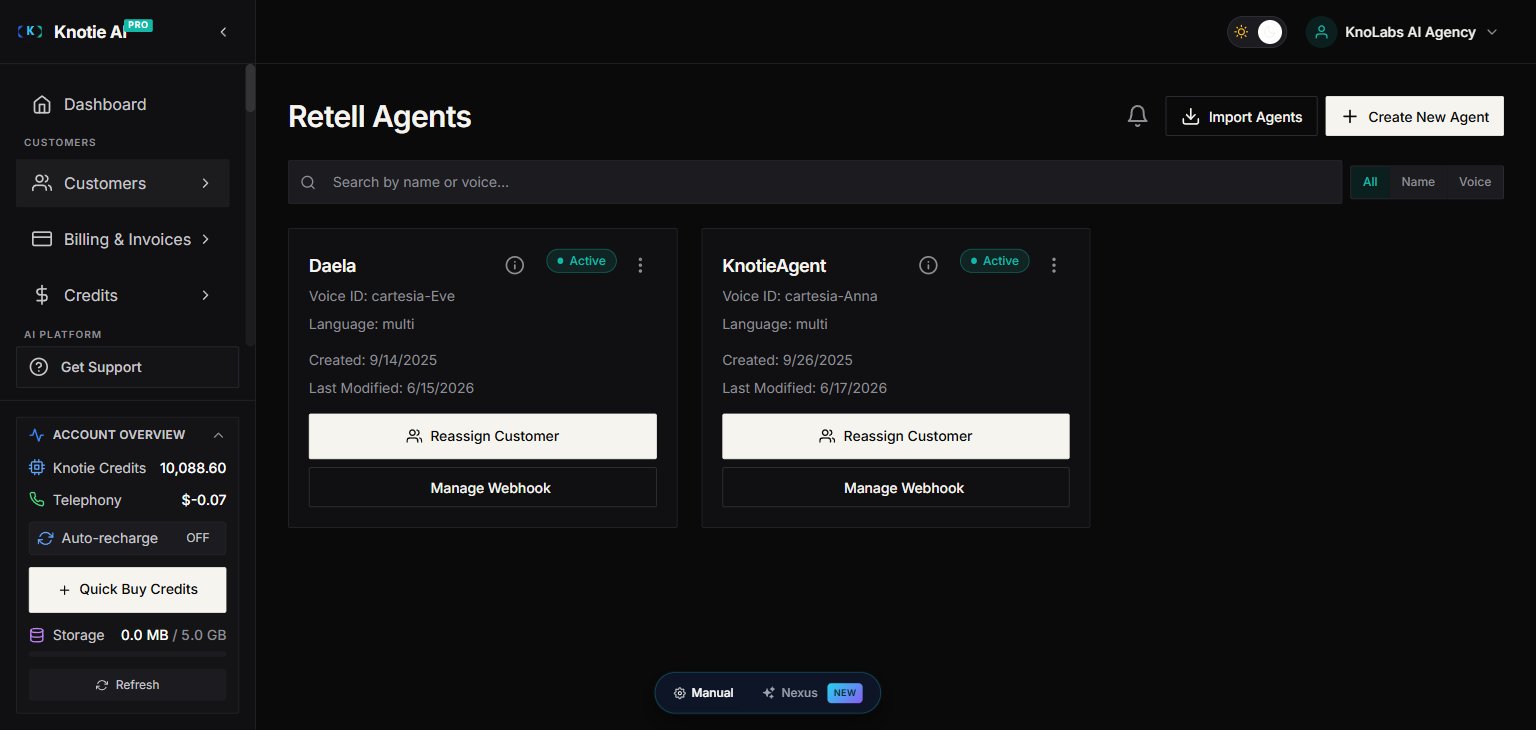
- Retell Agents — Import and manage Retell agents, assign numbers, and configure how they handle calls.
- ElevenLabs Agents — Manage ElevenLabs agents, including custom voice choices.
- GHL Agents — Connect GoHighLevel agents for CRM-integrated voice workflows.
- Knova Agents — Manage Knova voice agents. Knova is a newer provider that works directly with the platform.
Chat Agents
Chat agents handle text conversations instead of phone calls:- Retell Chat — Add Retell-powered chat agents to your customer portals.
- N8N Chat Agents — Build automated chat flows for your customers with N8N.
Automation & Tokens
- N8N Automation — Connect N8N workflows to trigger agent calls and act on the results.
- N8N Tokens — Manage the access tokens your N8N integration uses.
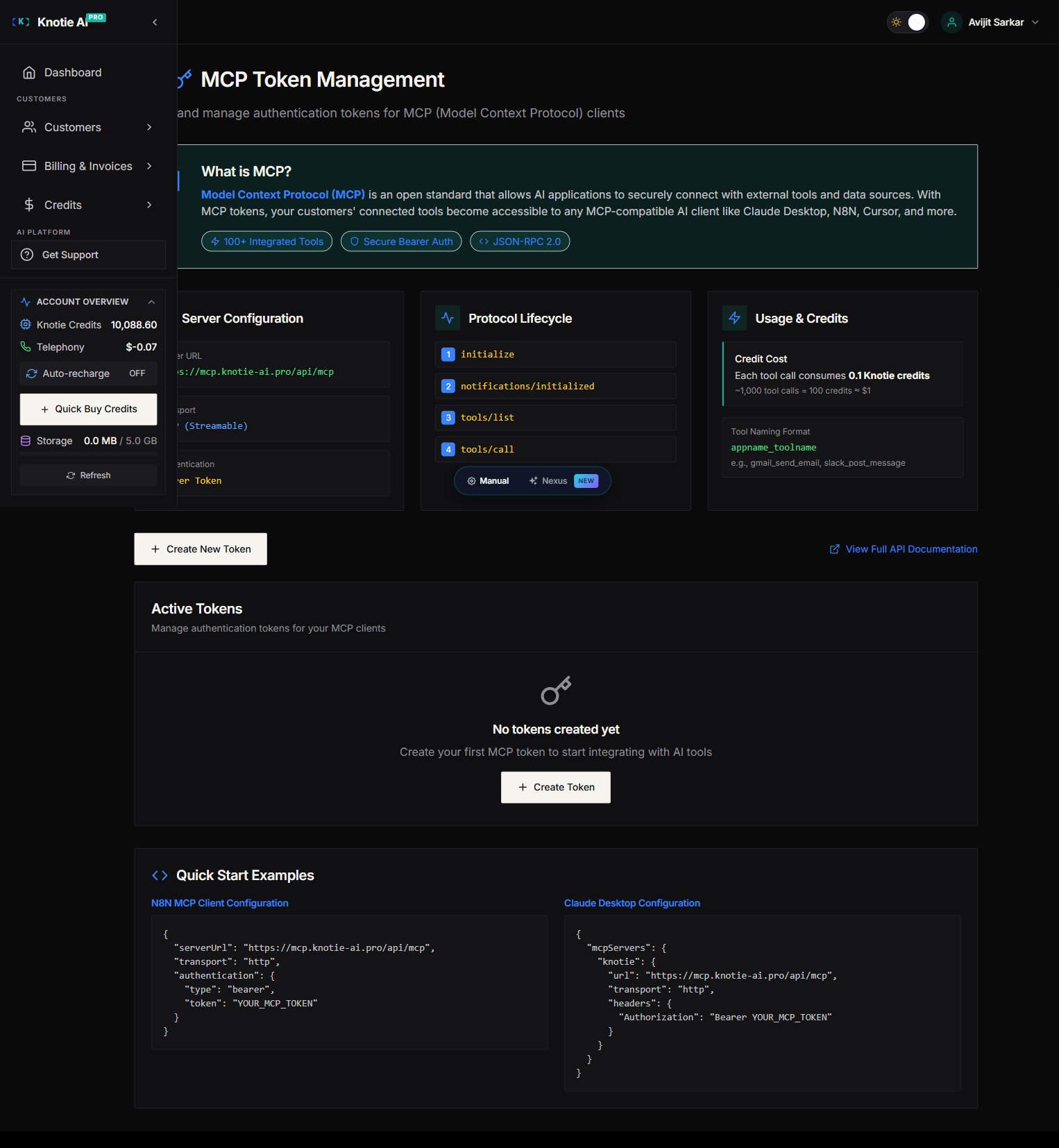
- MCP Tokens — Manage the tokens used for advanced AI gateway integrations.
- Agent Migration — Move agents between providers, or bring older agents up to date.
Agent details at a glance
On each provider’s page, your agents appear as cards. Hover over the info icon on a card to see quick details about that agent — such as its assigned phone number or current status — without opening the full window.Assigning agents to customers
From any agent page:- Find the agent in the list.
- Click Assign to Customer (or open the agent’s details).
- Pick the customer from the dropdown.
- Save. The agent is now linked to that customer.