

Overview
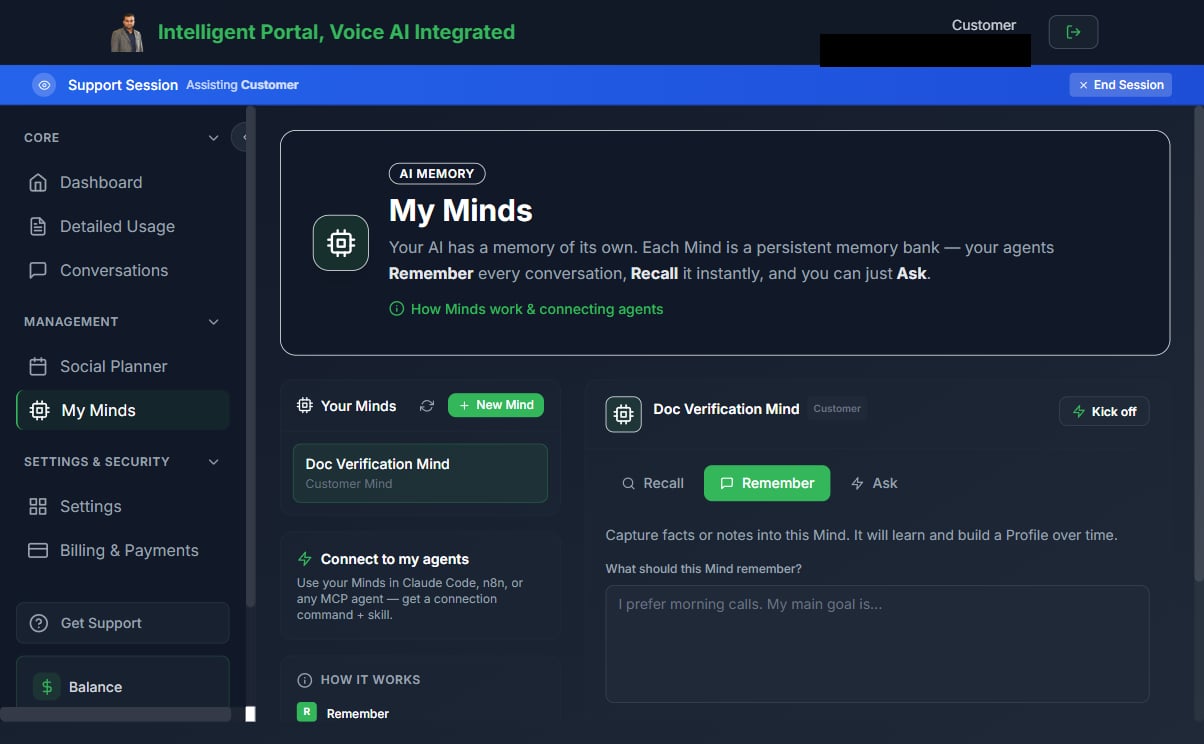
When AI Memory is enabled for a customer by their partner, the customer gains access to the My Minds page in their portal (/whitelabel/memory). This page lets customers create and manage their own Minds — named long-term memory stores that their AI agents remember across calls and sessions.
The page header reads AI Memory → My Minds, with a How Minds work & connecting agents help link (/whitelabel/memory/help) and a Connect to my agents card for using Minds in Claude Code, n8n, or any MCP agent.
Prerequisites
- The customer’s partner must have enabled AI Memory on the customer’s account (via Features & Add-ons → Enable AI Memory (Mind)).
- The My Minds nav item is visible only when memory is enabled for the customer.
If AI Credits are not enabled for this customer, the partner absorbs the full cost of memory operations. Customers will still be able to use memory, but AI credit charges won’t appear in their portal billing.
Navigate to My Minds
- Log in to the customer portal.
- In the left sidebar, under the Management section, click My Minds.
- You land on
/whitelabel/memory.
Create a Mind
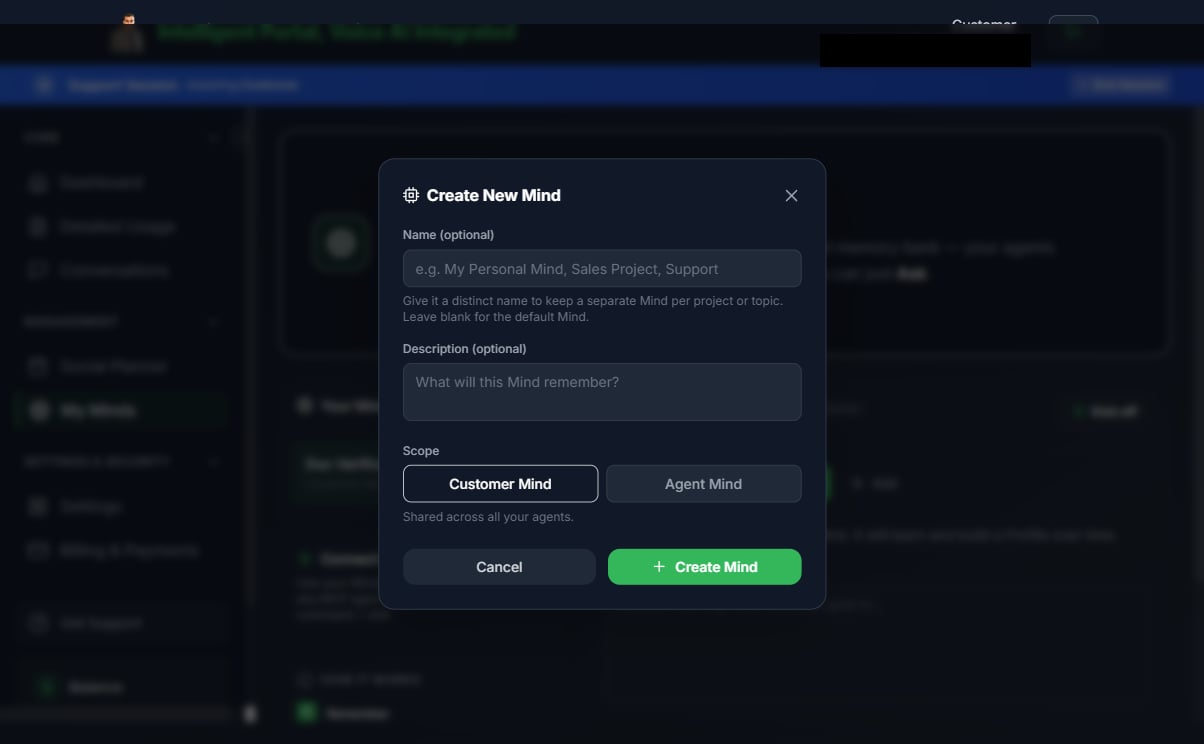
- On the My Minds page, click New Mind (or Create your first Mind when the list is empty).
- In the Create New Mind modal:
- Name (optional) — give it a distinct name to keep a separate Mind per project or topic. Leave blank to create the default Mind.
- Description (optional) — a note about what this Mind will remember.
- Scope — choose customer Mind (shared across all your agents) or agent Mind (scoped to a single agent).
- Click Create Mind.
Remember a fact
Storing a fact writes it into the Mind’s long-term store, so agents can recall it in future sessions.- Select a Mind from the list.
- Click the Remember button.
- Type the fact or context you want to store (e.g.,
"My preferred contact number is +1-555-0100 and I prefer morning calls."). - Click Remember.
Recall
Recall fetches everything the Mind currently knows — its derived Profile and a Snapshot.- Select a Mind.
- Click the Recall button.
- Review the Profile and Snapshot sections.
The Profile section is derived asynchronously. If it appears empty right after writing a fact, wait a moment and click Recall again.
Ask
Ask a natural-language question that is answered using everything stored in the Mind.- Select a Mind.
- Click the Ask button.
- Type your question.
- Choose a Reasoning depth —
minimal,low,medium,high, ormax. Higher depths reason more thoroughly but cost more AI credits. - Click Ask.