

Overview
The Try Agent feature lets you test your Knova AI Receptionist with a live voice conversation, right in your browser. No phone number needed — you speak into your microphone and the agent responds through your speakers in real time. This is useful for:- Verifying the agent’s system prompt and voice configuration before going live.
- Demonstrating the agent to a customer without placing a real phone call.
- Debugging unexpected agent behaviour in a quick, low-friction test session.
This feature is currently in Beta. It runs a live voice session in your browser. You need a microphone and speakers (or headphones) connected to your browser.
Prerequisites
- A Knova agent created and configured in your partner account.
- Sufficient Knotie Credits — test sessions consume credits while the agent is connected. Verify your balance under Partner Portal → Credits before testing.
- A browser with microphone access enabled (Chrome, Edge, or Firefox recommended).
How to open the browser test
- In the Partner Portal sidebar, go to AI Agents → Knova.
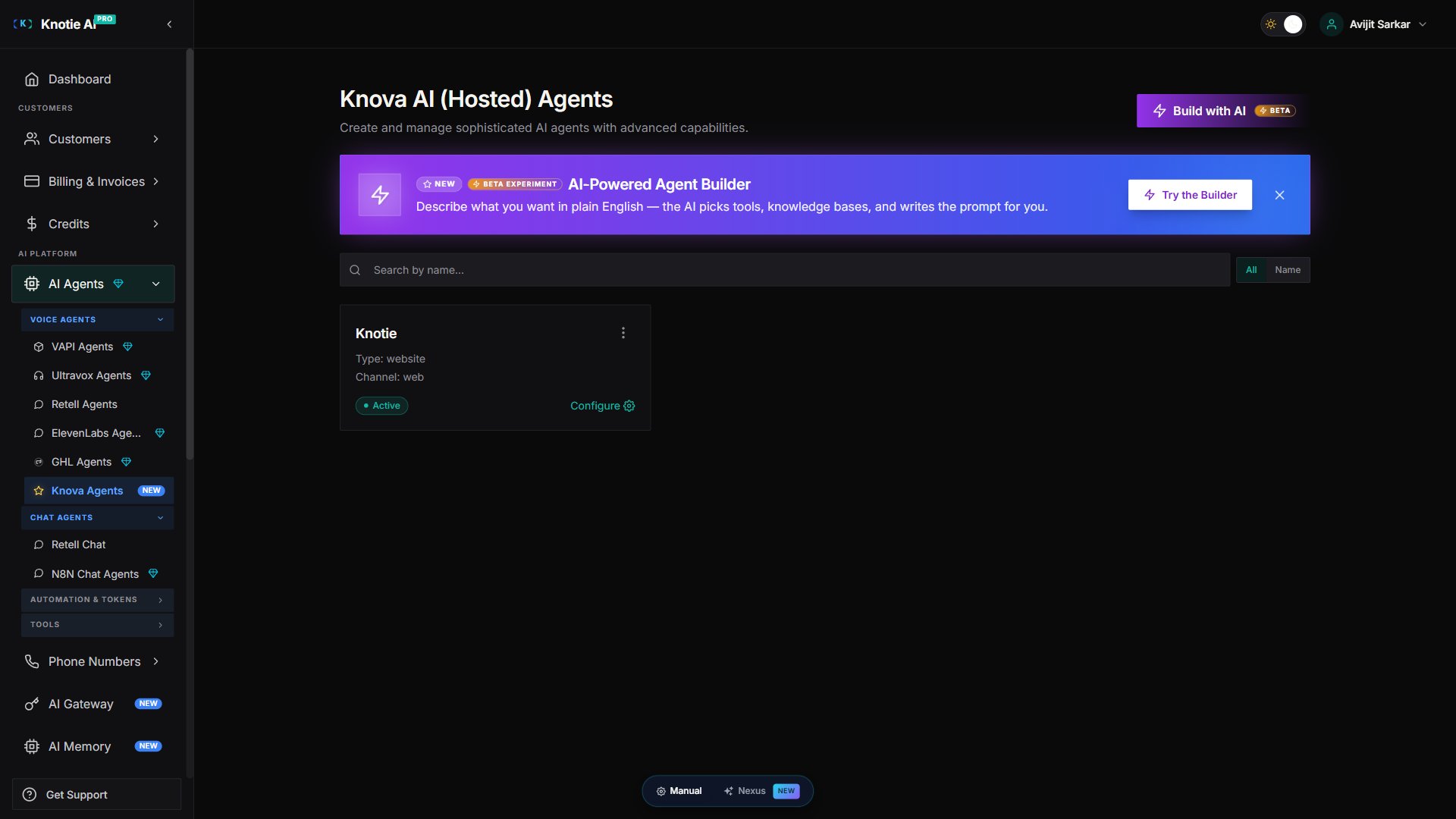
- Find the Knova agent you want to test and open the agent’s three-dot menu (⋮) at the end of the row — there is no row-level button. Choose Try Agent (BETA) from the menu.
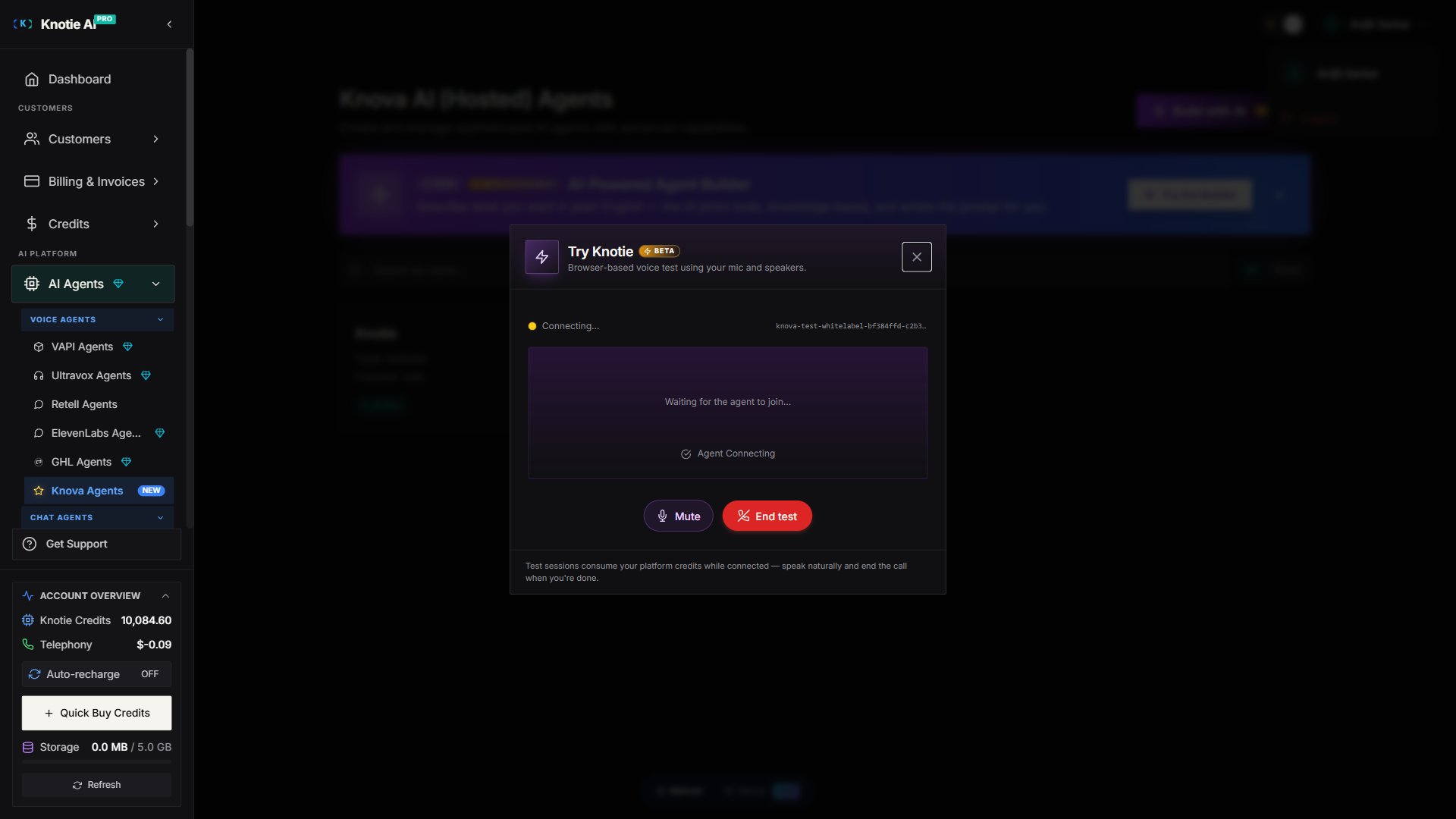
- The Try [Agent Name] modal opens and immediately starts preparing a secure voice session.
During the test session
Once the session is ready, the modal shows a live voice interface:Connection indicator
A coloured dot in the top-left of the session area shows the connection state:- Green — Connected
- Yellow (pulsing) — Connecting or Reconnecting
- Grey — Disconnected
Voice visualizer
The purple bar visualizer pulses with the agent’s audio when it is speaking. When it is idle, the bars are flat. The agent state label below the visualizer updates in real time:- Listening — the agent is waiting for you to speak
- Speaking — the agent is responding
- Idle — waiting for the session to start
Cold-start hint
If the agent hasn’t been used in a while, it may take 10–20 seconds to wake up from idle. The modal shows a yellow amber notice and a timer so you know the agent is starting, not broken.Microphone controls
- Click Mute / Unmute to toggle your microphone without ending the call.
- Click End test (red button) to disconnect and close the modal.
Credit usage
Test sessions use the same credit pool as live calls. Credits are consumed for the duration of the connection — from the moment you connect until you click End test or the session disconnects. If your balance is too low to start a session, the modal shows a credit gate error: Click Top up credits → to go to the Credits page and add more.Troubleshooting
“Could not start the test” error- Check your internet connection. The modal needs a stable connection to the voice service.
- If the error persists, click Try again inside the modal.
- Ensure your browser’s volume is not muted.
- Check your OS audio output device — the test uses the browser’s default audio output.
- If the agent state shows “Listening” but nothing happens after you speak, try refreshing the page and opening the modal again.
- Grant microphone permission when the browser prompts you. If you previously denied permission, update it in your browser’s site settings for knotie-ai.pro.
- On macOS, confirm the app (browser) has microphone access in System Settings → Privacy & Security → Microphone.
- The agent disconnects automatically if your Knotie Credits reach zero mid-session. Top up and start a new test session.
- Unstable internet can also cause disconnects — the modal will show “Disconnected” and you can simply close and reopen it.