

Documentation Index
Fetch the complete documentation index at: https://docs.knotie-ai.pro/llms.txt
Use this file to discover all available pages before exploring further.
What MCP Tokens are for
MCP Tokens (Model Context Protocol tokens) allow AI coding assistants like Cursor, Windsurf, and Claude to interact with your Knotie AI Pro account programmatically. Use MCP tokens when you want to:- Automate workflows – Let AI tools manage customers, agents, or credits.
- Build integrations – Connect Knotie AI Pro to your development environment.
- Access data – Query analytics and customer information via AI assistants.
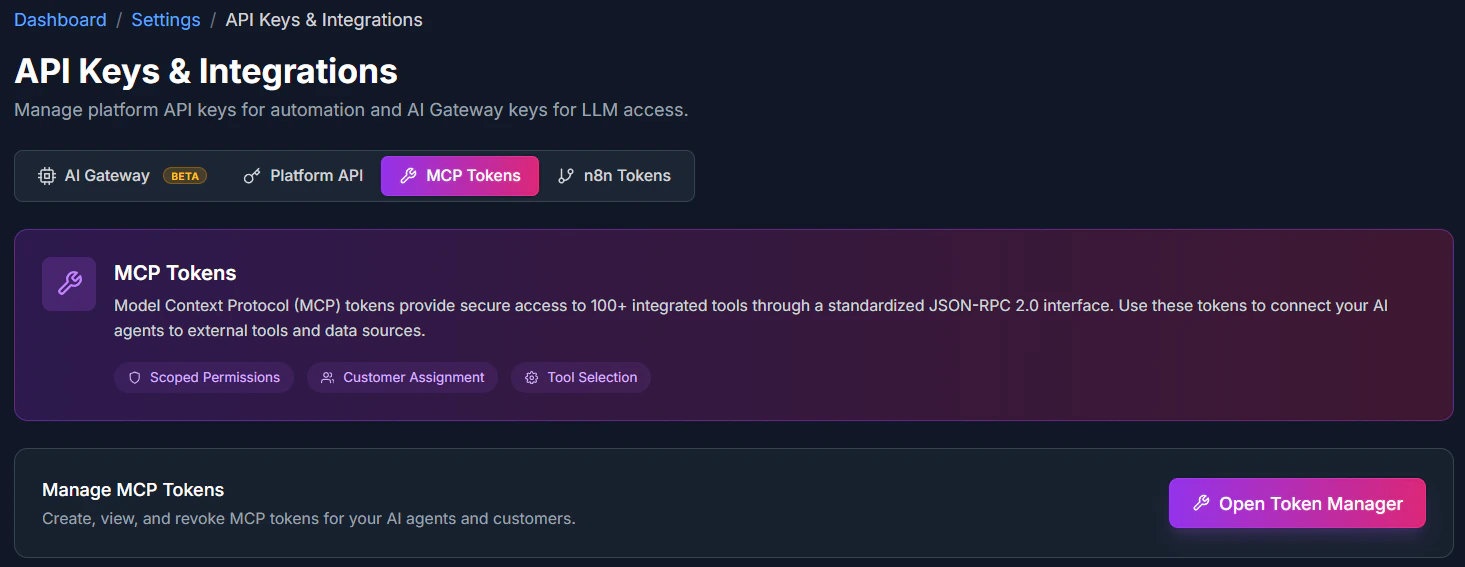
Where to find it
- Open Settings.
- Scroll to the bottom of the page.
- Find the MCP Tokens section.
Generate an MCP token
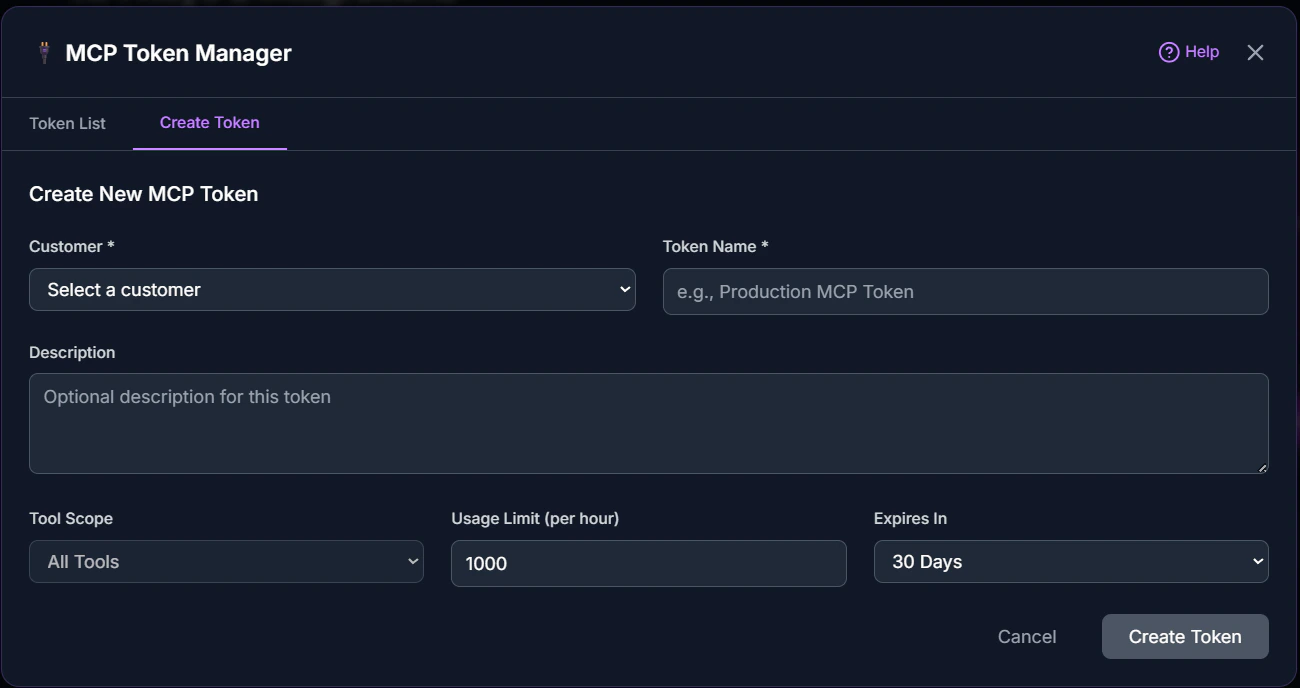
- In the MCP Tokens section, click Generate Token.
- Give the token a descriptive name (e.g., “Cursor Development”).
- Copy the generated token immediately—it won’t be shown again.
- Store the token securely in a password manager.
Using MCP tokens
With Cursor
Add your MCP token to Cursor’s settings to enable Knotie AI Pro integration:- Open Cursor settings.
- Navigate to MCP configuration.
- Add your Knotie AI Pro endpoint and token.
With Windsurf
Configure MCP in Windsurf:- Open Windsurf settings.
- Add MCP server configuration.
- Include your token in the authentication header.
With Claude Desktop
Set up MCP for Claude Desktop:- Edit your Claude configuration file.
- Add the Knotie AI Pro MCP server.
- Include your authentication token.
Token security
- Never share tokens – Treat MCP tokens like passwords.
- Rotate regularly – Generate new tokens periodically.
- Revoke unused tokens – Delete tokens you no longer need.
- Use separate tokens – Create different tokens for different tools/environments.
Revoking tokens
- Go to Settings → MCP Tokens.
- Find the token you want to revoke.
- Click Delete or Revoke.
- Confirm the action.
Troubleshooting
- Token not working – Confirm you copied the full token without extra spaces.
- Access denied – Check that your account has API access enabled.
- Can’t find MCP Tokens section – Scroll to the bottom of the Settings page.
Related pages
- API Keys – Partner API keys for general automation
- MCP API Reference – Endpoint documentation