

Who this is for
This playbook is for agencies that:- Resell AI voice agent services to multiple clients
- Want usage-based billing rather than flat-rate subscriptions
- Need per-client credit controls to prevent runaway spend
Business goal
Without credit controls, a single high-volume client can drain your account. This playbook sets up:- Per-client credit balances so each client pays for what they use
- Low-balance alerts so neither you nor your client gets surprised
- Portal visibility so clients can self-serve top-ups (optional)
- Credit plan controls to limit which top-up plans each client sees
Prerequisites
- At least one customer onboarded in the Partner Portal
- Your own Knotie Credits balance topped up
- (Optional) Stripe Connect configured for metered billing
Step 1 — Enable AI credits for a customer
- Partner Portal → Customers
- Click Manage on the customer’s card to open the customer modal
- Go to the Features & Add-ons tab
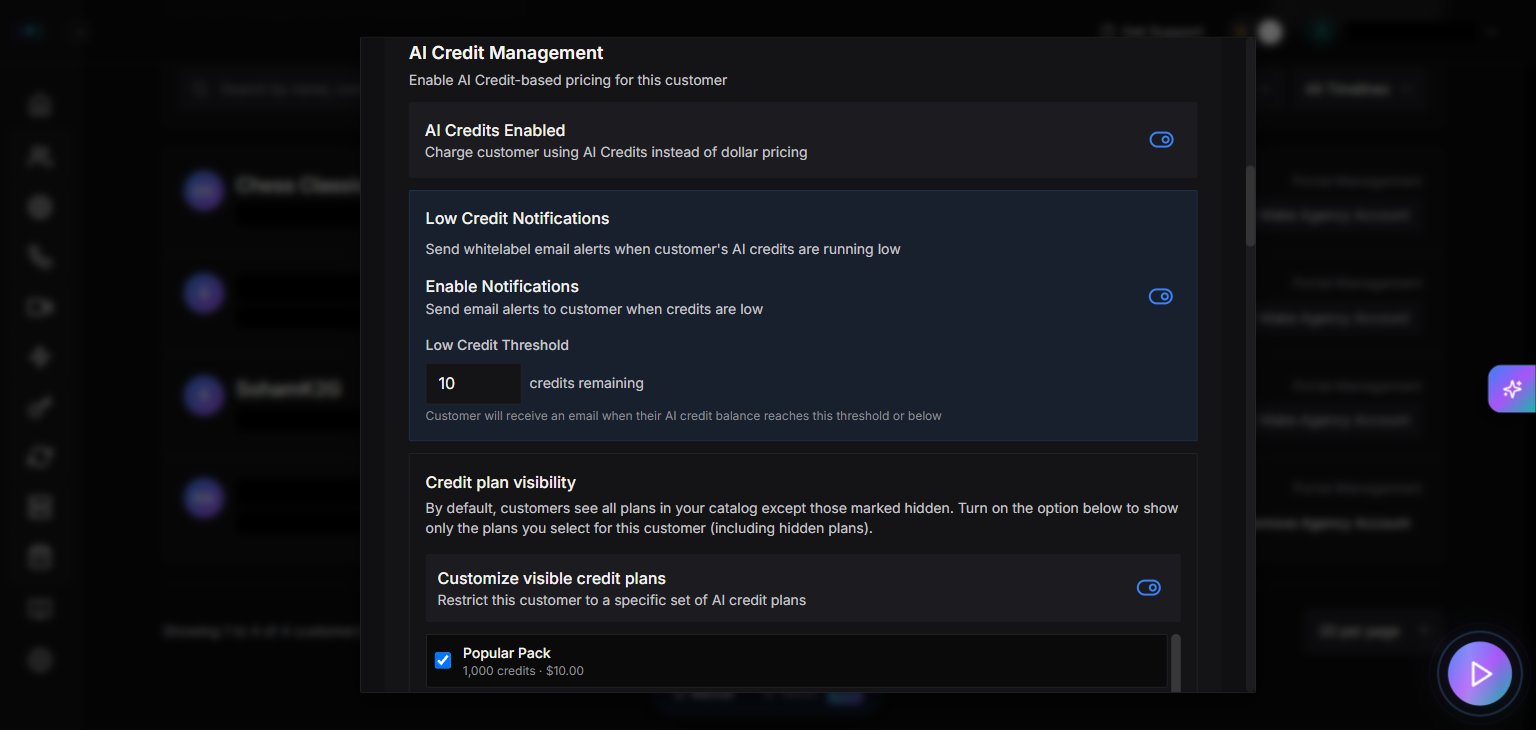
- In the AI Credit Management section, toggle AI Credits Enabled to on
This activates per-call credit deductions for this customer. Without it, calls use your partner balance directly.
Note: The customer modal has 9 tabs: Customer Info, Deal Management, Features & Add-ons, Billing, Phone Numbers, Credits, Embed URLs, Deployment, and Reports.
Step 2 — Configure low-balance alerts
Still in the customer’s Features & Add-ons tab:- Find the low-credit alerts section (labeled Low Credit Notifications; the exact section name may differ slightly in your portal)
- Toggle the Enable Notifications switch
- Set Low Credit Threshold — the balance level that triggers a warning (default is 10 credits)
The toggle’s purpose is to send email alerts to the customer when their credits run low. The exact subtext wording may differ in the live UI.This prevents calls from silently failing when a client runs out of credits.
Step 3 — Add initial credits
- In the customer modal, switch to the Credits tab
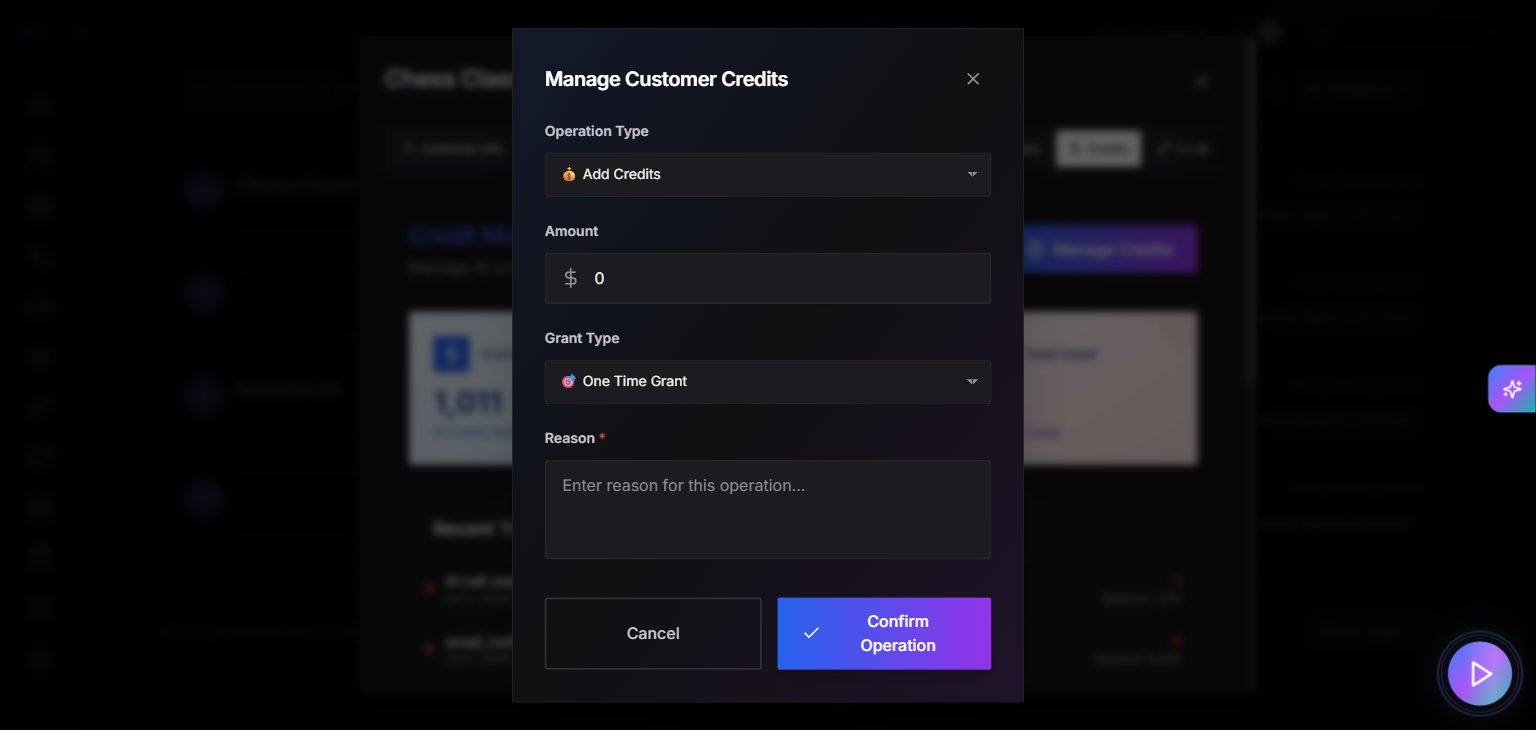
- Click Manage Credits to open the credit operation modal
- Select Operation Type: 💰 Add Credits
- Enter the Amount
- Choose Grant Type: 🎯 One Time Grant (or 🔄 Monthly Recurring)
- Enter a Reason (required)
- Click Confirm Operation
The Credits tab also shows the customer’s transaction history and a Credit Check Endpoint section. This endpoint lets external systems (like n8n/Make/Zapier) check the customer’s balance before triggering a call. Generate an API key to reveal the endpoint URL.
Step 4 — Control what the client sees in their portal
Still in the customer’s Features & Add-ons tab:
To configure:
- Toggle Customer Portal → Enable Customer Portal
- In the Credit plan visibility section, toggle which plans this customer can see:
- Popular Pack (e.g., 1,000 credits)
- Double (e.g., 2,000 credits)
- Blaze (e.g., 1,000 credits)
- Starter Pack (e.g., 1,000 credits)
The customer’s Pricing Breakdown (read-only, in the Customer Info tab) shows estimated costs but is computed, not editable.
Step 5 — (Optional) Partner-level auto-recharge
To avoid interruptions, set up auto-recharge for your own partner credits:- Partner Portal → Settings → Plans & Billing
- In the Credit Auto-Recharge section:
- Save a payment method (check “Save card and enable auto-recharge” when buying credits)
- Set Threshold — the balance floor that triggers a top-up (the form enforces a minimum; accept whatever the page allows)
- Set Amount — the top-up amount per recharge event (the form enforces a minimum)
- Toggle Auto-Recharge on
The threshold is a “soft floor” — auto-recharge fires whenever a business operation needs more credits than the current balance, even above the threshold. The page enforces minimum threshold and amount values; accept whatever the form allows.
Verification checklist
- AI credits enabled for the customer (Features & Add-ons tab)
- Low credit threshold configured
- Notifications enabled
- Initial credits added (Credits tab → Manage Credits)
- (Optional) Portal access enabled with pricing visibility
- (Optional) Credit plan visibility restricted per customer
How credits flow
Troubleshooting
Next steps
- Explore Metered Billing for Stripe-based automated invoicing
- Set up automated onboarding to provision credits via API
- Review Agent Analytics to optimize your pricing