

Who this is for
Use this playbook if you:- Run lead-gen campaigns (Facebook Lead Ads, TikTok lead forms, landing-page forms)
- Manage a GoHighLevel (GHL) CRM for yourself or your clients
- Want an AI voice agent to call leads immediately while they are still warm
Business goal
Outbound AI calling fails when you dial cold lists. This playbook is designed around a simple principle:- Call within 5–10 minutes of the lead submitting a form.
What you’ll build
A GHL Workflow that:- Triggers when a lead is created / form submitted
- Sends a Webhook action directly to Knotie
- Passes structured variables into your voice agent via a
metadataobject
Prerequisites
- A customer created in your Partner Portal
- A phone number imported (Twilio or Retell) and assigned to that customer
- An outbound-capable voice agent assigned to that phone number
- An Outbound Webhook Key generated for that phone number (starts with
owk_)
Step 1 — Prepare the phone number in Knotie
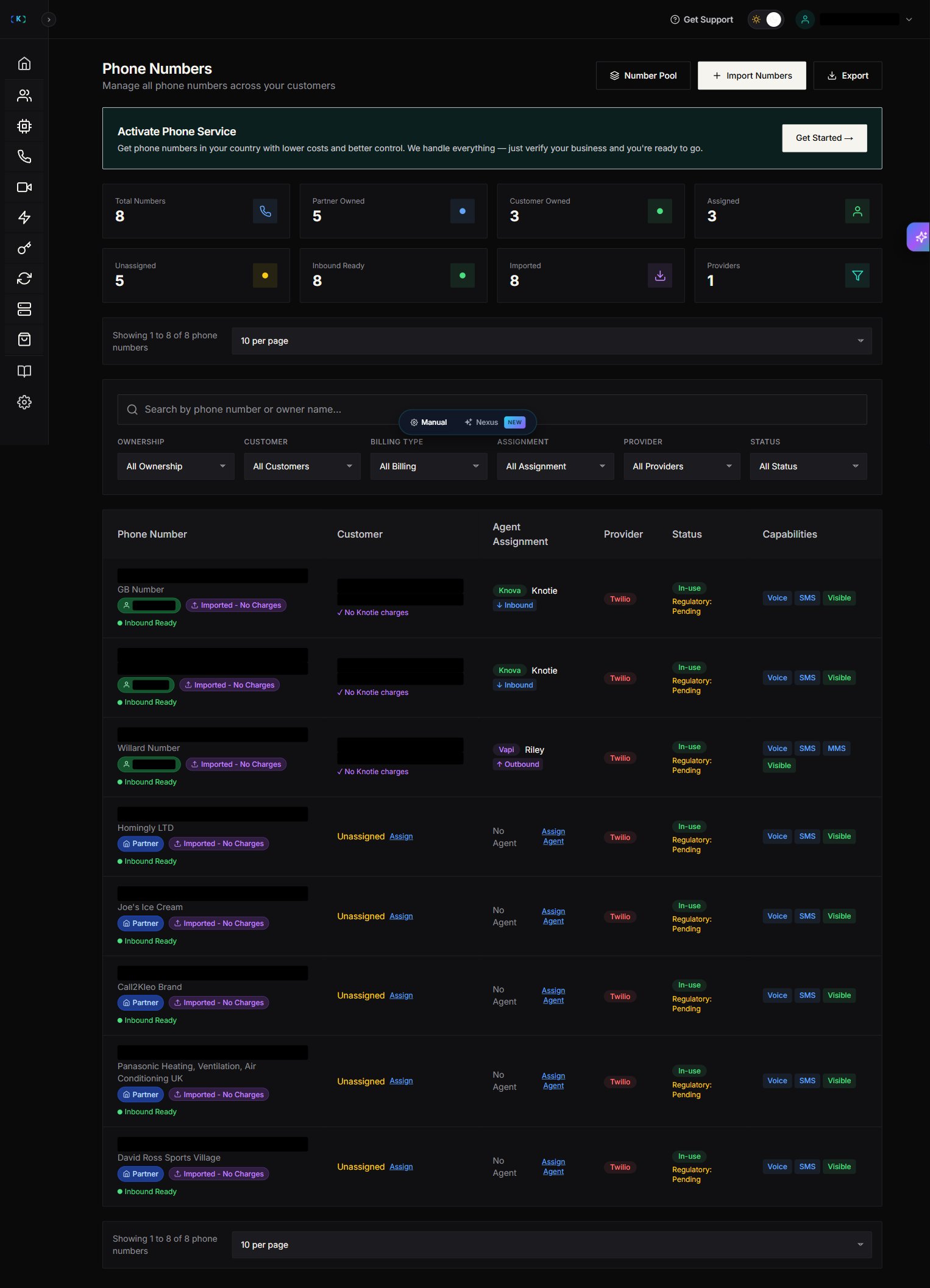
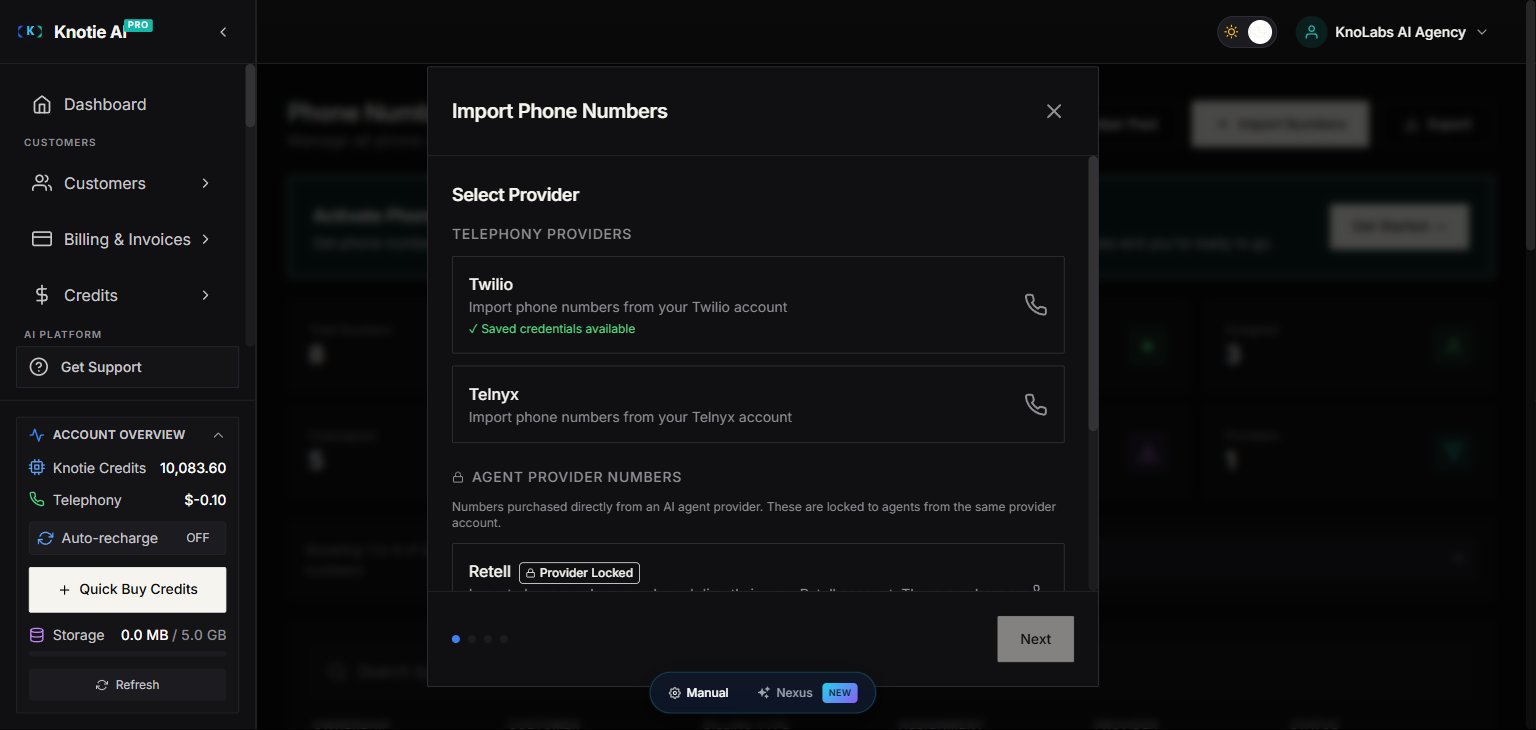
- Partner Portal → Phone Numbers
- Import a phone number (Twilio or Retell)
- Assign the phone number to the correct customer
- Assign an outbound-capable agent to the phone number
The Assign Customer picker is a typeahead — start typing the customer’s first name, last name, or email. The customer shown in the Phone Numbers list will be the contact name (e.g. “Soham Maiti”), not the brand name from your Customers list.
The list of agents you can pick from is scoped to the customer you just assigned. If you onboard multiple clients, each one needs its own outbound-capable agent.
Step 2 — Generate an outbound webhook key
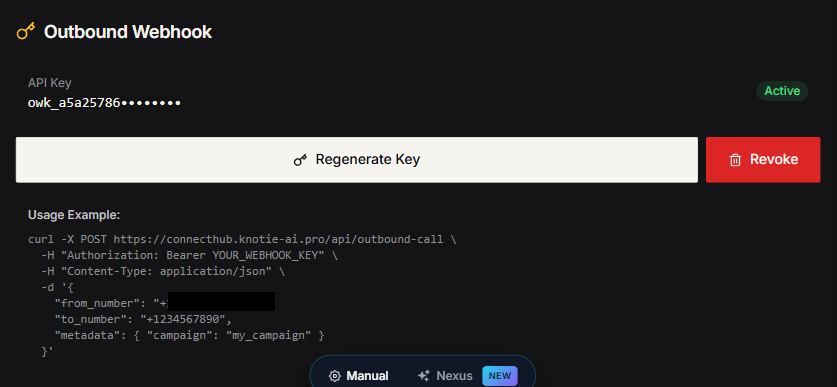
- Open the phone number details panel
- Find Outbound Webhook
- Click Generate Key
- Copy the key immediately (shown once)
Step 3 — Create the GHL Workflow
- In GHL: Automation → Workflows → New Workflow
- Choose a trigger that guarantees a phone number exists, for example:
- Facebook Lead Form
- TikTok Lead Gen
- Form Submitted
- Contact Created
ℹ️ This step happens inside GoHighLevel, not the Knotie portal. In the GHL workflow builder, the trigger picker lists options like Facebook Lead Form, TikTok Lead Gen, Form Submitted, and Contact Created — pick the one that guarantees a phone number is present.
Step 4 — Add a Webhook action (native)
Add an action:- Action type:
Webhook - Method:
POST - URL: Copy the URL shown in the phone number’s Outbound Webhook section.
ℹ️ This configuration lives in the GoHighLevel action panel. Use the URL from the portal so you always have the current endpoint.
Step 5 — Add required custom data fields
In the webhook’s body, include:from_number: your registered Knotie phone number (E.164)to_number: lead phone number (GHL merge field)
Step 6 — Add dynamic conversation variables
To pass variables into your agent, group them under ametadata object in the body.
Example payload:
ℹ️ In the GHL webhook action’s Custom Data / body editor, add thefrom_numberandto_numberfields plus a nestedmetadataobject with your conversation variables, matching the JSON example above.
Step 7 — Add the Authorization header
In webhook Headers:ℹ️ In the GHL webhook action’s Headers section, add anAuthorizationheader with the valueBearer owk_YOUR_KEY_HERE, using the outbound webhook key you generated in Step 2.
Step 8 — Test
- Use a test submission (or GHL test tool)
- Confirm the webhook step shows
200 OK - Confirm an outbound call appears in Knotie call logs
Common failure modes
- 401 Unauthorized
- Wrong
Authorizationheader or wrong key
- Wrong
- 404 Phone not found
from_numberdoes not match the imported/registered number
- 402 Insufficient credits
- Customer needs credits
- 400 UNSUPPORTED_PROVIDER
- The agent assigned to the number is not compatible with the outbound webhook endpoint. Use a Retell agent for the most reliable path.
Recommended agent behavior (anti-spam)
In your agent script/prompt:- Acknowledge the lead action (“You just submitted our form…”) to reduce hang-ups
- Ask 1–2 qualifying questions
- Move to a single CTA (book a call, send a link, confirm availability)
ℹ️ In your agent’s system prompt, reference eachmetadatakey with the{{key}}syntax (e.g.Hi {{customer_name}}, you just submitted our {{service_type}} form…). The exact prompt is specific to your agent, so capture it from your own agent builder.