

Who this is for
This playbook is for agencies that:- Onboard multiple customers per week and want to eliminate manual setup
- Use a CRM (GoHighLevel, HubSpot, or custom) to manage their sales pipeline
- Want to trigger customer provisioning automatically when a deal closes
Business goal
Manual onboarding is slow and error-prone. Every time a new client signs, someone has to:- Create the customer in the Partner Portal
- Enable portal access
- Map agents to the customer
- Add credits
What you’ll build
An integration that:- Creates a Knotie customer when a deal closes in your CRM
- Enables portal access and sends invite credentials automatically
- Maps your default voice agent to the new customer
Prerequisites
- A Partner API key (created in Settings > Partner API Keys → Platform API tab)
- At least one imported voice agent (Retell or VAPI)
- A CRM or automation tool that can send HTTP requests (GHL workflows, Zapier, Make, n8n, or custom code)
Step 1 — Generate your Partner API key
- Partner Portal → Settings → Partner API Keys → Platform API tab
- Click Create API Key
- Configure the key (see options below)
- Copy the key (starts with
pkt_) and store it in your automation tool’s secrets
Important: The key is shown only once in a reveal modal. Copy it immediately.
Key configuration options
The Platform API key creation modal exposes:- Name (required)
- Description
- MCP Gateway — Enable MCP for AI-agent calls (checked by default)
- Full Access — full-scoped permission (checked by default)
- Expires At — optional expiration date
- Rate Limit — requests per minute
- Daily Limit — maximum daily requests
- Monthly Limit — maximum monthly requests
- Allowed IPs — restrict to specific server IPs (one per line)
Live field labels can change without notice — the list above is the verified set. The MCP-related fields (MCP Gateway, Full Access) gate the tool scopes the key can call.
What the reveal modal shows
After creation, a one-time modal displays:- Raw API key (
pkt_...) - Ready-to-copy
Authorization: Bearer pkt_...header - Ready-to-paste curl example
- Endpoint info:
/api/partner-mcp(AI agents) and/api/partner-rest/*(REST) - Legacy Basic-auth header (marked deprecated)
All API requests use the Authorization: Bearer pkt_... header. See the Authentication guide for details.
Security best practices
The page includes an expandable Security Best Practices section with guidance on:- Storing API keys in environment variables
- Rotating keys periodically and revoking unused ones
- Using IP restrictions for trusted servers
- Monitoring usage for suspicious activity
Key management table
The Platform API tab shows a table of all keys with columns:- Name, Prefix, Status
- Created, Last Used
- Usage (Total / Today / Month)
- MCP Scopes
- Actions: Renew (rotate), Revoke
Note: The Partner API Keys page has 4 tabs: AI Gateway Beta, Platform API, MCP Tokens, and n8n Tokens. Make sure you are on the Platform API tab for partner automation keys (pkt_prefix). AI Gateway keys (sk-prefix, for LLM usage) are on the separate AI Gateway Beta tab.
Step 2 — Create the customer via API
When your CRM trigger fires (deal closed, form submitted, etc.), send:
The response includes the customer
id — save this for the next steps.
Step 3 — Map a voice agent to the customer
Once the customer exists, assign your default agent:AGENT_ID with your Retell agent ID. For VAPI agents, use /api/v1/mcp/vapi-agents/AGENT_ID/map-customer instead.
The profitMultiplier controls how call costs are billed to this customer. A value of 1.5 means you charge 1.5x the base cost.
Step 4 — (Optional) Add team members
If the client needs additional portal users:maxTeamMembers setting.
Example: GoHighLevel workflow
Here’s how to wire this up in a GHL workflow:- Trigger: Pipeline stage changed → “Closed Won”
- Action 1: Webhook →
POST /api/v1/mcp/customers/onboard(with contact fields mapped) - Action 2: Webhook →
POST /api/v1/mcp/retell-agents/{agentId}/map-customer(using the customer ID from Action 1)
Tip: Use GHL’s custom values to store your Partner API key and agent ID so they’re easy to update across workflows.
Example: n8n workflow
- Trigger: Webhook (from your CRM) or schedule-based poll
- HTTP Request node: POST to
/api/v1/mcp/customers/onboard - HTTP Request node: POST to agent map endpoint with the returned customer ID
Verification checklist
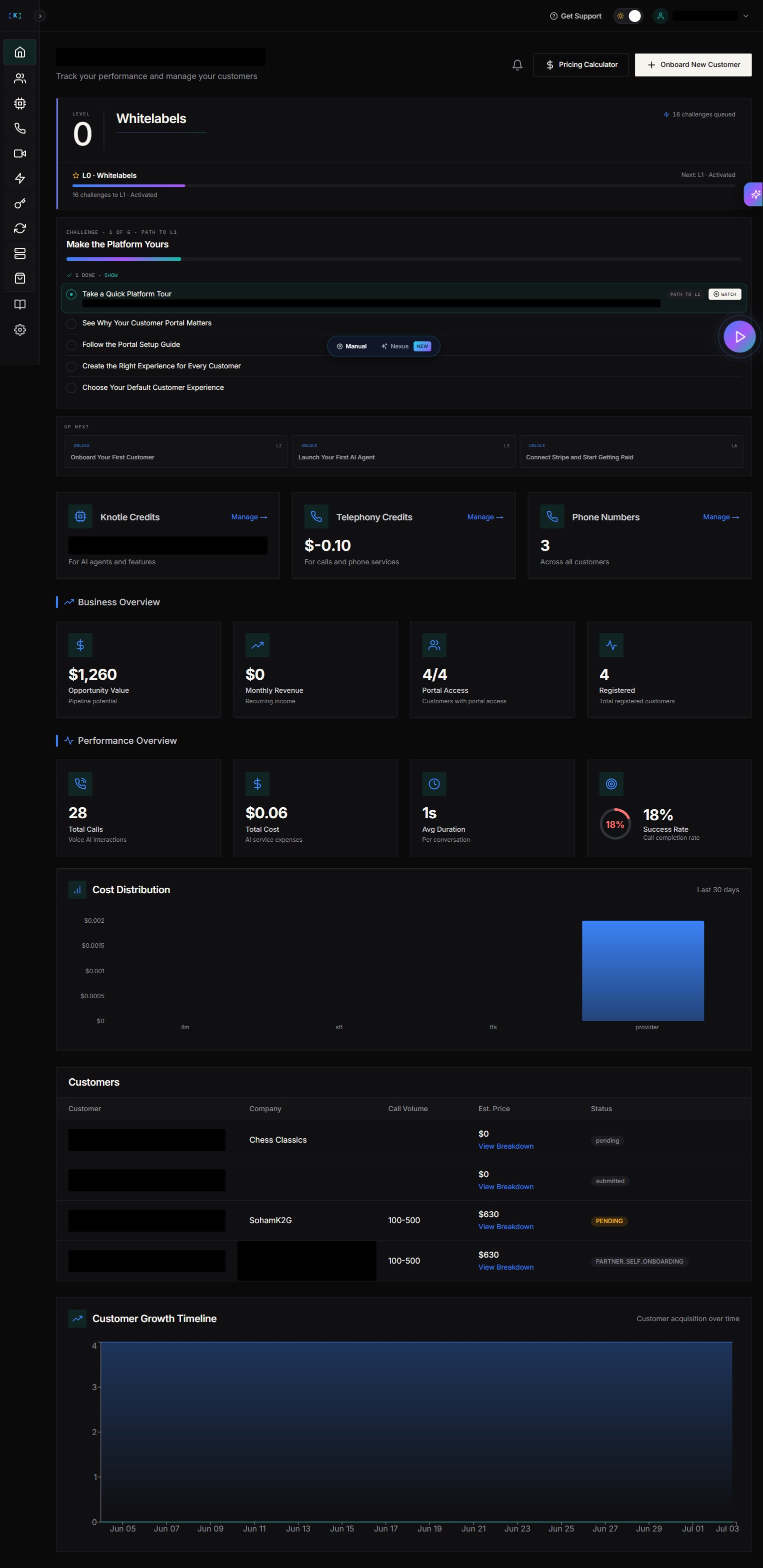
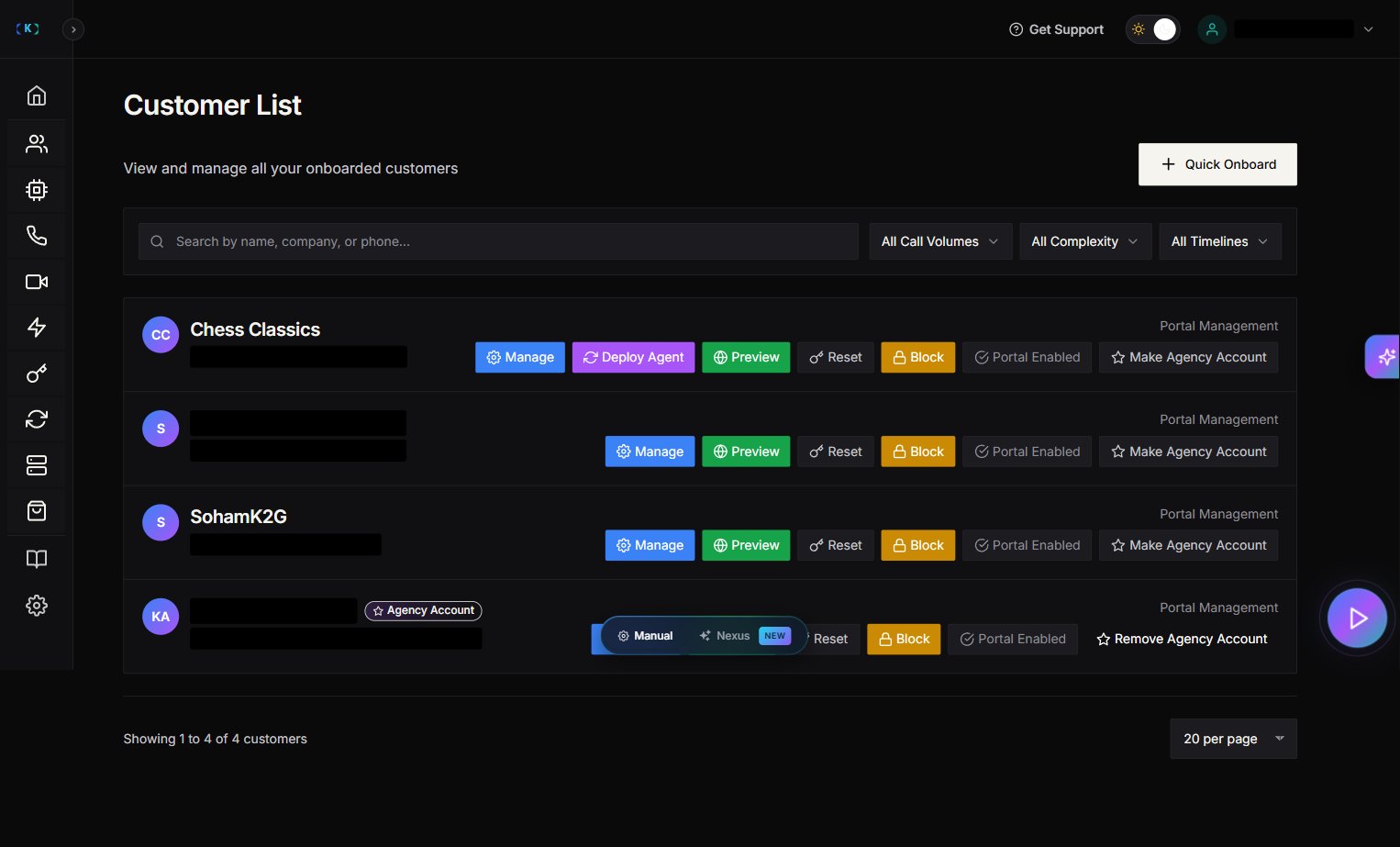
After your first automated onboarding, confirm:- Customer appears in Partner Portal → Customers
- Customer received the portal invite email
- Agent mapping shows correctly in the customer’s detail view
- Customer can log into their portal
Troubleshooting
Next steps
- Set up outbound calling for your newly onboarded customers
- Configure credit management to control usage limits
- Explore the full MCP API reference for additional automation options