> ## Documentation Index
> Fetch the complete documentation index at: https://docs.knotie-ai.pro/llms.txt
> Use this file to discover all available pages before exploring further.
# Use Retell-purchased phone numbers for outbound calling (import to Knotie)
> Import phone numbers purchased inside Retell, assign them to customers and agents, then trigger outbound calls via webhooks.
## Why this use case exists
Many agencies and operators purchase phone numbers *inside Retell*.
Historically, outbound setups required importing numbers directly from providers like Twilio/Telnyx, which created friction.
Knotie now supports **Retell phone number import**, enabling:
* Use of Retell-managed numbers in Knotie
* Customer assignment + credit tracking in Knotie
* Outbound dialing from external systems (GHL, forms, custom webhooks)
## What you’ll achieve
* Import Retell phone numbers into Knotie Partner Portal
* Assign the number to a customer
* Assign a Retell agent to the number (Outbound enabled)
* Generate an outbound webhook key (`owk_...`)
 ## Prerequisites
* A Retell account with phone numbers purchased
* Retell API credentials
* At least one Retell agent
* A customer onboarded in Knotie
## Important: Import vs. Purchase flow
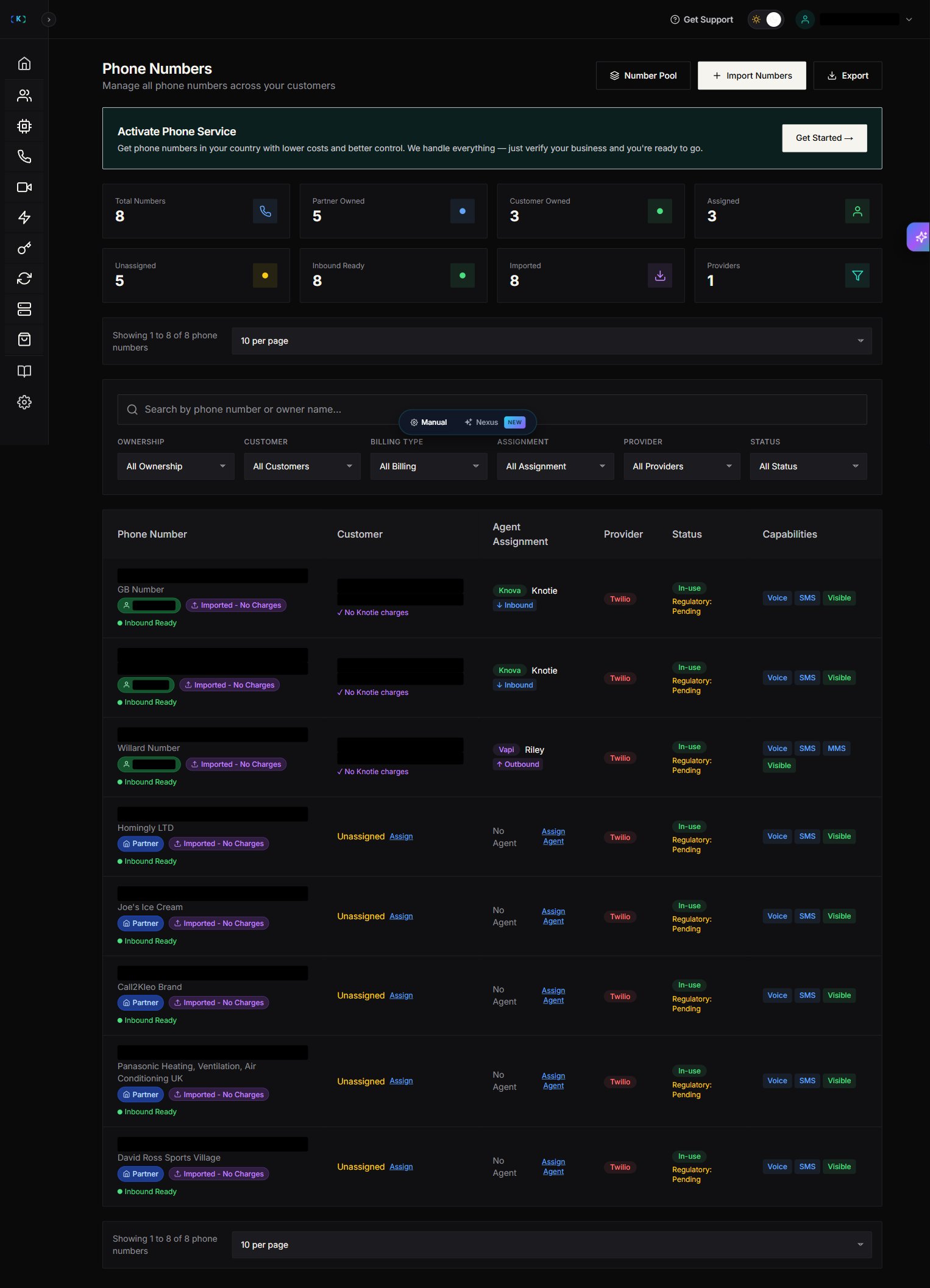
If your account has no phone numbers yet, the Phone Numbers page shows an empty state with a **"Get Started →"** button.
**Do NOT click "Get Started →"** if you want to import existing Retell numbers. That button opens the **"Activate Phone Service"** wizard (3-step: Business Info → Documents → Review) for *purchasing* new numbers directly from Knotie's telephony partner.
The actual import flow is via the **Import Numbers** button in the page toolbar (top-right, next to "Number Pool" and "Export").
## Step 1 — Import Retell numbers
1. Partner Portal → **Phone Numbers**
2. Click **Import Numbers** (toolbar button, top-right)
3. In the Import Phone Numbers modal, choose **Retell** under the **Agent Provider Numbers** section
> The Retell card shows a **"Provider Locked"** badge (the exact wording may differ slightly in your portal). It means numbers imported from Retell are scoped to Retell agents in the same Retell account and cannot be re-routed to other providers.
4. Click **Next**
5. Enter your **Retell API Key** (`key_...`)
> Helper text: "Your Retell API Key (found in Retell Dashboard → Settings → API Keys)"
> A notice panel states: "**Credentials Saved Automatically** — Your credentials will be securely encrypted and saved for future imports and managing your voice AI agents."
6. Click **Validate & Load Numbers**
7. Select one or more numbers to import
> **Tip:** Once you enter a Retell API key, it is saved permanently for future imports and agent management.
## Prerequisites
* A Retell account with phone numbers purchased
* Retell API credentials
* At least one Retell agent
* A customer onboarded in Knotie
## Important: Import vs. Purchase flow
If your account has no phone numbers yet, the Phone Numbers page shows an empty state with a **"Get Started →"** button.
**Do NOT click "Get Started →"** if you want to import existing Retell numbers. That button opens the **"Activate Phone Service"** wizard (3-step: Business Info → Documents → Review) for *purchasing* new numbers directly from Knotie's telephony partner.
The actual import flow is via the **Import Numbers** button in the page toolbar (top-right, next to "Number Pool" and "Export").
## Step 1 — Import Retell numbers
1. Partner Portal → **Phone Numbers**
2. Click **Import Numbers** (toolbar button, top-right)
3. In the Import Phone Numbers modal, choose **Retell** under the **Agent Provider Numbers** section
> The Retell card shows a **"Provider Locked"** badge (the exact wording may differ slightly in your portal). It means numbers imported from Retell are scoped to Retell agents in the same Retell account and cannot be re-routed to other providers.
4. Click **Next**
5. Enter your **Retell API Key** (`key_...`)
> Helper text: "Your Retell API Key (found in Retell Dashboard → Settings → API Keys)"
> A notice panel states: "**Credentials Saved Automatically** — Your credentials will be securely encrypted and saved for future imports and managing your voice AI agents."
6. Click **Validate & Load Numbers**
7. Select one or more numbers to import
> **Tip:** Once you enter a Retell API key, it is saved permanently for future imports and agent management.
 ## Retell Agents page
Retell agents are managed at `/partner/ai-agents/retell` (sidebar: **AI Agents → Voice Agents → Retell Agents**).
The page shows:
* Heading: "Retell Agents"
* Toolbar: **Import Agents** (green) + **Create New Agent** (blue)
* Search: "Search by name or voice…"
* Sort pills: `All` / `Name` / `Voice`
* Per-card metadata: Voice ID, Language, Active badge, Created date, Last Modified date
* Per-card actions: **Reassign Customer** (blue) + **Manage Webhook** (text link, green dot indicates live)
> The live UI shows **Premium Feature** badges on most voice-agent provider entries (VAPI / Ultravox / ElevenLabs / GHL, plus N8N Chat Agents, N8N Automation, N8N Tokens, Agent Migration). Retell and Knova badges can vary by partner tier — check the live sidebar for the current state on your account.
## Step 2 — Assign the imported number to a customer
1. In the Phone Numbers list, find the imported number
2. If it shows **Unassigned**, click **Assign**
3. Choose the correct customer
4. Save
## Retell Agents page
Retell agents are managed at `/partner/ai-agents/retell` (sidebar: **AI Agents → Voice Agents → Retell Agents**).
The page shows:
* Heading: "Retell Agents"
* Toolbar: **Import Agents** (green) + **Create New Agent** (blue)
* Search: "Search by name or voice…"
* Sort pills: `All` / `Name` / `Voice`
* Per-card metadata: Voice ID, Language, Active badge, Created date, Last Modified date
* Per-card actions: **Reassign Customer** (blue) + **Manage Webhook** (text link, green dot indicates live)
> The live UI shows **Premium Feature** badges on most voice-agent provider entries (VAPI / Ultravox / ElevenLabs / GHL, plus N8N Chat Agents, N8N Automation, N8N Tokens, Agent Migration). Retell and Knova badges can vary by partner tier — check the live sidebar for the current state on your account.
## Step 2 — Assign the imported number to a customer
1. In the Phone Numbers list, find the imported number
2. If it shows **Unassigned**, click **Assign**
3. Choose the correct customer
4. Save
 ## Step 3 — Assign a Retell agent (Outbound)
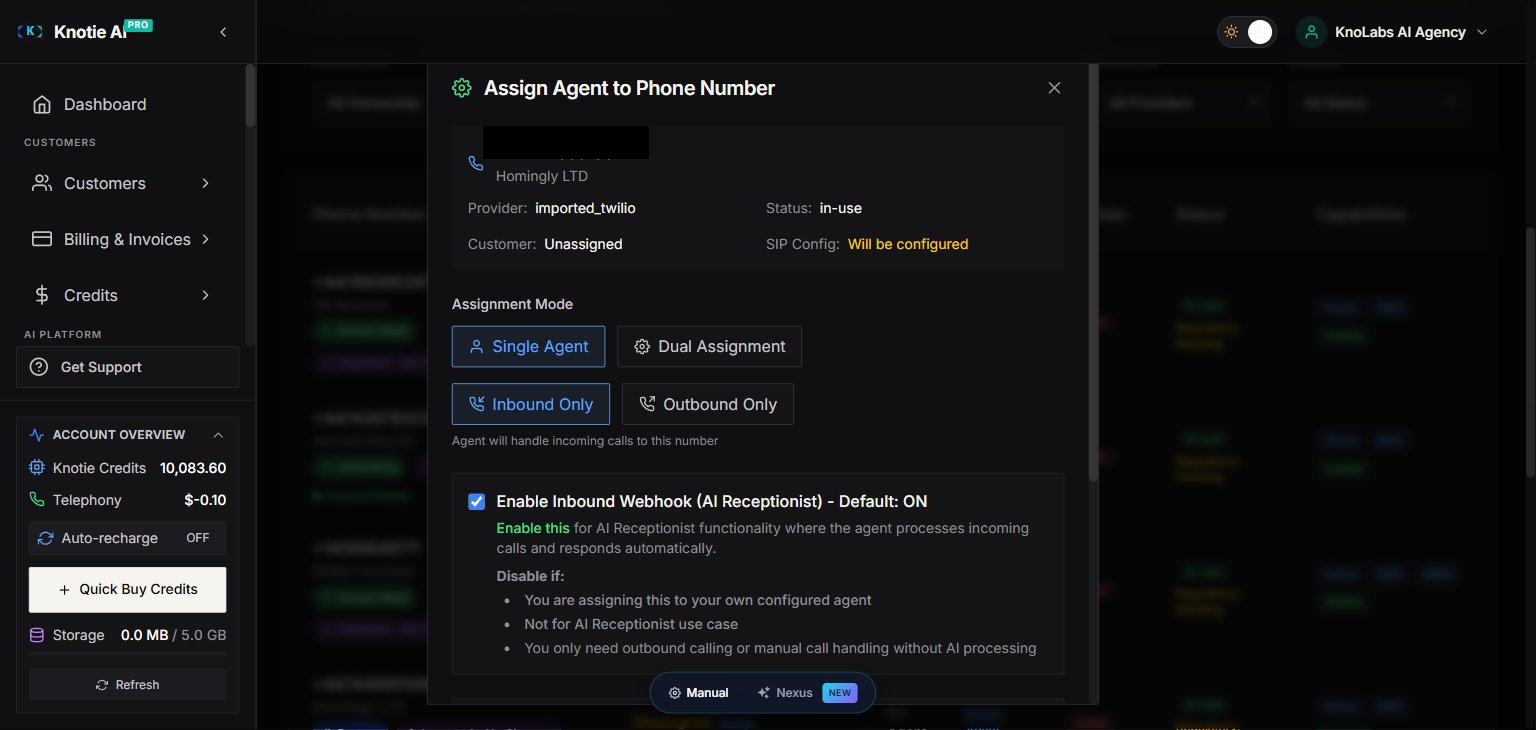
1. In the **Agent Assignment** column, click **Assign Agent**
2. Select a Retell agent
3. Enable **Outbound** for the mapping
4. Save
## Step 3 — Assign a Retell agent (Outbound)
1. In the **Agent Assignment** column, click **Assign Agent**
2. Select a Retell agent
3. Enable **Outbound** for the mapping
4. Save
 ## Step 4 — Generate an outbound webhook key
1. Open the phone number detail panel
2. Find **Outbound Webhook**
3. Click **Generate Key**
4. Copy and store it securely
## Step 4 — Generate an outbound webhook key
1. Open the phone number detail panel
2. Find **Outbound Webhook**
3. Click **Generate Key**
4. Copy and store it securely
 ## Step 5 — Trigger outbound calls
You can trigger outbound calls from:
* GoHighLevel workflows (native)
* Custom webhooks
* Your backend
### Required fields
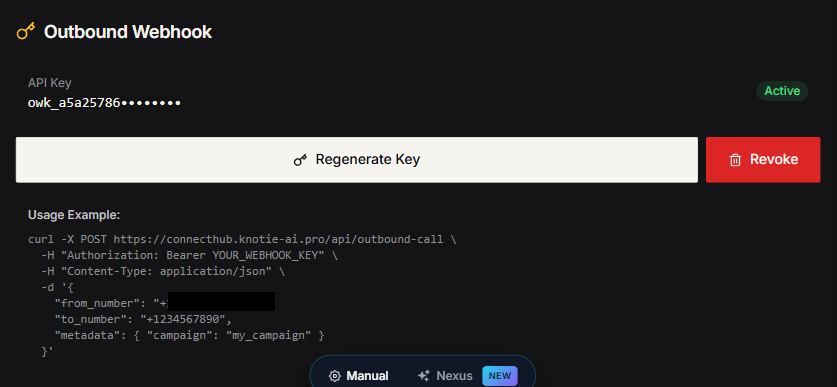
Your webhook request must include:
* `from_number` (the imported Retell number)
* `to_number` (the lead phone number)
### Authentication
Send:
* `Authorization: Bearer owk_...`
> ℹ️ The full webhook payload structure is shown in the JSON example in Step 5 above. Use the `from_number` (your imported Retell number) and `to_number` (the lead's number), plus an `Authorization: Bearer owk_...` header.
## Operational notes
* If you are using Retell-purchased numbers, billing for telephony may remain with Retell.
* Knotie still provides the partner/customer management layer: assignment, tracking, and quota/credit enforcement.
## Step 5 — Trigger outbound calls
You can trigger outbound calls from:
* GoHighLevel workflows (native)
* Custom webhooks
* Your backend
### Required fields
Your webhook request must include:
* `from_number` (the imported Retell number)
* `to_number` (the lead phone number)
### Authentication
Send:
* `Authorization: Bearer owk_...`
> ℹ️ The full webhook payload structure is shown in the JSON example in Step 5 above. Use the `from_number` (your imported Retell number) and `to_number` (the lead's number), plus an `Authorization: Bearer owk_...` header.
## Operational notes
* If you are using Retell-purchased numbers, billing for telephony may remain with Retell.
* Knotie still provides the partner/customer management layer: assignment, tracking, and quota/credit enforcement.