> ## Documentation Index
> Fetch the complete documentation index at: https://docs.knotie-ai.pro/llms.txt
> Use this file to discover all available pages before exploring further.
# Set up credit-based billing for agency clients
> Configure per-client AI credit management with low-balance alerts, portal visibility controls, and credit plan management.
## Who this is for
This playbook is for agencies that:
* Resell AI voice agent services to multiple clients
* Want usage-based billing rather than flat-rate subscriptions
* Need per-client credit controls to prevent runaway spend
## Business goal
Without credit controls, a single high-volume client can drain your account. This playbook sets up:
* **Per-client credit balances** so each client pays for what they use
* **Low-balance alerts** so neither you nor your client gets surprised
* **Portal visibility** so clients can self-serve top-ups (optional)
* **Credit plan controls** to limit which top-up plans each client sees
## Prerequisites
* At least one customer onboarded in the Partner Portal
* Your own Knotie Credits balance topped up
* (Optional) Stripe Connect configured for metered billing
## Step 1 — Enable AI credits for a customer
1. Partner Portal → **Customers**
2. Click **Manage** on the customer's card to open the customer modal
3. Go to the **Features & Add-ons** tab
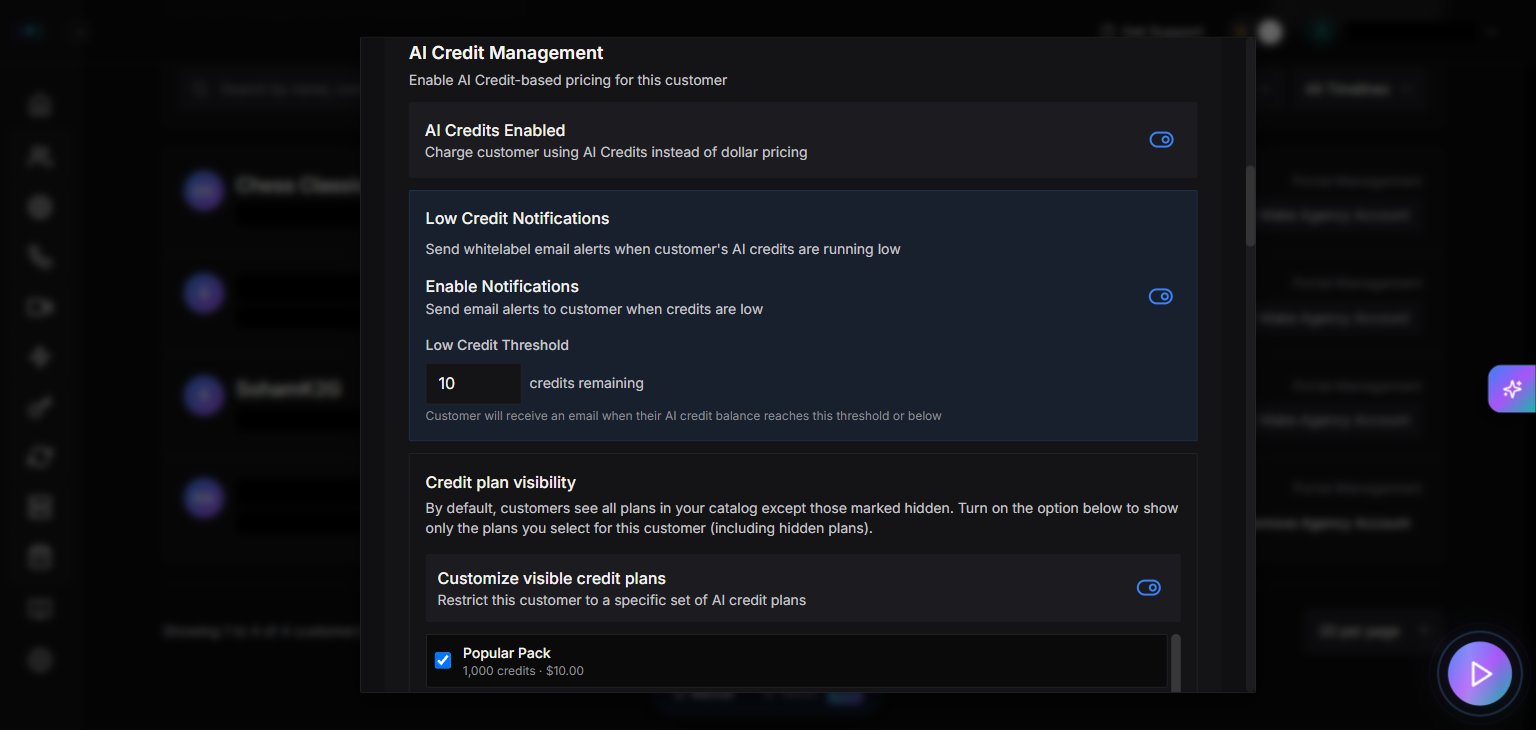
4. In the **AI Credit Management** section, toggle **AI Credits Enabled** to on
> This activates per-call credit deductions for this customer. Without it, calls use your partner balance directly.
 > **Note:** The customer modal has 9 tabs: Customer Info, Deal Management, Features & Add-ons, Billing, Phone Numbers, Credits, Embed URLs, Deployment, and Reports.
## Step 2 — Configure low-balance alerts
Still in the customer's **Features & Add-ons** tab:
1. Find the low-credit alerts section (labeled **Low Credit Notifications**; the exact section name may differ slightly in your portal)
2. Toggle the **Enable Notifications** switch
3. Set **Low Credit Threshold** — the balance level that triggers a warning (default is 10 credits)
> The toggle's purpose is to send email alerts to the customer when their credits run low. The exact subtext wording may differ in the live UI.
This prevents calls from silently failing when a client runs out of credits.
## Step 3 — Add initial credits
1. In the customer modal, switch to the **Credits** tab
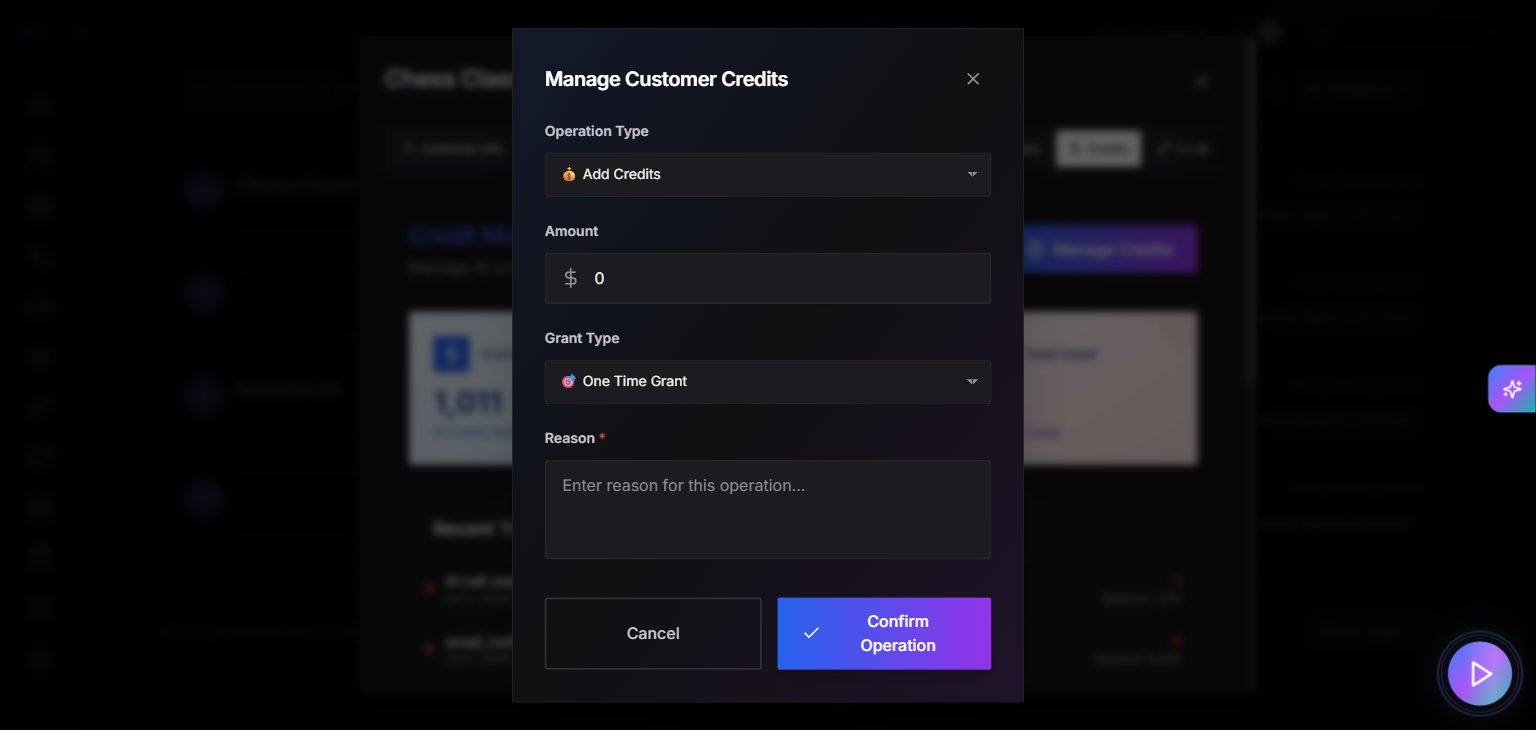
2. Click **Manage Credits** to open the credit operation modal
3. Select **Operation Type**: 💰 Add Credits
4. Enter the **Amount**
5. Choose **Grant Type**: 🎯 One Time Grant (or 🔄 Monthly Recurring)
6. Enter a **Reason** (required)
7. Click **Confirm Operation**
> The Credits tab also shows the customer's transaction history and a **Credit Check Endpoint** section. This endpoint lets external systems (like n8n/Make/Zapier) check the customer's balance before triggering a call. Generate an API key to reveal the endpoint URL.
> **Note:** The customer modal has 9 tabs: Customer Info, Deal Management, Features & Add-ons, Billing, Phone Numbers, Credits, Embed URLs, Deployment, and Reports.
## Step 2 — Configure low-balance alerts
Still in the customer's **Features & Add-ons** tab:
1. Find the low-credit alerts section (labeled **Low Credit Notifications**; the exact section name may differ slightly in your portal)
2. Toggle the **Enable Notifications** switch
3. Set **Low Credit Threshold** — the balance level that triggers a warning (default is 10 credits)
> The toggle's purpose is to send email alerts to the customer when their credits run low. The exact subtext wording may differ in the live UI.
This prevents calls from silently failing when a client runs out of credits.
## Step 3 — Add initial credits
1. In the customer modal, switch to the **Credits** tab
2. Click **Manage Credits** to open the credit operation modal
3. Select **Operation Type**: 💰 Add Credits
4. Enter the **Amount**
5. Choose **Grant Type**: 🎯 One Time Grant (or 🔄 Monthly Recurring)
6. Enter a **Reason** (required)
7. Click **Confirm Operation**
> The Credits tab also shows the customer's transaction history and a **Credit Check Endpoint** section. This endpoint lets external systems (like n8n/Make/Zapier) check the customer's balance before triggering a call. Generate an API key to reveal the endpoint URL.
 ## Step 4 — Control what the client sees in their portal
Still in the customer's **Features & Add-ons** tab:
| Setting | Effect |
| ---------------------------- | -------------------------------------------------------------------------- |
| **Show Pricing Information** | Client can see their rate and balance (auto-enabled when AI Credits is on) |
| **Customer Portal Enabled** | Client can log in to their portal |
| **Credit plan visibility** | Limit which top-up plans the client can see |
To configure:
1. Toggle **Customer Portal** → Enable Customer Portal
2. In the **Credit plan visibility** section, toggle which plans this customer can see:
* Popular Pack (e.g., 1,000 credits)
* Double (e.g., 2,000 credits)
* Blaze (e.g., 1,000 credits)
* Starter Pack (e.g., 1,000 credits)
> The customer's **Pricing Breakdown** (read-only, in the Customer Info tab) shows estimated costs but is computed, not editable.
## Step 5 — (Optional) Partner-level auto-recharge
To avoid interruptions, set up auto-recharge for your own partner credits:
1. Partner Portal → **Settings** → **Plans & Billing**
2. In the **Credit Auto-Recharge** section:
* Save a payment method (check "Save card and enable auto-recharge" when buying credits)
* Set **Threshold** — the balance floor that triggers a top-up (the form enforces a minimum; accept whatever the page allows)
* Set **Amount** — the top-up amount per recharge event (the form enforces a minimum)
3. Toggle **Auto-Recharge** on
> The threshold is a "soft floor" — auto-recharge fires whenever a business operation needs more credits than the current balance, even above the threshold. The page enforces minimum threshold and amount values; accept whatever the form allows.
## Verification checklist
* [ ] AI credits enabled for the customer (Features & Add-ons tab)
* [ ] Low credit threshold configured
* [ ] Notifications enabled
* [ ] Initial credits added (Credits tab → Manage Credits)
* [ ] (Optional) Portal access enabled with pricing visibility
* [ ] (Optional) Credit plan visibility restricted per customer
## How credits flow
```
Partner buys Knotie Credits
↓
Partner allocates credits to Customer (via Manage Credits modal)
↓
Customer's AI agent makes/receives calls
↓
Credits deducted from Customer's balance
↓
Low-balance alert fires when threshold is hit
```
## Troubleshooting
| Symptom | Likely cause |
| -------------------------------------------------- | ---------------------------------------------------------------------------------------------- |
| Calls fail with "insufficient credits" | Customer balance is zero — add credits |
| Client doesn't see their balance | **Show Pricing Information** is off, or Customer Portal is not enabled |
| No low-balance alerts | Notifications not enabled, or threshold set too low |
| Credits deducting from partner instead of customer | **AI Credits Enabled** is off for that customer |
| "Settings → Customer Credit Plans" is a 404 | That page does not exist. Credit plans are read-only in the customer's Features & Add-ons tab. |
## Next steps
* Explore [Metered Billing](/partner-portal/metered-billing) for Stripe-based automated invoicing
* Set up [automated onboarding](/use-cases/automated-customer-onboarding) to provision credits via API
* Review [Agent Analytics](/partner-portal/agent-analytics) to optimize your pricing
## Step 4 — Control what the client sees in their portal
Still in the customer's **Features & Add-ons** tab:
| Setting | Effect |
| ---------------------------- | -------------------------------------------------------------------------- |
| **Show Pricing Information** | Client can see their rate and balance (auto-enabled when AI Credits is on) |
| **Customer Portal Enabled** | Client can log in to their portal |
| **Credit plan visibility** | Limit which top-up plans the client can see |
To configure:
1. Toggle **Customer Portal** → Enable Customer Portal
2. In the **Credit plan visibility** section, toggle which plans this customer can see:
* Popular Pack (e.g., 1,000 credits)
* Double (e.g., 2,000 credits)
* Blaze (e.g., 1,000 credits)
* Starter Pack (e.g., 1,000 credits)
> The customer's **Pricing Breakdown** (read-only, in the Customer Info tab) shows estimated costs but is computed, not editable.
## Step 5 — (Optional) Partner-level auto-recharge
To avoid interruptions, set up auto-recharge for your own partner credits:
1. Partner Portal → **Settings** → **Plans & Billing**
2. In the **Credit Auto-Recharge** section:
* Save a payment method (check "Save card and enable auto-recharge" when buying credits)
* Set **Threshold** — the balance floor that triggers a top-up (the form enforces a minimum; accept whatever the page allows)
* Set **Amount** — the top-up amount per recharge event (the form enforces a minimum)
3. Toggle **Auto-Recharge** on
> The threshold is a "soft floor" — auto-recharge fires whenever a business operation needs more credits than the current balance, even above the threshold. The page enforces minimum threshold and amount values; accept whatever the form allows.
## Verification checklist
* [ ] AI credits enabled for the customer (Features & Add-ons tab)
* [ ] Low credit threshold configured
* [ ] Notifications enabled
* [ ] Initial credits added (Credits tab → Manage Credits)
* [ ] (Optional) Portal access enabled with pricing visibility
* [ ] (Optional) Credit plan visibility restricted per customer
## How credits flow
```
Partner buys Knotie Credits
↓
Partner allocates credits to Customer (via Manage Credits modal)
↓
Customer's AI agent makes/receives calls
↓
Credits deducted from Customer's balance
↓
Low-balance alert fires when threshold is hit
```
## Troubleshooting
| Symptom | Likely cause |
| -------------------------------------------------- | ---------------------------------------------------------------------------------------------- |
| Calls fail with "insufficient credits" | Customer balance is zero — add credits |
| Client doesn't see their balance | **Show Pricing Information** is off, or Customer Portal is not enabled |
| No low-balance alerts | Notifications not enabled, or threshold set too low |
| Credits deducting from partner instead of customer | **AI Credits Enabled** is off for that customer |
| "Settings → Customer Credit Plans" is a 404 | That page does not exist. Credit plans are read-only in the customer's Features & Add-ons tab. |
## Next steps
* Explore [Metered Billing](/partner-portal/metered-billing) for Stripe-based automated invoicing
* Set up [automated onboarding](/use-cases/automated-customer-onboarding) to provision credits via API
* Review [Agent Analytics](/partner-portal/agent-analytics) to optimize your pricing