> ## Documentation Index
> Fetch the complete documentation index at: https://docs.knotie-ai.pro/llms.txt
> Use this file to discover all available pages before exploring further.
# Automate customer onboarding with the MCP API
> Use the Knotie MCP API to onboard customers, enable portal access, and map agents programmatically — no manual portal clicks required.
## Who this is for
This playbook is for agencies that:
* Onboard multiple customers per week and want to eliminate manual setup
* Use a CRM (GoHighLevel, HubSpot, or custom) to manage their sales pipeline
* Want to trigger customer provisioning automatically when a deal closes
## Business goal
Manual onboarding is slow and error-prone. Every time a new client signs, someone has to:
1. Create the customer in the Partner Portal
2. Enable portal access
3. Map agents to the customer
4. Add credits
This playbook automates steps 1–3 using the MCP API, so your team only handles what requires human judgment.
## What you'll build
An integration that:
* Creates a Knotie customer when a deal closes in your CRM
* Enables portal access and sends invite credentials automatically
* Maps your default voice agent to the new customer
## Prerequisites
* A Partner API key (created in **Settings** > **Partner API Keys** → **Platform API** tab)
* At least one imported voice agent (Retell or VAPI)
* A CRM or automation tool that can send HTTP requests (GHL workflows, Zapier, Make, n8n, or custom code)
## Step 1 — Generate your Partner API key
1. Partner Portal → **Settings** → **Partner API Keys** → **Platform API** tab
2. Click **Create API Key**
3. Configure the key (see options below)
4. Copy the key (starts with `pkt_`) and store it in your automation tool's secrets
 > **Important:** The key is shown **only once** in a reveal modal. Copy it immediately.
 ### Key configuration options
The Platform API key creation modal exposes:
* **Name** *(required)*
* **Description**
* **MCP Gateway** — Enable MCP for AI-agent calls *(checked by default)*
* **Full Access** — full-scoped permission *(checked by default)*
* **Expires At** — optional expiration date
* **Rate Limit** — requests per minute
* **Daily Limit** — maximum daily requests
* **Monthly Limit** — maximum monthly requests
* **Allowed IPs** — restrict to specific server IPs (one per line)
Live field labels can change without notice — the list above is the verified set. The MCP-related fields (MCP Gateway, Full Access) gate the tool scopes the key can call.
### What the reveal modal shows
After creation, a one-time modal displays:
* Raw API key (`pkt_...`)
* Ready-to-copy `Authorization: Bearer pkt_...` header
* Ready-to-paste curl example
* Endpoint info: `/api/partner-mcp` (AI agents) and `/api/partner-rest/*` (REST)
* Legacy Basic-auth header (marked deprecated)
> All API requests use the `Authorization: Bearer pkt_...` header. See the [Authentication guide](/api-reference/mcp/authentication) for details.
### Security best practices
The page includes an expandable **Security Best Practices** section with guidance on:
* Storing API keys in environment variables
* Rotating keys periodically and revoking unused ones
* Using IP restrictions for trusted servers
* Monitoring usage for suspicious activity
### Key management table
The Platform API tab shows a table of all keys with columns:
* Name, Prefix, Status
* Created, Last Used
* Usage (Total / Today / Month)
* MCP Scopes
* Actions: **Renew** (rotate), **Revoke**
> **Note:** The Partner API Keys page has 4 tabs: AI Gateway Beta, Platform API, MCP Tokens, and n8n Tokens. Make sure you are on the **Platform API** tab for partner automation keys (`pkt_` prefix). AI Gateway keys (`sk-` prefix, for LLM usage) are on the separate AI Gateway Beta tab.
**Use only `pkt_` keys from the Platform API tab** for the partner automation flow described in this doc. The **MCP Tokens** tab mints `mt_` tokens that are tool-scoped and MCP-gateway-only — they will NOT work against `/api/v1/mcp/customers/onboard` or the agent map endpoints. The **n8n Tokens** tab is for n8n workflow integration; the **AI Gateway Beta** tab is for LLM-billing keys (`sk-` prefix), not partner automation.
## Step 2 — Create the customer via API
When your CRM trigger fires (deal closed, form submitted, etc.), send:
```bash theme={null}
curl -X POST "https://YOUR_BASE_URL/api/v1/mcp/customers/onboard" \
-H "Authorization: Bearer pkt_your_key_here" \
-H "Content-Type: application/json" \
-d '{
"basic": {
"email": "newclient@example.com",
"firstName": "Jane",
"lastName": "Doe",
"businessPhone": "+15551234567"
},
"business": {
"companyName": "Client Corp"
},
"isQuickOnboarding": true,
"allowPortalAccess": true
}'
```
**Key fields:**
| Field | Why it matters |
| ------------------- | -------------------------------------------------- |
| `basic.email` | Must be unique — this becomes the portal login |
| `allowPortalAccess` | Set to `true` to auto-send the portal invite email |
| `isQuickOnboarding` | Skips extended intake questions |
The response includes the customer `id` — save this for the next steps.
## Step 3 — Map a voice agent to the customer
Once the customer exists, assign your default agent:
```bash theme={null}
curl -X POST "https://YOUR_BASE_URL/api/v1/mcp/retell-agents/AGENT_ID/map-customer" \
-H "Authorization: Bearer pkt_your_key_here" \
-H "Content-Type: application/json" \
-d '{
"customerId": "CUSTOMER_ID_FROM_STEP_2",
"profitMultiplier": 1.5
}'
```
Replace `AGENT_ID` with your Retell agent ID. For VAPI agents, use `/api/v1/mcp/vapi-agents/AGENT_ID/map-customer` instead.
The `profitMultiplier` controls how call costs are billed to this customer. A value of `1.5` means you charge 1.5x the base cost.
## Step 4 — (Optional) Add team members
If the client needs additional portal users:
```bash theme={null}
curl -X POST "https://YOUR_BASE_URL/api/v1/mcp/customers/CUSTOMER_ID/team-members" \
-H "Authorization: Bearer pkt_your_key_here" \
-H "Content-Type: application/json" \
-d '{
"email": "team@clientcorp.com",
"name": "John Smith",
"role": "member"
}'
```
Team member count is limited by the customer's `maxTeamMembers` setting.
## Example: GoHighLevel workflow
Here's how to wire this up in a GHL workflow:
1. **Trigger**: Pipeline stage changed → "Closed Won"
2. **Action 1**: Webhook → `POST /api/v1/mcp/customers/onboard` (with contact fields mapped)
3. **Action 2**: Webhook → `POST /api/v1/mcp/retell-agents/{agentId}/map-customer` (using the customer ID from Action 1)
> **Tip**: Use GHL's custom values to store your Partner API key and agent ID so they're easy to update across workflows.
## Example: n8n workflow
1. **Trigger**: Webhook (from your CRM) or schedule-based poll
2. **HTTP Request node**: POST to `/api/v1/mcp/customers/onboard`
3. **HTTP Request node**: POST to agent map endpoint with the returned customer ID
## Verification checklist
After your first automated onboarding, confirm:
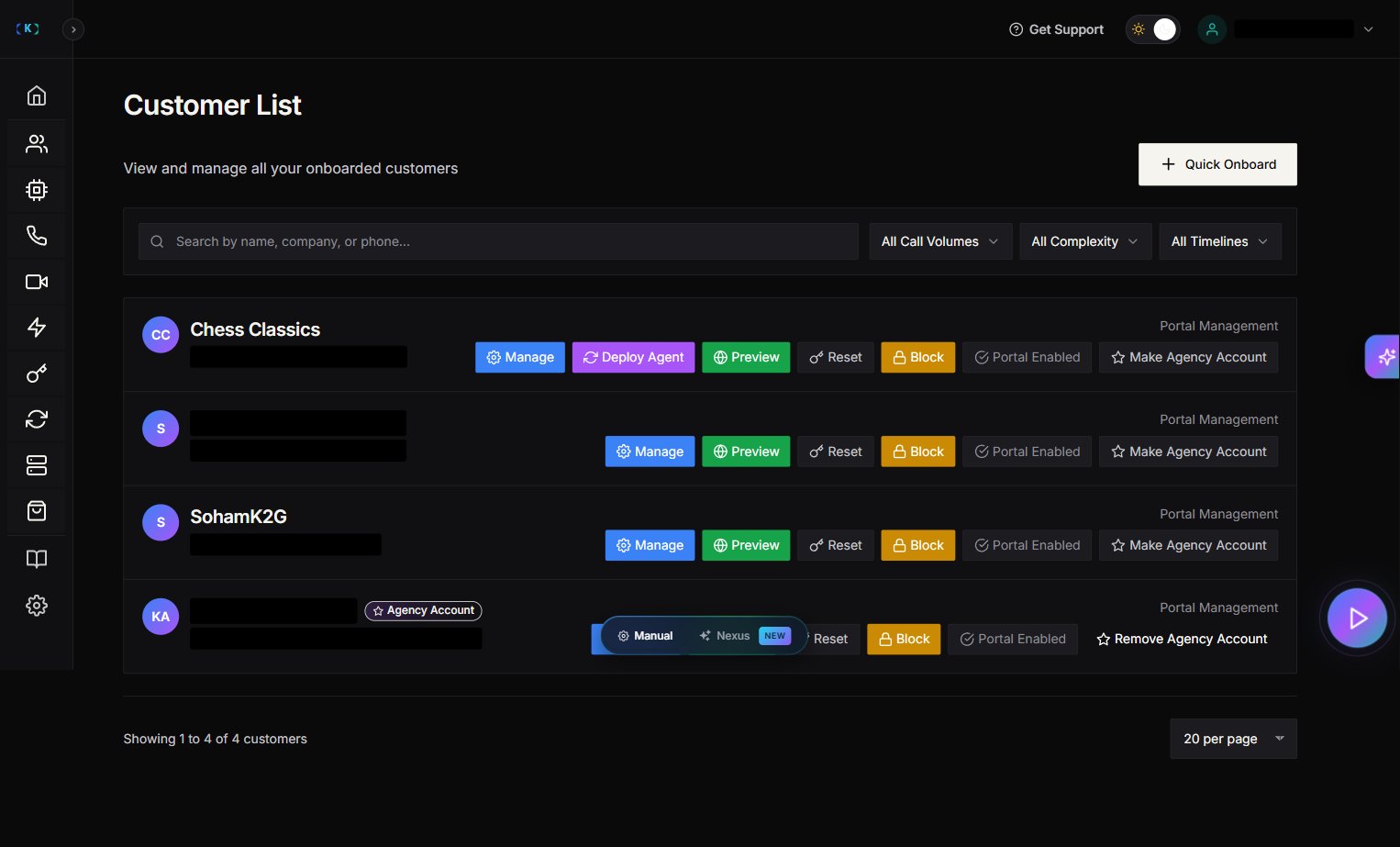
* [ ] Customer appears in Partner Portal → **Customers**
* [ ] Customer received the portal invite email
* [ ] Agent mapping shows correctly in the customer's detail view
* [ ] Customer can log into their portal
## Troubleshooting
| Symptom | Likely cause |
| ---------------------------- | ------------------------------------------------------------------------------- |
| `400` — email already exists | Customer was previously onboarded with this email |
| `401` — unauthorized | API key is missing or invalid |
| `404` — agent not found | Agent ID doesn't match an imported agent in your account |
| No invite email received | `allowPortalAccess` was `false` or omitted |
| Agent mapping fails | Customer ID from the onboard response wasn't passed correctly |
| Can't find "Create API Key" | Make sure you're on the **Platform API** tab, not AI Gateway Beta or MCP Tokens |
## Next steps
* Set up [outbound calling](/use-cases/warm-lead-outbound-calls-ghl) for your newly onboarded customers
* Configure [credit management](/partner-portal/credits) to control usage limits
* Explore the full [MCP API reference](/api-reference/mcp/endpoints) for additional automation options
### Key configuration options
The Platform API key creation modal exposes:
* **Name** *(required)*
* **Description**
* **MCP Gateway** — Enable MCP for AI-agent calls *(checked by default)*
* **Full Access** — full-scoped permission *(checked by default)*
* **Expires At** — optional expiration date
* **Rate Limit** — requests per minute
* **Daily Limit** — maximum daily requests
* **Monthly Limit** — maximum monthly requests
* **Allowed IPs** — restrict to specific server IPs (one per line)
Live field labels can change without notice — the list above is the verified set. The MCP-related fields (MCP Gateway, Full Access) gate the tool scopes the key can call.
### What the reveal modal shows
After creation, a one-time modal displays:
* Raw API key (`pkt_...`)
* Ready-to-copy `Authorization: Bearer pkt_...` header
* Ready-to-paste curl example
* Endpoint info: `/api/partner-mcp` (AI agents) and `/api/partner-rest/*` (REST)
* Legacy Basic-auth header (marked deprecated)
> All API requests use the `Authorization: Bearer pkt_...` header. See the [Authentication guide](/api-reference/mcp/authentication) for details.
### Security best practices
The page includes an expandable **Security Best Practices** section with guidance on:
* Storing API keys in environment variables
* Rotating keys periodically and revoking unused ones
* Using IP restrictions for trusted servers
* Monitoring usage for suspicious activity
### Key management table
The Platform API tab shows a table of all keys with columns:
* Name, Prefix, Status
* Created, Last Used
* Usage (Total / Today / Month)
* MCP Scopes
* Actions: **Renew** (rotate), **Revoke**
> **Note:** The Partner API Keys page has 4 tabs: AI Gateway Beta, Platform API, MCP Tokens, and n8n Tokens. Make sure you are on the **Platform API** tab for partner automation keys (`pkt_` prefix). AI Gateway keys (`sk-` prefix, for LLM usage) are on the separate AI Gateway Beta tab.
**Use only `pkt_` keys from the Platform API tab** for the partner automation flow described in this doc. The **MCP Tokens** tab mints `mt_` tokens that are tool-scoped and MCP-gateway-only — they will NOT work against `/api/v1/mcp/customers/onboard` or the agent map endpoints. The **n8n Tokens** tab is for n8n workflow integration; the **AI Gateway Beta** tab is for LLM-billing keys (`sk-` prefix), not partner automation.
## Step 2 — Create the customer via API
When your CRM trigger fires (deal closed, form submitted, etc.), send:
```bash theme={null}
curl -X POST "https://YOUR_BASE_URL/api/v1/mcp/customers/onboard" \
-H "Authorization: Bearer pkt_your_key_here" \
-H "Content-Type: application/json" \
-d '{
"basic": {
"email": "newclient@example.com",
"firstName": "Jane",
"lastName": "Doe",
"businessPhone": "+15551234567"
},
"business": {
"companyName": "Client Corp"
},
"isQuickOnboarding": true,
"allowPortalAccess": true
}'
```
**Key fields:**
| Field | Why it matters |
| ------------------- | -------------------------------------------------- |
| `basic.email` | Must be unique — this becomes the portal login |
| `allowPortalAccess` | Set to `true` to auto-send the portal invite email |
| `isQuickOnboarding` | Skips extended intake questions |
The response includes the customer `id` — save this for the next steps.
## Step 3 — Map a voice agent to the customer
Once the customer exists, assign your default agent:
```bash theme={null}
curl -X POST "https://YOUR_BASE_URL/api/v1/mcp/retell-agents/AGENT_ID/map-customer" \
-H "Authorization: Bearer pkt_your_key_here" \
-H "Content-Type: application/json" \
-d '{
"customerId": "CUSTOMER_ID_FROM_STEP_2",
"profitMultiplier": 1.5
}'
```
Replace `AGENT_ID` with your Retell agent ID. For VAPI agents, use `/api/v1/mcp/vapi-agents/AGENT_ID/map-customer` instead.
The `profitMultiplier` controls how call costs are billed to this customer. A value of `1.5` means you charge 1.5x the base cost.
## Step 4 — (Optional) Add team members
If the client needs additional portal users:
```bash theme={null}
curl -X POST "https://YOUR_BASE_URL/api/v1/mcp/customers/CUSTOMER_ID/team-members" \
-H "Authorization: Bearer pkt_your_key_here" \
-H "Content-Type: application/json" \
-d '{
"email": "team@clientcorp.com",
"name": "John Smith",
"role": "member"
}'
```
Team member count is limited by the customer's `maxTeamMembers` setting.
## Example: GoHighLevel workflow
Here's how to wire this up in a GHL workflow:
1. **Trigger**: Pipeline stage changed → "Closed Won"
2. **Action 1**: Webhook → `POST /api/v1/mcp/customers/onboard` (with contact fields mapped)
3. **Action 2**: Webhook → `POST /api/v1/mcp/retell-agents/{agentId}/map-customer` (using the customer ID from Action 1)
> **Tip**: Use GHL's custom values to store your Partner API key and agent ID so they're easy to update across workflows.
## Example: n8n workflow
1. **Trigger**: Webhook (from your CRM) or schedule-based poll
2. **HTTP Request node**: POST to `/api/v1/mcp/customers/onboard`
3. **HTTP Request node**: POST to agent map endpoint with the returned customer ID
## Verification checklist
After your first automated onboarding, confirm:
* [ ] Customer appears in Partner Portal → **Customers**
* [ ] Customer received the portal invite email
* [ ] Agent mapping shows correctly in the customer's detail view
* [ ] Customer can log into their portal
## Troubleshooting
| Symptom | Likely cause |
| ---------------------------- | ------------------------------------------------------------------------------- |
| `400` — email already exists | Customer was previously onboarded with this email |
| `401` — unauthorized | API key is missing or invalid |
| `404` — agent not found | Agent ID doesn't match an imported agent in your account |
| No invite email received | `allowPortalAccess` was `false` or omitted |
| Agent mapping fails | Customer ID from the onboard response wasn't passed correctly |
| Can't find "Create API Key" | Make sure you're on the **Platform API** tab, not AI Gateway Beta or MCP Tokens |
## Next steps
* Set up [outbound calling](/use-cases/warm-lead-outbound-calls-ghl) for your newly onboarded customers
* Configure [credit management](/partner-portal/credits) to control usage limits
* Explore the full [MCP API reference](/api-reference/mcp/endpoints) for additional automation options