> ## Documentation Index
> Fetch the complete documentation index at: https://docs.knotie-ai.pro/llms.txt
> Use this file to discover all available pages before exploring further.
# VPS Servers
> Purchase, provision, and manage cloud VPS instances and assign them to your customers.
## Overview
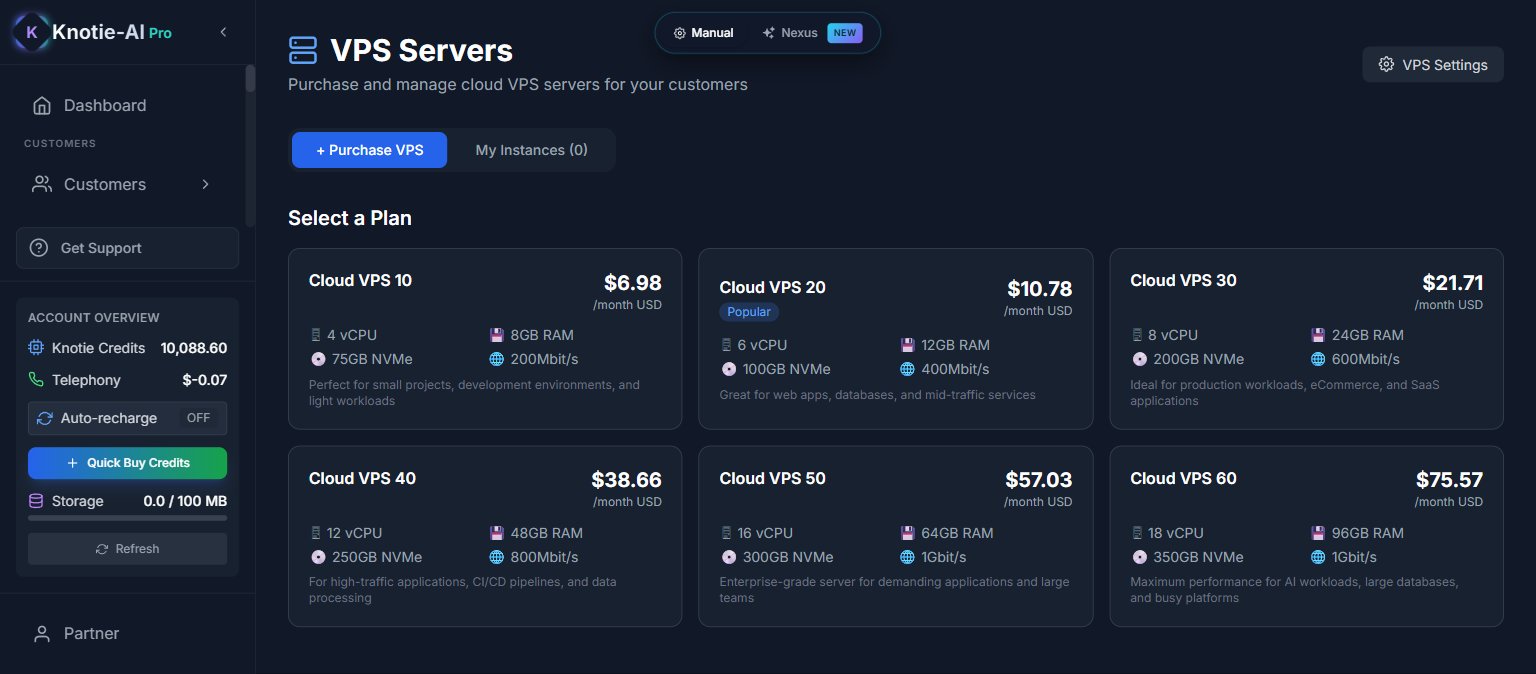
VPS (Virtual Private Server) management lets partners purchase, provision, and manage cloud VPS instances, then assign them to their customers. It's a self-serve infrastructure layer within the Partner Portal.
 ## Where to find it
1. Partner Portal → **VPS Servers** in the sidebar (under **INFRASTRUCTURE**)
## Purchase a VPS
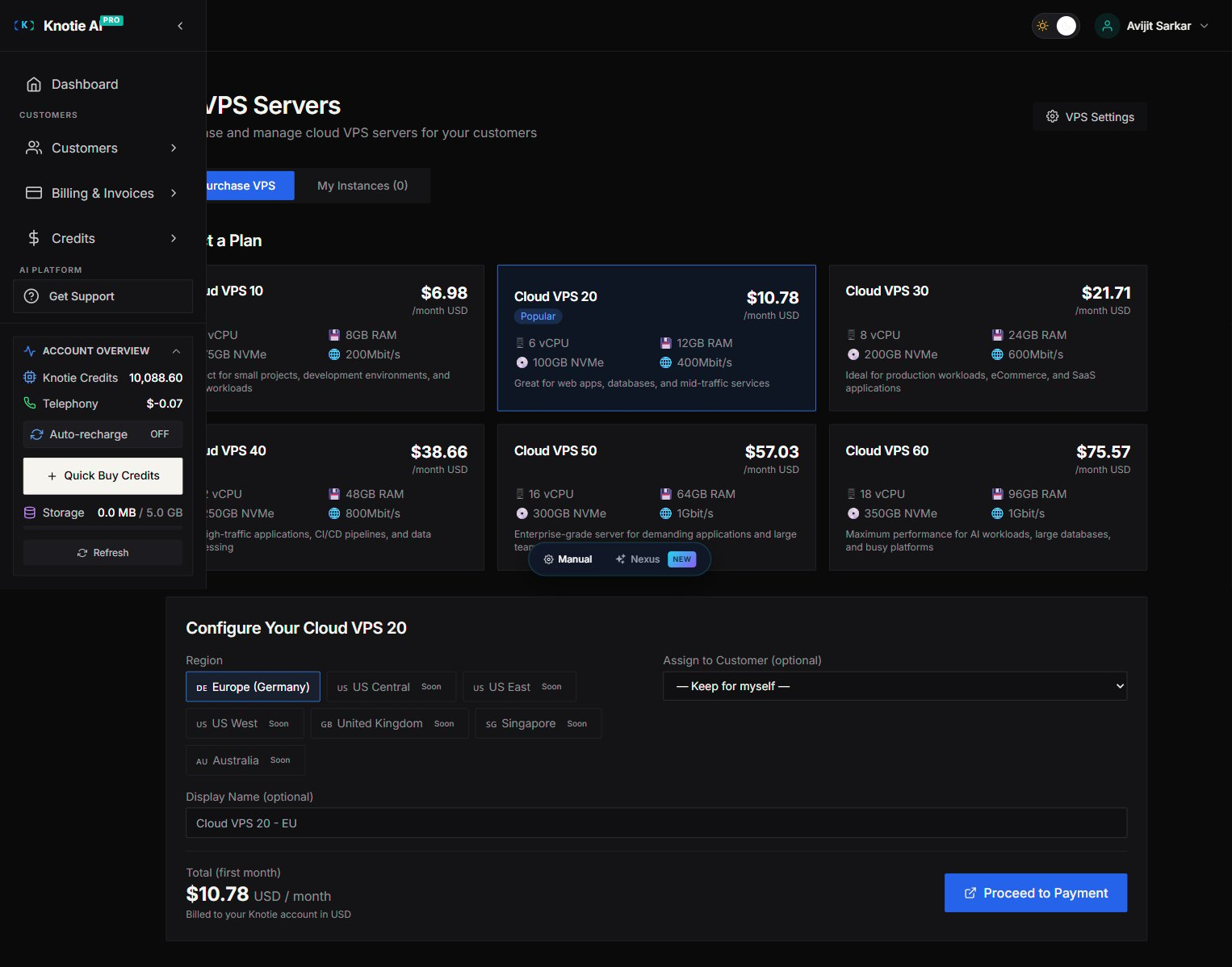
1. Click **Buy VPS**
2. Select a **plan** (Cloud VPS 10–60)
3. Select a **region** (EU, US — more coming soon)
4. Optionally assign to a **customer**
5. Optionally set a **display name**
6. Click **Proceed to Payment**
## Where to find it
1. Partner Portal → **VPS Servers** in the sidebar (under **INFRASTRUCTURE**)
## Purchase a VPS
1. Click **Buy VPS**
2. Select a **plan** (Cloud VPS 10–60)
3. Select a **region** (EU, US — more coming soon)
4. Optionally assign to a **customer**
5. Optionally set a **display name**
6. Click **Proceed to Payment**
 ### Plans available
| Plan | vCPU | RAM | NVMe Storage | Network Port |
| ------------ | ---- | ----- | ------------ | ------------ |
| Cloud VPS 10 | 4 | 8 GB | 75 GB | 200 Mbps |
| Cloud VPS 20 | 6 | 12 GB | 100 GB | 400 Mbps |
| Cloud VPS 30 | 8 | 24 GB | 200 GB | 600 Mbps |
| Cloud VPS 40 | 12 | 48 GB | 250 GB | 800 Mbps |
| Cloud VPS 50 | 16 | 64 GB | 300 GB | 1 Gbps |
| Cloud VPS 60 | 18 | 96 GB | 350 GB | 1 Gbps |
## Instance states
VPS instances move through these states:
| State | Description |
| --------------- | ----------------------------------- |
| Pending payment | Order placed, awaiting payment |
| Provisioning | Payment received, being set up |
| Active | Live and operational |
| Suspended | Paused due to non-payment or issues |
| Cancelled | Terminated |
## Assign to customer
Each instance can be assigned to a customer:
1. Open the **Assign to Customer** dropdown on the instance card
2. Select the customer (or "Not assigned")
3. Confirm
Unassigned instances show "Not assigned to a customer."
## View instance details
Click on an instance card to see:
* Plan specs
* Region
* Partner price
* Creation date
* Status badge
## Credentials
For active instances, you can request root credentials:
1. Click **Request Credentials**
2. Credentials are sent to your email and displayed on screen
3. Password is shown in a monospace box
### Regenerate SSH keys
To regenerate SSH keys for an instance:
1. Click **Regenerate SSH Keys**
2. Confirms the action
3. New keys are generated
### Fix credentials
If credentials aren't working, use the **Fix Credentials** modal:
* **Auto-fix**: The platform automatically generates and installs fresh credentials for you
* **Manual**: Enter your current root password, and the platform installs a new key for you
## Reinstall with App
You can reinstall the OS with one-click apps:
### Single App mode
Select one app to install. Options include:
* Clean Ubuntu OS
* Docker + Portainer
* Domain controllers
* Other curated apps
### Package Builder mode
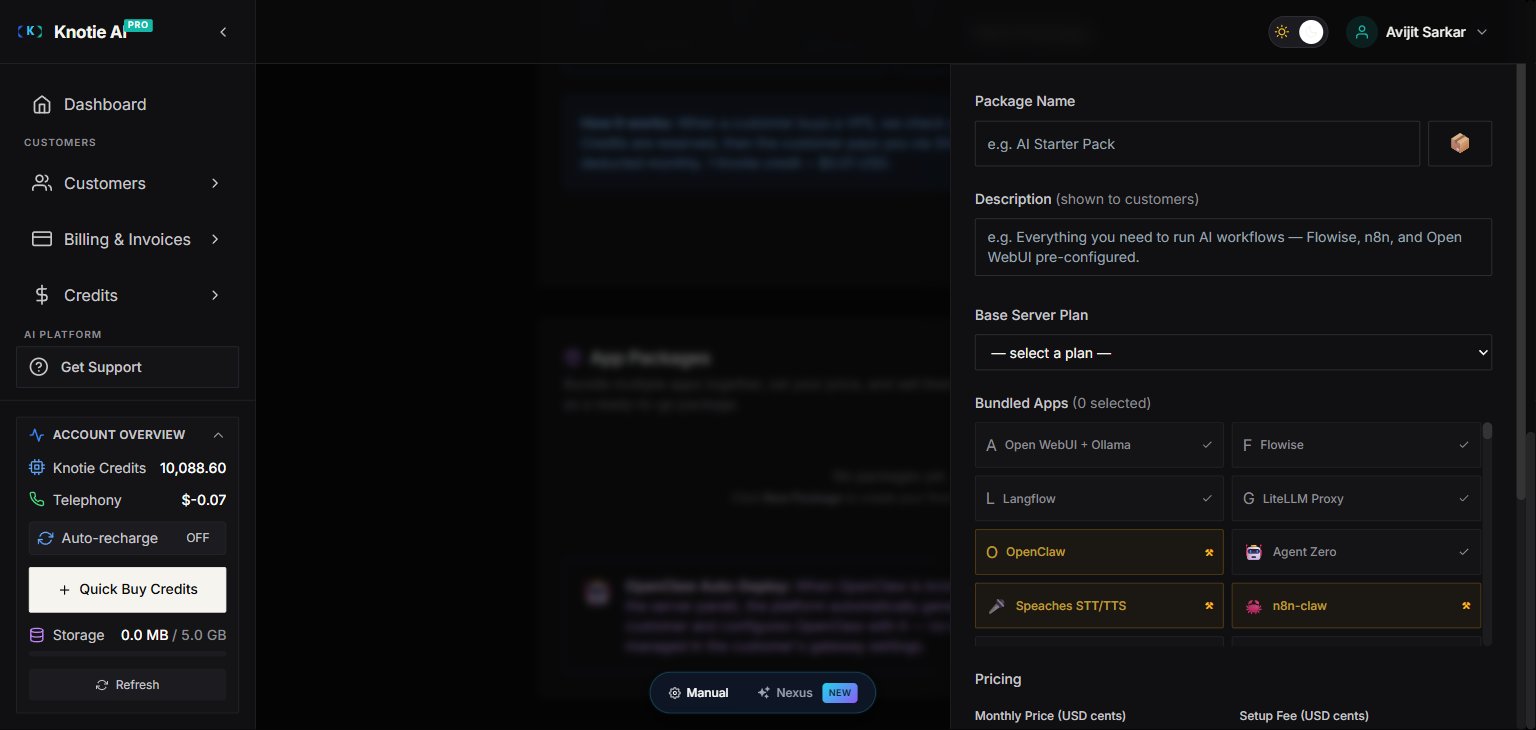
Select multiple apps to install together as a package:
* **Port conflict detection**: If two apps use the same port, a warning blocks installation
* **RAM estimation**: Shows total RAM required across selected apps
* **Badge indicators**: "Verified" (passed testing), "Under construction" (being fixed), "New", "Popular"
### Plans available
| Plan | vCPU | RAM | NVMe Storage | Network Port |
| ------------ | ---- | ----- | ------------ | ------------ |
| Cloud VPS 10 | 4 | 8 GB | 75 GB | 200 Mbps |
| Cloud VPS 20 | 6 | 12 GB | 100 GB | 400 Mbps |
| Cloud VPS 30 | 8 | 24 GB | 200 GB | 600 Mbps |
| Cloud VPS 40 | 12 | 48 GB | 250 GB | 800 Mbps |
| Cloud VPS 50 | 16 | 64 GB | 300 GB | 1 Gbps |
| Cloud VPS 60 | 18 | 96 GB | 350 GB | 1 Gbps |
## Instance states
VPS instances move through these states:
| State | Description |
| --------------- | ----------------------------------- |
| Pending payment | Order placed, awaiting payment |
| Provisioning | Payment received, being set up |
| Active | Live and operational |
| Suspended | Paused due to non-payment or issues |
| Cancelled | Terminated |
## Assign to customer
Each instance can be assigned to a customer:
1. Open the **Assign to Customer** dropdown on the instance card
2. Select the customer (or "Not assigned")
3. Confirm
Unassigned instances show "Not assigned to a customer."
## View instance details
Click on an instance card to see:
* Plan specs
* Region
* Partner price
* Creation date
* Status badge
## Credentials
For active instances, you can request root credentials:
1. Click **Request Credentials**
2. Credentials are sent to your email and displayed on screen
3. Password is shown in a monospace box
### Regenerate SSH keys
To regenerate SSH keys for an instance:
1. Click **Regenerate SSH Keys**
2. Confirms the action
3. New keys are generated
### Fix credentials
If credentials aren't working, use the **Fix Credentials** modal:
* **Auto-fix**: The platform automatically generates and installs fresh credentials for you
* **Manual**: Enter your current root password, and the platform installs a new key for you
## Reinstall with App
You can reinstall the OS with one-click apps:
### Single App mode
Select one app to install. Options include:
* Clean Ubuntu OS
* Docker + Portainer
* Domain controllers
* Other curated apps
### Package Builder mode
Select multiple apps to install together as a package:
* **Port conflict detection**: If two apps use the same port, a warning blocks installation
* **RAM estimation**: Shows total RAM required across selected apps
* **Badge indicators**: "Verified" (passed testing), "Under construction" (being fixed), "New", "Popular"
 ### App categories
| Category | Examples |
| --------------- | -------- |
| AI & ML | — |
| Developer Tools | — |
| Databases | — |
| Monitoring | — |
| Productivity | — |
| Security | — |
| Networking | — |
## Next steps
* [VPS App Catalog](/partner-portal/vps/app-catalog) — browse and deploy apps
* [AI Gateway](/partner-portal/ai-gateway) — manage API keys and budgets
* [Customer Management](/customer-management/onboard-customer) — assign VPS to customers
* [Partner Portal Overview](/partner-portal/overview) — explore other features
### App categories
| Category | Examples |
| --------------- | -------- |
| AI & ML | — |
| Developer Tools | — |
| Databases | — |
| Monitoring | — |
| Productivity | — |
| Security | — |
| Networking | — |
## Next steps
* [VPS App Catalog](/partner-portal/vps/app-catalog) — browse and deploy apps
* [AI Gateway](/partner-portal/ai-gateway) — manage API keys and budgets
* [Customer Management](/customer-management/onboard-customer) — assign VPS to customers
* [Partner Portal Overview](/partner-portal/overview) — explore other features