> ## Documentation Index
> Fetch the complete documentation index at: https://docs.knotie-ai.pro/llms.txt
> Use this file to discover all available pages before exploring further.
# Storage
> Check shared storage usage and add more storage when you need it.
## Open Storage
Expand **Credits** in the Partner Portal sidebar and select **Storage**. You can also use **Add Storage** in the account overview.
 ## Check usage
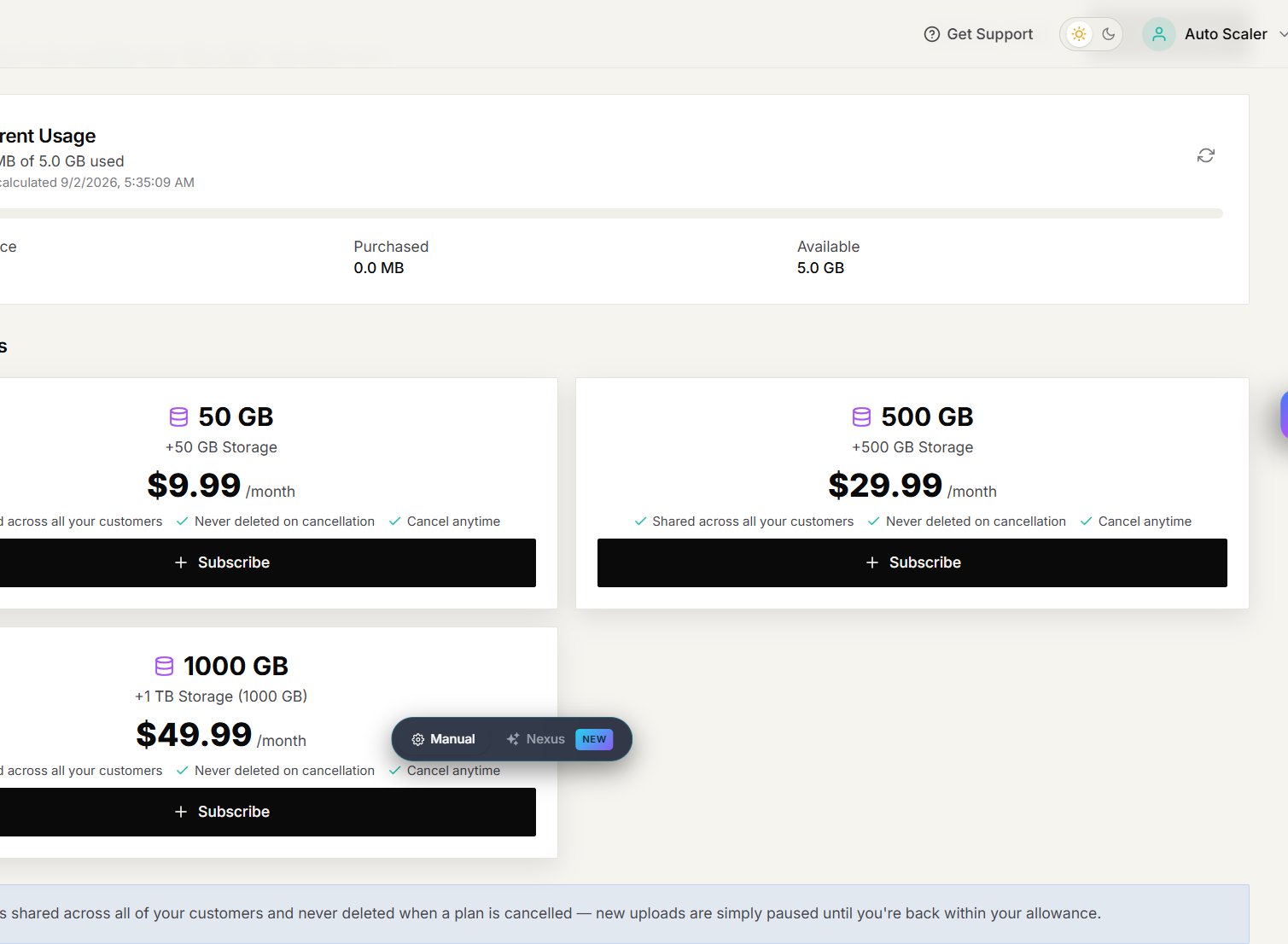
The **Current Usage** card shows:
* storage used and total storage available;
* the free allowance included with your account;
* storage added through active plans; and
* your remaining available storage.
Storage is shared across your customers. If you approach the limit, remove files you no longer need or add a storage plan before uploading more.
## Add storage
1. Open **Storage**.
2. Review the capacity and price shown on each available plan.
3. Select **Subscribe** on the plan you want.
4. Review the checkout details and complete payment.
5. Return to the Storage page and confirm that the new allowance appears.
Use **Show History** to review previous storage purchases and their status.
The portal shows the current plans, prices, and cancellation terms. Review those details before subscribing because available offers can change.
## If uploads are paused
Compare **Current Usage** with your total allowance. Delete files you no longer need or add more storage. If the displayed allowance does not update after checkout, refresh the page before contacting support.
## Check usage
The **Current Usage** card shows:
* storage used and total storage available;
* the free allowance included with your account;
* storage added through active plans; and
* your remaining available storage.
Storage is shared across your customers. If you approach the limit, remove files you no longer need or add a storage plan before uploading more.
## Add storage
1. Open **Storage**.
2. Review the capacity and price shown on each available plan.
3. Select **Subscribe** on the plan you want.
4. Review the checkout details and complete payment.
5. Return to the Storage page and confirm that the new allowance appears.
Use **Show History** to review previous storage purchases and their status.
The portal shows the current plans, prices, and cancellation terms. Review those details before subscribing because available offers can change.
## If uploads are paused
Compare **Current Usage** with your total allowance. Delete files you no longer need or add more storage. If the displayed allowance does not update after checkout, refresh the page before contacting support.