> ## Documentation Index
> Fetch the complete documentation index at: https://docs.knotie-ai.pro/llms.txt
> Use this file to discover all available pages before exploring further.
# Partner Settings overview
> Configure your whitelabel portal, integrations, billing, and branding from Partner Settings — now with a section navigation rail and guided setup progress.
## What Partner Settings is
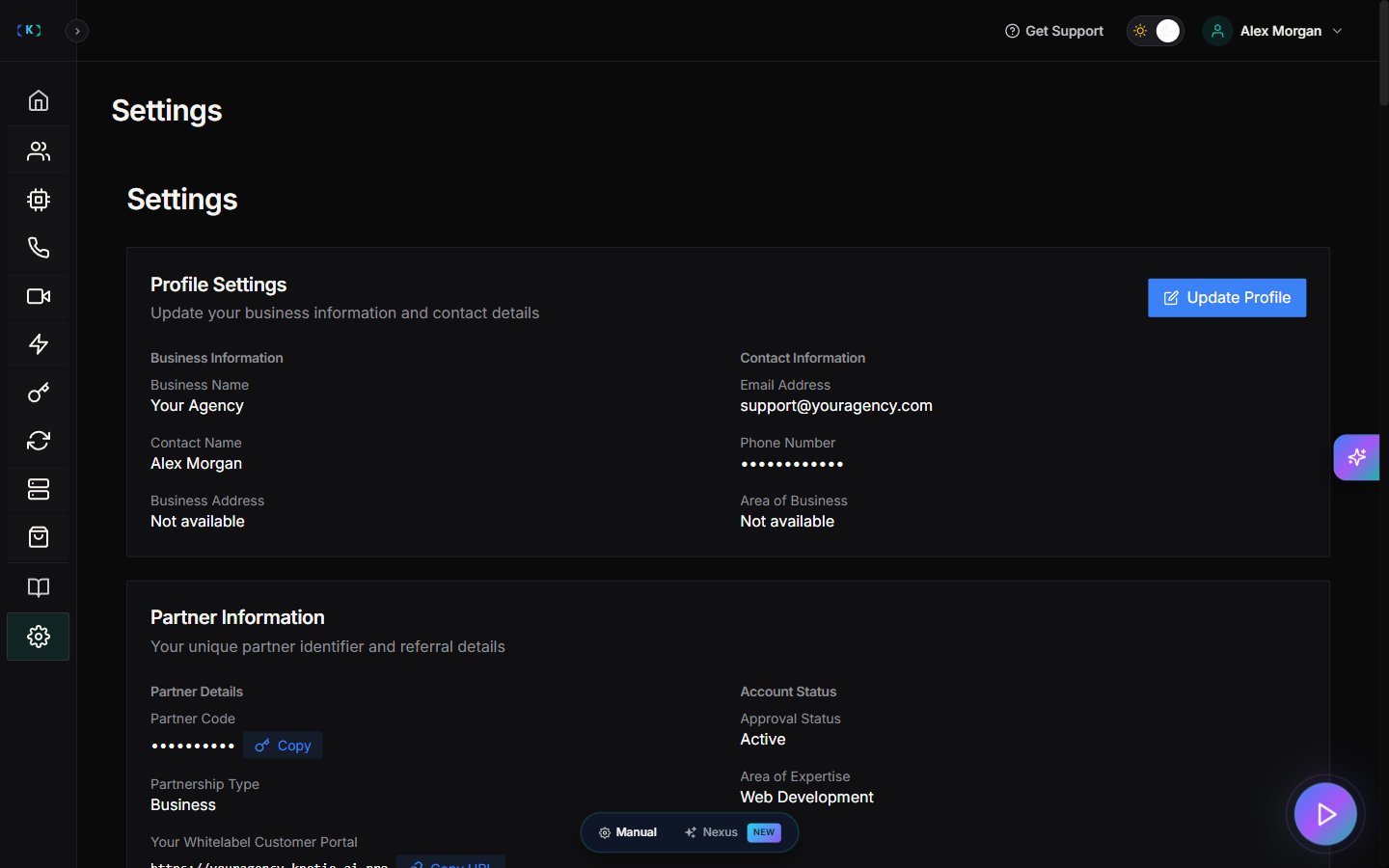
The **Settings** page in the Partner Portal is where you configure everything your agency and whitelabel portal need to operate:
* **Whitelabel portal** — domain, branding, landing page, portal mode
* **Voice AI Agent** — configure the AI Receptionist on your portal's landing page
* **Billing and payments** — Stripe Connect, subscription plans, credit packs
* **Integrations** — provider API keys, SMTP email, AI translation, Sonti CRM
* **Security** — password, MFA, passkeys
## Where to find it
In the Partner Portal sidebar, click **Settings**. The Settings button expands to 5 sub-items: Profile Settings, Partner API Keys, Email Domain Management, Plans & Billing, White-Label Portal.
 ***
## Navigating the Whitelabel Settings page
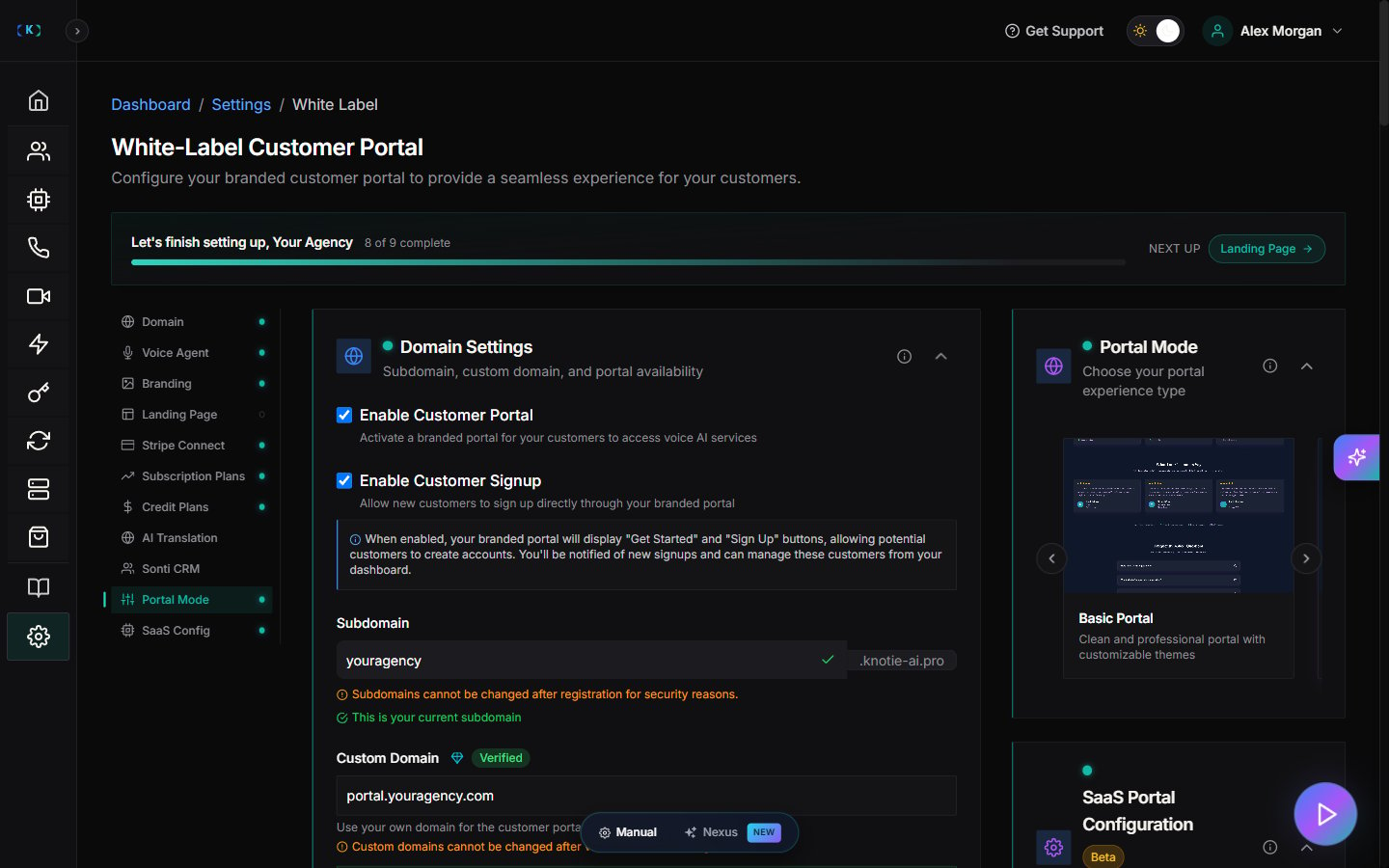
The Whitelabel Settings page (sidebar link **White-Label Portal**) has been redesigned with a **Section Navigation Rail** on the left and **collapsible sections** in the main area. This layout lets you jump directly to any part of the configuration without scrolling through a long page.
***
## Navigating the Whitelabel Settings page
The Whitelabel Settings page (sidebar link **White-Label Portal**) has been redesigned with a **Section Navigation Rail** on the left and **collapsible sections** in the main area. This layout lets you jump directly to any part of the configuration without scrolling through a long page.
 ### Section Nav Rail
The rail on the left lists every configurable section in order. Click any item to jump straight to that section.
Each entry shows a **status badge**:
* **Set up** — section is incomplete or has unresolved items
* **Not yet set up** — section still needs a setup action from you
* No badge — not applicable to your current plan or portal mode (for example, AI Translation or Sonti CRM)
The rail lists these sections in order:
1. Domain
2. Voice Agent
3. Branding
4. Landing Page
5. Stripe Connect
6. Subscription Plans
7. Credit Plans
8. AI Translation
9. Sonti CRM
10. Portal Mode
11. SaaS Config *(Beta)*
### Setup Progress Card
A **Setup Progress Card** at the top of the sidebar shows how many sections are complete and highlights the single most important next step. Use it as a checklist when setting up a new whitelabel portal for the first time.
### Collapsible sections
Each section in the main area can be expanded or collapsed independently. The page remembers your preference per section between visits.
**Smart defaults on first visit:**
* Every section starts collapsed.
* The single "next up" incomplete section opens automatically (the one whose prerequisites are already met).
* Portal Mode is always expanded because it is a one-click control.
### Section Info Drawer
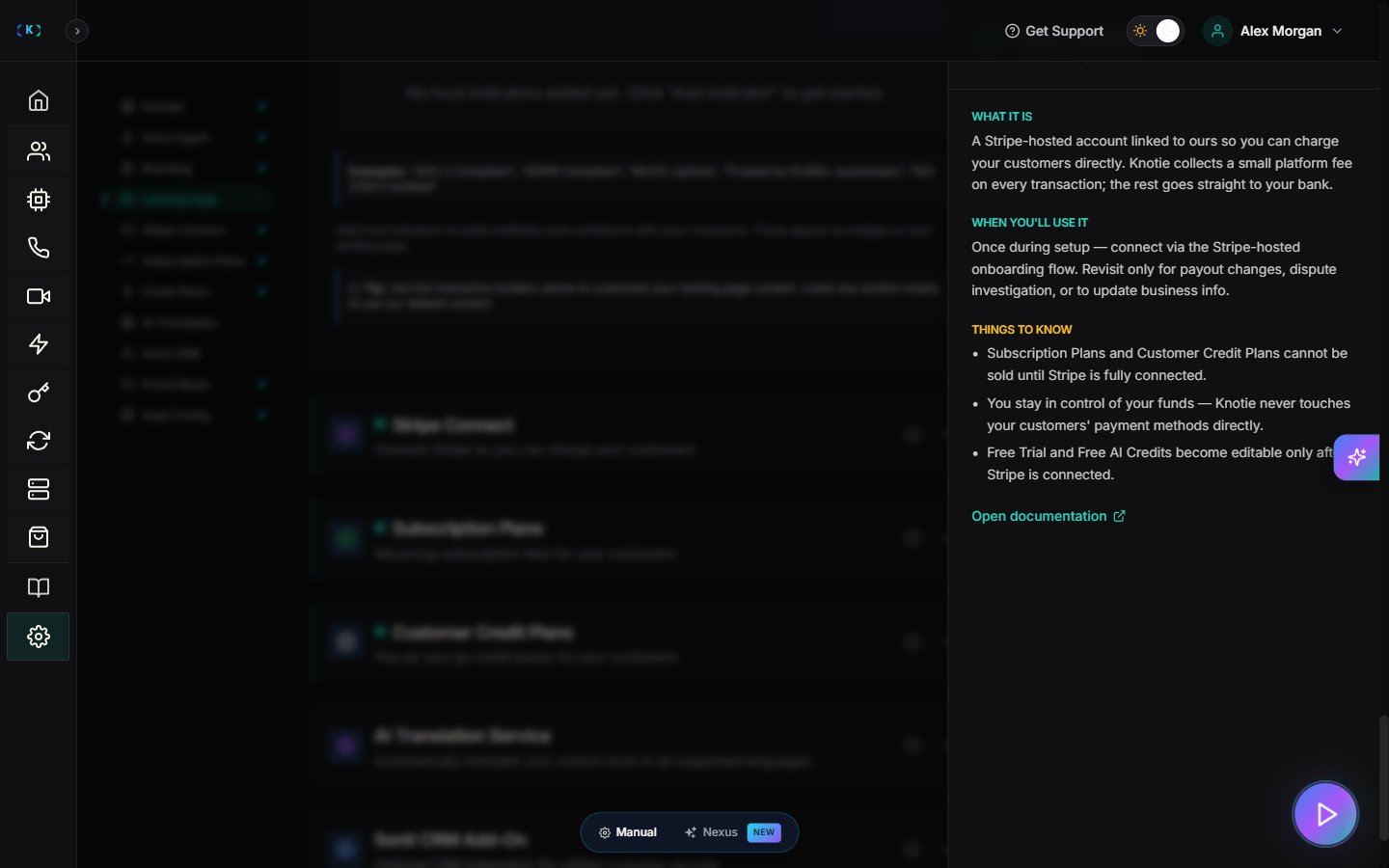
Every section header has an **\[i]** (info) button. Clicking it slides open a help drawer with:
* What the section does
* When to visit it
* Common gotchas
### Section Nav Rail
The rail on the left lists every configurable section in order. Click any item to jump straight to that section.
Each entry shows a **status badge**:
* **Set up** — section is incomplete or has unresolved items
* **Not yet set up** — section still needs a setup action from you
* No badge — not applicable to your current plan or portal mode (for example, AI Translation or Sonti CRM)
The rail lists these sections in order:
1. Domain
2. Voice Agent
3. Branding
4. Landing Page
5. Stripe Connect
6. Subscription Plans
7. Credit Plans
8. AI Translation
9. Sonti CRM
10. Portal Mode
11. SaaS Config *(Beta)*
### Setup Progress Card
A **Setup Progress Card** at the top of the sidebar shows how many sections are complete and highlights the single most important next step. Use it as a checklist when setting up a new whitelabel portal for the first time.
### Collapsible sections
Each section in the main area can be expanded or collapsed independently. The page remembers your preference per section between visits.
**Smart defaults on first visit:**
* Every section starts collapsed.
* The single "next up" incomplete section opens automatically (the one whose prerequisites are already met).
* Portal Mode is always expanded because it is a one-click control.
### Section Info Drawer
Every section header has an **\[i]** (info) button. Clicking it slides open a help drawer with:
* What the section does
* When to visit it
* Common gotchas
 ***
## Sections at a glance
| Section | What you configure |
| ------------------------------- | ---------------------------------------------------------------------------------------------------------------- |
| **Domain** | Subdomain, custom domain, portal availability |
| **Voice Agent** | Public landing page AI Receptionist (name, voice, language) |
| **Branding** | Logo, favicon, brand colours |
| **Landing Page** | Contact info, legal links, footer, testimonials, FAQs, landing page style (Classic / NorthBeam) |
| **Stripe Connect** | Connect your Stripe account to charge customers |
| **Subscription Plans** | Recurring tiers *(requires Stripe Connect)* |
| **Credit Plans** | Pay-as-you-go credit packs *(requires Stripe Connect)* |
| **AI Translation** | Multilingual portal content |
| **Sonti CRM** | Optional CRM integration |
| **Portal Mode** | Choose Basic / Professional / SaaS portal experience (Professional marked UPCOMING+PREMIUM, SaaS marked PREMIUM) |
| **SaaS Portal Config** *(Beta)* | Onboarding funnel, free trial, auto-deploy, telephony |
### Dependency gating
Some sections require others to be completed first. When a dependency is missing, the section is visually dimmed and shows a gate overlay explaining what needs to happen first.
Example: **Subscription Plans** and **Customer Credit Plans** both require **Stripe Connect** to be completed before they can be configured.
***
## Recommended setup order
1. **Portal Mode** — choose Basic or SaaS (this shapes which other sections matter).
2. **Domain Settings** — pick your subdomain; optionally point a custom domain.
3. **Portal Branding** — upload logo, favicon, and set colours.
4. **Landing Page** — fill in contact info and legal links.
5. **Stripe Connect** — required before you can sell plans or credit packs.
6. **Subscription Plans** and/or **Customer Credit Plans** — set your pricing.
7. **Voice AI Agent** — configure the AI Receptionist if you have SaaS mode or want a live widget.
8. **Integration Settings** (under the main Settings nav) — add provider API keys.
***
***
## Sections at a glance
| Section | What you configure |
| ------------------------------- | ---------------------------------------------------------------------------------------------------------------- |
| **Domain** | Subdomain, custom domain, portal availability |
| **Voice Agent** | Public landing page AI Receptionist (name, voice, language) |
| **Branding** | Logo, favicon, brand colours |
| **Landing Page** | Contact info, legal links, footer, testimonials, FAQs, landing page style (Classic / NorthBeam) |
| **Stripe Connect** | Connect your Stripe account to charge customers |
| **Subscription Plans** | Recurring tiers *(requires Stripe Connect)* |
| **Credit Plans** | Pay-as-you-go credit packs *(requires Stripe Connect)* |
| **AI Translation** | Multilingual portal content |
| **Sonti CRM** | Optional CRM integration |
| **Portal Mode** | Choose Basic / Professional / SaaS portal experience (Professional marked UPCOMING+PREMIUM, SaaS marked PREMIUM) |
| **SaaS Portal Config** *(Beta)* | Onboarding funnel, free trial, auto-deploy, telephony |
### Dependency gating
Some sections require others to be completed first. When a dependency is missing, the section is visually dimmed and shows a gate overlay explaining what needs to happen first.
Example: **Subscription Plans** and **Customer Credit Plans** both require **Stripe Connect** to be completed before they can be configured.
***
## Recommended setup order
1. **Portal Mode** — choose Basic or SaaS (this shapes which other sections matter).
2. **Domain Settings** — pick your subdomain; optionally point a custom domain.
3. **Portal Branding** — upload logo, favicon, and set colours.
4. **Landing Page** — fill in contact info and legal links.
5. **Stripe Connect** — required before you can sell plans or credit packs.
6. **Subscription Plans** and/or **Customer Credit Plans** — set your pricing.
7. **Voice AI Agent** — configure the AI Receptionist if you have SaaS mode or want a live widget.
8. **Integration Settings** (under the main Settings nav) — add provider API keys.
***