> ## Documentation Index
> Fetch the complete documentation index at: https://docs.knotie-ai.pro/llms.txt
> Use this file to discover all available pages before exploring further.
# Dashboard Experience Templates
> Understand the six dashboard templates that control what your customers see when they log in — and how the template is resolved from experience type, partner defaults, and customer overrides.
## What are dashboard experience templates?
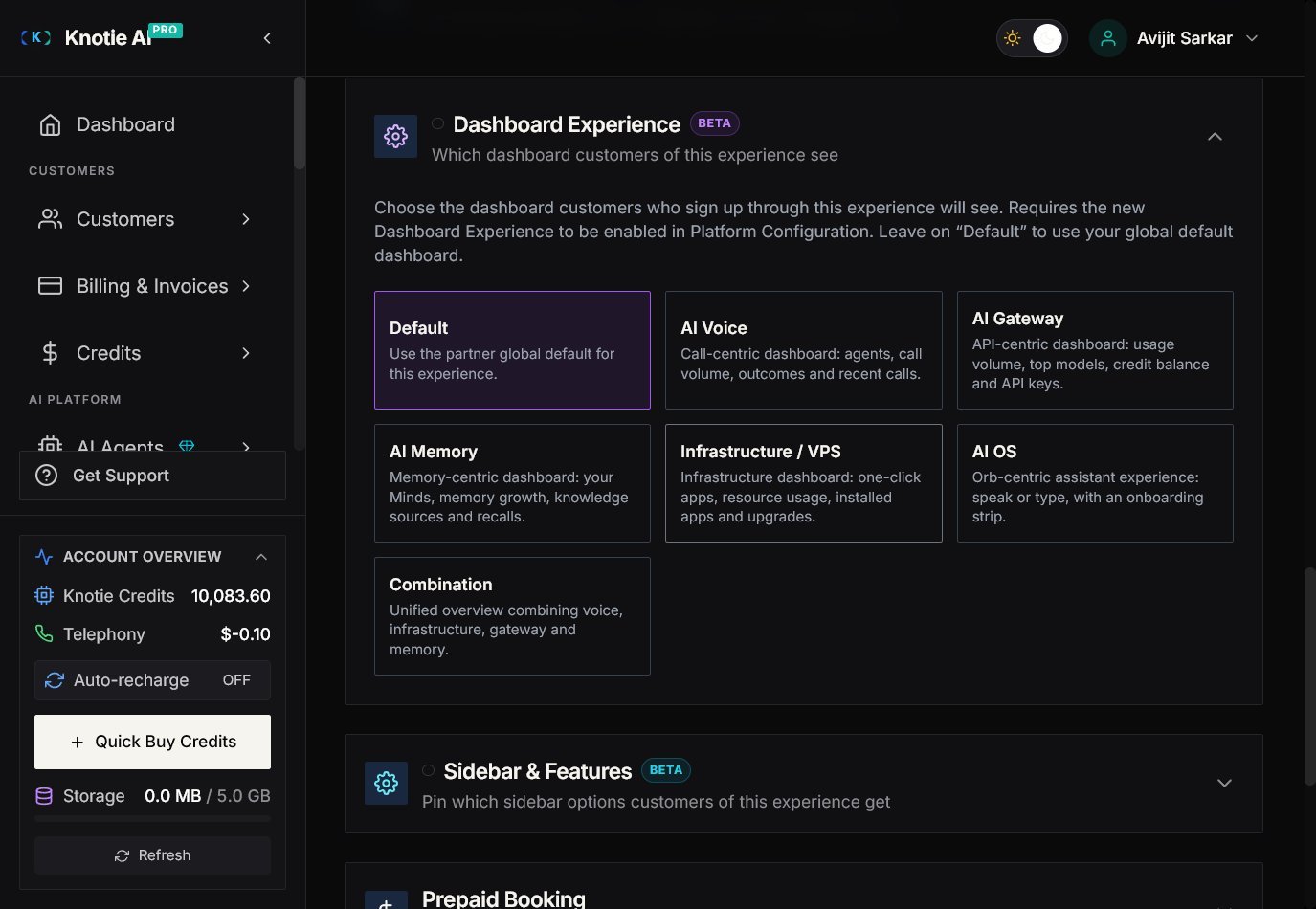
A **dashboard experience template** controls the visual layout and widget set a white-label customer sees when they open their portal. Each template is purpose-built for a specific type of AI product, so customers who signed up for your AI Receptionist get a call-centric dashboard, while customers using the AI Gateway see an API-usage dashboard — all automatically, with no manual setup needed.
This is a separate axis from the **Dashboard Mode** (Standard / Agency + Infra / Infra / JARVIS) that governs which sidebar menus are visible. The template only affects the dashboard body and chrome — menus, billing, and features are unchanged.
The six templates appear as selectable cards in the **Dashboard Experience** *(Beta)* section of any experience's settings page (**One-Click Experiences → \[experience] → Settings**):
 ## The six templates
| Template | Best for | What the customer sees |
| ------------------------ | ------------------------------------------------------------------------------------------------------------------------------- | ------------------------------------------------------------------------------------ |
| **AI Voice** | AI Receptionist, Personal Assistant, Outbound SDR, Support, Appointment Setter, Lead Qualifier, Survey, Collections, Onboarding | Key stats, call volume chart, their agents list, call outcomes, recent calls |
| **AI Gateway** | Resell AI Gateway | Key stats, API usage volume, top models, credit balance, API keys |
| **AI Memory** | Customers using AI Memory / Minds | Key stats, memory growth chart, their Minds, knowledge sources, recent recalls |
| **Infrastructure / VPS** | VPS / infrastructure customers | Key stats, one-click apps, resource usage, installed apps, upgrade prompt |
| **AI OS** | OpenClaw Auto-Install, Hermes Auto-Install, OpenClaw Setup Service, OpenClaw Whitelabel | Full-screen animated Orb — customers speak or type, with an onboarding strip |
| **Combination** | Agency accounts with several products enabled | Key stats, activity feed, their agents, credit balance, installed apps, recent calls |
## How a customer gets a template
Every customer is assigned exactly one template automatically. The system looks at the following, in order, and uses the first one that applies:
1. A specific template set for that individual customer (arranged through support).
2. A template you've chosen for that experience, in **Experience Settings → Customer Dashboard**.
3. The built-in default for the experience type (see below).
4. Your account-wide default, set in **Settings → Whitelabel → Default dashboard experience**.
5. A fallback based on the Dashboard Mode — Standard shows AI Voice, Agency + Infra shows Combination, Infrastructure shows Infrastructure / VPS, and JARVIS shows AI OS.
If a template value is ever missing or unrecognized, it's skipped and the system moves to the next option — so a customer always gets a working dashboard.
### Built-in defaults by experience type
| Experience | Default template |
| ------------------------------------------------------------------------------------------------------------------------------------------------------------ | --------------------------------------------------- |
| AI Receptionist, Personal Assistant, Outbound SDR, Support Agent, Appointment Setter, Lead Qualifier, Survey Agent, Collections Agent, Onboarding Specialist | AI Voice |
| Resell AI Gateway | AI Gateway |
| OpenClaw Auto-Install, Hermes Auto-Install, OpenClaw Setup Service, OpenClaw Whitelabel | AI OS |
| AI Business Audit | Combination |
| All other experience types | Uses your account-wide default or the mode fallback |
You can override any of these per experience in **Experience Settings → Customer Dashboard**.
## Turning it on
The new dashboards are opt-in, and they're **off by default** — nothing changes for your customers until you switch them on.
* **Off:** every customer keeps the current dashboard. No action needed.
* **On:** new customers signing up through an experience that has a template (either one you chose or its built-in default) get the new branded dashboard automatically.
* **Existing customers** stay on their current dashboard until a later update moves them over.
Turn it on in **Settings → Whitelabel → Default dashboard experience**. See [Per-Experience Customer Dashboards](/partner-portal/experiences/experience-dashboards) for the step-by-step walkthrough.
## Auto-branding
All six templates automatically apply your brand colors and fonts — your customers get a dashboard that looks like yours the moment they log in, with no extra work needed.
Here's what gets branded:
* **Your brand colors:** Your primary and secondary brand colors automatically appear as accent colors throughout the dashboard. If you haven't set custom colors, we use a professional indigo as the default.
* **Dashboard appearance:** All dashboards use a dark, modern look. Light mode is coming soon.
* **Your brand font:** If you've configured a brand font, it appears on the dashboard. Otherwise, we use a clean, professional default.
* **Language support:** For Arabic, Hebrew, Farsi, and Urdu customers, the dashboard automatically flips to right-to-left layout.
That's it — your branding is live across all your customer dashboards without any additional design or configuration.
## Related pages
* [Per-Experience Customer Dashboards](/partner-portal/experiences/experience-dashboards) — step-by-step: how to enable V2, configure templates per experience, and set the global default
* [Whitelabel Settings](/partner-portal/settings/whitelabel-settings) — where the global default template toggle lives
* [Platform Configuration](/partner-portal/settings/platform-configuration) — Dashboard Mode (sidebar menu defaults) — separate from templates
* [AI Experiences](/partner-portal/experiences/overview) — enable and manage your experiences
## The six templates
| Template | Best for | What the customer sees |
| ------------------------ | ------------------------------------------------------------------------------------------------------------------------------- | ------------------------------------------------------------------------------------ |
| **AI Voice** | AI Receptionist, Personal Assistant, Outbound SDR, Support, Appointment Setter, Lead Qualifier, Survey, Collections, Onboarding | Key stats, call volume chart, their agents list, call outcomes, recent calls |
| **AI Gateway** | Resell AI Gateway | Key stats, API usage volume, top models, credit balance, API keys |
| **AI Memory** | Customers using AI Memory / Minds | Key stats, memory growth chart, their Minds, knowledge sources, recent recalls |
| **Infrastructure / VPS** | VPS / infrastructure customers | Key stats, one-click apps, resource usage, installed apps, upgrade prompt |
| **AI OS** | OpenClaw Auto-Install, Hermes Auto-Install, OpenClaw Setup Service, OpenClaw Whitelabel | Full-screen animated Orb — customers speak or type, with an onboarding strip |
| **Combination** | Agency accounts with several products enabled | Key stats, activity feed, their agents, credit balance, installed apps, recent calls |
## How a customer gets a template
Every customer is assigned exactly one template automatically. The system looks at the following, in order, and uses the first one that applies:
1. A specific template set for that individual customer (arranged through support).
2. A template you've chosen for that experience, in **Experience Settings → Customer Dashboard**.
3. The built-in default for the experience type (see below).
4. Your account-wide default, set in **Settings → Whitelabel → Default dashboard experience**.
5. A fallback based on the Dashboard Mode — Standard shows AI Voice, Agency + Infra shows Combination, Infrastructure shows Infrastructure / VPS, and JARVIS shows AI OS.
If a template value is ever missing or unrecognized, it's skipped and the system moves to the next option — so a customer always gets a working dashboard.
### Built-in defaults by experience type
| Experience | Default template |
| ------------------------------------------------------------------------------------------------------------------------------------------------------------ | --------------------------------------------------- |
| AI Receptionist, Personal Assistant, Outbound SDR, Support Agent, Appointment Setter, Lead Qualifier, Survey Agent, Collections Agent, Onboarding Specialist | AI Voice |
| Resell AI Gateway | AI Gateway |
| OpenClaw Auto-Install, Hermes Auto-Install, OpenClaw Setup Service, OpenClaw Whitelabel | AI OS |
| AI Business Audit | Combination |
| All other experience types | Uses your account-wide default or the mode fallback |
You can override any of these per experience in **Experience Settings → Customer Dashboard**.
## Turning it on
The new dashboards are opt-in, and they're **off by default** — nothing changes for your customers until you switch them on.
* **Off:** every customer keeps the current dashboard. No action needed.
* **On:** new customers signing up through an experience that has a template (either one you chose or its built-in default) get the new branded dashboard automatically.
* **Existing customers** stay on their current dashboard until a later update moves them over.
Turn it on in **Settings → Whitelabel → Default dashboard experience**. See [Per-Experience Customer Dashboards](/partner-portal/experiences/experience-dashboards) for the step-by-step walkthrough.
## Auto-branding
All six templates automatically apply your brand colors and fonts — your customers get a dashboard that looks like yours the moment they log in, with no extra work needed.
Here's what gets branded:
* **Your brand colors:** Your primary and secondary brand colors automatically appear as accent colors throughout the dashboard. If you haven't set custom colors, we use a professional indigo as the default.
* **Dashboard appearance:** All dashboards use a dark, modern look. Light mode is coming soon.
* **Your brand font:** If you've configured a brand font, it appears on the dashboard. Otherwise, we use a clean, professional default.
* **Language support:** For Arabic, Hebrew, Farsi, and Urdu customers, the dashboard automatically flips to right-to-left layout.
That's it — your branding is live across all your customer dashboards without any additional design or configuration.
## Related pages
* [Per-Experience Customer Dashboards](/partner-portal/experiences/experience-dashboards) — step-by-step: how to enable V2, configure templates per experience, and set the global default
* [Whitelabel Settings](/partner-portal/settings/whitelabel-settings) — where the global default template toggle lives
* [Platform Configuration](/partner-portal/settings/platform-configuration) — Dashboard Mode (sidebar menu defaults) — separate from templates
* [AI Experiences](/partner-portal/experiences/overview) — enable and manage your experiences