> ## Documentation Index
> Fetch the complete documentation index at: https://docs.knotie-ai.pro/llms.txt
> Use this file to discover all available pages before exploring further.
# Customer credit plans
> Create credit packages that customers can purchase from their whitelabel portal.
## What Customer Credit Plans are for
**Customer Credit Plans** allow you to create credit packages that customers can purchase directly from their whitelabel portal. This enables self-service credit purchasing without manual intervention.
Use this when:
* You want customers to buy credits on-demand
* You offer multiple pricing tiers
* You use AI Credit-based billing
## Where to find it
1. Open **Settings** in the Partner Portal sidebar.
2. Click **White-Label Portal** (the redesigned Settings entry that owns all whitelabel configuration).
3. In the **Section Nav Rail** on the left, click **Credit Plans** (under the Main column).
There is **no** top-level **Settings → Customer Credit Plans** entry. Earlier versions of this doc instructed users to scroll the main Settings page looking for a "Customer Credit Plans" section — that section doesn't exist on the new Settings IA. The functionality now lives in the Whitelabel Settings page under the **Credit Plans** section in the Section Nav Rail.
## Prerequisites
Before creating credit plans, you need:
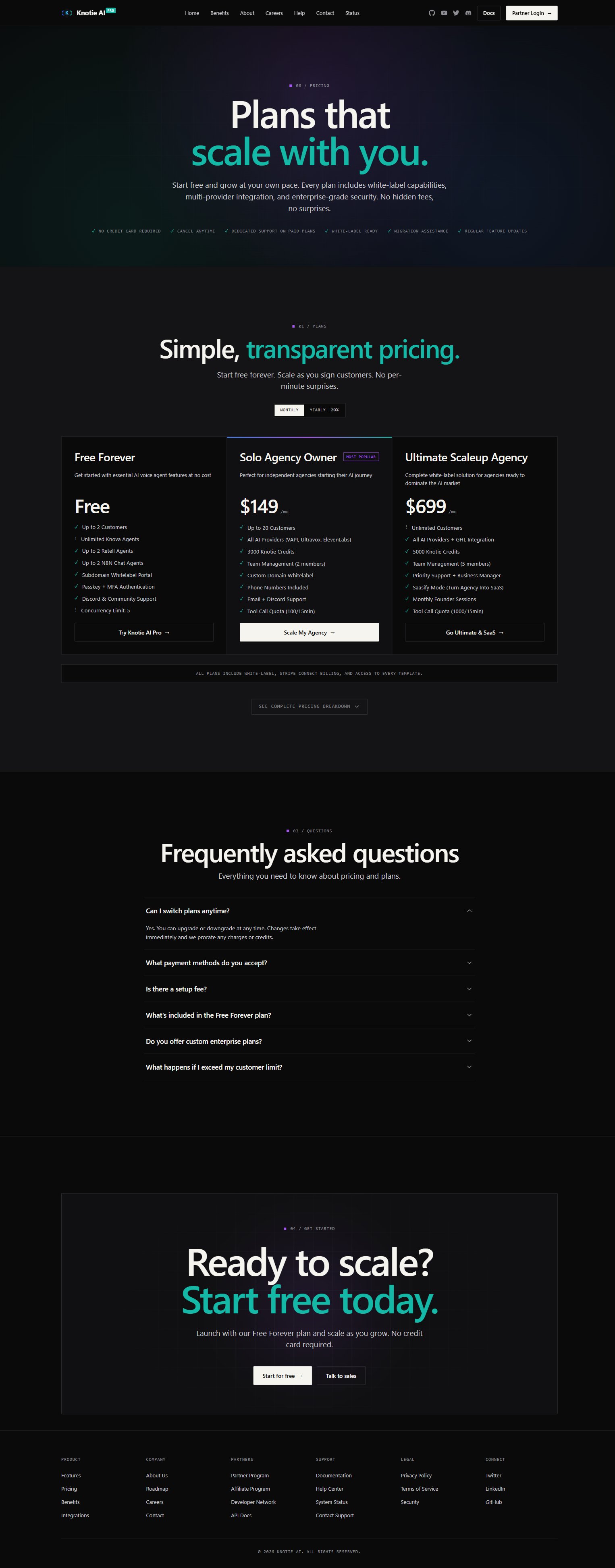
1. **Not on Free Forever plan** – Credit plans require a paid plan (Starter, Pro, or Enterprise)
2. **Stripe Connect configured** – Payment processing requires Stripe
* Connect Stripe account
* Complete onboarding
* Enable charges
If prerequisites aren't met, you'll see an upgrade prompt or Stripe setup instructions.
 ## Create a credit plan
### Basic credit plan
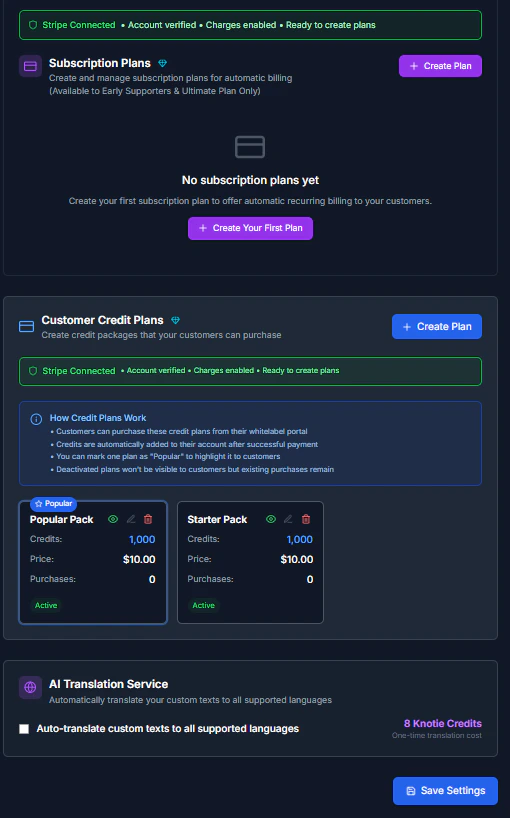
1. Click **Create Credit Plan**.
2. Fill in the plan details:
* **Name** – Display name (e.g., "Starter Pack", "Pro Bundle")
* **Credits** – Number of credits in the package (e.g., 1000, 5000, 10000)
* **Price** – Dollar amount customers pay (e.g., $49, $199, \$899)
* **Description** – Optional details about the plan
3. Toggle **Active** to make it visible to customers.
4. Toggle **Popular** to highlight it (only one plan can be popular).
5. Click **Create**.
The plan is now available for customers to purchase in their portal.
## Create a credit plan
### Basic credit plan
1. Click **Create Credit Plan**.
2. Fill in the plan details:
* **Name** – Display name (e.g., "Starter Pack", "Pro Bundle")
* **Credits** – Number of credits in the package (e.g., 1000, 5000, 10000)
* **Price** – Dollar amount customers pay (e.g., $49, $199, \$899)
* **Description** – Optional details about the plan
3. Toggle **Active** to make it visible to customers.
4. Toggle **Popular** to highlight it (only one plan can be popular).
5. Click **Create**.
The plan is now available for customers to purchase in their portal.
 ### Plan pricing strategy
When setting prices, consider:
**Cost-plus pricing**
* Calculate your actual credit costs
* Add your desired margin
* Set competitive pricing
**Example:**
* 1000 credits cost you \$30
* Add 60% margin = \$48
* Round to \$49 for clean pricing
**Tiered discounting**
* Small package: \$0.05 per credit
* Medium package: \$0.04 per credit (20% discount)
* Large package: \$0.03 per credit (40% discount)
## Manage existing plans
### Edit a credit plan
1. Find the plan in the Credit Plans list.
2. Click **Edit**.
3. Update any fields (name, credits, price, description).
4. Save changes.
**Note:** Editing a plan doesn't affect credits already purchased by customers.
### Activate or deactivate a plan
**To deactivate:**
1. Toggle the **Active** switch to OFF.
2. The plan disappears from customer portals immediately.
**To reactivate:**
1. Toggle the **Active** switch to ON.
2. The plan becomes visible again.
**Why deactivate instead of delete:**
* Preserve purchase history
* Seasonal offerings (e.g., holiday discounts)
* A/B testing different price points
### Mark a plan as Popular
Highlight your best-value plan to drive sales:
1. Toggle **Popular** to ON for one plan.
2. The plan displays with a "Popular" badge in the customer portal.
3. Only one plan can be marked as Popular at a time.
**Best practice:** Mark your most purchased or highest-margin plan as Popular.
### Delete a credit plan
1. Click the **Delete** button (trash icon) on a plan.
2. Confirm deletion.
**Warning:** Deletion is permanent and cannot be undone. However, existing purchases remain in customer history.
**When to delete:**
* Plan was created by mistake
* Permanently discontinuing an offering
* Cleaning up test plans
## How customers purchase credits
### Customer view
In the whitelabel customer portal:
1. Customer navigates to **Credits** or **Billing**.
2. Sees available credit plans with:
* Plan name
* Credit amount
* Price
* Description
* "Popular" badge (if applicable)
3. Clicks **Purchase** on desired plan.
4. Completes Stripe checkout.
5. Credits are automatically added to their account.
### Payment flow
1. **Customer selects plan** – Clicks Purchase button
2. **Stripe checkout opens** – Secure payment form
3. **Payment processed** – Stripe handles transaction
4. **Credits added** – Automatically credited to account
5. **Confirmation email** – Customer receives receipt (if email configured)
### Failed purchases
If a payment fails:
* Customer sees error message
* No credits are added
* Customer can retry purchase
* You can view failed attempts in Stripe dashboard
## Credit plan analytics
### Track plan performance
Monitor which plans customers purchase:
1. Go to **Billing & Invoices** or **Analytics**.
2. View credit purchase metrics:
* Most purchased plan
* Total revenue per plan
* Average purchase value
* Purchase frequency
Use this data to:
* Optimize pricing
* Retire underperforming plans
* Create targeted promotions
## How credit plans work
### Credit delivery
When a customer completes a purchase:
1. **Payment validated** – Stripe confirms successful charge
2. **Credits added** – Exact amount from plan added to customer balance
3. **Transaction logged** – Recorded in customer's credit history
4. **Balance updated** – New balance reflects immediately in portal
### Refunds and adjustments
If you need to refund a credit purchase:
1. **Refund in Stripe** – Process refund through Stripe dashboard
2. **Manually deduct credits** – Use the customer's Credits tab to deduct the amount
3. **Add note** – Document the refund reason in the transaction note
**Automatic refunds** are not currently supported - you must manually adjust credits.
## Best practices
### Plan structure
* **Offer 3-5 plans** – Not too many, not too few (analysis paralysis vs limited choice)
* **Use psychological pricing** – $49 instead of $50, $99 instead of $100
* **Clear differentiation** – Each plan should offer clear value differences
* **Bundle discounts** – Larger packages should have better per-credit pricing
### Naming conventions
Good names:
* "Starter Pack" - 1,000 credits
* "Pro Bundle" - 5,000 credits
* "Enterprise Package" - 10,000 credits
Avoid:
* Generic names ("Plan 1", "Option B")
* Confusing names ("Super Mega Ultra Plan")
* Overly long names
### Pricing psychology
* **Anchor with highest price** – Show most expensive first to make others seem reasonable
* **Popular badge** – Nudge customers toward your preferred option
* **Limited offers** – Create urgency with seasonal or promotional plans
## Troubleshooting
### Cannot create credit plans
* **Error: "Upgrade required"** – You're on Free Forever plan, upgrade needed
* **Error: "Stripe not connected"** – Complete Stripe Connect setup first
* **Plans not saving** – Check all required fields are filled
### Customers can't see plans
* Verify plans are toggled **Active**
* Confirm customer has portal access enabled
* Check whitelabel portal is configured
* Ensure customer's email domain is verified
### Purchases not completing
* Make sure your Stripe account has charges enabled
* Review your Stripe dashboard for failed or errored payments
* If it persists, contact support
### Credits not added after purchase
* Check the transaction in the customer's credit history
* If the payment went through but credits didn't appear, add them manually from the customer's Credits tab
* Contact support if it keeps happening
## Related pages
* [AI Credit Management](/partner-portal/customers/ai-credit-management) – Managing customer credits
* [Stripe Connect](/partner-portal/settings/stripe-connect) – Payment processing setup
* [Credits](/partner-portal/credits) – Partner-level credit management
### Plan pricing strategy
When setting prices, consider:
**Cost-plus pricing**
* Calculate your actual credit costs
* Add your desired margin
* Set competitive pricing
**Example:**
* 1000 credits cost you \$30
* Add 60% margin = \$48
* Round to \$49 for clean pricing
**Tiered discounting**
* Small package: \$0.05 per credit
* Medium package: \$0.04 per credit (20% discount)
* Large package: \$0.03 per credit (40% discount)
## Manage existing plans
### Edit a credit plan
1. Find the plan in the Credit Plans list.
2. Click **Edit**.
3. Update any fields (name, credits, price, description).
4. Save changes.
**Note:** Editing a plan doesn't affect credits already purchased by customers.
### Activate or deactivate a plan
**To deactivate:**
1. Toggle the **Active** switch to OFF.
2. The plan disappears from customer portals immediately.
**To reactivate:**
1. Toggle the **Active** switch to ON.
2. The plan becomes visible again.
**Why deactivate instead of delete:**
* Preserve purchase history
* Seasonal offerings (e.g., holiday discounts)
* A/B testing different price points
### Mark a plan as Popular
Highlight your best-value plan to drive sales:
1. Toggle **Popular** to ON for one plan.
2. The plan displays with a "Popular" badge in the customer portal.
3. Only one plan can be marked as Popular at a time.
**Best practice:** Mark your most purchased or highest-margin plan as Popular.
### Delete a credit plan
1. Click the **Delete** button (trash icon) on a plan.
2. Confirm deletion.
**Warning:** Deletion is permanent and cannot be undone. However, existing purchases remain in customer history.
**When to delete:**
* Plan was created by mistake
* Permanently discontinuing an offering
* Cleaning up test plans
## How customers purchase credits
### Customer view
In the whitelabel customer portal:
1. Customer navigates to **Credits** or **Billing**.
2. Sees available credit plans with:
* Plan name
* Credit amount
* Price
* Description
* "Popular" badge (if applicable)
3. Clicks **Purchase** on desired plan.
4. Completes Stripe checkout.
5. Credits are automatically added to their account.
### Payment flow
1. **Customer selects plan** – Clicks Purchase button
2. **Stripe checkout opens** – Secure payment form
3. **Payment processed** – Stripe handles transaction
4. **Credits added** – Automatically credited to account
5. **Confirmation email** – Customer receives receipt (if email configured)
### Failed purchases
If a payment fails:
* Customer sees error message
* No credits are added
* Customer can retry purchase
* You can view failed attempts in Stripe dashboard
## Credit plan analytics
### Track plan performance
Monitor which plans customers purchase:
1. Go to **Billing & Invoices** or **Analytics**.
2. View credit purchase metrics:
* Most purchased plan
* Total revenue per plan
* Average purchase value
* Purchase frequency
Use this data to:
* Optimize pricing
* Retire underperforming plans
* Create targeted promotions
## How credit plans work
### Credit delivery
When a customer completes a purchase:
1. **Payment validated** – Stripe confirms successful charge
2. **Credits added** – Exact amount from plan added to customer balance
3. **Transaction logged** – Recorded in customer's credit history
4. **Balance updated** – New balance reflects immediately in portal
### Refunds and adjustments
If you need to refund a credit purchase:
1. **Refund in Stripe** – Process refund through Stripe dashboard
2. **Manually deduct credits** – Use the customer's Credits tab to deduct the amount
3. **Add note** – Document the refund reason in the transaction note
**Automatic refunds** are not currently supported - you must manually adjust credits.
## Best practices
### Plan structure
* **Offer 3-5 plans** – Not too many, not too few (analysis paralysis vs limited choice)
* **Use psychological pricing** – $49 instead of $50, $99 instead of $100
* **Clear differentiation** – Each plan should offer clear value differences
* **Bundle discounts** – Larger packages should have better per-credit pricing
### Naming conventions
Good names:
* "Starter Pack" - 1,000 credits
* "Pro Bundle" - 5,000 credits
* "Enterprise Package" - 10,000 credits
Avoid:
* Generic names ("Plan 1", "Option B")
* Confusing names ("Super Mega Ultra Plan")
* Overly long names
### Pricing psychology
* **Anchor with highest price** – Show most expensive first to make others seem reasonable
* **Popular badge** – Nudge customers toward your preferred option
* **Limited offers** – Create urgency with seasonal or promotional plans
## Troubleshooting
### Cannot create credit plans
* **Error: "Upgrade required"** – You're on Free Forever plan, upgrade needed
* **Error: "Stripe not connected"** – Complete Stripe Connect setup first
* **Plans not saving** – Check all required fields are filled
### Customers can't see plans
* Verify plans are toggled **Active**
* Confirm customer has portal access enabled
* Check whitelabel portal is configured
* Ensure customer's email domain is verified
### Purchases not completing
* Make sure your Stripe account has charges enabled
* Review your Stripe dashboard for failed or errored payments
* If it persists, contact support
### Credits not added after purchase
* Check the transaction in the customer's credit history
* If the payment went through but credits didn't appear, add them manually from the customer's Credits tab
* Contact support if it keeps happening
## Related pages
* [AI Credit Management](/partner-portal/customers/ai-credit-management) – Managing customer credits
* [Stripe Connect](/partner-portal/settings/stripe-connect) – Payment processing setup
* [Credits](/partner-portal/credits) – Partner-level credit management