> ## Documentation Index
> Fetch the complete documentation index at: https://docs.knotie-ai.pro/llms.txt
> Use this file to discover all available pages before exploring further.
# Number Pools
> Group phone numbers into reusable pools for campaign routing and management.
## Overview
Number Pools let you group phone numbers into reusable containers for campaign routing. Instead of assigning numbers one-by-one to campaigns, you create a pool and assign multiple numbers at once.
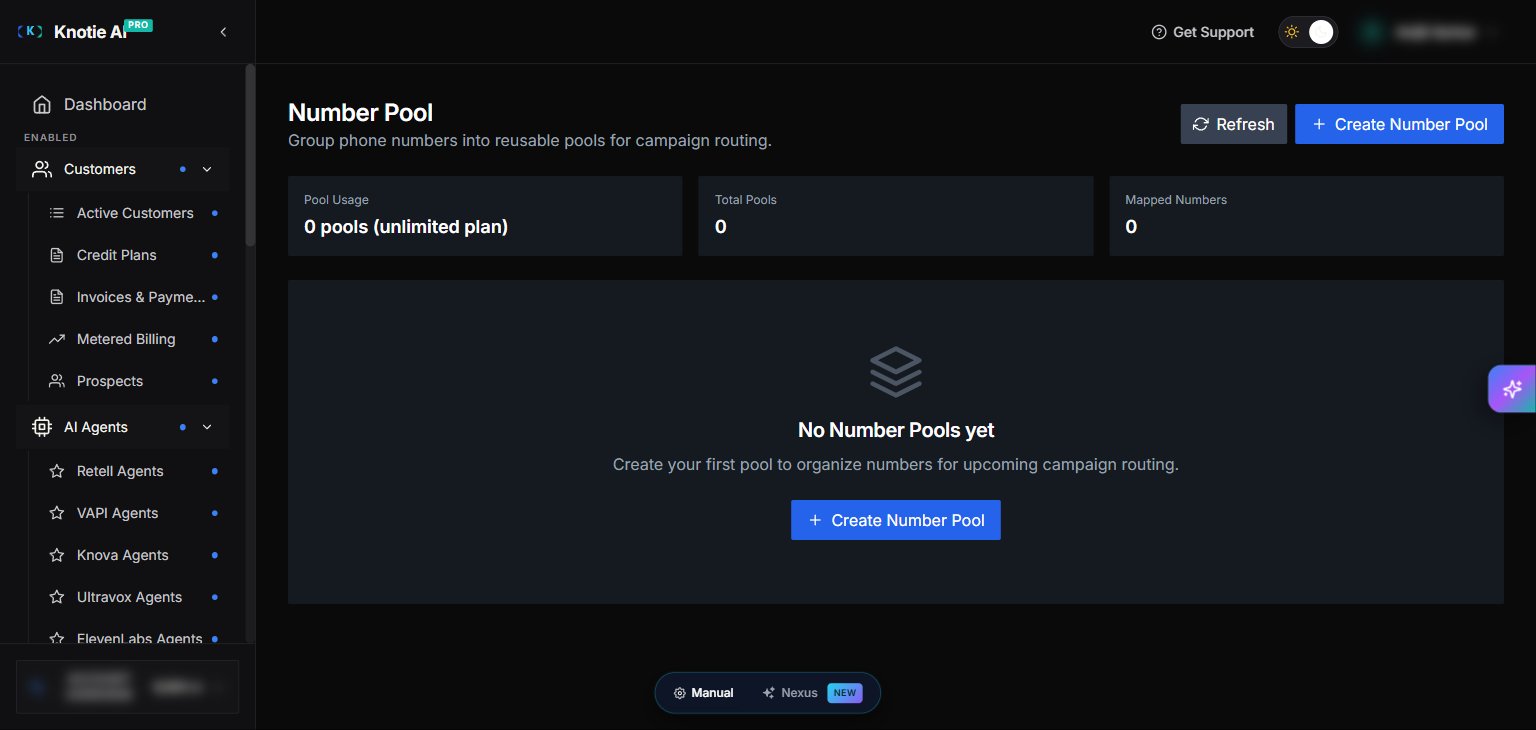 The page header shows three stats — **Pool Usage**, **Total Pools**, and **Mapped Numbers** — followed by the pool list. With no pools created yet, an empty-state panel prompts you to create your first pool.
## Where to find it
1. Partner Portal → **Phone Numbers**
2. Click **Number Pool** (singular) in the page toolbar
## Pool usage stats
The top of the page shows:
* **Pool Usage** — X pools used (may show "unlimited plan" on higher tiers)
* **Total Pools** — number of pools created
* **Mapped Numbers** — total numbers assigned to pools
## Create a pool
1. Click **+ Create Number Pool**
2. Enter pool name (required) and a short description (optional)
3. (Coming soon) Assign the pool to a campaign — currently locked with a "Coming Soon" label until the Campaigns feature ships
4. Search your phone number inventory and select numbers via checkboxes
5. Click **Create Pool**
The page header shows three stats — **Pool Usage**, **Total Pools**, and **Mapped Numbers** — followed by the pool list. With no pools created yet, an empty-state panel prompts you to create your first pool.
## Where to find it
1. Partner Portal → **Phone Numbers**
2. Click **Number Pool** (singular) in the page toolbar
## Pool usage stats
The top of the page shows:
* **Pool Usage** — X pools used (may show "unlimited plan" on higher tiers)
* **Total Pools** — number of pools created
* **Mapped Numbers** — total numbers assigned to pools
## Create a pool
1. Click **+ Create Number Pool**
2. Enter pool name (required) and a short description (optional)
3. (Coming soon) Assign the pool to a campaign — currently locked with a "Coming Soon" label until the Campaigns feature ships
4. Search your phone number inventory and select numbers via checkboxes
5. Click **Create Pool**
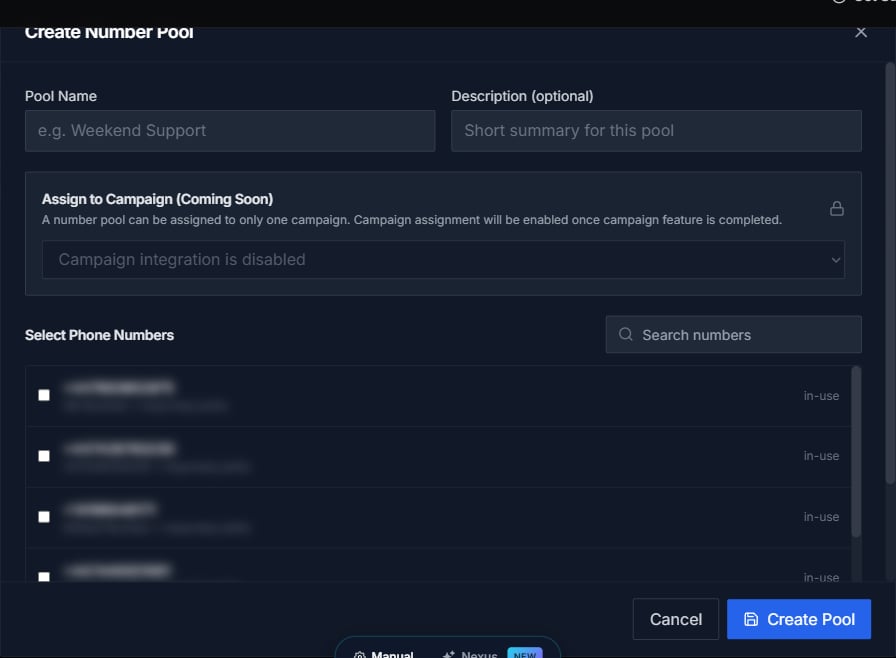 A number can only belong to **one pool at a time**. If you have no provisioned numbers yet, the picker shows "No phone numbers found" — go to **Phone Numbers** to buy or import a number first, then come back to create the pool.
## Manage a pool
Click **Manage Pool** on any pool card to:
* Edit name and description
* Add or remove numbers
* Delete the pool
### Add or remove numbers
1. Open the Manage Pool modal
2. Numbers already in the pool are marked "Currently assigned" in green
3. Select additional numbers to add, or deselect to remove
4. Save changes
## Delete a pool
In the Manage Pool modal:
1. Click **Delete Pool** (red button, bottom-left)
2. Confirm deletion
Numbers are released back to your available inventory.
## Campaign assignment (coming soon)
Pool-to-campaign assignment is currently disabled with a padlock icon and "Coming Soon" label. This feature will allow you to assign a pool to a campaign for automated routing.
## View pool details
Pool cards show:
* Name and description
* Creation date
* Number count badge
* First 6 phone numbers as pills
* "+N more" if additional numbers exist
## Refresh
Click **Refresh** to reload all pools and your current plan limits.
## Next steps
* [Phone Numbers](/partner-portal/phone-numbers) — manage your number inventory
* [AI Gateway](/partner-portal/ai-gateway) — manage API access
* [Credits](/partner-portal/credits) — add credits for calling
A number can only belong to **one pool at a time**. If you have no provisioned numbers yet, the picker shows "No phone numbers found" — go to **Phone Numbers** to buy or import a number first, then come back to create the pool.
## Manage a pool
Click **Manage Pool** on any pool card to:
* Edit name and description
* Add or remove numbers
* Delete the pool
### Add or remove numbers
1. Open the Manage Pool modal
2. Numbers already in the pool are marked "Currently assigned" in green
3. Select additional numbers to add, or deselect to remove
4. Save changes
## Delete a pool
In the Manage Pool modal:
1. Click **Delete Pool** (red button, bottom-left)
2. Confirm deletion
Numbers are released back to your available inventory.
## Campaign assignment (coming soon)
Pool-to-campaign assignment is currently disabled with a padlock icon and "Coming Soon" label. This feature will allow you to assign a pool to a campaign for automated routing.
## View pool details
Pool cards show:
* Name and description
* Creation date
* Number count badge
* First 6 phone numbers as pills
* "+N more" if additional numbers exist
## Refresh
Click **Refresh** to reload all pools and your current plan limits.
## Next steps
* [Phone Numbers](/partner-portal/phone-numbers) — manage your number inventory
* [AI Gateway](/partner-portal/ai-gateway) — manage API access
* [Credits](/partner-portal/credits) — add credits for calling