> ## Documentation Index
> Fetch the complete documentation index at: https://docs.knotie-ai.pro/llms.txt
> Use this file to discover all available pages before exploring further.
# Resell AI Gateway
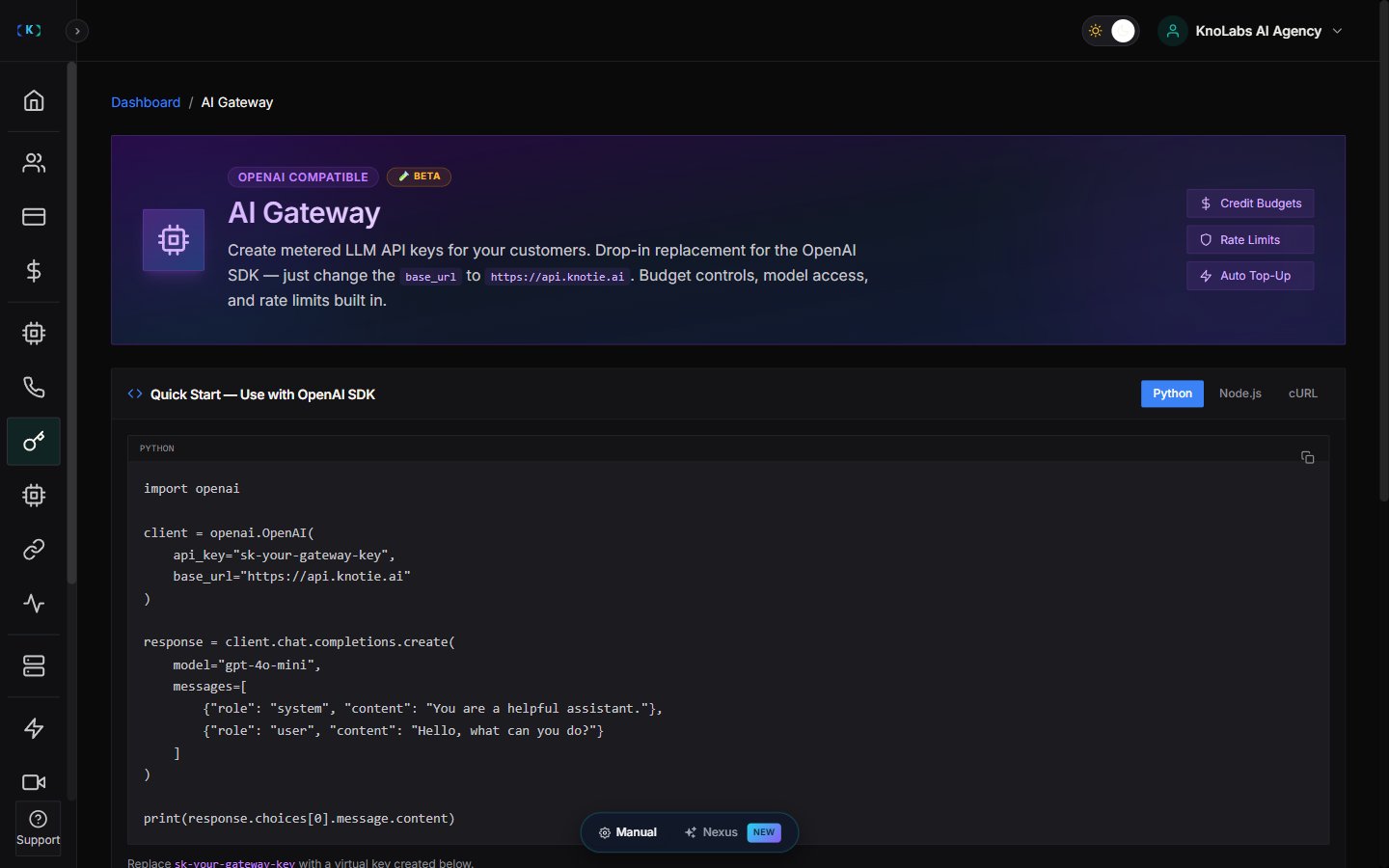
> Sell branded AI API access to your customers. One-click setup — customers sign up, get an OpenAI-compatible key, and you keep the margin.
## What Resell AI Gateway is
**Resell AI Gateway** is a Partner Experience that lets you run a branded AI API service on your own domain.
When enabled, your customers can visit a landing page you control, pick a subscription package, pay by card (or claim a free tier), and immediately receive an **OpenAI-compatible API key** routed through Knotie's AI gateway — all without any manual setup on your end.
Use Resell AI Gateway when you want to:
* Sell access to LLM APIs under your own brand
* Offer tiered subscription packages (free, monthly, yearly)
* Collect payment via your existing Stripe Connect account
* Automatically revoke access when a subscription lapses
* Give customers a self-service portal at `/whitelabel/ai-gateway`
Resell AI Gateway is in **Beta**. It requires your partner account to have an active Stripe Connect configuration and sufficient Knotie Credits. See [Prerequisites](#prerequisites) below.
 ***
## Prerequisites
Before enabling:
1. **Stripe Connect** must be configured in **Partner Portal → Settings → Stripe Connect**. Package creation and Stripe Checkout both run on your Connect account.
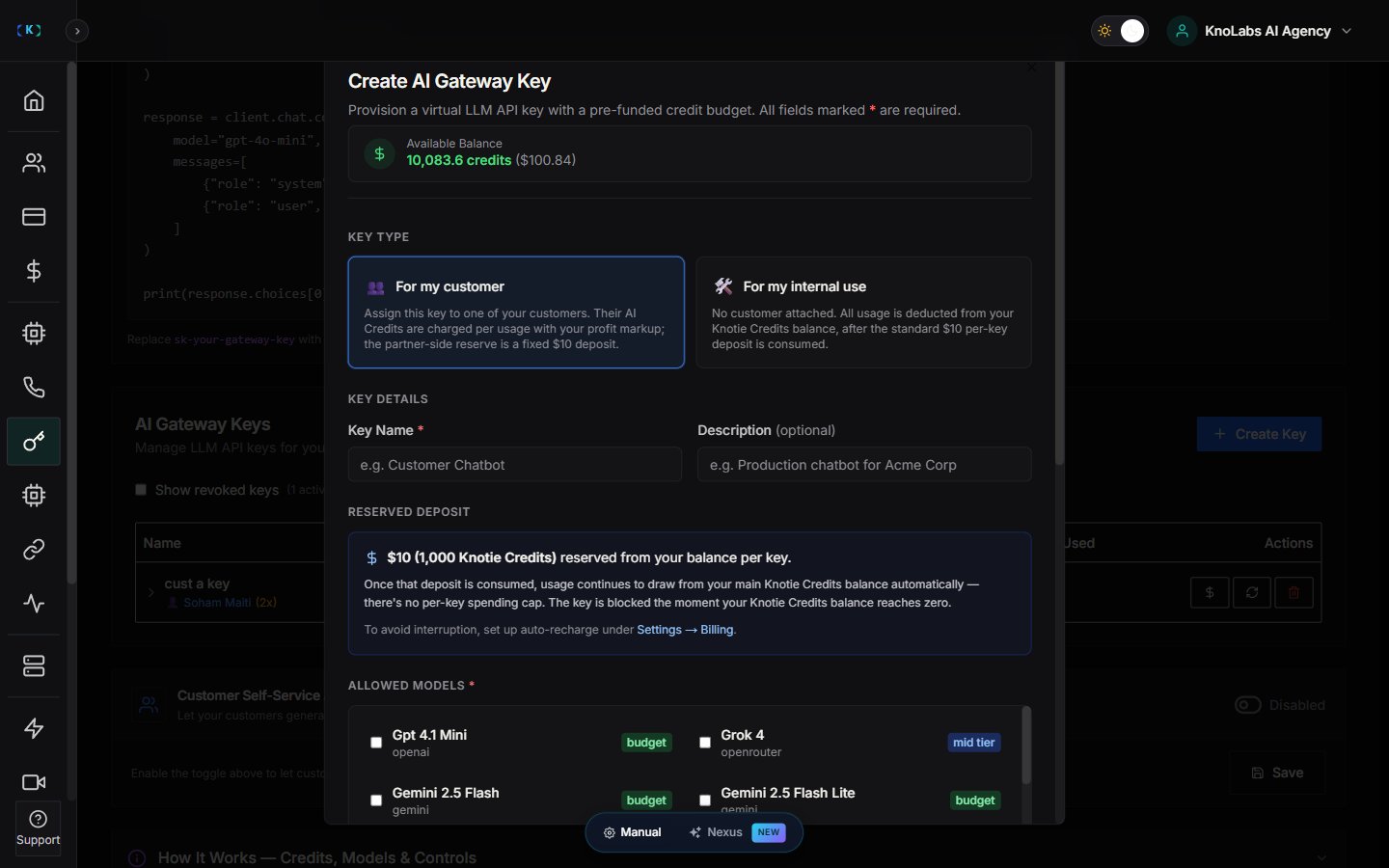
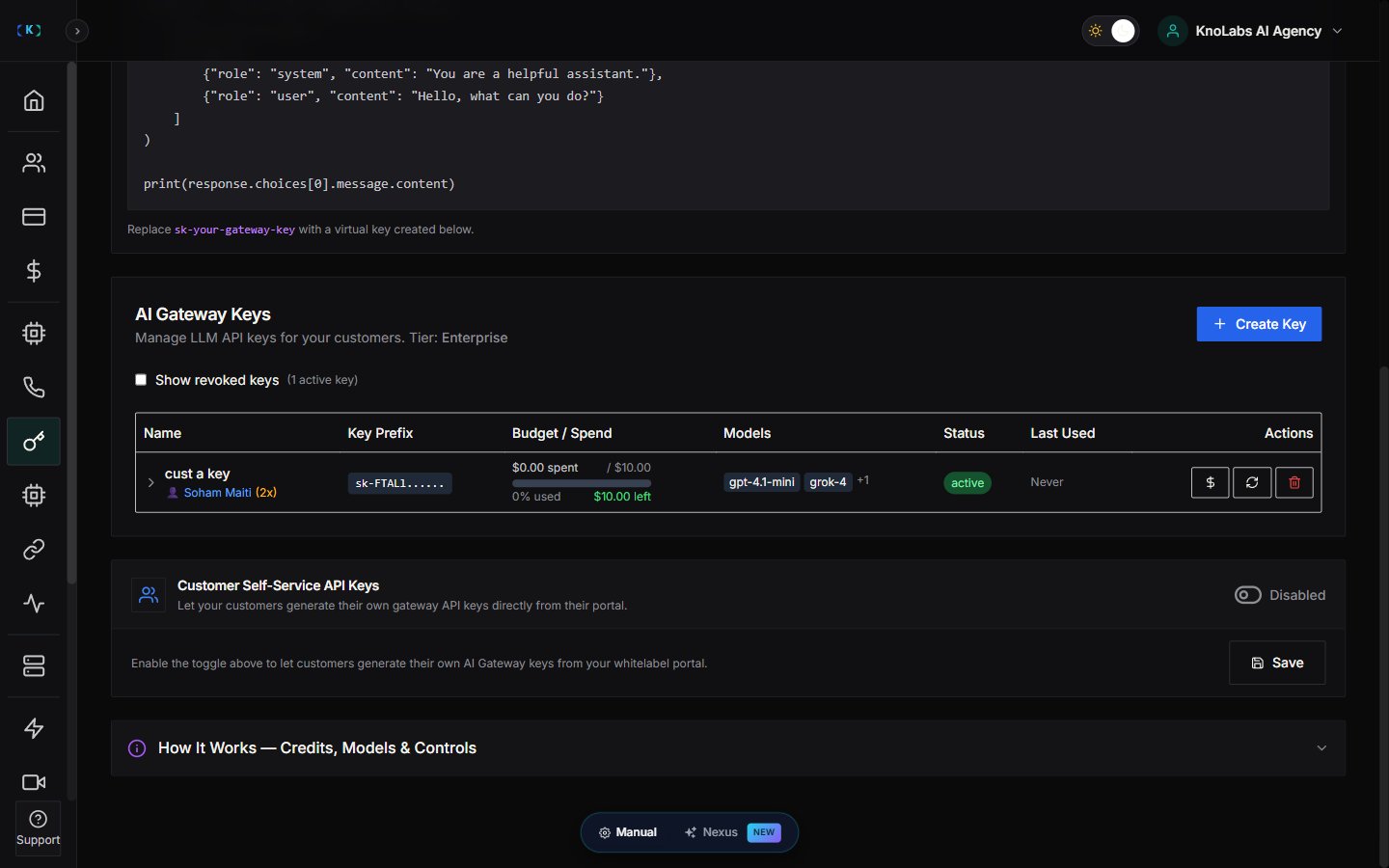
2. Your **Knotie Credit balance** must be positive. Each customer AI Gateway key reserves **1,000 Knotie Credits (\~\$10)** from your pool. Top up at **Partner Portal → Credits** if needed.
3. Your partner tier must support AI Gateway (contact support if the Experience card is not visible).
***
## Enabling the experience
1. Go to **Partner Portal → Experiences**.
2. Find the **Resell AI Gateway** card (marked **Beta**).
3. Click **Enable**.
4. Your experience is created with the default web address ending in `/ai-gateway`, and you're taken to the settings page.
You can change the web address at any time from the settings page. If your landing page lives at `yourdomain.com/ai-gateway`, that's what customers will visit.
***
## Settings page overview
The Resell AI Gateway settings page is a single scrolling page, arranged top to bottom like this:
1. **Overview** — your experience title, web address, and status.
2. **Two reminders at the top**:
* **Custom domain** — flags if your custom domain isn't verified yet. Until it is, the code samples customers see use Knotie's address instead of yours. Set this up at **Partner Portal → AI Gateway → Custom Domain**.
* **Credits** — a reminder that each customer key you provide sets aside about 1,000 credits. Links to your Credits page to top up.
3. **Two summary cards** — quick metrics for the experience.
4. **Landing-page branding** — your hero text, features, FAQs, and branding.
5. **Packages** — your subscription tiers, where you can create, edit, duplicate, delete, and turn packages on or off (see [Managing packages](#managing-packages) below).
Your **gateway defaults** (your profit multiplier and the list of models you allow) aren't on this page — they live under **Partner Portal → AI Gateway** in the sidebar. There's also no Analytics section on this page yet.
***
## Managing packages
### Creating a package
1. Scroll to the **Packages** section (bottom of the settings page) and click **+ New Package**.
2. Fill in the fields:
| Field | Notes |
| ------------------------- | ------------------------------------------------------------------ |
| **Name** | Shown on the customer landing page |
| **Description** | Short marketing copy for the pricing card |
| **Monthly price (cents)** | Set to `0` for a free tier |
| **Yearly price (cents)** | Optional. Leave blank to offer monthly only |
| **AI Credits included** | Credits reset to this amount on each billing cycle |
| **Allowed models** | Multi-select from your partner-allowed model list |
| **Rate limit (RPM)** | Optional. Caps requests per minute for this package |
| **Profit multiplier** | Optional. Inherits your AI Gateway default if blank |
| **Trial days** | Optional. Adds a Stripe trial period (card still required) |
| **Trial credits** | Credits granted during the trial (defaults to AI Credits included) |
3. Click **Save**. This automatically sets up the matching product and pricing in your Stripe account.
***
## Prerequisites
Before enabling:
1. **Stripe Connect** must be configured in **Partner Portal → Settings → Stripe Connect**. Package creation and Stripe Checkout both run on your Connect account.
2. Your **Knotie Credit balance** must be positive. Each customer AI Gateway key reserves **1,000 Knotie Credits (\~\$10)** from your pool. Top up at **Partner Portal → Credits** if needed.
3. Your partner tier must support AI Gateway (contact support if the Experience card is not visible).
***
## Enabling the experience
1. Go to **Partner Portal → Experiences**.
2. Find the **Resell AI Gateway** card (marked **Beta**).
3. Click **Enable**.
4. Your experience is created with the default web address ending in `/ai-gateway`, and you're taken to the settings page.
You can change the web address at any time from the settings page. If your landing page lives at `yourdomain.com/ai-gateway`, that's what customers will visit.
***
## Settings page overview
The Resell AI Gateway settings page is a single scrolling page, arranged top to bottom like this:
1. **Overview** — your experience title, web address, and status.
2. **Two reminders at the top**:
* **Custom domain** — flags if your custom domain isn't verified yet. Until it is, the code samples customers see use Knotie's address instead of yours. Set this up at **Partner Portal → AI Gateway → Custom Domain**.
* **Credits** — a reminder that each customer key you provide sets aside about 1,000 credits. Links to your Credits page to top up.
3. **Two summary cards** — quick metrics for the experience.
4. **Landing-page branding** — your hero text, features, FAQs, and branding.
5. **Packages** — your subscription tiers, where you can create, edit, duplicate, delete, and turn packages on or off (see [Managing packages](#managing-packages) below).
Your **gateway defaults** (your profit multiplier and the list of models you allow) aren't on this page — they live under **Partner Portal → AI Gateway** in the sidebar. There's also no Analytics section on this page yet.
***
## Managing packages
### Creating a package
1. Scroll to the **Packages** section (bottom of the settings page) and click **+ New Package**.
2. Fill in the fields:
| Field | Notes |
| ------------------------- | ------------------------------------------------------------------ |
| **Name** | Shown on the customer landing page |
| **Description** | Short marketing copy for the pricing card |
| **Monthly price (cents)** | Set to `0` for a free tier |
| **Yearly price (cents)** | Optional. Leave blank to offer monthly only |
| **AI Credits included** | Credits reset to this amount on each billing cycle |
| **Allowed models** | Multi-select from your partner-allowed model list |
| **Rate limit (RPM)** | Optional. Caps requests per minute for this package |
| **Profit multiplier** | Optional. Inherits your AI Gateway default if blank |
| **Trial days** | Optional. Adds a Stripe trial period (card still required) |
| **Trial credits** | Credits granted during the trial (defaults to AI Credits included) |
3. Click **Save**. This automatically sets up the matching product and pricing in your Stripe account.
 ### Editing and deleting packages
* **Edit** — opens the same form. Saving updates the allowed-models list for all existing customers on that package automatically.
* **Duplicate** — copies everything into a new draft package.
* **Delete** — removes the package from your landing page. Existing subscribers keep their access until their next billing cycle.
* **Enable/disable toggle** — hides or shows the package on the landing page without deleting it.
***
## Customizing the landing page
The **Landing-page branding** section sits in the middle of the settings page, between the summary cards and the Packages section. Here you can customize:
* The hero title, subtitle, and button text
* The features section (an icon, title, and description for each card)
* FAQ entries (question and answer pairs)
* Your branding (logo, primary color, business name)
Changes show up on your public landing page right away.
### Editing and deleting packages
* **Edit** — opens the same form. Saving updates the allowed-models list for all existing customers on that package automatically.
* **Duplicate** — copies everything into a new draft package.
* **Delete** — removes the package from your landing page. Existing subscribers keep their access until their next billing cycle.
* **Enable/disable toggle** — hides or shows the package on the landing page without deleting it.
***
## Customizing the landing page
The **Landing-page branding** section sits in the middle of the settings page, between the summary cards and the Packages section. Here you can customize:
* The hero title, subtitle, and button text
* The features section (an icon, title, and description for each card)
* FAQ entries (question and answer pairs)
* Your branding (logo, primary color, business name)
Changes show up on your public landing page right away.
 ***
## Customer signup flow
### What customers see
When a customer visits your landing page (e.g., `yourdomain.com/ai-gateway`), they see:
1. **Hero** — your branding, headline, and a "Get started" button
2. **Supported models** — the models you've made available
3. **Feature highlights** — the ones you set in the Landing-page branding section
4. **Pricing** — your packages, with trial badges where they apply
5. **Code sample** — a ready-to-use example that works with their key after signup
6. **FAQ** — your questions and answers
### Free package path
When a customer clicks **Get started** on a free package:
1. A signup dialog asks for email, password, full name, and optional company name.
2. On submit, an API key is provisioned immediately.
3. The key is shown once in the dialog — the customer must copy it now.
4. The customer is taken to their gateway portal, where they can view their key and credit balance.
### Paid package path (with optional trial)
1. The customer clicks **Get started** on a paid package and fills in the signup form.
2. They're taken to a secure Stripe checkout page.
3. A card is required even when a trial is offered.
4. Once payment goes through (or the trial starts), their account and API key are set up automatically.
5. The customer is taken to their gateway portal with their key ready.
***
## Subscription lifecycle
Knotie keeps each customer's subscription in sync with Stripe automatically:
| When… | What happens |
| ------------------------------------------ | -------------------------------------------------------------------------------------------------------- |
| A payment succeeds | The customer's credit balance resets to their package's included amount, and their account stays active. |
| A payment fails | The account is marked past due. The key keeps working briefly until credits run out. |
| A subscription is cancelled or goes unpaid | The account is cancelled and the key is **turned off right away** — there's no grace period. |
When a subscription is cancelled or marked unpaid, the customer's key is turned off immediately — there's no grace period.
### Trials
* The customer's key and credits are set up the moment they finish checkout — not when the trial ends.
* Their account shows as **trialing** during the trial period.
* When the first real payment goes through after the trial, their credits refresh and the account becomes active.
***
## Viewing Gateway customers
Customers acquired through Resell AI Gateway appear in **Partner Portal → Prospects** with a purple **AI Gateway** badge.
Once converted (payment succeeded or free package claimed), they appear in your standard **Customers** list with:
* An **"AI Gateway Customer"** badge in their customer details
* Their package name shown beneath their name
* AI Gateway and AI Credits already turned on
***
## Common problems and fixes
| Problem | Likely cause | Fix |
| ----------------------------------------------- | ---------------------------------------- | ---------------------------------------------------------------- |
| Can't create a package | Stripe isn't connected yet | Go to **Settings → Stripe Connect** and finish setup |
| "Insufficient credits" when a customer signs up | Your balance is below 1,000 credits | Top up at **Partner Portal → Credits** |
| A customer's key doesn't appear after checkout | Their payment didn't finish syncing | Check the payment status in your Stripe dashboard, then refresh |
| A cancelled customer still has access | The cancellation didn't sync from Stripe | Turn off their key manually from **Customers → AI Gateway** |
| No models show up when creating a package | Your allowed-models list is empty | Set your allowed models at **Partner Portal → AI Gateway** first |
***
## Related pages
* [AI Gateway](/partner-portal/ai-gateway) — Partner-owned keys and customer self-service settings
* [Stripe Connect](/partner-portal/settings/stripe-connect) — Required for paid packages
* [Credits](/partner-portal/credits) — Manage your Knotie Credit balance
* [Prospects](/partner-portal/prospects) — Track Gateway signups before conversion
* [Customer Self-Service API Keys](/partner-portal/ai-gateway#customer-self-service-api-keys) — Alternative: let existing customers create their own keys
***
## Customer signup flow
### What customers see
When a customer visits your landing page (e.g., `yourdomain.com/ai-gateway`), they see:
1. **Hero** — your branding, headline, and a "Get started" button
2. **Supported models** — the models you've made available
3. **Feature highlights** — the ones you set in the Landing-page branding section
4. **Pricing** — your packages, with trial badges where they apply
5. **Code sample** — a ready-to-use example that works with their key after signup
6. **FAQ** — your questions and answers
### Free package path
When a customer clicks **Get started** on a free package:
1. A signup dialog asks for email, password, full name, and optional company name.
2. On submit, an API key is provisioned immediately.
3. The key is shown once in the dialog — the customer must copy it now.
4. The customer is taken to their gateway portal, where they can view their key and credit balance.
### Paid package path (with optional trial)
1. The customer clicks **Get started** on a paid package and fills in the signup form.
2. They're taken to a secure Stripe checkout page.
3. A card is required even when a trial is offered.
4. Once payment goes through (or the trial starts), their account and API key are set up automatically.
5. The customer is taken to their gateway portal with their key ready.
***
## Subscription lifecycle
Knotie keeps each customer's subscription in sync with Stripe automatically:
| When… | What happens |
| ------------------------------------------ | -------------------------------------------------------------------------------------------------------- |
| A payment succeeds | The customer's credit balance resets to their package's included amount, and their account stays active. |
| A payment fails | The account is marked past due. The key keeps working briefly until credits run out. |
| A subscription is cancelled or goes unpaid | The account is cancelled and the key is **turned off right away** — there's no grace period. |
When a subscription is cancelled or marked unpaid, the customer's key is turned off immediately — there's no grace period.
### Trials
* The customer's key and credits are set up the moment they finish checkout — not when the trial ends.
* Their account shows as **trialing** during the trial period.
* When the first real payment goes through after the trial, their credits refresh and the account becomes active.
***
## Viewing Gateway customers
Customers acquired through Resell AI Gateway appear in **Partner Portal → Prospects** with a purple **AI Gateway** badge.
Once converted (payment succeeded or free package claimed), they appear in your standard **Customers** list with:
* An **"AI Gateway Customer"** badge in their customer details
* Their package name shown beneath their name
* AI Gateway and AI Credits already turned on
***
## Common problems and fixes
| Problem | Likely cause | Fix |
| ----------------------------------------------- | ---------------------------------------- | ---------------------------------------------------------------- |
| Can't create a package | Stripe isn't connected yet | Go to **Settings → Stripe Connect** and finish setup |
| "Insufficient credits" when a customer signs up | Your balance is below 1,000 credits | Top up at **Partner Portal → Credits** |
| A customer's key doesn't appear after checkout | Their payment didn't finish syncing | Check the payment status in your Stripe dashboard, then refresh |
| A cancelled customer still has access | The cancellation didn't sync from Stripe | Turn off their key manually from **Customers → AI Gateway** |
| No models show up when creating a package | Your allowed-models list is empty | Set your allowed models at **Partner Portal → AI Gateway** first |
***
## Related pages
* [AI Gateway](/partner-portal/ai-gateway) — Partner-owned keys and customer self-service settings
* [Stripe Connect](/partner-portal/settings/stripe-connect) — Required for paid packages
* [Credits](/partner-portal/credits) — Manage your Knotie Credit balance
* [Prospects](/partner-portal/prospects) — Track Gateway signups before conversion
* [Customer Self-Service API Keys](/partner-portal/ai-gateway#customer-self-service-api-keys) — Alternative: let existing customers create their own keys