> ## Documentation Index
> Fetch the complete documentation index at: https://docs.knotie-ai.pro/llms.txt
> Use this file to discover all available pages before exploring further.
# JARVIS AI OS
> Give your clients their own branded AI business assistant — voice-first, trained on their business, live in their portal. A prospecting and demo experience in Beta.
## What JARVIS AI OS is
**JARVIS AI OS** is a Partner Experience that lets you sell a branded AI business assistant to your clients under any name you choose. When a prospect signs up through your landing page, the platform automatically provisions their personal AI assistant — trained on their website and documents, connected to AI tools, and accessible from a voice ORB in their customer portal.
Use JARVIS AI OS when you want to:
* Give prospects a hands-on demo of their own branded AI assistant at the end of a short onboarding flow
* Convert demos to paying customers with a Stripe-linked free-trial or paid tier
* Offer a voice-first AI experience without building any backend yourself
**Best for prospecting and demos, not live sale yet.** JARVIS AI OS is still in Beta. Show it to prospects and let them try the voice demo, but hold off on selling it as a finished product until the full launch.
 ***
## Prerequisites
Before enabling JARVIS AI OS:
1. **Your Knotie Credit balance must be positive.** Setting up each customer creates a voice assistant that runs on credits (7 credits per minute). Top up at **Partner Portal → Credits** if needed.
2. **Voice assistants must be available** in your plan. Contact support if you don't see them in your agent list.
3. **Phone credentials** (optional — only needed if you want to give customers a phone number). These are pulled from your white-label settings at **Partner Portal → Settings → White-label**, so there's nothing extra to set up if they're already entered there.
***
## Enabling the experience
1. Go to **Partner Portal → Experiences**.
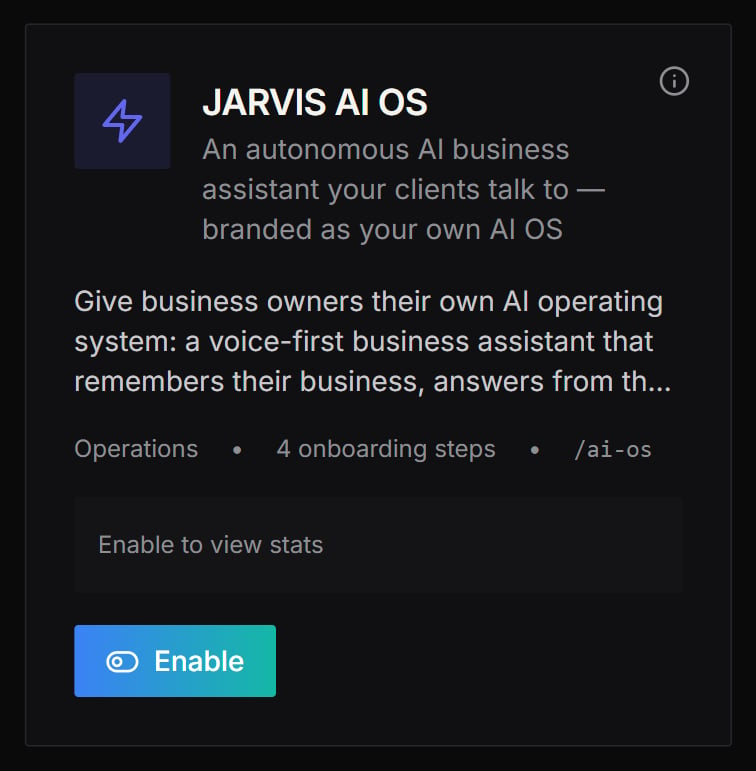
2. Find the **JARVIS AI OS** card.
3. Click **Enable**.
4. Your experience is created with the default web address ending in `/ai-os`, and you're taken to the JARVIS AI OS settings page.
***
## Prerequisites
Before enabling JARVIS AI OS:
1. **Your Knotie Credit balance must be positive.** Setting up each customer creates a voice assistant that runs on credits (7 credits per minute). Top up at **Partner Portal → Credits** if needed.
2. **Voice assistants must be available** in your plan. Contact support if you don't see them in your agent list.
3. **Phone credentials** (optional — only needed if you want to give customers a phone number). These are pulled from your white-label settings at **Partner Portal → Settings → White-label**, so there's nothing extra to set up if they're already entered there.
***
## Enabling the experience
1. Go to **Partner Portal → Experiences**.
2. Find the **JARVIS AI OS** card.
3. Click **Enable**.
4. Your experience is created with the default web address ending in `/ai-os`, and you're taken to the JARVIS AI OS settings page.
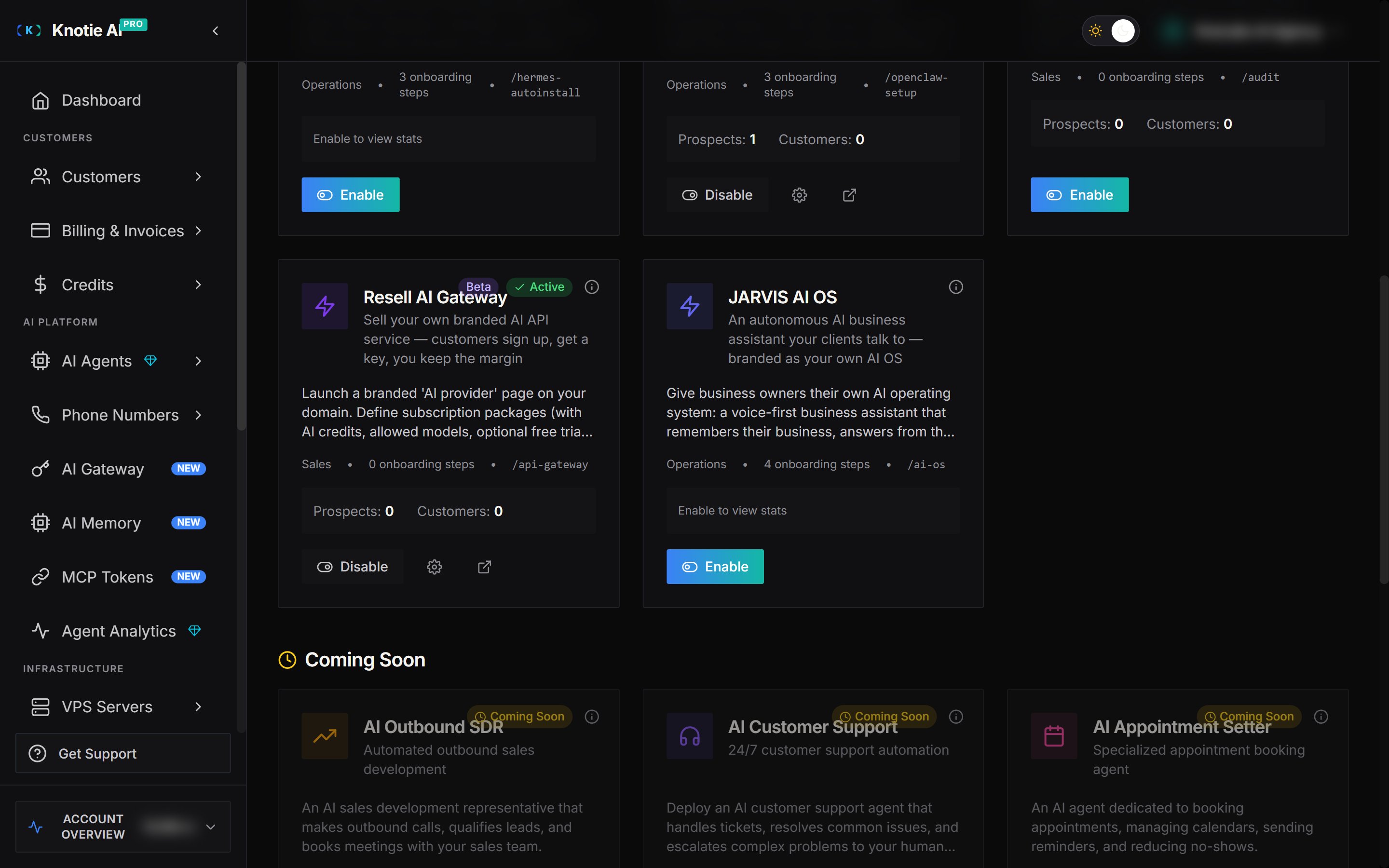 You can change the public alias at any time from **General Settings**. If your landing page lives at `yourdomain.com/ai-os`, that is what prospects will visit.
***
## Settings page overview
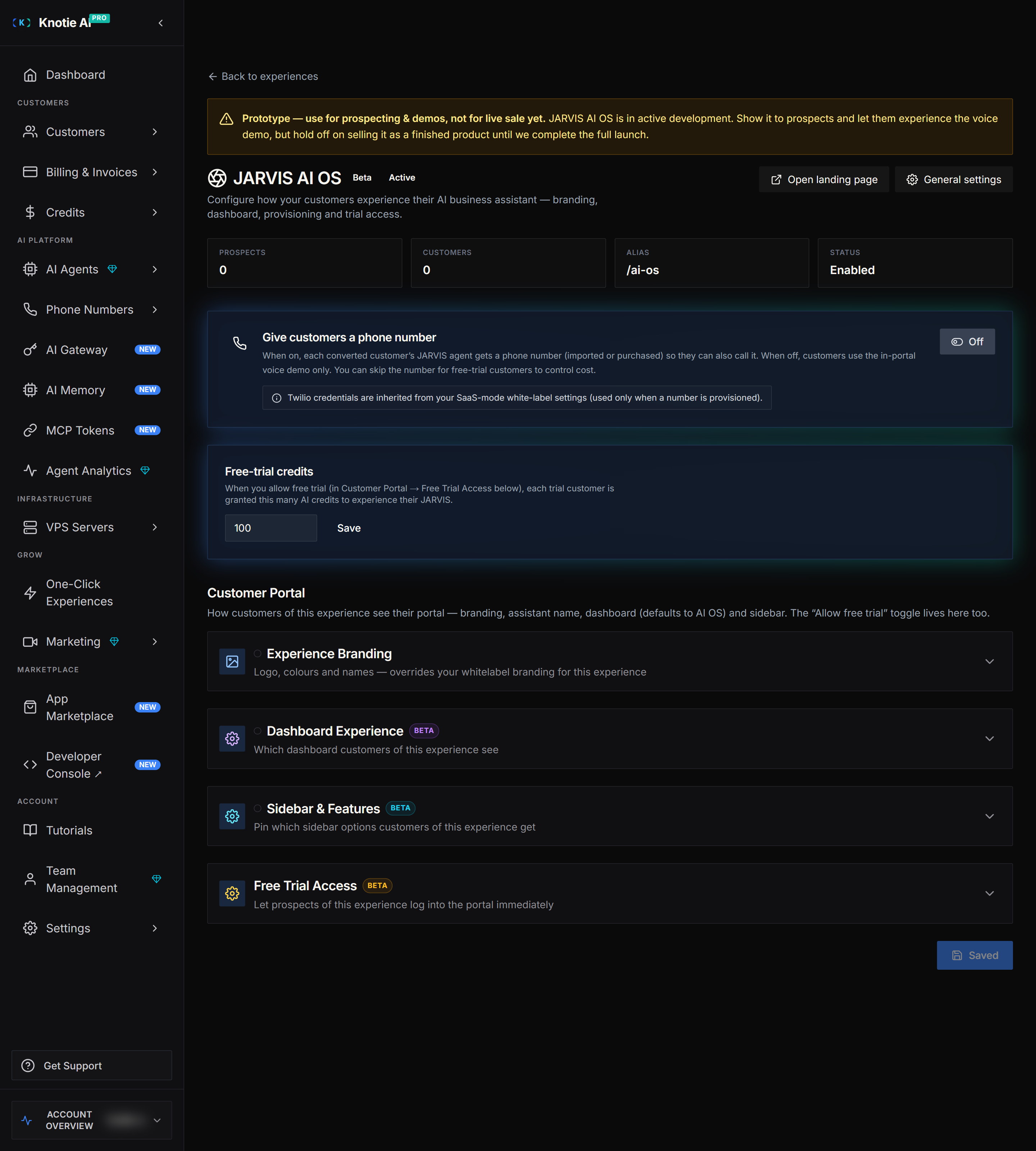
The JARVIS AI OS settings page has these sections, top to bottom:
1. **Beta banner** — a reminder that this is a Beta experience for demos, not live sale.
2. **Overview** — your experience title, web address, status, and prospect and customer counts, plus quick links to open the landing page and general settings.
3. **Phone provisioning** — controls whether converted customers get a phone number for their JARVIS assistant.
4. **Free-trial credits** — sets how many AI credits each free-trial customer receives on signup.
5. **Customer Portal** — branding, assistant name, dashboard layout, sidebar visibility, and the free-trial toggle.
You can change the public alias at any time from **General Settings**. If your landing page lives at `yourdomain.com/ai-os`, that is what prospects will visit.
***
## Settings page overview
The JARVIS AI OS settings page has these sections, top to bottom:
1. **Beta banner** — a reminder that this is a Beta experience for demos, not live sale.
2. **Overview** — your experience title, web address, status, and prospect and customer counts, plus quick links to open the landing page and general settings.
3. **Phone provisioning** — controls whether converted customers get a phone number for their JARVIS assistant.
4. **Free-trial credits** — sets how many AI credits each free-trial customer receives on signup.
5. **Customer Portal** — branding, assistant name, dashboard layout, sidebar visibility, and the free-trial toggle.
 ***
## Phone provisioning
The **"Give customers a phone number"** toggle controls whether each converted customer's JARVIS agent is assigned a phone number (imported or purchased) so they can also call their assistant. When off, customers use the in-portal voice demo only.
| Toggle | Behaviour |
| ---------------------------------------- | ------------------------------------------------------------------------------------------------------------------------- |
| **Phone off** | Customers talk to their assistant through the browser only. No phone number is set up. |
| **Phone on** | Each converted customer gets a phone number, set up using the phone credentials from your white-label settings. |
| **Phone on + Skip phone for free-trial** | Free-trial customers stay browser-only; paying customers get a phone number. A good default for keeping trial costs down. |
To change the setting:
1. Open **JARVIS AI OS → Settings**.
2. Find the **Give customers a phone number** card.
3. Click the toggle. The change saves immediately.
4. If phone is on, a secondary toggle appears: **Skip phone for free-trial customers**. Toggle as needed.
***
## Phone provisioning
The **"Give customers a phone number"** toggle controls whether each converted customer's JARVIS agent is assigned a phone number (imported or purchased) so they can also call their assistant. When off, customers use the in-portal voice demo only.
| Toggle | Behaviour |
| ---------------------------------------- | ------------------------------------------------------------------------------------------------------------------------- |
| **Phone off** | Customers talk to their assistant through the browser only. No phone number is set up. |
| **Phone on** | Each converted customer gets a phone number, set up using the phone credentials from your white-label settings. |
| **Phone on + Skip phone for free-trial** | Free-trial customers stay browser-only; paying customers get a phone number. A good default for keeping trial costs down. |
To change the setting:
1. Open **JARVIS AI OS → Settings**.
2. Find the **Give customers a phone number** card.
3. Click the toggle. The change saves immediately.
4. If phone is on, a secondary toggle appears: **Skip phone for free-trial customers**. Toggle as needed.
 ***
## Free-trial credits
When you allow free trial access (configured in the **Customer Portal** section below), each trial customer receives a credit grant on signup. The default is **100 credits**.
To change the credit amount:
1. Scroll to the **Free-trial credits** card on the JARVIS AI OS settings page.
2. Enter the new credit value.
3. Click **Save**.
Credits are deducted from your partner credit pool at provisioning, so keep your balance topped up when running active campaigns.
***
## Customer Portal settings
The **Customer Portal** section controls how your customers see their portal after signing up:
* **Assistant name** — the persona name displayed in the portal (e.g. "ARIA", "NOVA", "JARVIS"). This name is used on the landing page, in the onboarding wizard, and inside the customer's AI OS dashboard.
* **Branding** — primary colour, logo, and headline copy shown in the customer portal.
* **Dashboard template** — defaults to the AI OS layout with the voice ORB. You can override this if needed.
* **Sidebar visibility** — which portal sections are shown to JARVIS AI OS customers.
* **Allow free trial** — when on, prospects can sign up without paying. They receive the credit amount configured in the Free-trial credits panel above.
***
## What prospects see — the landing page
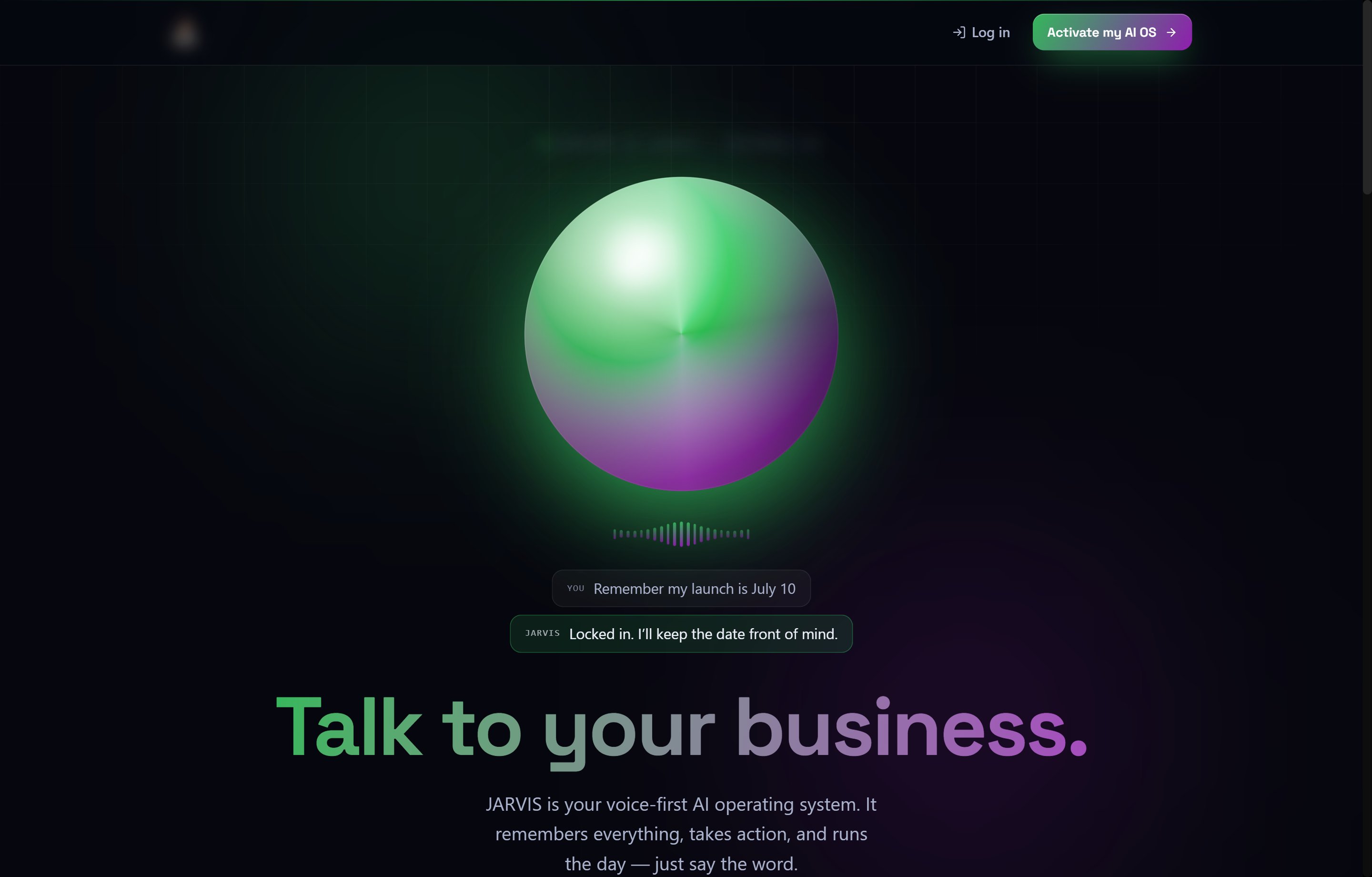
When a prospect visits your landing page (e.g. `yourdomain.com/ai-os`), they see a **partner-branded page** positioned around your assistant name. The page is generated from your branding and assistant-name settings — no code changes required.
The page includes a prominent **"Activate \[AssistantName]"** call-to-action that opens the 4-step onboarding wizard.
***
## Free-trial credits
When you allow free trial access (configured in the **Customer Portal** section below), each trial customer receives a credit grant on signup. The default is **100 credits**.
To change the credit amount:
1. Scroll to the **Free-trial credits** card on the JARVIS AI OS settings page.
2. Enter the new credit value.
3. Click **Save**.
Credits are deducted from your partner credit pool at provisioning, so keep your balance topped up when running active campaigns.
***
## Customer Portal settings
The **Customer Portal** section controls how your customers see their portal after signing up:
* **Assistant name** — the persona name displayed in the portal (e.g. "ARIA", "NOVA", "JARVIS"). This name is used on the landing page, in the onboarding wizard, and inside the customer's AI OS dashboard.
* **Branding** — primary colour, logo, and headline copy shown in the customer portal.
* **Dashboard template** — defaults to the AI OS layout with the voice ORB. You can override this if needed.
* **Sidebar visibility** — which portal sections are shown to JARVIS AI OS customers.
* **Allow free trial** — when on, prospects can sign up without paying. They receive the credit amount configured in the Free-trial credits panel above.
***
## What prospects see — the landing page
When a prospect visits your landing page (e.g. `yourdomain.com/ai-os`), they see a **partner-branded page** positioned around your assistant name. The page is generated from your branding and assistant-name settings — no code changes required.
The page includes a prominent **"Activate \[AssistantName]"** call-to-action that opens the 4-step onboarding wizard.
 ***
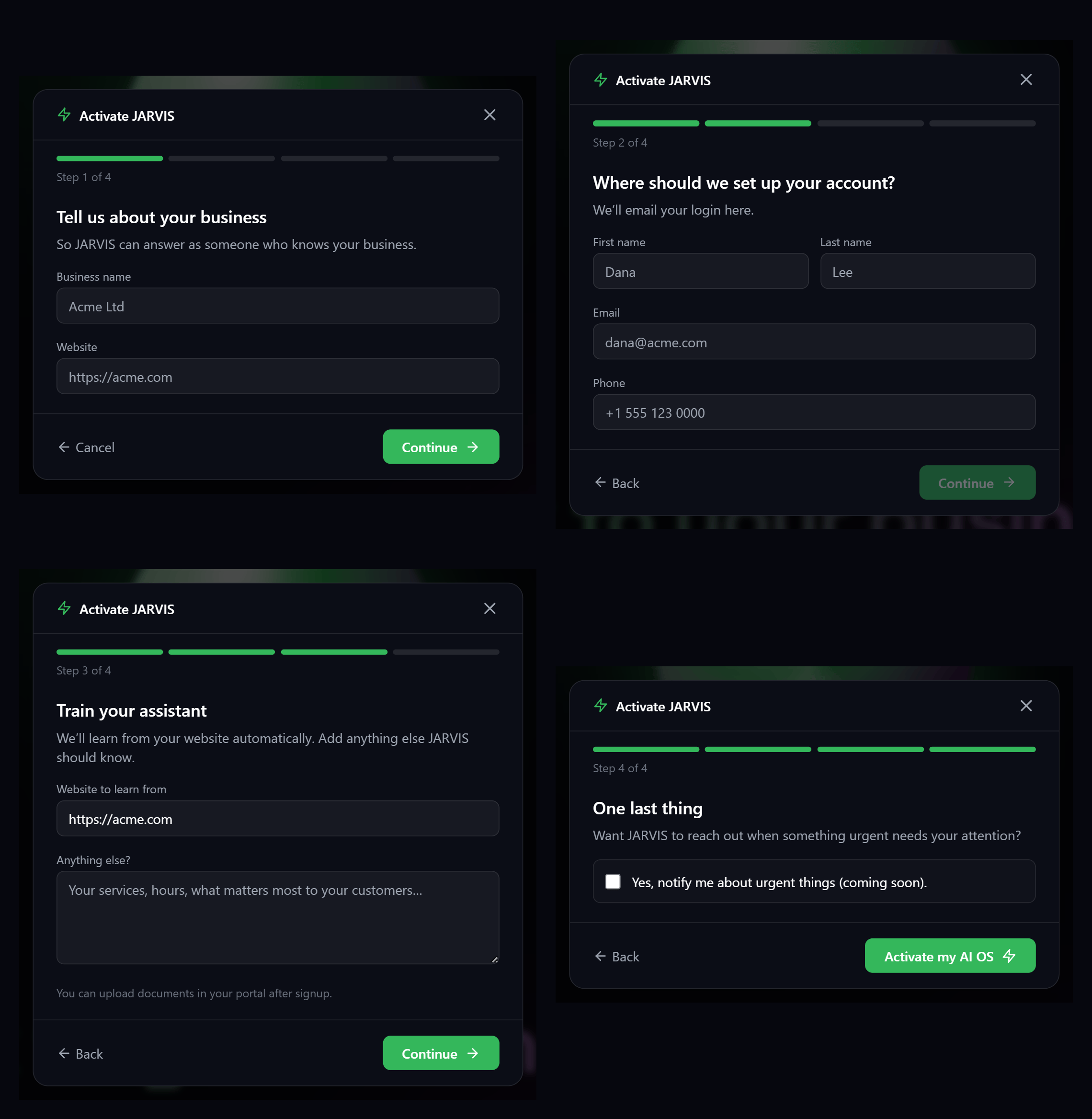
## 4-step onboarding wizard
After clicking the CTA, prospects complete a 4-step wizard before their account is created:
| Step | What is collected |
| ---------------------------- | -------------------------------------------------------------------------------------------------------------------------------------------------------------------- |
| **1 — Business details** | Business name, website URL. Optional Google Business Profile lookup (if you enable business-lookup in settings). |
| **2 — Contact details** | First name, last name, email (required), phone (optional). This becomes the customer's portal login. |
| **3 — Train your assistant** | Confirms the website for automatic learning. The prospect can add extra notes (services, hours, anything the AI should know). Documents can be uploaded after login. |
| **4 — Urgent notifications** | Opt-in preference for proactive notifications when the assistant detects something urgent (stored for a future release). |
On completion the wizard submits a prospect record and triggers provisioning. The prospect sees a confirmation:
> *"You're all set — \[AssistantName] is being prepared. Check your email for your login. Once your assistant is ready, open your portal and tap the orb to start talking."*
***
## 4-step onboarding wizard
After clicking the CTA, prospects complete a 4-step wizard before their account is created:
| Step | What is collected |
| ---------------------------- | -------------------------------------------------------------------------------------------------------------------------------------------------------------------- |
| **1 — Business details** | Business name, website URL. Optional Google Business Profile lookup (if you enable business-lookup in settings). |
| **2 — Contact details** | First name, last name, email (required), phone (optional). This becomes the customer's portal login. |
| **3 — Train your assistant** | Confirms the website for automatic learning. The prospect can add extra notes (services, hours, anything the AI should know). Documents can be uploaded after login. |
| **4 — Urgent notifications** | Opt-in preference for proactive notifications when the assistant detects something urgent (stored for a future release). |
On completion the wizard submits a prospect record and triggers provisioning. The prospect sees a confirmation:
> *"You're all set — \[AssistantName] is being prepared. Check your email for your login. Once your assistant is ready, open your portal and tap the orb to start talking."*
 ***
## What happens after signup — automatic provisioning
After a prospect converts (free-trial or paid), the platform sets up the customer's JARVIS assistant automatically. This all happens in the background:
| Step | What happens |
| ----------------------------- | ------------------------------------------------------------------------------------------------------------------------------------------------------------- |
| **Tool access** | The assistant is connected to all of your customer's tools. |
| **Memory** | A private memory is created so the assistant can remember things across conversations. |
| **Knowledge** | The assistant's knowledge base is created and the customer's website is read in automatically. Any documents they upload after login are added here too. |
| **Voice assistant** | The JARVIS voice assistant is created and connected to the knowledge base, with the assistant name and business details from onboarding already built in. |
| **Phone number** *(optional)* | If you turned on phone numbers and the customer is eligible (paying, or a free-trial customer with phone access), a phone number is added to their assistant. |
| **Ready email** | The customer gets a "Your JARVIS is ready" email with a login link. |
You can follow the setup progress from the customer's details in your partner portal.
If setup fails at any step, it retries automatically. If it keeps failing, check the customer's **Deployment Status** under **Partner Portal → Customers → \[Customer]**.
***
## The AI OS dashboard — talking to JARVIS
Once setup is done, the customer logs in and lands on the **AI OS dashboard**. The centrepiece is a voice **orb**. Tapping the orb starts a live voice conversation with their JARVIS assistant, right in the browser.
The orb moves through four states:
| State | Meaning |
| ----------------------------------- | ----------------------------------------------------------------------------------- |
| **Provisioning** | JARVIS is still being set up. An animation plays and a status message is shown. |
| **Ready / Idle** | JARVIS is ready. Tap to start talking. |
| **Listening / Thinking / Speaking** | Animated in real-time as the assistant processes and responds. |
| **Error / Top-up needed** | Shown when there is a connection error or the customer's credit balance is too low. |
The assistant answers from the customer's knowledge base, uses their connected tools, and remembers past conversations.
***
## Viewing prospects and customers
Prospects who complete the onboarding wizard (but have not yet converted) appear in **Partner Portal → Prospects** under the JARVIS AI OS experience type.
Converted customers appear in **Partner Portal → Customers** and show their JARVIS provisioning status in the **Deployment Status** column.
***
## Known limitations (Beta)
* **Still marked as Beta.** The settings page shows a Beta banner while the experience is in development. It'll be removed at full launch.
* **Browser voice only, unless you turn on phone numbers.** Customers can talk to their JARVIS in the browser by default. To add phone access, turn on phone numbers in settings and make sure your phone credentials are set up in your white-label settings.
* **Website learning takes a little time.** The knowledge base is created right away, but reading the customer's website happens in the background. The assistant may not know everything about their website for the first few minutes after the "ready" email.
* **Urgent notifications aren't active yet.** The "notify me about urgent things" choice from onboarding is saved, but doesn't trigger any calls yet. It's planned for a future update.
* **No autonomous tasks yet.** JARVIS can answer questions, use tools during a conversation, and remember things. Doing work on its own in the background is planned for a future update.
***
## What happens after signup — automatic provisioning
After a prospect converts (free-trial or paid), the platform sets up the customer's JARVIS assistant automatically. This all happens in the background:
| Step | What happens |
| ----------------------------- | ------------------------------------------------------------------------------------------------------------------------------------------------------------- |
| **Tool access** | The assistant is connected to all of your customer's tools. |
| **Memory** | A private memory is created so the assistant can remember things across conversations. |
| **Knowledge** | The assistant's knowledge base is created and the customer's website is read in automatically. Any documents they upload after login are added here too. |
| **Voice assistant** | The JARVIS voice assistant is created and connected to the knowledge base, with the assistant name and business details from onboarding already built in. |
| **Phone number** *(optional)* | If you turned on phone numbers and the customer is eligible (paying, or a free-trial customer with phone access), a phone number is added to their assistant. |
| **Ready email** | The customer gets a "Your JARVIS is ready" email with a login link. |
You can follow the setup progress from the customer's details in your partner portal.
If setup fails at any step, it retries automatically. If it keeps failing, check the customer's **Deployment Status** under **Partner Portal → Customers → \[Customer]**.
***
## The AI OS dashboard — talking to JARVIS
Once setup is done, the customer logs in and lands on the **AI OS dashboard**. The centrepiece is a voice **orb**. Tapping the orb starts a live voice conversation with their JARVIS assistant, right in the browser.
The orb moves through four states:
| State | Meaning |
| ----------------------------------- | ----------------------------------------------------------------------------------- |
| **Provisioning** | JARVIS is still being set up. An animation plays and a status message is shown. |
| **Ready / Idle** | JARVIS is ready. Tap to start talking. |
| **Listening / Thinking / Speaking** | Animated in real-time as the assistant processes and responds. |
| **Error / Top-up needed** | Shown when there is a connection error or the customer's credit balance is too low. |
The assistant answers from the customer's knowledge base, uses their connected tools, and remembers past conversations.
***
## Viewing prospects and customers
Prospects who complete the onboarding wizard (but have not yet converted) appear in **Partner Portal → Prospects** under the JARVIS AI OS experience type.
Converted customers appear in **Partner Portal → Customers** and show their JARVIS provisioning status in the **Deployment Status** column.
***
## Known limitations (Beta)
* **Still marked as Beta.** The settings page shows a Beta banner while the experience is in development. It'll be removed at full launch.
* **Browser voice only, unless you turn on phone numbers.** Customers can talk to their JARVIS in the browser by default. To add phone access, turn on phone numbers in settings and make sure your phone credentials are set up in your white-label settings.
* **Website learning takes a little time.** The knowledge base is created right away, but reading the customer's website happens in the background. The assistant may not know everything about their website for the first few minutes after the "ready" email.
* **Urgent notifications aren't active yet.** The "notify me about urgent things" choice from onboarding is saved, but doesn't trigger any calls yet. It's planned for a future update.
* **No autonomous tasks yet.** JARVIS can answer questions, use tools during a conversation, and remember things. Doing work on its own in the background is planned for a future update.