> ## Documentation Index
> Fetch the complete documentation index at: https://docs.knotie-ai.pro/llms.txt
> Use this file to discover all available pages before exploring further.
# Per-Experience Customer Dashboards
> Give each AI experience its own branded dashboard — call dashboards for AI Receptionist customers, API dashboards for AI Gateway customers, and an orb-centric AI OS for auto-install customers — all auto-branded with your partner colors.
## What this feature does
Per-experience dashboards let you assign a distinct visual dashboard to each AI experience you offer. A customer who signed up through your **AI Receptionist** experience gets a call-centric dashboard showing agents, call volume, outcomes, and recent calls. A customer who signed up for **Resell AI Gateway** gets an API-usage dashboard showing request volume, top models, and credit balance.
All six dashboard templates are automatically branded with your portal's primary and secondary colors — no design work required.
## Prerequisites
* At least one [AI Experience](/partner-portal/experiences/overview) must be enabled on your account.
* The new dashboard UI is **opt-in per partner**. Enable it with the **Dashboard Experience V2** toggle described below.
## The six dashboard experiences
| Template | Default experiences | Key widgets |
| -------------------- | ------------------------------------------------------------------------------------------------------------------------------------------------------------ | -------------------------------------------------------------------------------------------------------------------------------------- |
| AI Voice | AI Receptionist, Personal Assistant, Outbound SDR, Support Agent, Appointment Setter, Lead Qualifier, Survey Agent, Collections Agent, Onboarding Specialist | KPI row (total calls, answer rate, avg duration, outcomes), call volume chart, your agents, call outcomes breakdown, recent calls feed |
| AI Gateway | Resell AI Gateway | KPI row, API request volume chart, top models by usage, credit balance card, API keys list |
| AI Memory | *(none by default — opt-in per experience)* | KPI row, memory growth chart, your Minds list, knowledge sources, recent recalls |
| Infrastructure / VPS | *(infrastructure customers)* | KPI row, one-click app store, resource utilization, installed apps list, upgrade CTA |
| AI OS | OpenClaw Auto-Install, Hermes Auto-Install, OpenClaw Setup Service, OpenClaw Whitelabel | Full-screen animated Orb — customers speak or type; onboarding strip at the top |
| Combination | AI Business Audit, agency / multi-product accounts | KPI row, platform activity feed, your agents, credit balance, installed apps, recent calls |
Widgets that require a feature the customer doesn't have (e.g. the API Keys widget when **Show API Keys** is off) are automatically hidden. The dashboard adapts to each customer's enabled features.
## Enable the new dashboard
The new dashboard UI is controlled by a per-partner **Dashboard Experience V2** flag. It is off by default — existing customers are not affected until you turn it on.
1. Open **Settings → Whitelabel** in the Partner Portal.
2. Find the **Dashboard Experience** *(Beta)* section.
3. Toggle **Enable the new dashboard experience** to on.
4. Optionally choose a **Default dashboard** from the six templates — this is the fallback used when a customer's experience type doesn't have a code default.
5. Click **Save dashboard settings**.
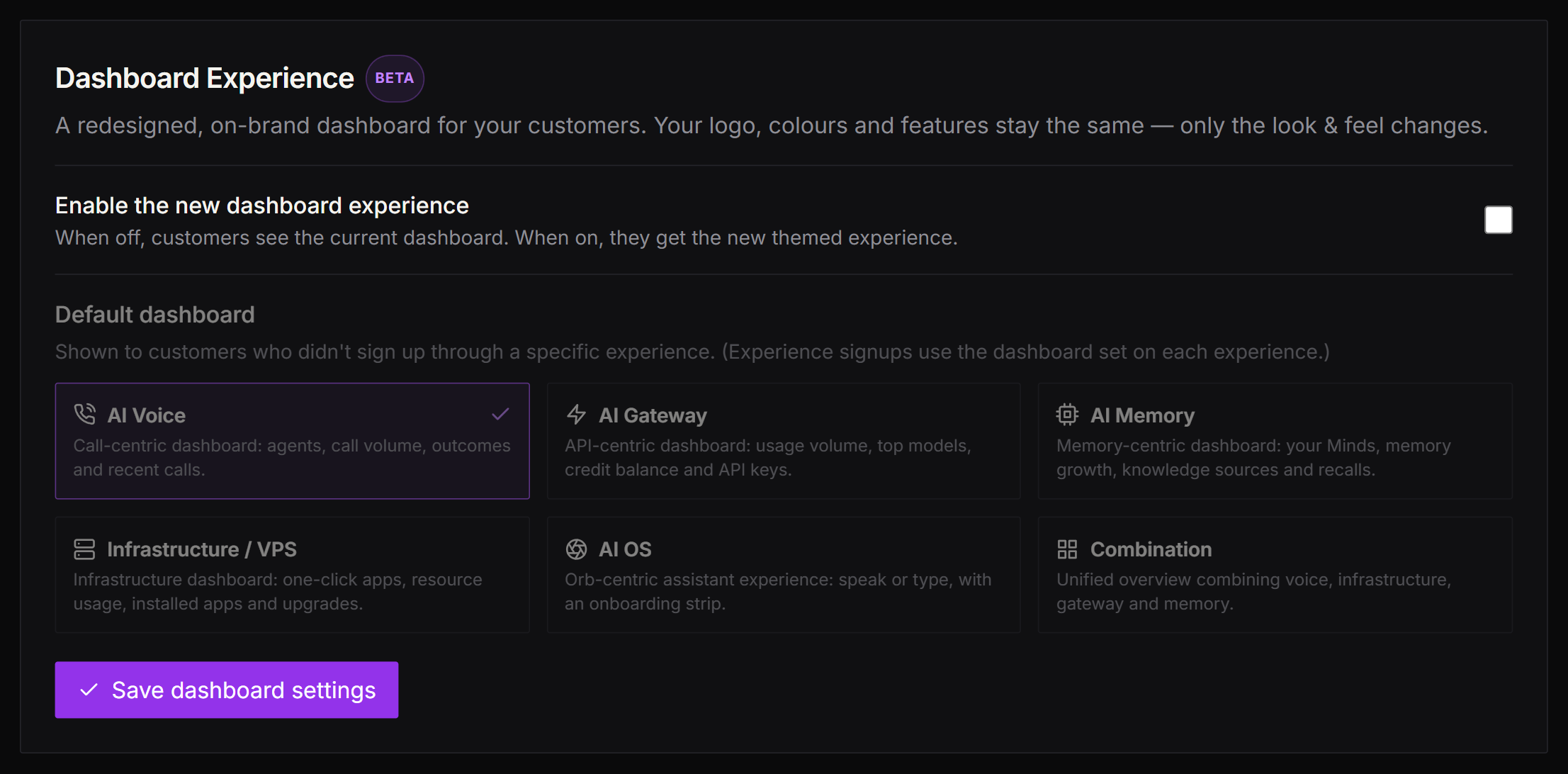 Enabling V2 only affects **new** customers going forward. Existing customers keep the current dashboard until a future backfill. You can safely enable V2 and verify on a test customer before it affects production traffic.
## Configure a template per experience
You can override the default template for any individual experience. For example, you can send all AI Business Audit customers to the `combination` dashboard, or route AI Memory opt-in customers to the `ai_memory` template.
1. Go to **One-Click Experiences** in the Partner Portal sidebar.
2. Click the **Settings** (gear) icon on the experience card you want to configure.
3. On the experience settings page, expand the **Dashboard Experience** *(Beta)* section.
4. Pick a template card — **Default**, **AI Voice**, **AI Gateway**, **AI Memory**, **Infrastructure / VPS**, **AI OS**, or **Combination**. Leave it on **Default** to fall back to your global default dashboard.
5. Click **Save**.
Enabling V2 only affects **new** customers going forward. Existing customers keep the current dashboard until a future backfill. You can safely enable V2 and verify on a test customer before it affects production traffic.
## Configure a template per experience
You can override the default template for any individual experience. For example, you can send all AI Business Audit customers to the `combination` dashboard, or route AI Memory opt-in customers to the `ai_memory` template.
1. Go to **One-Click Experiences** in the Partner Portal sidebar.
2. Click the **Settings** (gear) icon on the experience card you want to configure.
3. On the experience settings page, expand the **Dashboard Experience** *(Beta)* section.
4. Pick a template card — **Default**, **AI Voice**, **AI Gateway**, **AI Memory**, **Infrastructure / VPS**, **AI OS**, or **Combination**. Leave it on **Default** to fall back to your global default dashboard.
5. Click **Save**.
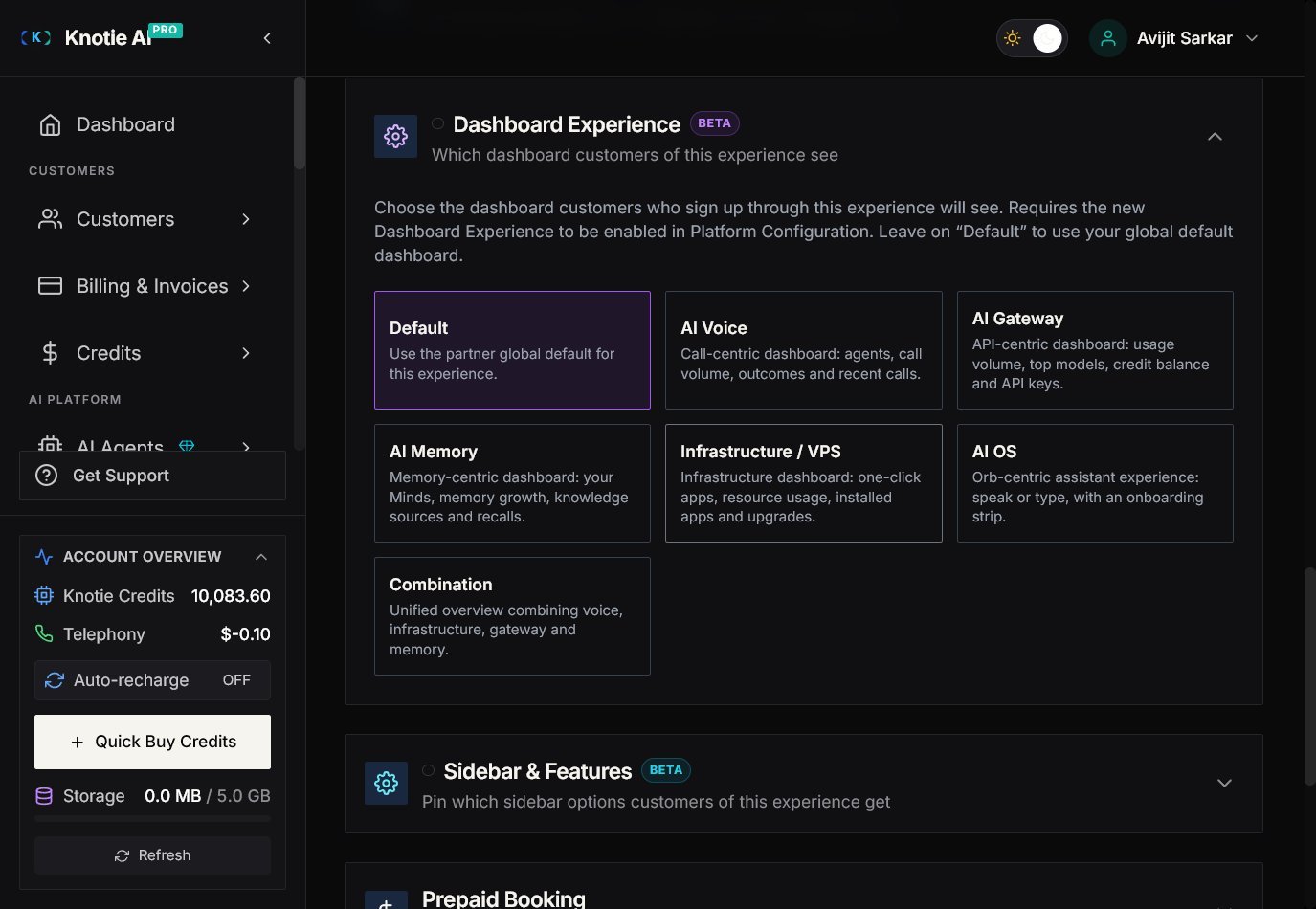 The section header notes this **requires the new Dashboard Experience to be enabled in Platform Configuration**. Selecting a card here sets the per-experience template; the global enable toggle and default live in Platform Configuration / Whitelabel settings.
Customers who onboard through this experience **after** you save will receive the chosen template. Already-provisioned customers are not retroactively changed.
## How templates are resolved
Every new customer is assigned one template. The system picks from the first match in this order:
| Priority | Source | Where to set it |
| ----------- | ---------------------------------------------------- | -------------------------------------------------------------------------------------------------------- |
| 1 (highest) | Explicit per-customer override | Contact support to set |
| 2 | Per-experience template (set in experience settings) | Experiences → \[Experience] → Settings → Customer Dashboard |
| 3 | Built-in default for the experience type | Built-in (see table above) |
| 4 | Partner global default | Settings → Whitelabel → Default dashboard experience |
| 5 (lowest) | Dashboard Mode fallback | Automatic: Standard → AI Voice, Agency+Infra → Combination, Infra → Infrastructure / VPS, JARVIS → AI OS |
See [Dashboard Experience Templates](/partner-portal/settings/dashboard-experiences) for a full reference on how templates are chosen, the built-in default per experience type, and the enable setting.
## The branded dashboard shell
All six templates share the same shell:
* **Left sidebar** — your logo, filtered navigation links (only features the customer has access to), and brand-colored active states.
* **Sticky glassmorphic topbar** — customer name, credit balance, notifications, and account menu.
* **Accent color** — automatically derived from your portal's **Primary Color**, with your secondary color used for highlights and hover states.
* **Dark theme** — the default palette is dark. Light-mode is planned.
* **Brand font** — uses your configured brand font if set; falls back to Plus Jakarta Sans.
* **Right-to-left layout** — the shell automatically flips to right-to-left for Arabic, Hebrew, Farsi, and Urdu portals.
No extra setup needed — the dashboard is on-brand on day one.
## The AI OS experience (orb-centric dashboard)
The `ai_os` template is unique: instead of a grid of metric widgets, customers see an **animated full-screen Orb** that acts as a conversational AI interface. Customers can speak (with microphone permission) or type into the prompt bar at the bottom.
* The Orb defaults to the **Aurora** visual style (soft animated glow).
* An **onboarding strip** above the orb guides new users through first steps: connect apps, run a first action, explore capabilities.
* Used by default for OpenClaw Auto-Install, Hermes Auto-Install, OpenClaw Setup, and OpenClaw Whitelabel customers.
## Experience setup progress tracker
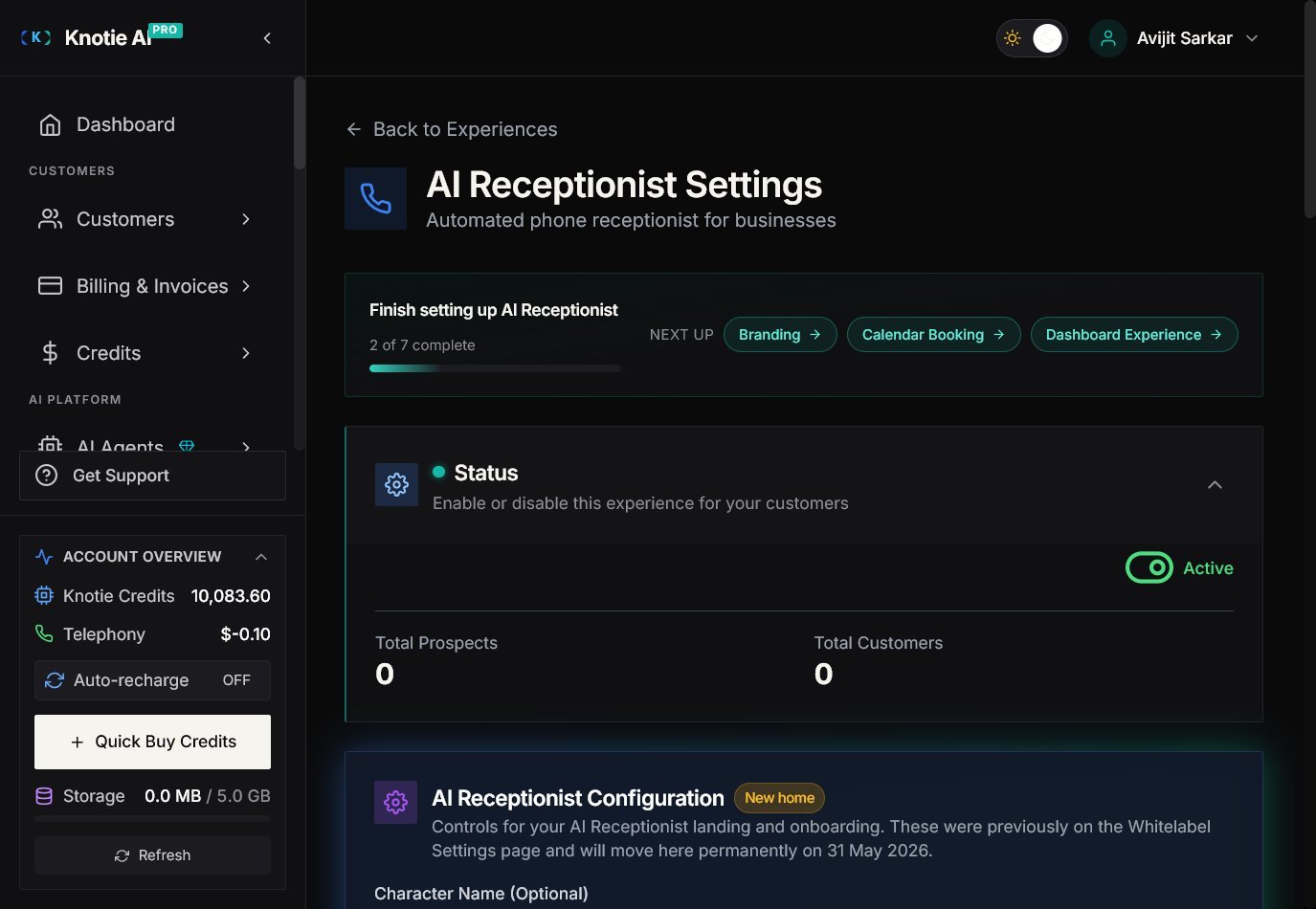
The Experience Settings page includes a **Setup Progress** checklist — a step-by-step tracker that guides you through completing the experience's configuration. Steps vary by experience type and may include:
* Connect a phone number
* Choose or import an AI agent
* Set the customer dashboard template
* Configure subscription pricing tiers (auto-install experiences)
* Configure the landing page alias and branding
Completed steps are checked off. The card shows overall progress and highlights what's next.
The section header notes this **requires the new Dashboard Experience to be enabled in Platform Configuration**. Selecting a card here sets the per-experience template; the global enable toggle and default live in Platform Configuration / Whitelabel settings.
Customers who onboard through this experience **after** you save will receive the chosen template. Already-provisioned customers are not retroactively changed.
## How templates are resolved
Every new customer is assigned one template. The system picks from the first match in this order:
| Priority | Source | Where to set it |
| ----------- | ---------------------------------------------------- | -------------------------------------------------------------------------------------------------------- |
| 1 (highest) | Explicit per-customer override | Contact support to set |
| 2 | Per-experience template (set in experience settings) | Experiences → \[Experience] → Settings → Customer Dashboard |
| 3 | Built-in default for the experience type | Built-in (see table above) |
| 4 | Partner global default | Settings → Whitelabel → Default dashboard experience |
| 5 (lowest) | Dashboard Mode fallback | Automatic: Standard → AI Voice, Agency+Infra → Combination, Infra → Infrastructure / VPS, JARVIS → AI OS |
See [Dashboard Experience Templates](/partner-portal/settings/dashboard-experiences) for a full reference on how templates are chosen, the built-in default per experience type, and the enable setting.
## The branded dashboard shell
All six templates share the same shell:
* **Left sidebar** — your logo, filtered navigation links (only features the customer has access to), and brand-colored active states.
* **Sticky glassmorphic topbar** — customer name, credit balance, notifications, and account menu.
* **Accent color** — automatically derived from your portal's **Primary Color**, with your secondary color used for highlights and hover states.
* **Dark theme** — the default palette is dark. Light-mode is planned.
* **Brand font** — uses your configured brand font if set; falls back to Plus Jakarta Sans.
* **Right-to-left layout** — the shell automatically flips to right-to-left for Arabic, Hebrew, Farsi, and Urdu portals.
No extra setup needed — the dashboard is on-brand on day one.
## The AI OS experience (orb-centric dashboard)
The `ai_os` template is unique: instead of a grid of metric widgets, customers see an **animated full-screen Orb** that acts as a conversational AI interface. Customers can speak (with microphone permission) or type into the prompt bar at the bottom.
* The Orb defaults to the **Aurora** visual style (soft animated glow).
* An **onboarding strip** above the orb guides new users through first steps: connect apps, run a first action, explore capabilities.
* Used by default for OpenClaw Auto-Install, Hermes Auto-Install, OpenClaw Setup, and OpenClaw Whitelabel customers.
## Experience setup progress tracker
The Experience Settings page includes a **Setup Progress** checklist — a step-by-step tracker that guides you through completing the experience's configuration. Steps vary by experience type and may include:
* Connect a phone number
* Choose or import an AI agent
* Set the customer dashboard template
* Configure subscription pricing tiers (auto-install experiences)
* Configure the landing page alias and branding
Completed steps are checked off. The card shows overall progress and highlights what's next.
 ## Frequently asked questions
No. The V2 flag only applies to **new** customers provisioned after you enable it. Existing customers keep the current dashboard. A backfill to opt existing customers in is planned for a future release.
Not from the partner UI yet — the template is set per experience, not per individual customer. A per-customer override can be set by contacting support. A customer-level override UI is planned.
The system skips it and falls through to the next level in the order above (experience default → partner global default → mode fallback). The customer always sees a valid dashboard.
No. Dashboard templates are purely a visual change. Credit costs, agent tiers, and billing are unaffected.
## Related pages
* [Dashboard Experience Templates](/partner-portal/settings/dashboard-experiences) — concept reference: the six templates, how they're chosen, the enable setting, and auto-branding details
* [AI Experiences](/partner-portal/experiences/overview) — enable and manage your experiences
* [Whitelabel Settings](/partner-portal/settings/whitelabel-settings) — where to find the global default template and V2 toggle
* [Platform Configuration](/partner-portal/settings/platform-configuration) — Dashboard Mode (sidebar menu defaults) — separate from experience templates
* [Auto-Install Experiences](/partner-portal/experiences/auto-install) — setup guide for OpenClaw and Hermes (these default to the AI OS dashboard)
## Frequently asked questions
No. The V2 flag only applies to **new** customers provisioned after you enable it. Existing customers keep the current dashboard. A backfill to opt existing customers in is planned for a future release.
Not from the partner UI yet — the template is set per experience, not per individual customer. A per-customer override can be set by contacting support. A customer-level override UI is planned.
The system skips it and falls through to the next level in the order above (experience default → partner global default → mode fallback). The customer always sees a valid dashboard.
No. Dashboard templates are purely a visual change. Credit costs, agent tiers, and billing are unaffected.
## Related pages
* [Dashboard Experience Templates](/partner-portal/settings/dashboard-experiences) — concept reference: the six templates, how they're chosen, the enable setting, and auto-branding details
* [AI Experiences](/partner-portal/experiences/overview) — enable and manage your experiences
* [Whitelabel Settings](/partner-portal/settings/whitelabel-settings) — where to find the global default template and V2 toggle
* [Platform Configuration](/partner-portal/settings/platform-configuration) — Dashboard Mode (sidebar menu defaults) — separate from experience templates
* [Auto-Install Experiences](/partner-portal/experiences/auto-install) — setup guide for OpenClaw and Hermes (these default to the AI OS dashboard)