> ## Documentation Index
> Fetch the complete documentation index at: https://docs.knotie-ai.pro/llms.txt
> Use this file to discover all available pages before exploring further.
# Partner Dashboard
> Understand the metrics, widgets, and quick actions available on the Knotie AI Pro Partner Dashboard.
## What the Dashboard shows
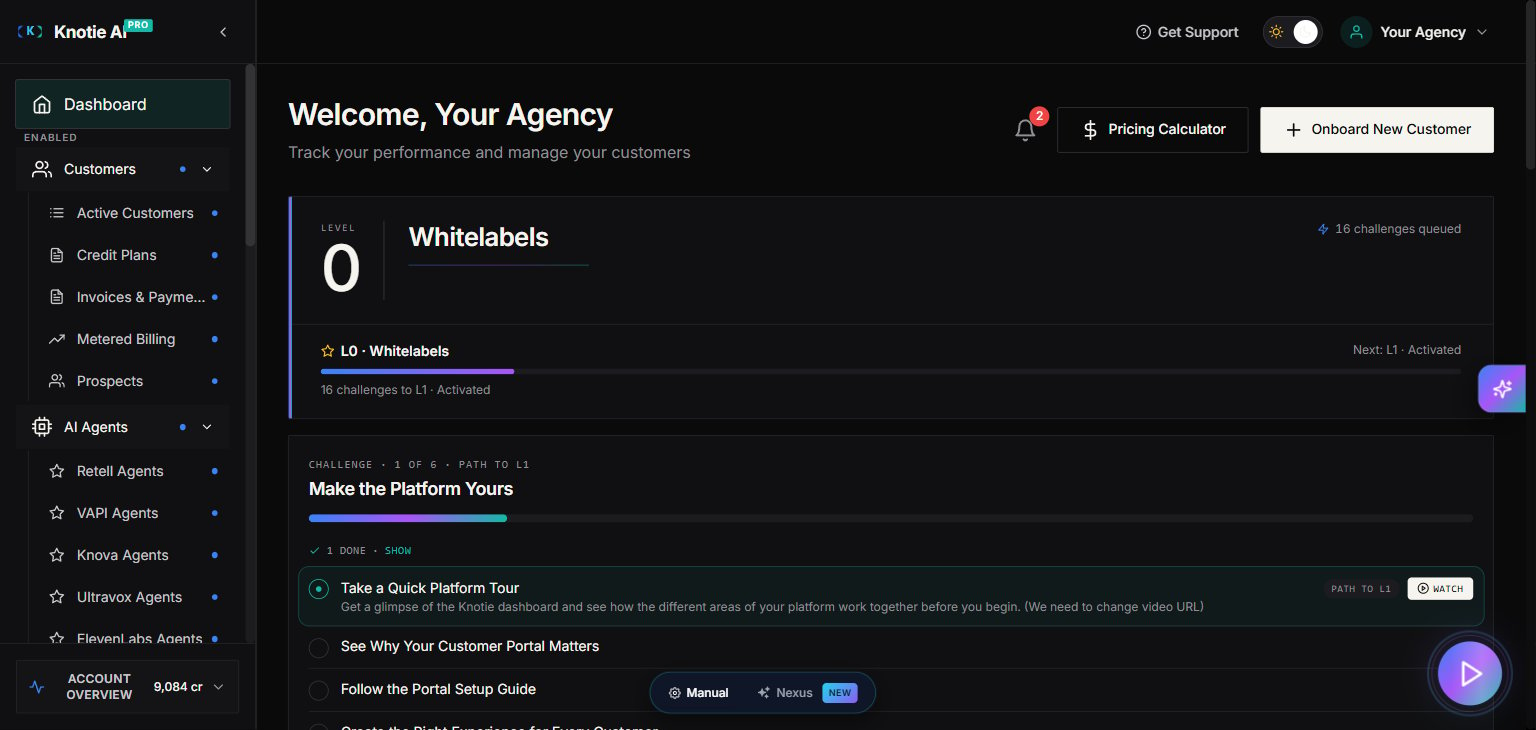
When you log in, the Partner Dashboard is the first page you see. It summarises your agency's health at a glance and gives you quick access to the most common actions.
 ## Metrics cards
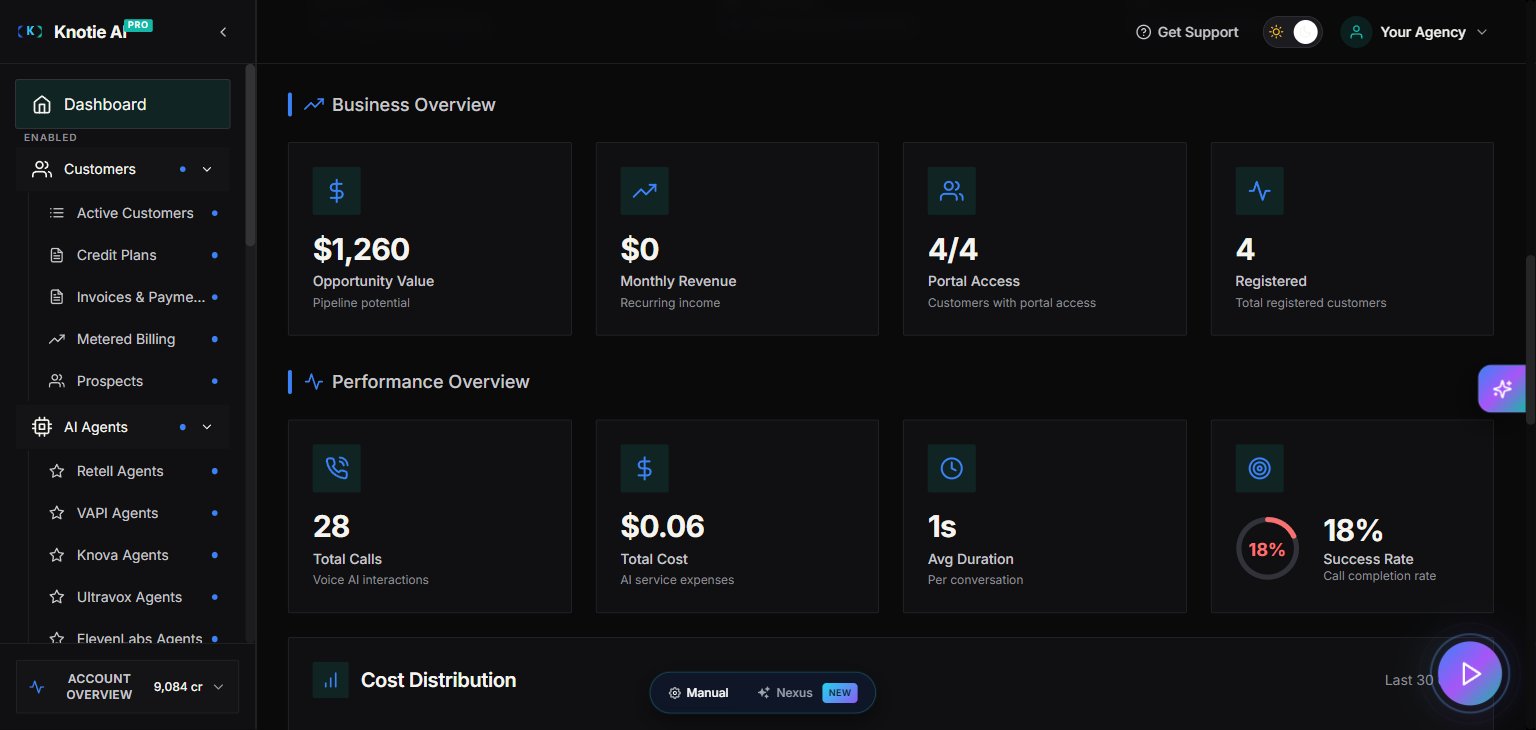
The top row of the dashboard displays key numbers:
| Card | What it shows |
| --------------------------- | --------------------------------------------------------------------------------- |
| **Total Opportunity Value** | Combined estimated value of all customers (sum of their `estimatedPrice` fields). |
| **Total MRR** | Your agency's total monthly recurring revenue across active customers. |
| **Total Users** | All registered customers in your account. |
| **Live Users** | Customers who currently have active portal access. |
| **Portal Access** | Count of customers with a live portal login. |
| **Phone Numbers** | Total phone numbers provisioned in your account. |
## Analytics charts
Below the metrics cards, two charts show activity over time:
* **User Growth (Area chart)** — Total registered vs. live users over time.
* **Call Analytics (Bar chart)** — Total calls, failed calls, success rate, and average duration using your connected AI agents.
The date range and breakdown can be adjusted using the controls above each chart.
## Metrics cards
The top row of the dashboard displays key numbers:
| Card | What it shows |
| --------------------------- | --------------------------------------------------------------------------------- |
| **Total Opportunity Value** | Combined estimated value of all customers (sum of their `estimatedPrice` fields). |
| **Total MRR** | Your agency's total monthly recurring revenue across active customers. |
| **Total Users** | All registered customers in your account. |
| **Live Users** | Customers who currently have active portal access. |
| **Portal Access** | Count of customers with a live portal login. |
| **Phone Numbers** | Total phone numbers provisioned in your account. |
## Analytics charts
Below the metrics cards, two charts show activity over time:
* **User Growth (Area chart)** — Total registered vs. live users over time.
* **Call Analytics (Bar chart)** — Total calls, failed calls, success rate, and average duration using your connected AI agents.
The date range and breakdown can be adjusted using the controls above each chart.
 ## Credit balance display
Your current **AI Credits** and **Telephony Credits** balances are visible in the dashboard. A low balance will show a warning indicator — top up from **Credits** in the sidebar before calls start failing.
If you are eligible for a **free credit claim** (e.g., during an onboarding promotion), a **Claim Credits** button will appear.
## Quick actions
### Add Customer
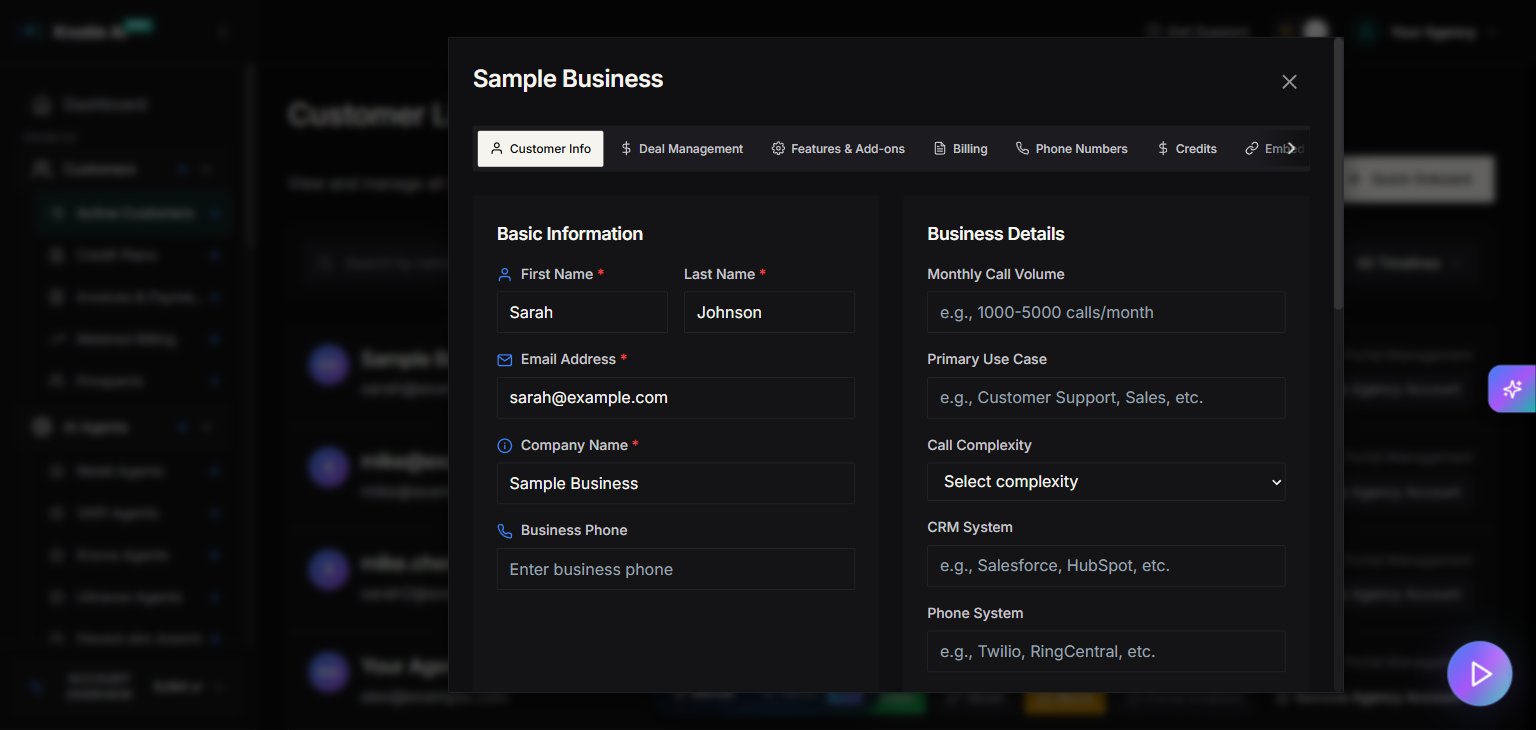
Click the **+ Add Customer** (or **Quick Onboard**) button to open the Quick Onboarding modal. This walks you through creating a new customer record, setting up portal access, and assigning an agent — all in one flow.
### Onboarding progress bar
If you haven't completed initial setup yet, an **Onboarding Progress Bar** appears below the header. Each step (add a customer, connect an agent, assign a phone number, etc.) is checked off as you complete it. The bar disappears once setup is done.
### Daily Challenge widget
The **Daily Challenge** widget surfaces one quick action each day to help you grow your agency — for example, reviewing a customer's usage, updating their plan, or following up on a prospect. Completing challenges earns credit rewards.
## Credit balance display
Your current **AI Credits** and **Telephony Credits** balances are visible in the dashboard. A low balance will show a warning indicator — top up from **Credits** in the sidebar before calls start failing.
If you are eligible for a **free credit claim** (e.g., during an onboarding promotion), a **Claim Credits** button will appear.
## Quick actions
### Add Customer
Click the **+ Add Customer** (or **Quick Onboard**) button to open the Quick Onboarding modal. This walks you through creating a new customer record, setting up portal access, and assigning an agent — all in one flow.
### Onboarding progress bar
If you haven't completed initial setup yet, an **Onboarding Progress Bar** appears below the header. Each step (add a customer, connect an agent, assign a phone number, etc.) is checked off as you complete it. The bar disappears once setup is done.
### Daily Challenge widget
The **Daily Challenge** widget surfaces one quick action each day to help you grow your agency — for example, reviewing a customer's usage, updating their plan, or following up on a prospect. Completing challenges earns credit rewards.
 ### Notification Bell
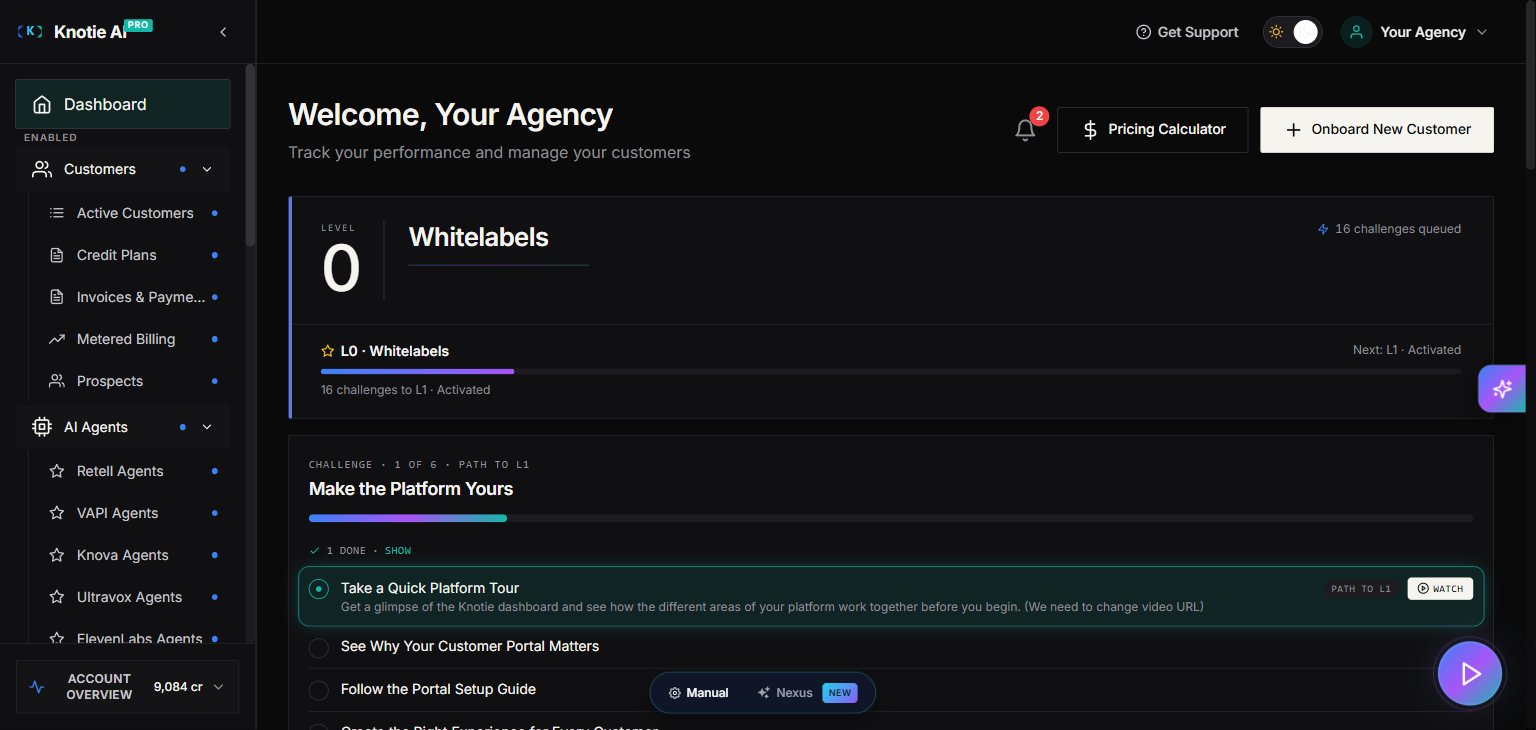
The **Notification Bell** (top-right of the dashboard header) shows real-time alerts:
* Low credit balance warnings
* Agent errors or call failures
* System announcements
Click the bell to expand the notification panel.
### Passkey prompt
If you haven't set up a passkey yet, a prompt appears on the dashboard encouraging you to do so. Passkeys provide stronger account security than a password alone. See [Passkeys](/account/passkeys) for setup instructions.
## AI Builder popup
If you haven't created an AI agent yet, an **AI Builder** popup may appear guiding you to create your first agent. This can be dismissed once you're familiar with agent creation.
## Customer quick view
The dashboard includes a customer search and quick-view panel. Clicking a customer name opens a compact summary of their plan, portal status, and recent activity without leaving the Dashboard.
### Notification Bell
The **Notification Bell** (top-right of the dashboard header) shows real-time alerts:
* Low credit balance warnings
* Agent errors or call failures
* System announcements
Click the bell to expand the notification panel.
### Passkey prompt
If you haven't set up a passkey yet, a prompt appears on the dashboard encouraging you to do so. Passkeys provide stronger account security than a password alone. See [Passkeys](/account/passkeys) for setup instructions.
## AI Builder popup
If you haven't created an AI agent yet, an **AI Builder** popup may appear guiding you to create your first agent. This can be dismissed once you're familiar with agent creation.
## Customer quick view
The dashboard includes a customer search and quick-view panel. Clicking a customer name opens a compact summary of their plan, portal status, and recent activity without leaving the Dashboard.
 ## Tips
* The Dashboard is the fastest way to check your credit balances and MRR without navigating to individual pages.
* Use **Pricing Calculator** (accessible from the Dashboard) to estimate costs before quoting a new customer.
* The Onboarding Wizard (**Get Started** button, if visible) walks first-time partners through the complete setup sequence.
## Related pages
* [Partner Portal overview](/partner-portal/overview) — sidebar reference and first-week checklist
* [AI Agents panel](/partner-portal/ai-agents-overview) — Voice / Chat / Automation groupings
* [AI Gateway](/partner-portal/ai-gateway) — manage API keys and credit budgets
* [Agent Analytics](/partner-portal/agent-analytics) — call counts, duration, cost breakdown
## Tips
* The Dashboard is the fastest way to check your credit balances and MRR without navigating to individual pages.
* Use **Pricing Calculator** (accessible from the Dashboard) to estimate costs before quoting a new customer.
* The Onboarding Wizard (**Get Started** button, if visible) walks first-time partners through the complete setup sequence.
## Related pages
* [Partner Portal overview](/partner-portal/overview) — sidebar reference and first-week checklist
* [AI Agents panel](/partner-portal/ai-agents-overview) — Voice / Chat / Automation groupings
* [AI Gateway](/partner-portal/ai-gateway) — manage API keys and credit budgets
* [Agent Analytics](/partner-portal/agent-analytics) — call counts, duration, cost breakdown