> ## Documentation Index
> Fetch the complete documentation index at: https://docs.knotie-ai.pro/llms.txt
> Use this file to discover all available pages before exploring further.
# Phone numbers for a customer
> Assign and manage phone numbers for a specific customer (requires customer portal to be enabled).
## Where to find it
1. Open **Customers → Active Customers** in the Partner Portal sidebar.
2. Select a customer.
3. Click **Manage**.
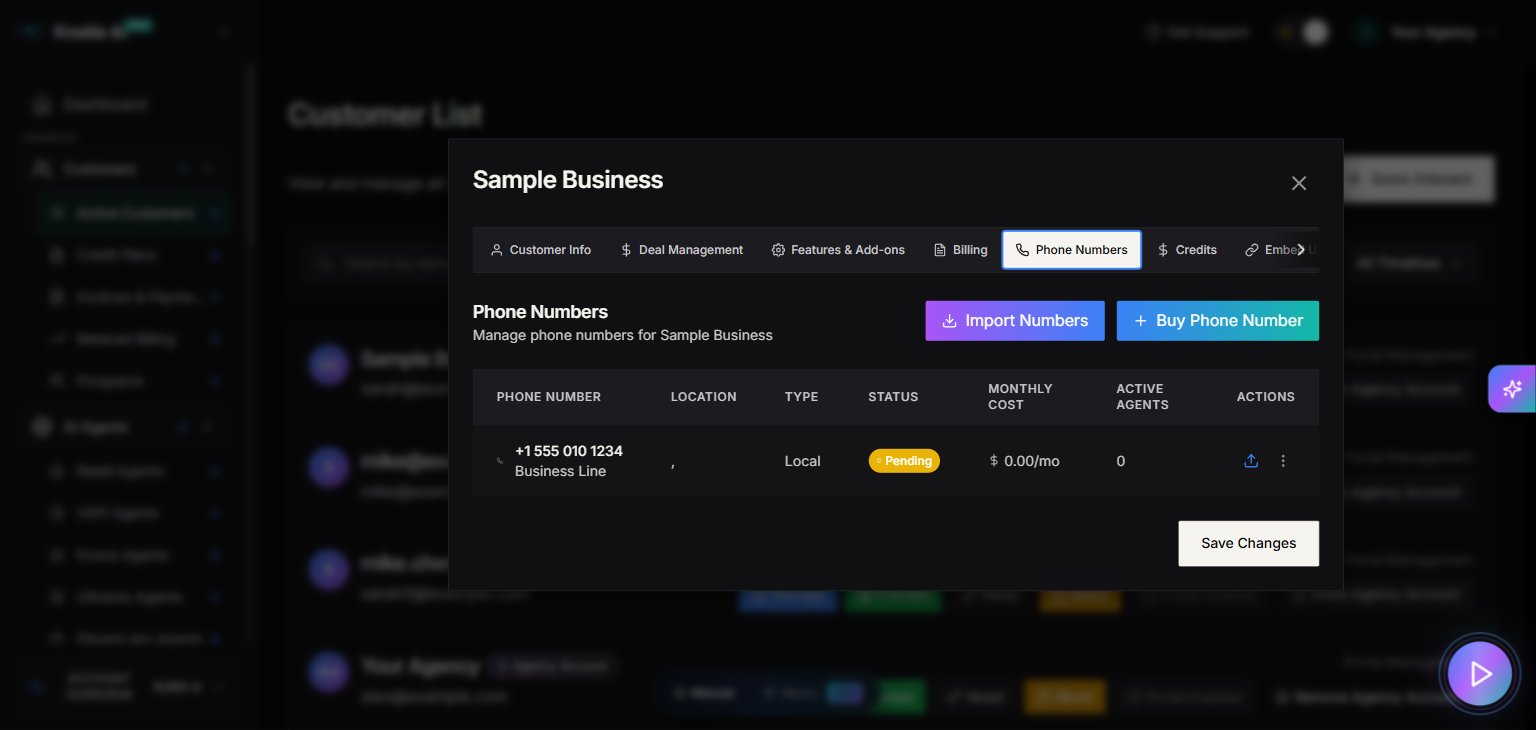
4. Go to the **Phone Numbers** tab.
## Customer portal requirement
The Phone Numbers tab requires the customer portal to be enabled.
If portal access is not enabled, the UI shows a message like:
* **Customer Portal Required**
and provides an **Enable Customer Portal** button.
## What you can do
Inside the Phone Numbers tab you can:
* View customer-assigned numbers
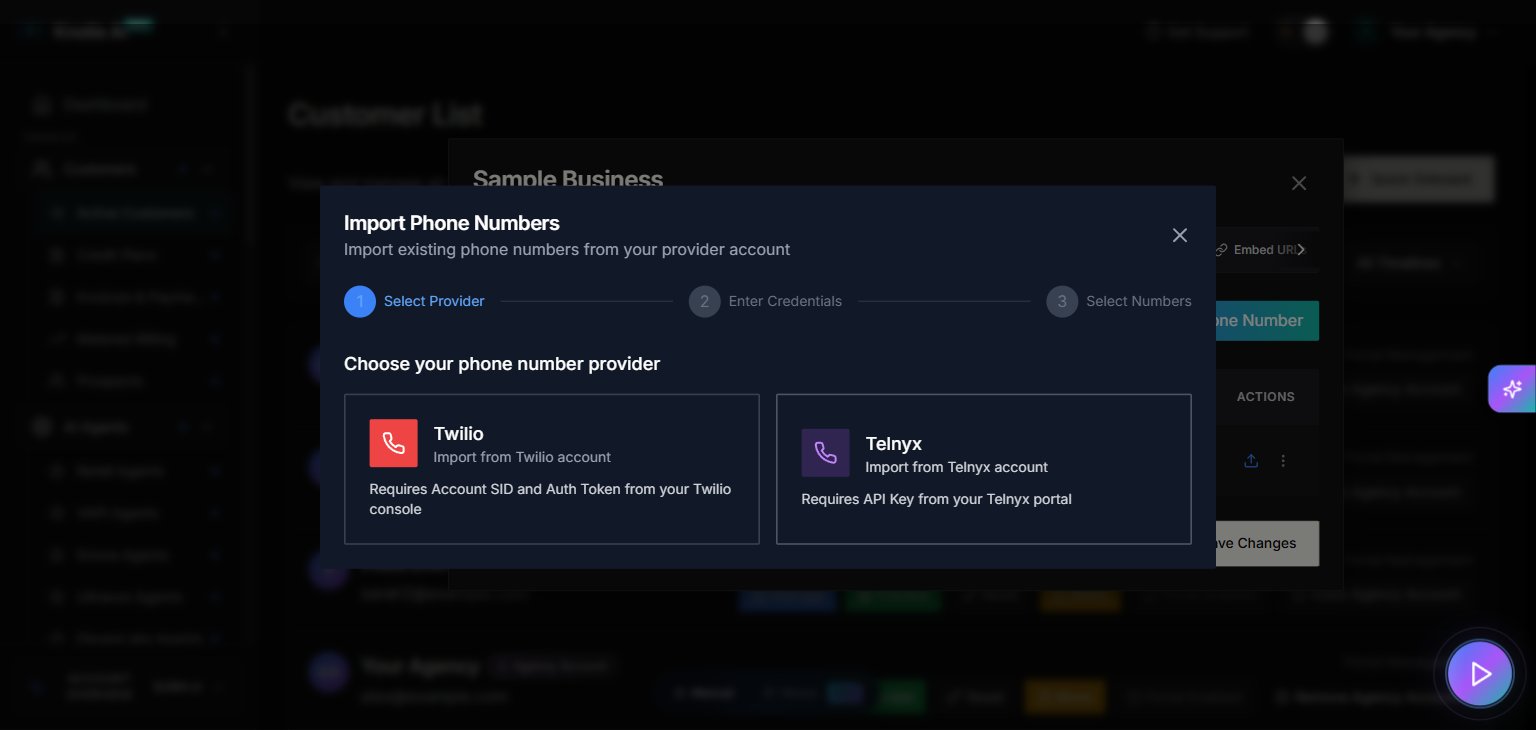
* Assign a number to the customer
* Assign a number to an agent (via selection modals)
## Related pages
* [Phone Numbers](/partner-portal/phone-numbers) — manage all numbers in your account
* [Customer portal access](/partner-portal/customers/customer-portal-access-actions) — enable the portal before assigning numbers
## Screenshots