> ## Documentation Index
> Fetch the complete documentation index at: https://docs.knotie-ai.pro/llms.txt
> Use this file to discover all available pages before exploring further.
# Integration apps selection
> Control which integration apps are available to each customer in their portal, including OAuth-based services and API-key apps like ElevenLabs and HeyGen.
## What Integration Apps Selection is for
**Integration Apps Selection** allows you to control which integration apps a customer can access in their portal's Integration section.
This gives you granular control over:
* Which third-party services customers can connect
* Tier-based access restrictions
* Custom integration packages per customer
## Where to find it
1. Go to **Customers** (sidebar — expands to Active Customers + Prospects).
2. Select a customer.
3. Click **Manage**.
4. Go to the **Features & Add-ons** tab.
5. Find the **Integration** section.
## Enable integrations for a customer
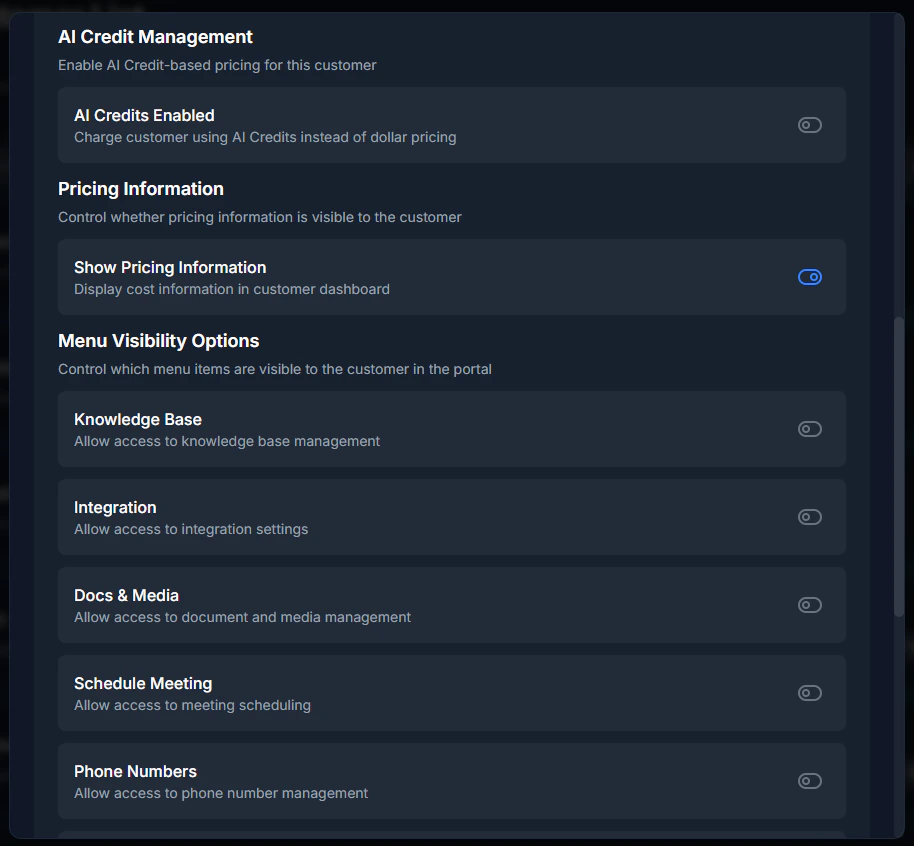
Before selecting specific apps, you must enable the Integration menu:
1. In the **Menu Visibility** section, toggle **Show Integration** to ON.
2. The Integration menu will now appear in the customer's portal.
 ## Select allowed apps
Once integrations are enabled, you can choose which apps the customer can access:
1. In the **Features & Add-ons** tab, find **Allowed Apps**.
2. Click **Select Apps**.
3. A modal will appear with all available integration apps.
4. Check the apps you want to allow for this customer.
5. Click **Save**.
### Available integration apps
The app selection modal displays apps in categories:
**Communication**
* Gmail
* Outlook
* Slack
* Microsoft Teams
* Zoom
**CRM & Sales**
* HubSpot
* Salesforce
* Pipedrive
* Close
* Copper
**Project Management**
* Asana
* Trello
* Monday.com
* ClickUp
* Notion
**Automation**
* Zapier
* Make (Integromat)
* N8N
* Webhooks
**AI & Media**
* ElevenLabs — text-to-speech, voice cloning, conversational AI tools (\~155 tools available)
* HeyGen — AI video generation and avatar creation
**Other Apps**
* Google Calendar
* Google Sheets
* Airtable
* And many more...
## Select allowed apps
Once integrations are enabled, you can choose which apps the customer can access:
1. In the **Features & Add-ons** tab, find **Allowed Apps**.
2. Click **Select Apps**.
3. A modal will appear with all available integration apps.
4. Check the apps you want to allow for this customer.
5. Click **Save**.
### Available integration apps
The app selection modal displays apps in categories:
**Communication**
* Gmail
* Outlook
* Slack
* Microsoft Teams
* Zoom
**CRM & Sales**
* HubSpot
* Salesforce
* Pipedrive
* Close
* Copper
**Project Management**
* Asana
* Trello
* Monday.com
* ClickUp
* Notion
**Automation**
* Zapier
* Make (Integromat)
* N8N
* Webhooks
**AI & Media**
* ElevenLabs — text-to-speech, voice cloning, conversational AI tools (\~155 tools available)
* HeyGen — AI video generation and avatar creation
**Other Apps**
* Google Calendar
* Google Sheets
* Airtable
* And many more...
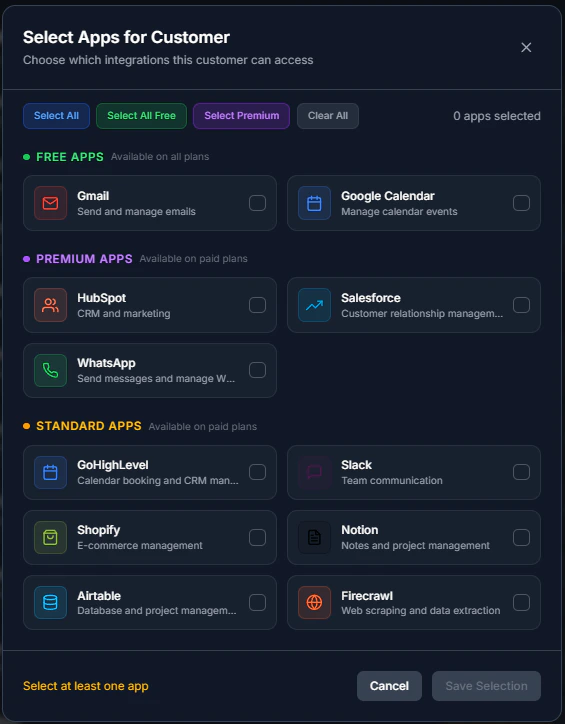 > The app selection modal groups integrations into **FREE APPS** (e.g. Gmail, Google Calendar), **PREMIUM APPS** (e.g. HubSpot, Salesforce, WhatsApp, ElevenLabs, HeyGen), and **STANDARD APPS** (e.g. Slack, Notion, Airtable). Which apps appear depends on the customer's plan.
## How connections work: OAuth vs API key
Apps in the Integration section connect in one of two ways depending on the service:
| Connection type | How it works | Example apps |
| --------------- | --------------------------------------------------------------- | -------------------------------------- |
| **OAuth** | Customer authorizes access through the provider's login flow | Gmail, Slack, HubSpot, Google Calendar |
| **API key** | Customer pastes their provider API key directly into the portal | ElevenLabs, HeyGen |
**Both connection types are fully supported.** Once a customer connects an app — whether via OAuth or API key — the app's tools are available to their AI agents during live calls.
For API-key apps, the customer:
1. Opens **Integration** in their portal.
2. Selects the app (e.g., ElevenLabs).
3. Enters their API key from the provider's dashboard.
4. Saves — the connection is verified and activated.
> The app selection modal groups integrations into **FREE APPS** (e.g. Gmail, Google Calendar), **PREMIUM APPS** (e.g. HubSpot, Salesforce, WhatsApp, ElevenLabs, HeyGen), and **STANDARD APPS** (e.g. Slack, Notion, Airtable). Which apps appear depends on the customer's plan.
## How connections work: OAuth vs API key
Apps in the Integration section connect in one of two ways depending on the service:
| Connection type | How it works | Example apps |
| --------------- | --------------------------------------------------------------- | -------------------------------------- |
| **OAuth** | Customer authorizes access through the provider's login flow | Gmail, Slack, HubSpot, Google Calendar |
| **API key** | Customer pastes their provider API key directly into the portal | ElevenLabs, HeyGen |
**Both connection types are fully supported.** Once a customer connects an app — whether via OAuth or API key — the app's tools are available to their AI agents during live calls.
For API-key apps, the customer:
1. Opens **Integration** in their portal.
2. Selects the app (e.g., ElevenLabs).
3. Enters their API key from the provider's dashboard.
4. Saves — the connection is verified and activated.
 ## How app tools reach running agents
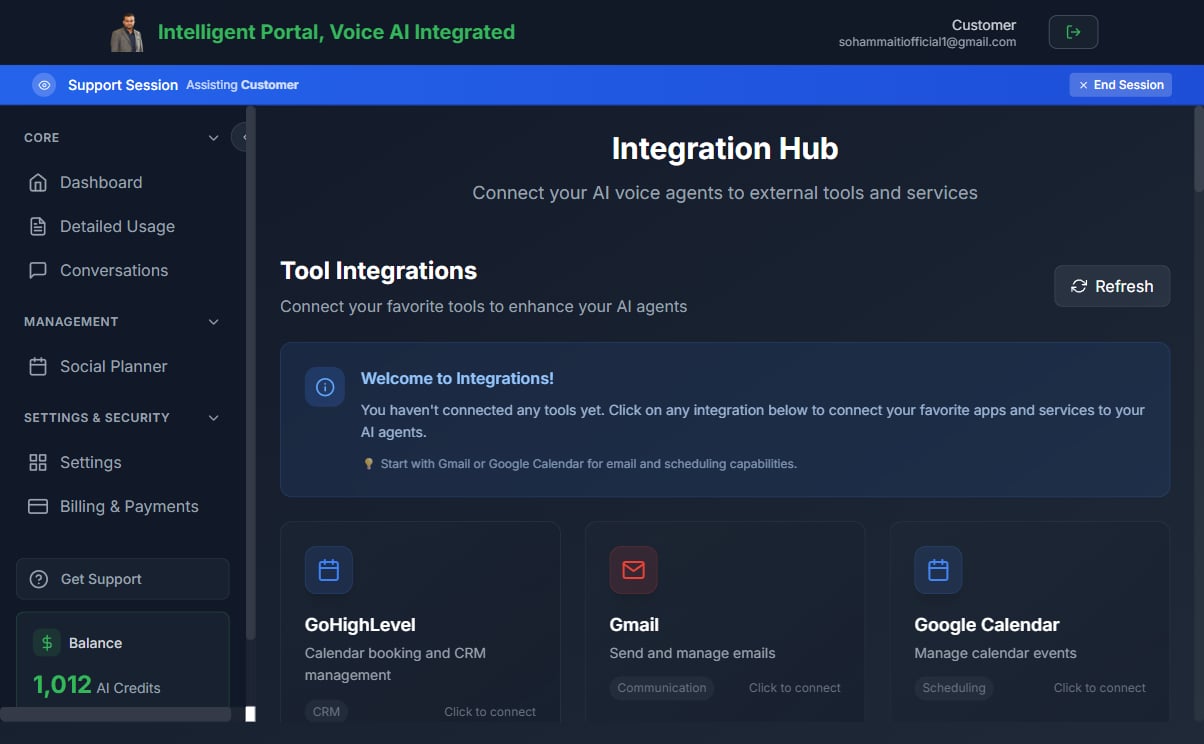
Once a customer connects an app, its tools flow to their AI agent automatically:
1. The customer connects the app (via OAuth or API key) in their portal.
2. The platform resolves all available tools for that app (up to 200 per integration).
3. When the agent runs a call, it automatically receives the full tool list from the connected app.
4. The agent can call any of those tools during the conversation.
**Important:** Tools only become available to a running agent after the connection is saved and active. If you add a new app connection, the agent picks up the new tools on its next call without any rebuild required.
## How app restrictions work
When you select specific apps for a customer:
### Customer sees only allowed apps
In their portal's Integration section, customers will only see:
* Apps you've explicitly allowed
* Apps they can connect or configure
* No upgrade prompts for restricted apps
### OAuth and API key flows
When a customer tries to connect an app:
* **Allowed apps** – Full connection flow works normally
* **Restricted apps** – Connection is blocked server-side with error message: "This integration is not available for your account. Please contact your administrator."
### Tier access validation
The system validates app access at multiple levels:
1. **Client-side** – Only displays allowed apps
2. **Server-side** – Validates OAuth requests and API key connections
3. **MCP server** – Verifies app access before returning tools to the agent
## Use cases
### Tier-based packages
Create integration packages for different customer tiers:
**Basic Tier**
* Gmail
* Google Calendar
* Webhooks
**Pro Tier**
* All Basic apps
* HubSpot
* Slack
* Zapier
**Enterprise Tier**
* All apps available (including ElevenLabs, HeyGen, and all AI & Media tools)
### Custom integration bundles
Offer specialized packages:
**CRM Bundle**
* HubSpot
* Salesforce
* Pipedrive
**Communication Bundle**
* Slack
* Microsoft Teams
* Zoom
**Automation Bundle**
* Zapier
* Make
* N8N
**AI Media Bundle**
* ElevenLabs
* HeyGen
## Allow all apps vs selective apps
### Allow all apps
To give a customer access to all integration apps:
1. In the app selection modal, check **Select All**.
2. Save.
This is useful for:
* Enterprise customers
* Testing environments
* Full-featured accounts
### Selective apps
To restrict to specific apps:
1. Uncheck **Select All**.
2. Check only the apps you want to allow.
3. Save.
This is useful for:
* Free tier users
* Specialized use cases
* Security-conscious customers
## Integration visibility without apps
If you enable **Show Integration** but don't select any apps:
* The Integration menu appears in the customer portal
* No apps are displayed
* Customer sees an empty state or upgrade prompt
**Best practice:** Always select at least one app when enabling integrations.
## Troubleshooting
### Customer can't see Integration menu
* Verify **Show Integration** is toggled ON
* Check that at least one app is selected in **Allowed Apps**
### Customer can't connect an app
* Confirm the app is in the **Allowed Apps** list
* Verify the app's OAuth credentials are configured correctly
* For API-key apps (ElevenLabs, HeyGen): confirm the customer entered their key from the correct section of the provider's dashboard
* If connections continue to fail, contact Knotie support
### API-key app tools not showing when agent runs
If a customer connected ElevenLabs or HeyGen via API key but the agent doesn't seem to call those tools during conversations:
1. Ask the customer to open their portal's **Integration** section and verify the connection shows as **Active**.
2. Confirm the agent was built with the integration enabled.
3. Check that the specific tools the agent should use are within the app's available tool list (ElevenLabs alone has \~155 tools — verify the correct tool name is configured in the agent prompt).
4. If the connection was just added, trigger a test call — the agent picks up new connections automatically.
### App selection modal doesn't open
* Ensure **Show Integration** is enabled first
* Refresh the page and try again
### Changes not reflected in customer portal
* Customer may need to log out and log back in
* Clear browser cache
* Wait 1-2 minutes for cache invalidation
## Best practices
* **Start conservative** – Begin with fewer apps and add more based on customer needs
* **Document packages** – Create clear tier definitions (Basic, Pro, Enterprise)
* **Test restrictions** – Verify blocked apps show appropriate error messages
* **Monitor usage** – Track which apps customers actually use via the [Tool Call Quota](/partner-portal/customers/tool-call-quota) tab
* **Regular reviews** – Quarterly review of app access per customer
## Related pages
* [Features & Add-ons](/partner-portal/customers/features-addons-and-menu-visibility) – Menu visibility settings
* [Integration Settings](/partner-portal/settings/integration-settings) – Configure provider API keys
* [Tool Call Quota](/partner-portal/customers/tool-call-quota) – Monitor and limit integration tool calls
## How app tools reach running agents
Once a customer connects an app, its tools flow to their AI agent automatically:
1. The customer connects the app (via OAuth or API key) in their portal.
2. The platform resolves all available tools for that app (up to 200 per integration).
3. When the agent runs a call, it automatically receives the full tool list from the connected app.
4. The agent can call any of those tools during the conversation.
**Important:** Tools only become available to a running agent after the connection is saved and active. If you add a new app connection, the agent picks up the new tools on its next call without any rebuild required.
## How app restrictions work
When you select specific apps for a customer:
### Customer sees only allowed apps
In their portal's Integration section, customers will only see:
* Apps you've explicitly allowed
* Apps they can connect or configure
* No upgrade prompts for restricted apps
### OAuth and API key flows
When a customer tries to connect an app:
* **Allowed apps** – Full connection flow works normally
* **Restricted apps** – Connection is blocked server-side with error message: "This integration is not available for your account. Please contact your administrator."
### Tier access validation
The system validates app access at multiple levels:
1. **Client-side** – Only displays allowed apps
2. **Server-side** – Validates OAuth requests and API key connections
3. **MCP server** – Verifies app access before returning tools to the agent
## Use cases
### Tier-based packages
Create integration packages for different customer tiers:
**Basic Tier**
* Gmail
* Google Calendar
* Webhooks
**Pro Tier**
* All Basic apps
* HubSpot
* Slack
* Zapier
**Enterprise Tier**
* All apps available (including ElevenLabs, HeyGen, and all AI & Media tools)
### Custom integration bundles
Offer specialized packages:
**CRM Bundle**
* HubSpot
* Salesforce
* Pipedrive
**Communication Bundle**
* Slack
* Microsoft Teams
* Zoom
**Automation Bundle**
* Zapier
* Make
* N8N
**AI Media Bundle**
* ElevenLabs
* HeyGen
## Allow all apps vs selective apps
### Allow all apps
To give a customer access to all integration apps:
1. In the app selection modal, check **Select All**.
2. Save.
This is useful for:
* Enterprise customers
* Testing environments
* Full-featured accounts
### Selective apps
To restrict to specific apps:
1. Uncheck **Select All**.
2. Check only the apps you want to allow.
3. Save.
This is useful for:
* Free tier users
* Specialized use cases
* Security-conscious customers
## Integration visibility without apps
If you enable **Show Integration** but don't select any apps:
* The Integration menu appears in the customer portal
* No apps are displayed
* Customer sees an empty state or upgrade prompt
**Best practice:** Always select at least one app when enabling integrations.
## Troubleshooting
### Customer can't see Integration menu
* Verify **Show Integration** is toggled ON
* Check that at least one app is selected in **Allowed Apps**
### Customer can't connect an app
* Confirm the app is in the **Allowed Apps** list
* Verify the app's OAuth credentials are configured correctly
* For API-key apps (ElevenLabs, HeyGen): confirm the customer entered their key from the correct section of the provider's dashboard
* If connections continue to fail, contact Knotie support
### API-key app tools not showing when agent runs
If a customer connected ElevenLabs or HeyGen via API key but the agent doesn't seem to call those tools during conversations:
1. Ask the customer to open their portal's **Integration** section and verify the connection shows as **Active**.
2. Confirm the agent was built with the integration enabled.
3. Check that the specific tools the agent should use are within the app's available tool list (ElevenLabs alone has \~155 tools — verify the correct tool name is configured in the agent prompt).
4. If the connection was just added, trigger a test call — the agent picks up new connections automatically.
### App selection modal doesn't open
* Ensure **Show Integration** is enabled first
* Refresh the page and try again
### Changes not reflected in customer portal
* Customer may need to log out and log back in
* Clear browser cache
* Wait 1-2 minutes for cache invalidation
## Best practices
* **Start conservative** – Begin with fewer apps and add more based on customer needs
* **Document packages** – Create clear tier definitions (Basic, Pro, Enterprise)
* **Test restrictions** – Verify blocked apps show appropriate error messages
* **Monitor usage** – Track which apps customers actually use via the [Tool Call Quota](/partner-portal/customers/tool-call-quota) tab
* **Regular reviews** – Quarterly review of app access per customer
## Related pages
* [Features & Add-ons](/partner-portal/customers/features-addons-and-menu-visibility) – Menu visibility settings
* [Integration Settings](/partner-portal/settings/integration-settings) – Configure provider API keys
* [Tool Call Quota](/partner-portal/customers/tool-call-quota) – Monitor and limit integration tool calls