> ## Documentation Index
> Fetch the complete documentation index at: https://docs.knotie-ai.pro/llms.txt
> Use this file to discover all available pages before exploring further.
# Embed URLs
> Generate embed tokens/URLs for a customer and use them to integrate widgets or embedded experiences.
## What Embed URLs are for
**Embed URLs** provide customer-scoped tokens and URLs that allow you to embed Knotie AI experiences into websites, apps, or other platforms.
Use cases:
* **Website widgets** – Add chat widgets to customer websites
* **Embedded dashboards** – Display analytics in external platforms
* **Custom integrations** – Build customer-specific embedded experiences
* **White-label embeds** – Provide branded embedded tools to customers
## Where to find it
1. Open **Customers** (sidebar — expands to Active Customers + Prospects).
2. Select a customer.
3. Click **Manage**.
4. Go to the **Embed URLs** tab.
Before generating embed links, confirm:
* The customer has portal access enabled.
* The customer account is active.
* You are generating the token for the correct customer workspace.
* You understand where the embed will be used (widget, iframe, or server-side integration).
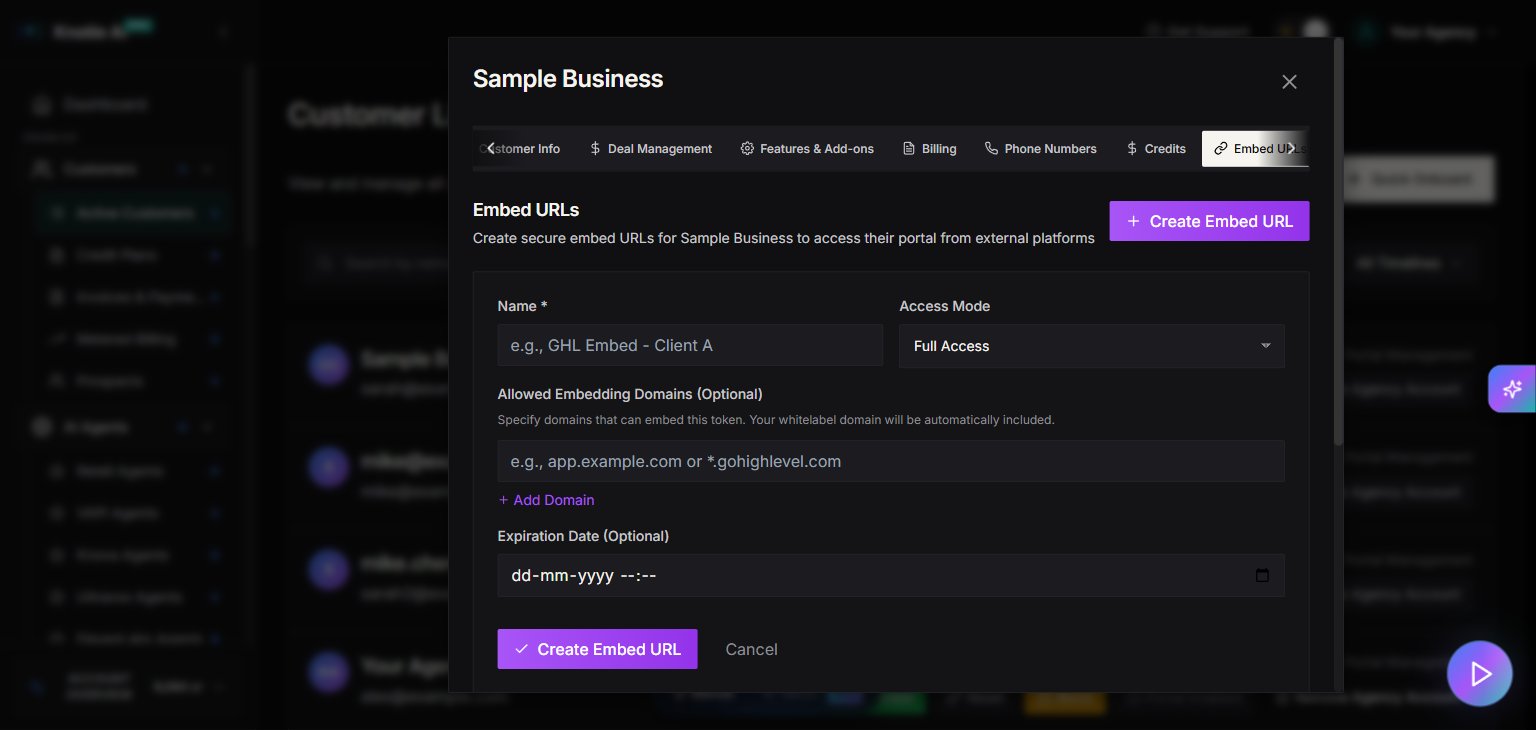
## Create an embed token
### Generate a new token
1. In the **Embed URLs** tab, click **Create Embed Token**.
2. (Optional) Add a description or label for the token.
3. Click **Generate**.
4. Copy the generated token immediately – it won't be shown again.
The token is now active and can be used in embed implementations.
 ### Token structure
Embed tokens are customer-scoped and include:
* **Customer ID** – Automatically tied to the specific customer
* **Partner ID** – Links to your partner account
* **Expiration** – Tokens may have expiration dates (if configured)
* **Permissions** – Scoped to what the customer can access
### Important Distinction
Embed tokens are **not** the same as Partner API Keys.
### Key Differences
* Use **Embed URLs / Embed Tokens** for customer-scoped widgets, iframe embeds, and embedded customer experiences.
* Use [API Keys](/partner-portal/api-keys) for partner-level automations, backend integrations, MCP, and broader platform API access.
## Use embed tokens
### In website widgets
Add the token to your widget embed code:
* Use the **customer embed token**, not a partner API key.
* Only embed on sites you control or trust.
* If the token is ever exposed publicly beyond the intended embed, revoke and rotate it.
```html theme={null}
```
### In API requests
Include the token in API headers:
* Prefer server-side usage where possible.
* Do **not** swap in a partner API key if the flow is meant to stay customer-scoped.
* If you are building a mobile or browser-based app, store the token in your backend and proxy requests instead of hardcoding sensitive values in the client.
```bash theme={null}
curl -X GET https://api.knotie-ai.pro/v1/customer/data \
-H "Authorization: Bearer YOUR_EMBED_TOKEN"
```
### In iframe embeds
Pass the token as a URL parameter:
* Prefer the **Copy URL** action from the portal when available so you use the exact generated embed URL.
* Remember that URL tokens can appear in browser history, logs, analytics tools, and referrer flows depending on your setup.
* If an iframe URL is shared outside its intended environment, revoke the token and generate a new one.
```html theme={null}
```
### Token structure
Embed tokens are customer-scoped and include:
* **Customer ID** – Automatically tied to the specific customer
* **Partner ID** – Links to your partner account
* **Expiration** – Tokens may have expiration dates (if configured)
* **Permissions** – Scoped to what the customer can access
### Important Distinction
Embed tokens are **not** the same as Partner API Keys.
### Key Differences
* Use **Embed URLs / Embed Tokens** for customer-scoped widgets, iframe embeds, and embedded customer experiences.
* Use [API Keys](/partner-portal/api-keys) for partner-level automations, backend integrations, MCP, and broader platform API access.
## Use embed tokens
### In website widgets
Add the token to your widget embed code:
* Use the **customer embed token**, not a partner API key.
* Only embed on sites you control or trust.
* If the token is ever exposed publicly beyond the intended embed, revoke and rotate it.
```html theme={null}
```
### In API requests
Include the token in API headers:
* Prefer server-side usage where possible.
* Do **not** swap in a partner API key if the flow is meant to stay customer-scoped.
* If you are building a mobile or browser-based app, store the token in your backend and proxy requests instead of hardcoding sensitive values in the client.
```bash theme={null}
curl -X GET https://api.knotie-ai.pro/v1/customer/data \
-H "Authorization: Bearer YOUR_EMBED_TOKEN"
```
### In iframe embeds
Pass the token as a URL parameter:
* Prefer the **Copy URL** action from the portal when available so you use the exact generated embed URL.
* Remember that URL tokens can appear in browser history, logs, analytics tools, and referrer flows depending on your setup.
* If an iframe URL is shared outside its intended environment, revoke the token and generate a new one.
```html theme={null}
```
 ## Manage existing tokens
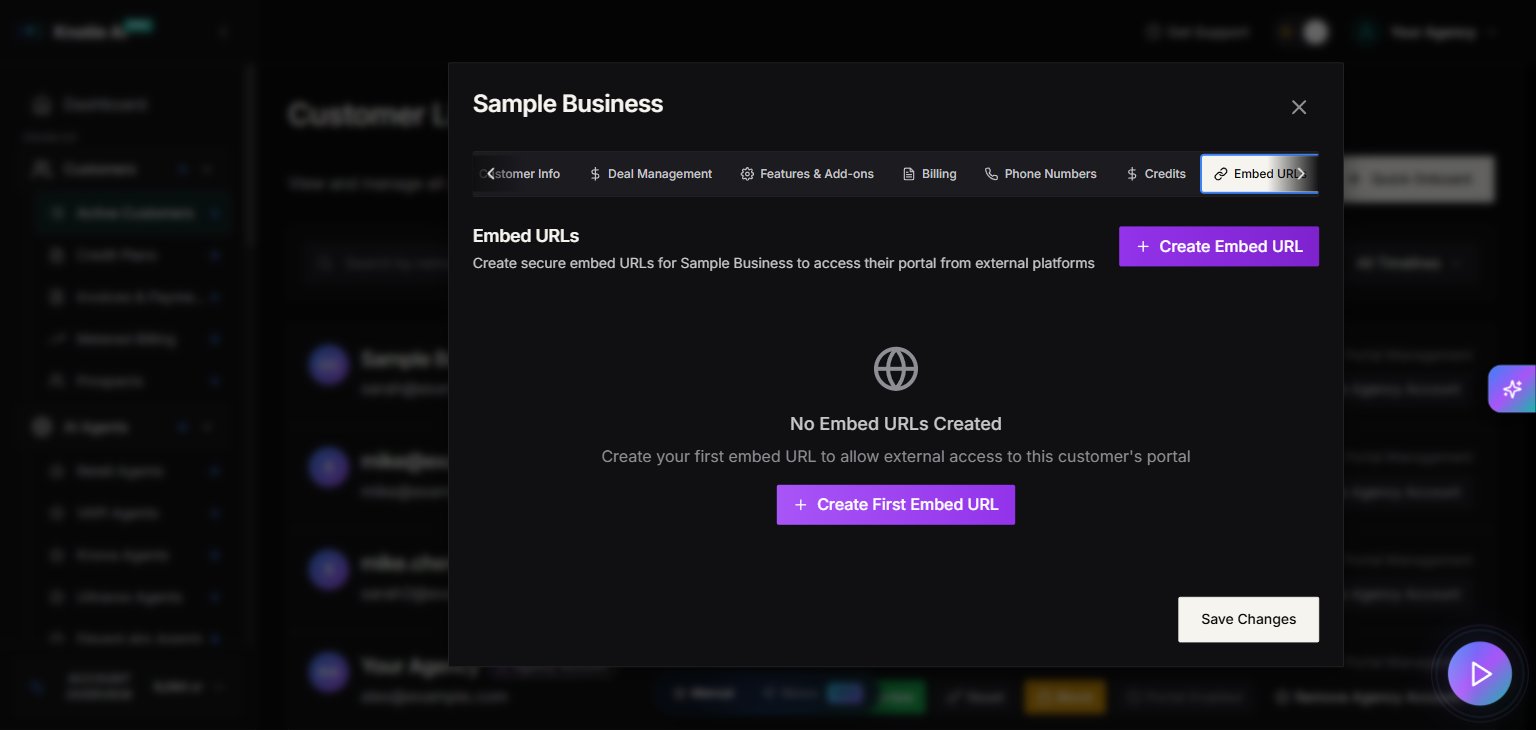
### View active tokens
The Embed URLs tab displays all active tokens for the customer:
* **Token ID** – Unique identifier
* **Created date** – When token was generated
* **Last used** – Most recent activity
* **Status** – Active, Expired, or Revoked
### Copy embed URL
To get the full embed URL:
1. Find the token in the list.
2. Click **Copy URL**.
3. The complete embed URL is copied to clipboard.
4. Paste it only into the destination app, site, or trusted system that should host the embedded experience.
### Revoke a token
If a token is compromised or no longer needed:
1. Find the token in the list.
2. Click **Revoke** or the trash icon.
3. Confirm revocation.
**Note:** Revoked tokens immediately stop working. Any embeds using the token will break.
## Rotate tokens
For security, periodically rotate embed tokens:
1. **Generate new token** – Create a replacement token.
2. **Update embed code** – Replace old token with new one in all embeds.
3. **Test new token** – Verify embeds work with new token.
4. **Revoke old token** – Once migration is complete, revoke the old token.
## Security best practices
### Keep tokens private
* **Do not use partner API keys in client-side code** – Keep partner-level credentials in your backend only
* **Treat embed tokens as controlled customer access credentials** – Only place them where the embedded experience is intentionally allowed to run
* **Use environment variables** – Store tokens securely on server-side
* **Avoid version control** – Don't commit tokens to Git repositories
* **Restrict access** – Only share with authorized developers
### Monitor token usage
* **Track last used date** – Identify inactive tokens
* **Review regularly** – Audit tokens monthly
* **Set expiration** – Use time-limited tokens when possible
* **Revoke unused tokens** – Clean up old or test tokens
### Respond to compromises
If a token is exposed:
1. **Revoke immediately** – Stop unauthorized access
2. **Generate replacement** – Create new token
3. **Update all instances** – Replace in all embed locations
4. **Audit activity** – Check for unauthorized usage
## Common embed scenarios
### Chat widget on customer website
1. Generate embed token for customer.
2. Provide customer with widget code.
3. Customer adds code to their website footer.
4. Widget loads with customer-specific data.
### Analytics dashboard embed
1. Create embed token with analytics permissions.
2. Build iframe with token parameter.
3. Embed dashboard in customer's admin panel.
4. Dashboard displays customer's analytics data.
### Mobile app integration
1. Generate API-scoped embed token.
2. Store token securely in mobile app backend.
3. Use token for API requests from app.
4. App fetches customer-specific content.
## Troubleshooting
### Embed token not working
* **Token revoked** – Check token status, regenerate if needed
* **Wrong customer ID** – Verify token matches customer
* **Expired token** – Create new token if expired
* **Permissions issue** – Ensure customer has necessary feature access
* **Wrong token type** – Confirm you used an embed token, not a partner API key
### Widget not loading
* **CORS issues** – Verify domain is whitelisted
* **Script blocked** – Check browser console for errors
* **Token format** – Ensure token is correctly formatted in code
* **Network connectivity** – Test API endpoint availability
### Unauthorized access errors
* **Invalid token** – Double-check token was copied correctly
* **Customer disabled** – Verify customer account is active
* **Feature not enabled** – Check customer has embed feature access
## Related pages
* [Customer Portal Management](/partner-portal/customers/customer-portal-management) – Portal access setup
* [Features & Add-ons](/partner-portal/customers/features-addons-and-menu-visibility) – Enable embed features
* [API Keys](/partner-portal/api-keys) – Partner-level API access
## Manage existing tokens
### View active tokens
The Embed URLs tab displays all active tokens for the customer:
* **Token ID** – Unique identifier
* **Created date** – When token was generated
* **Last used** – Most recent activity
* **Status** – Active, Expired, or Revoked
### Copy embed URL
To get the full embed URL:
1. Find the token in the list.
2. Click **Copy URL**.
3. The complete embed URL is copied to clipboard.
4. Paste it only into the destination app, site, or trusted system that should host the embedded experience.
### Revoke a token
If a token is compromised or no longer needed:
1. Find the token in the list.
2. Click **Revoke** or the trash icon.
3. Confirm revocation.
**Note:** Revoked tokens immediately stop working. Any embeds using the token will break.
## Rotate tokens
For security, periodically rotate embed tokens:
1. **Generate new token** – Create a replacement token.
2. **Update embed code** – Replace old token with new one in all embeds.
3. **Test new token** – Verify embeds work with new token.
4. **Revoke old token** – Once migration is complete, revoke the old token.
## Security best practices
### Keep tokens private
* **Do not use partner API keys in client-side code** – Keep partner-level credentials in your backend only
* **Treat embed tokens as controlled customer access credentials** – Only place them where the embedded experience is intentionally allowed to run
* **Use environment variables** – Store tokens securely on server-side
* **Avoid version control** – Don't commit tokens to Git repositories
* **Restrict access** – Only share with authorized developers
### Monitor token usage
* **Track last used date** – Identify inactive tokens
* **Review regularly** – Audit tokens monthly
* **Set expiration** – Use time-limited tokens when possible
* **Revoke unused tokens** – Clean up old or test tokens
### Respond to compromises
If a token is exposed:
1. **Revoke immediately** – Stop unauthorized access
2. **Generate replacement** – Create new token
3. **Update all instances** – Replace in all embed locations
4. **Audit activity** – Check for unauthorized usage
## Common embed scenarios
### Chat widget on customer website
1. Generate embed token for customer.
2. Provide customer with widget code.
3. Customer adds code to their website footer.
4. Widget loads with customer-specific data.
### Analytics dashboard embed
1. Create embed token with analytics permissions.
2. Build iframe with token parameter.
3. Embed dashboard in customer's admin panel.
4. Dashboard displays customer's analytics data.
### Mobile app integration
1. Generate API-scoped embed token.
2. Store token securely in mobile app backend.
3. Use token for API requests from app.
4. App fetches customer-specific content.
## Troubleshooting
### Embed token not working
* **Token revoked** – Check token status, regenerate if needed
* **Wrong customer ID** – Verify token matches customer
* **Expired token** – Create new token if expired
* **Permissions issue** – Ensure customer has necessary feature access
* **Wrong token type** – Confirm you used an embed token, not a partner API key
### Widget not loading
* **CORS issues** – Verify domain is whitelisted
* **Script blocked** – Check browser console for errors
* **Token format** – Ensure token is correctly formatted in code
* **Network connectivity** – Test API endpoint availability
### Unauthorized access errors
* **Invalid token** – Double-check token was copied correctly
* **Customer disabled** – Verify customer account is active
* **Feature not enabled** – Check customer has embed feature access
## Related pages
* [Customer Portal Management](/partner-portal/customers/customer-portal-management) – Portal access setup
* [Features & Add-ons](/partner-portal/customers/features-addons-and-menu-visibility) – Enable embed features
* [API Keys](/partner-portal/api-keys) – Partner-level API access