> ## Documentation Index
> Fetch the complete documentation index at: https://docs.knotie-ai.pro/llms.txt
> Use this file to discover all available pages before exploring further.
# Customer portal management
> Create login accounts for your white-label portal, send invitation emails, and manage who has access.
## What this is
Customer portal management is how you create and manage the login accounts your customers use to sign in to your white-label portal.
It's separate from the main **Customers** list, which is about the day-to-day operational side. Portal management is specifically about portal access and customer login details.
## Where to find it
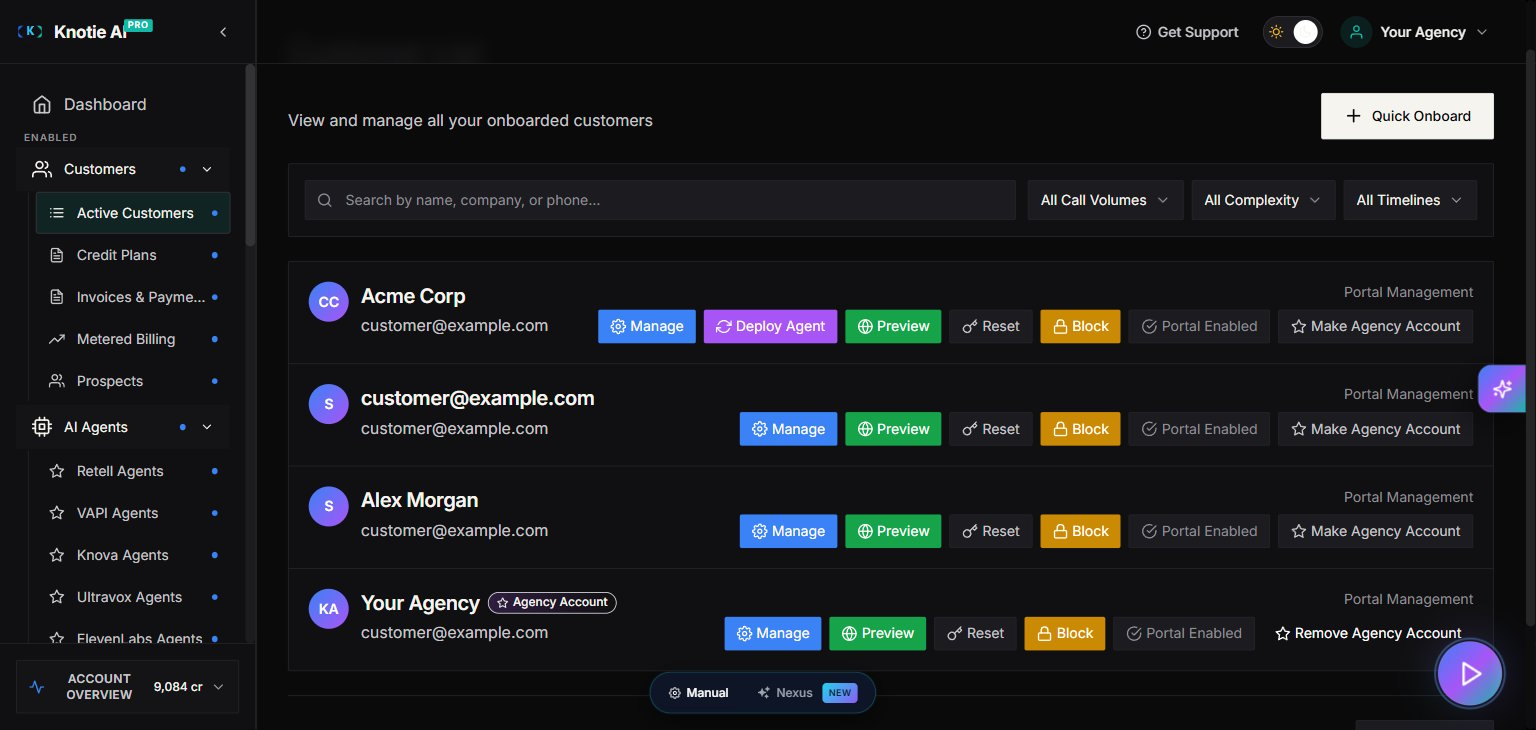
There isn't a single "Customer Portal Management" item in the sidebar. Instead, everything lives on a customer's record, in three places:
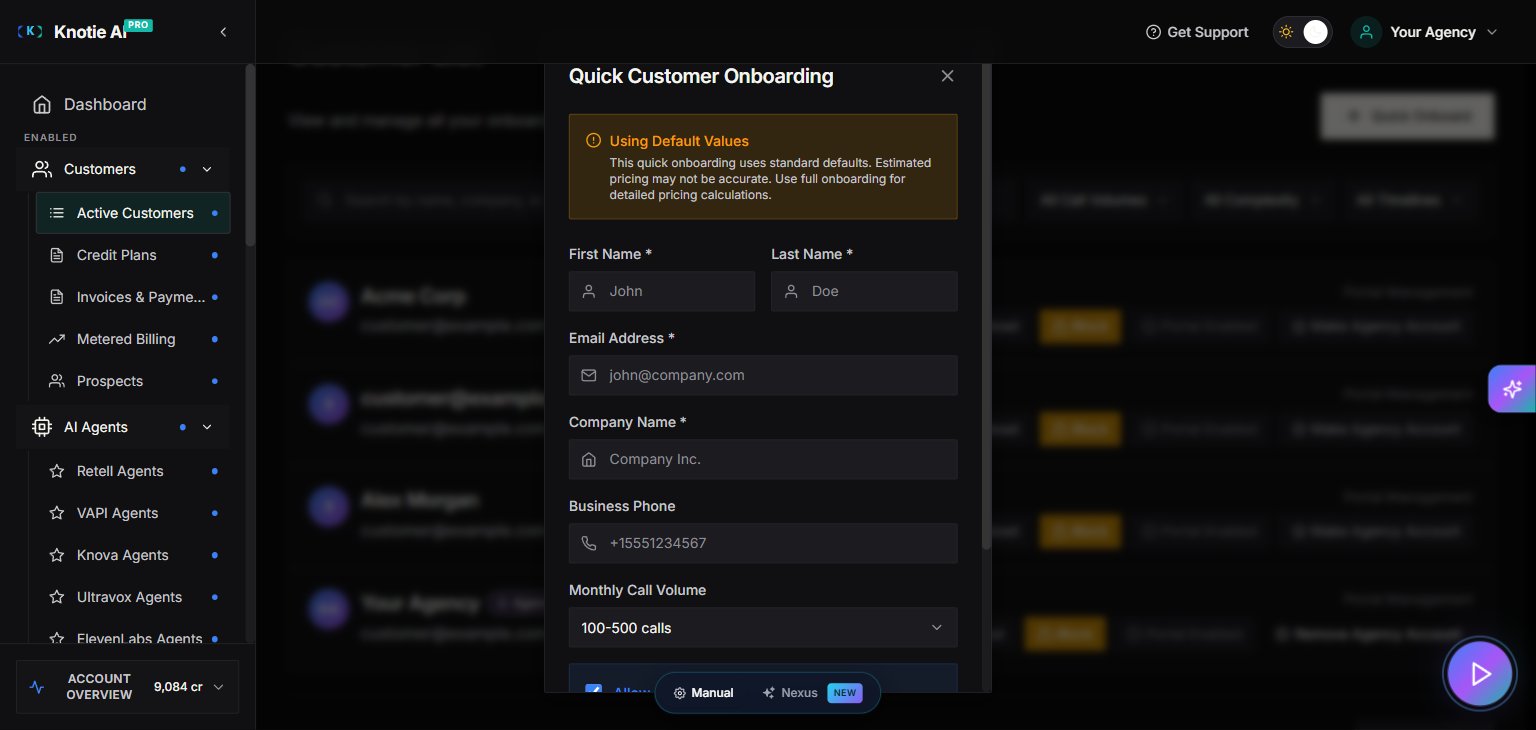
1. **Quick Onboard** — the button at the top of the Customers list. It creates a new customer and their portal login in one step.
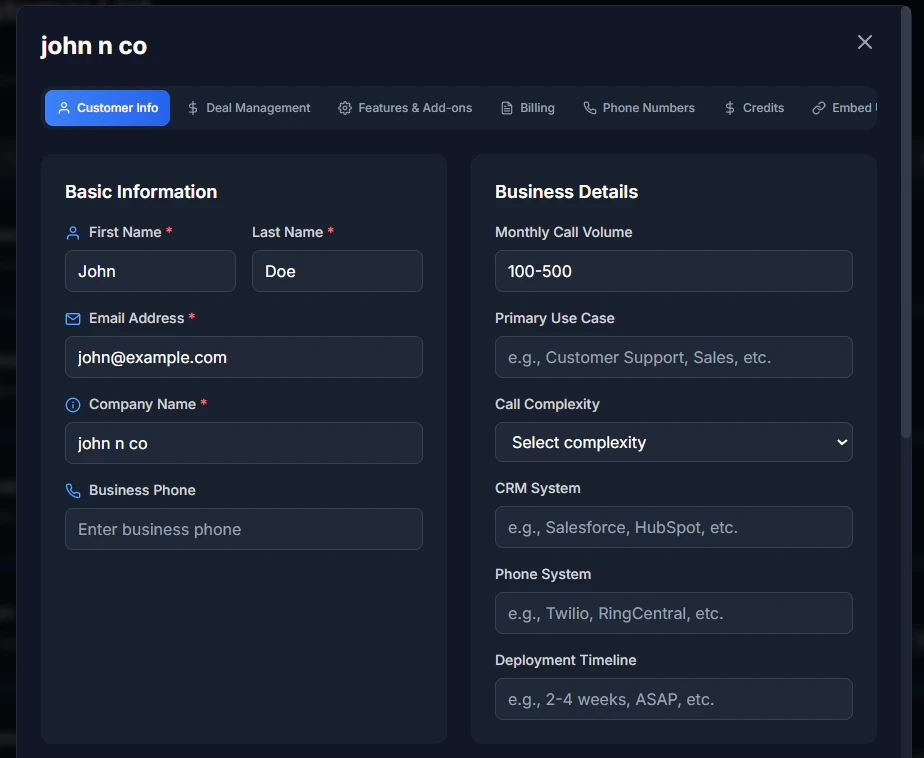
2. **Features & Add-ons → Customer Portal toggle** — turns portal access on or off for an existing customer.
3. **Customer Portal Access buttons** (Preview Portal, Reset Password, Block Access, Delete) — found in the same customer window.
For what each access button does, see [Customer portal access actions](/partner-portal/customers/customer-portal-access-actions).
## Add a portal customer
1. Click **Quick Onboard**.
2. Fill in:
* Email address
* First name
* Last name
* Company name
* Password and confirm password
3. Click **Create Customer**.
## Send an invitation email
In the portal customers list, click the envelope icon next to a customer to send them an invitation to log in.
## Delete a portal customer
Click the trash icon next to a customer to remove them. This can't be undone, so double-check before you confirm.
## View customer details
Click a customer's row to see their details, including:
* Email address
* Name and company
* When the account was created
* When they last logged in
* Whether portal access is on
 ## Tips
* **Use strong passwords** when you create accounts.
* **Send the invitation right away** after creating a customer, so they can get in without delay.
* **Keep the list tidy** by removing test accounts and customers you no longer work with.
## Troubleshooting
* **Invitation email didn't arrive** — check spam folders and confirm the email address is correct.
* **Customer can't log in** — make sure portal access is turned on for them.
* **Delete button is greyed out** — a customer may be locked while they have an active subscription or data attached. Clear those first.
## Screenshots
## Tips
* **Use strong passwords** when you create accounts.
* **Send the invitation right away** after creating a customer, so they can get in without delay.
* **Keep the list tidy** by removing test accounts and customers you no longer work with.
## Troubleshooting
* **Invitation email didn't arrive** — check spam folders and confirm the email address is correct.
* **Customer can't log in** — make sure portal access is turned on for them.
* **Delete button is greyed out** — a customer may be locked while they have an active subscription or data attached. Clear those first.
## Screenshots