> ## Documentation Index
> Fetch the complete documentation index at: https://docs.knotie-ai.pro/llms.txt
> Use this file to discover all available pages before exploring further.
# Billing a customer
> Create invoices and manage billing for a specific customer directly from the customer management modal (requires Stripe Connect).
## Where to find it
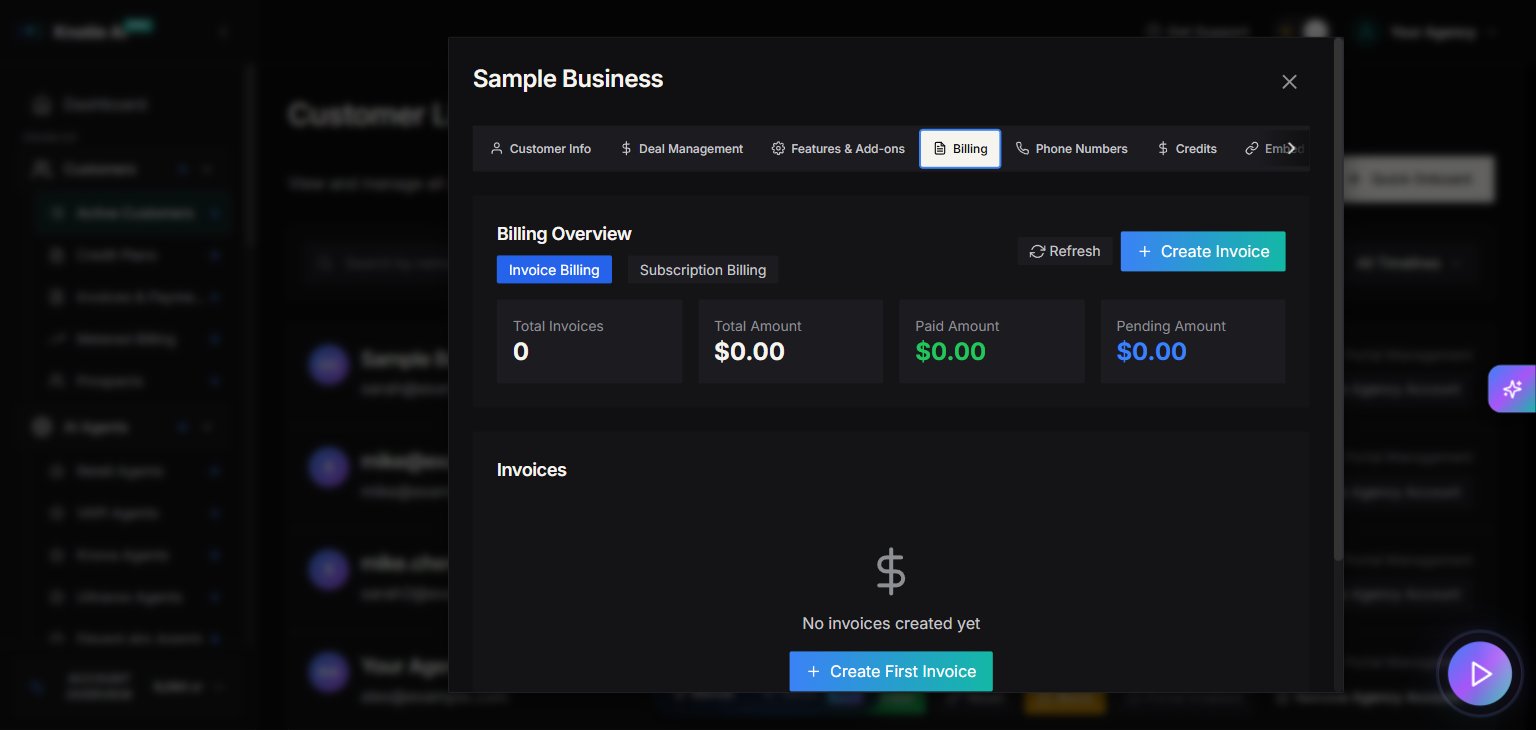
1. Open **Customers → Active Customers** in the Partner Portal sidebar.
2. Select a customer.
3. Click **Manage**.
4. Go to the **Billing** tab.
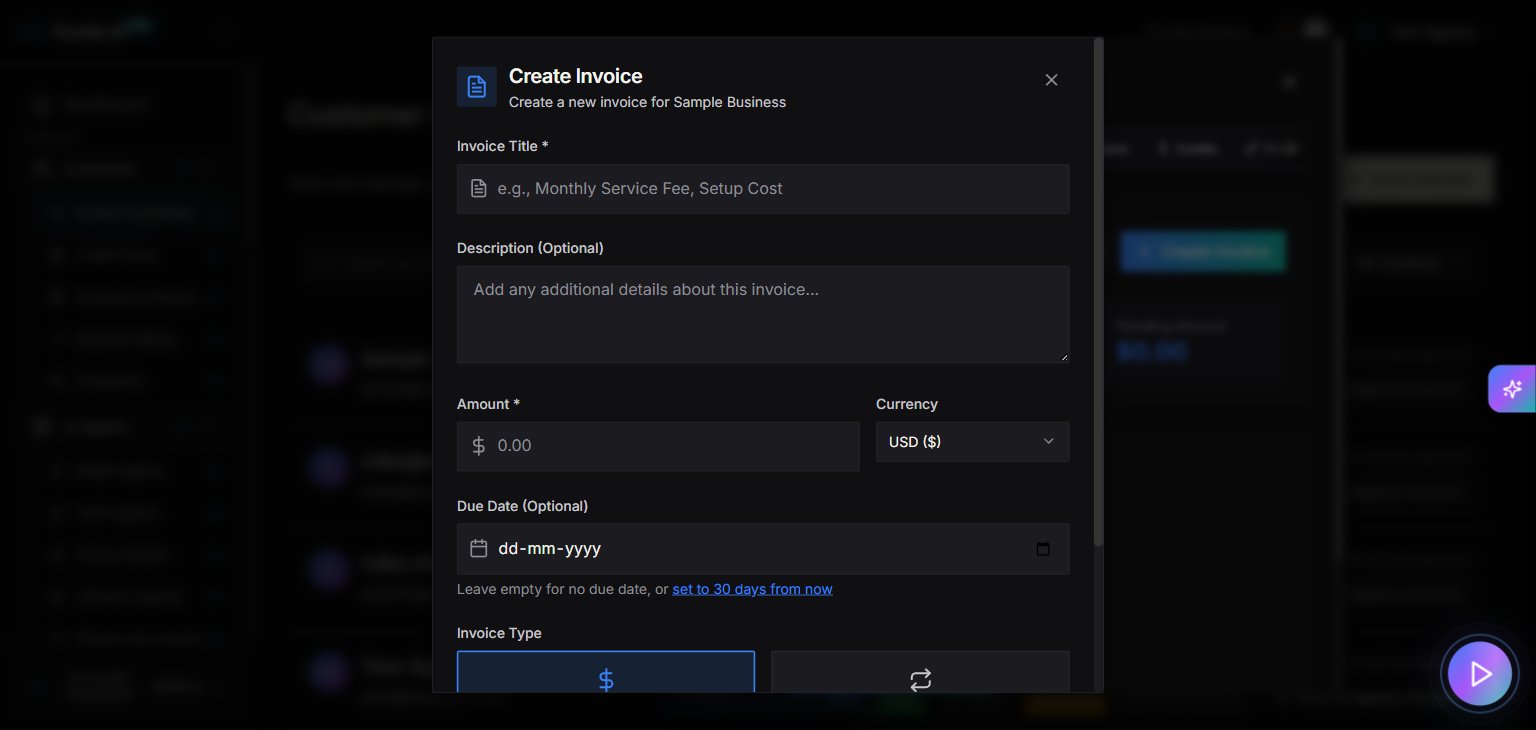
5. Open **Create Invoice**.
## Stripe Connect requirement
The customer Billing tab is only enabled if your agency has:
* Stripe account connected
* Onboarding completed
* Charges enabled
If Stripe is not configured, the Billing tab will show:
* **Stripe Connect Required**
* A button: **Setup Stripe Connect**
## What you can do
When billing is enabled, the customer modal loads a billing manager where you can:
* Create invoices
* Track invoice status
(Exact invoice options may depend on your billing configuration.)
## Quick Buy credits
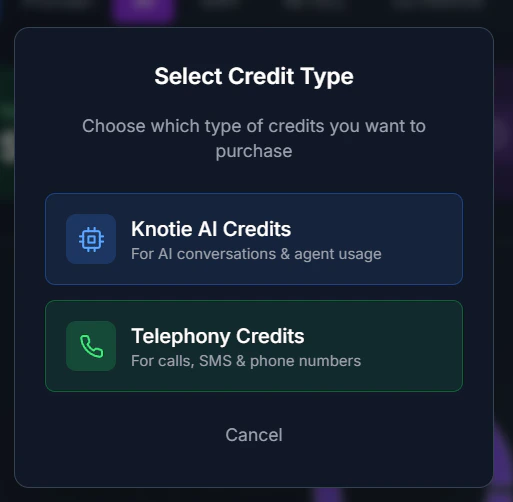
The Billing tab also includes a **Quick Buy** option for purchasing credits directly for the customer—without navigating to the main Credits page.
### How to use Quick Buy
1. Open the customer's **Manage** modal.
2. Go to the **Billing** tab.
3. Find the **Quick Buy** section.
4. Select the credit type (Knotie Credits or Telephony Credits).
5. Choose the amount.
6. Complete the purchase.
### When to use Quick Buy
* **Urgent top-ups** – Customer is running low on credits and needs immediate replenishment.
* **One-off purchases** – Adding credits for a specific campaign or project.
* **Customer requests** – When a customer asks you to add credits on their behalf.
 ## Best practices
* Set up Stripe Connect first in **Settings → Stripe Connect**.
* Use **Billing & Invoices** for a full invoice list across all customers.
## Screenshots
## Best practices
* Set up Stripe Connect first in **Settings → Stripe Connect**.
* Use **Billing & Invoices** for a full invoice list across all customers.
## Screenshots