> ## Documentation Index
> Fetch the complete documentation index at: https://docs.knotie-ai.pro/llms.txt
> Use this file to discover all available pages before exploring further.
# AI Credit management
> Add, deduct, and manage AI credits for customers with credit-based pricing.
## What AI Credit Management is for
The **AI Credit Management** tab allows you to manage customer credits when using AI Credit-based pricing instead of traditional dollar pricing.
Use this when:
* Customer pays using credits instead of invoices
* You want to control usage limits
* You offer prepaid credit packages
## Where to find it
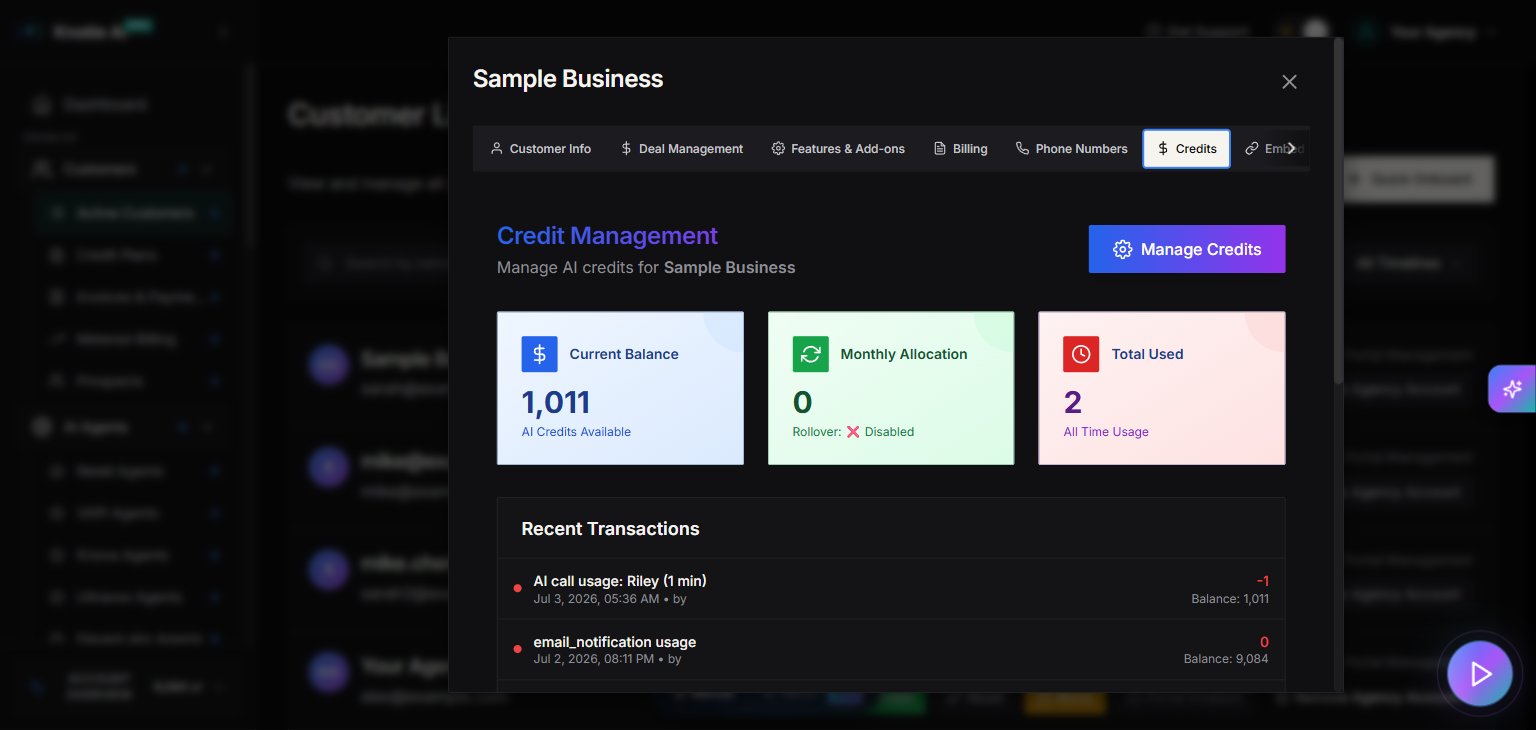
1. Go to **Customers** (sidebar — expands to Active Customers + Prospects).
2. Select a customer.
3. Click **Manage**.
4. Go to the **Credits** tab.
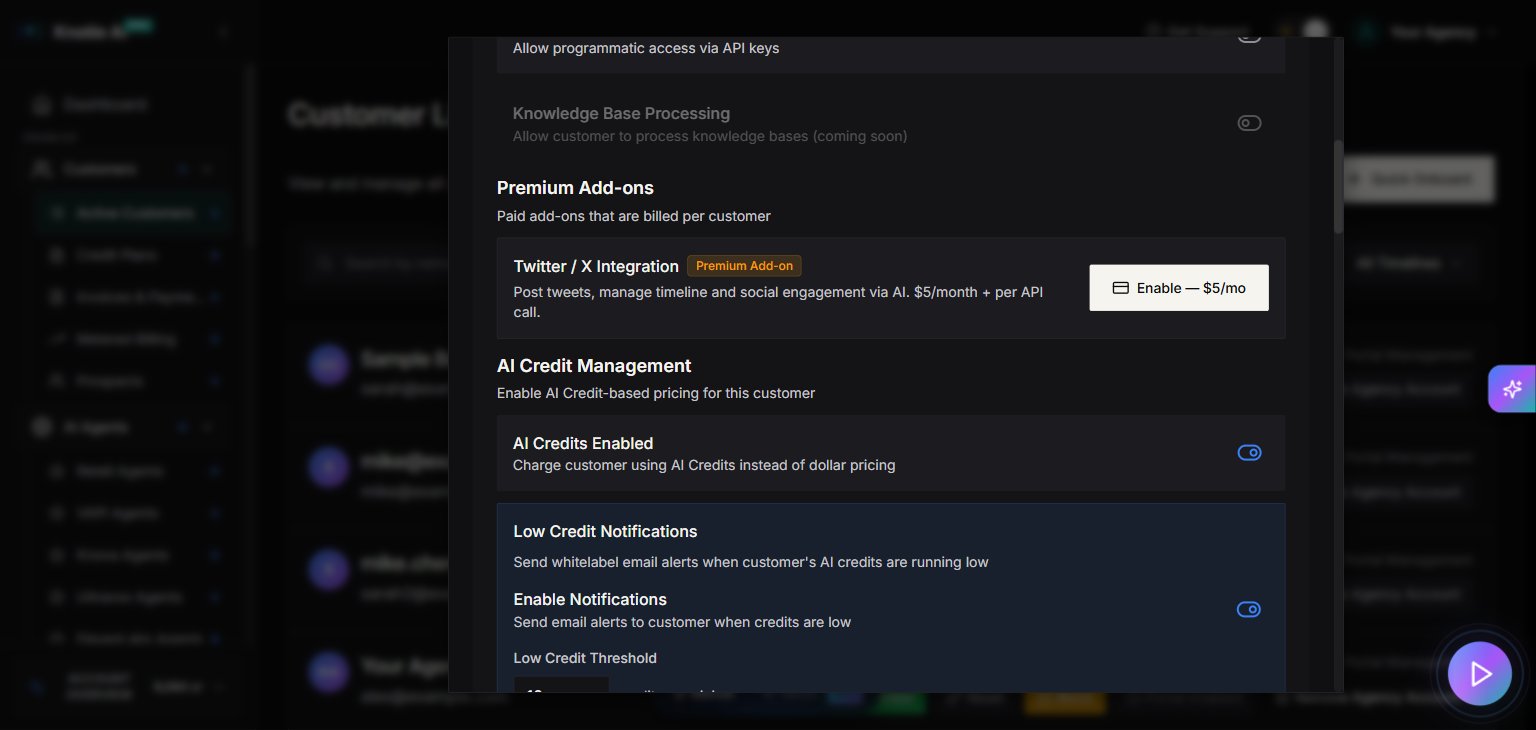
## Enable AI Credits for a customer
Before managing credits, you must enable AI Credits for the customer:
1. Open the customer's **Manage** modal.
2. Go to the **Features & Add-ons** tab.
3. Find **AI Credit Management** section.
4. Toggle **AI Credits Enabled** to ON.
5. Configure credit settings:
* **Enable Notifications** – Toggle whitelabel email alerts on or off
* **Low Credit Threshold** – Send alerts when balance reaches this amount (in credits remaining)
 ## Add credits to a customer
### Manual credit addition
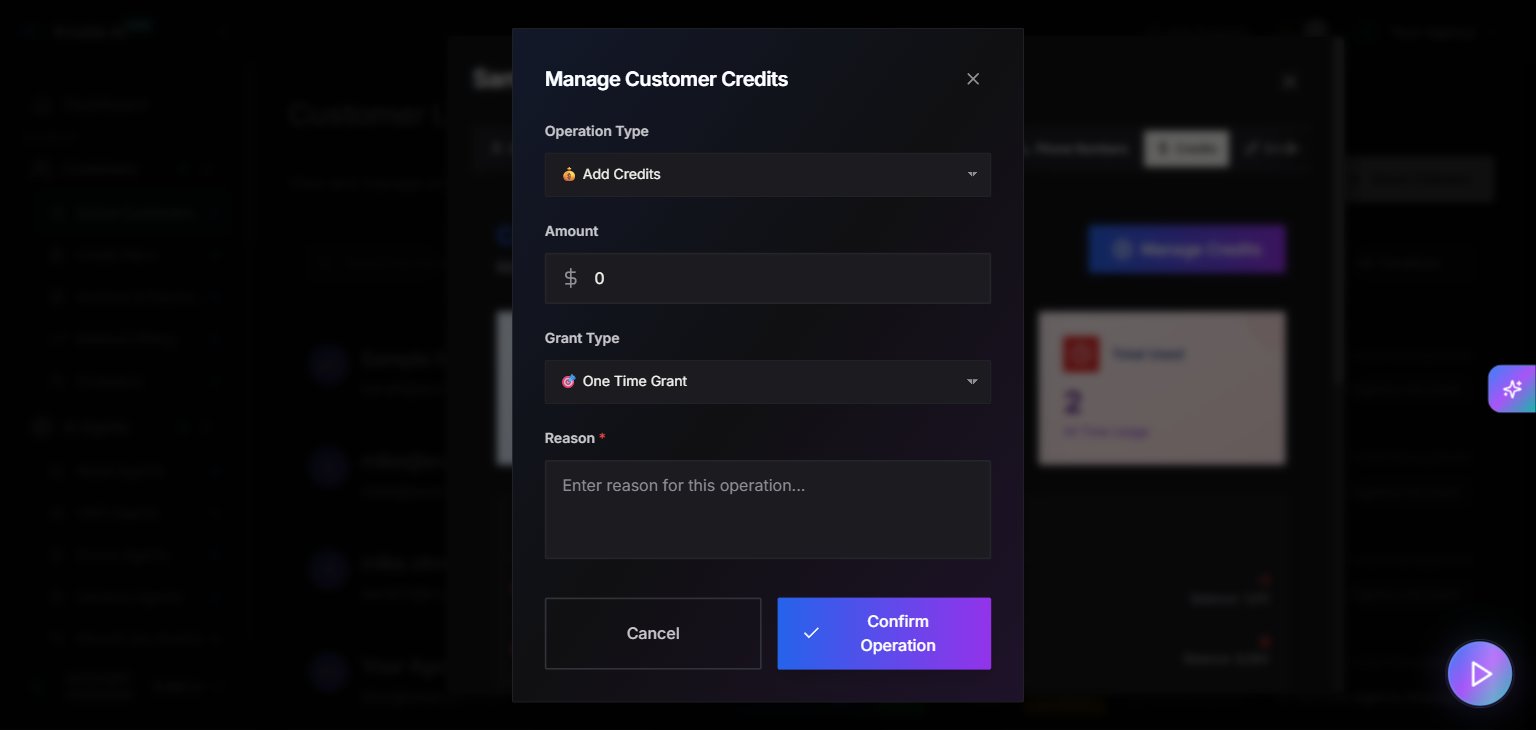
1. Open the **Credits** tab in the customer's Manage modal.
2. Click **Add Credits**.
3. Enter the amount of credits to add.
4. Add a note (e.g., "Monthly package - 1000 credits").
5. Click **Confirm**.
The credits are immediately added to the customer's balance.
### Quick Buy credits
You can also add credits from the **Billing** tab:
1. Go to the **Billing** tab.
2. Find the **Quick Buy** section.
3. Select **Knotie Credits**.
4. Choose the amount.
5. Complete the purchase.
## Add credits to a customer
### Manual credit addition
1. Open the **Credits** tab in the customer's Manage modal.
2. Click **Add Credits**.
3. Enter the amount of credits to add.
4. Add a note (e.g., "Monthly package - 1000 credits").
5. Click **Confirm**.
The credits are immediately added to the customer's balance.
### Quick Buy credits
You can also add credits from the **Billing** tab:
1. Go to the **Billing** tab.
2. Find the **Quick Buy** section.
3. Select **Knotie Credits**.
4. Choose the amount.
5. Complete the purchase.
 ## Deduct credits from a customer
You may need to deduct credits for:
* Refunds
* Corrections
* Manual adjustments
### How to deduct credits
1. Open the **Credits** tab in the customer's Manage modal.
2. Click **Deduct Credits**.
3. Enter the amount to deduct.
4. Add a reason (e.g., "Refund for failed calls").
5. Click **Confirm**.
**Warning:** Deducting credits cannot be undone. The transaction will be logged in the credit history.
## View credit history
Track all credit transactions for a customer:
1. Open the **Credits** tab.
2. View the transaction history table.
3. See:
* **Type** – Added, Deducted, Used
* **Amount** – Credits involved
* **Balance** – Balance after transaction
* **Note** – Description of transaction
* **Date** – When it occurred
## Deduct credits from a customer
You may need to deduct credits for:
* Refunds
* Corrections
* Manual adjustments
### How to deduct credits
1. Open the **Credits** tab in the customer's Manage modal.
2. Click **Deduct Credits**.
3. Enter the amount to deduct.
4. Add a reason (e.g., "Refund for failed calls").
5. Click **Confirm**.
**Warning:** Deducting credits cannot be undone. The transaction will be logged in the credit history.
## View credit history
Track all credit transactions for a customer:
1. Open the **Credits** tab.
2. View the transaction history table.
3. See:
* **Type** – Added, Deducted, Used
* **Amount** – Credits involved
* **Balance** – Balance after transaction
* **Note** – Description of transaction
* **Date** – When it occurred
 ## Check customer credit balance
View the current balance at the top of the Credits tab:
* **Current Balance** – Total credits available
* **Last Updated** – When balance was last modified
You can also check balances programmatically using the Partner API.
## Low credit alerts
When enabled, customers receive email notifications when their balance is low.
### Configure low credit alerts
1. Go to **Features & Add-ons** tab.
2. Find **Low Credit Notifications** section.
3. Toggle **Enable Low Credit Alerts** to ON.
4. Set the threshold (e.g., 100 credits).
5. Save.
When the customer's balance reaches or falls below this threshold, they receive an automatic email notification.
## Credit pricing vs dollar pricing
### When to use AI Credits
* **Prepaid packages** – Customers buy credits upfront
* **Usage control** – Limit how much a customer can use
* **Flexible pricing** – Different rates for different customers
### When to use dollar pricing
* **Traditional billing** – Monthly invoices
* **Enterprise customers** – Who prefer invoices over credits
* **Unlimited plans** – No usage caps
**Note:** You cannot enable both AI Credits and "Show Pricing Information" simultaneously for a customer. Choose one pricing model.
## Credit usage tracking
Credits are consumed based on:
* **Call minutes** – Charged per minute according to credit price
* **AI processing** – LLM, STT, TTS costs converted to credits
* **Tool calls** – Each integration tool call consumes a small amount of credits
Monitor usage in **Agent Analytics** to understand credit consumption patterns.
## Best practices
* **Set appropriate thresholds** – Alert customers before they run out completely.
* **Document transactions** – Always add notes when adding or deducting credits.
* **Monitor usage patterns** – Use Agent Analytics to spot unusual consumption.
* **Offer packages** – Bundle credits into packages (e.g., 1000, 5000, 10000).
## Troubleshooting
* **Cannot add credits** – Ensure AI Credits are enabled for the customer.
* **Credits not deducted during usage** – Verify AI Credits are enabled and your Profit Multiplier is set on the AI Gateway page.
* **Low credit alerts not sent** – Verify email domain is configured and alerts are enabled.
* **Balance shows incorrect amount** – Check credit history for unauthorized transactions.
## Related pages
* [Billing for a Customer](/partner-portal/customers/billing-for-a-customer) – Quick Buy credits
* [Features & Add-ons](/partner-portal/customers/features-addons-and-menu-visibility) – Enable AI Credits
* [Credits Management](/partner-portal/credits) – Partner-level credit management
## Check customer credit balance
View the current balance at the top of the Credits tab:
* **Current Balance** – Total credits available
* **Last Updated** – When balance was last modified
You can also check balances programmatically using the Partner API.
## Low credit alerts
When enabled, customers receive email notifications when their balance is low.
### Configure low credit alerts
1. Go to **Features & Add-ons** tab.
2. Find **Low Credit Notifications** section.
3. Toggle **Enable Low Credit Alerts** to ON.
4. Set the threshold (e.g., 100 credits).
5. Save.
When the customer's balance reaches or falls below this threshold, they receive an automatic email notification.
## Credit pricing vs dollar pricing
### When to use AI Credits
* **Prepaid packages** – Customers buy credits upfront
* **Usage control** – Limit how much a customer can use
* **Flexible pricing** – Different rates for different customers
### When to use dollar pricing
* **Traditional billing** – Monthly invoices
* **Enterprise customers** – Who prefer invoices over credits
* **Unlimited plans** – No usage caps
**Note:** You cannot enable both AI Credits and "Show Pricing Information" simultaneously for a customer. Choose one pricing model.
## Credit usage tracking
Credits are consumed based on:
* **Call minutes** – Charged per minute according to credit price
* **AI processing** – LLM, STT, TTS costs converted to credits
* **Tool calls** – Each integration tool call consumes a small amount of credits
Monitor usage in **Agent Analytics** to understand credit consumption patterns.
## Best practices
* **Set appropriate thresholds** – Alert customers before they run out completely.
* **Document transactions** – Always add notes when adding or deducting credits.
* **Monitor usage patterns** – Use Agent Analytics to spot unusual consumption.
* **Offer packages** – Bundle credits into packages (e.g., 1000, 5000, 10000).
## Troubleshooting
* **Cannot add credits** – Ensure AI Credits are enabled for the customer.
* **Credits not deducted during usage** – Verify AI Credits are enabled and your Profit Multiplier is set on the AI Gateway page.
* **Low credit alerts not sent** – Verify email domain is configured and alerts are enabled.
* **Balance shows incorrect amount** – Check credit history for unauthorized transactions.
## Related pages
* [Billing for a Customer](/partner-portal/customers/billing-for-a-customer) – Quick Buy credits
* [Features & Add-ons](/partner-portal/customers/features-addons-and-menu-visibility) – Enable AI Credits
* [Credits Management](/partner-portal/credits) – Partner-level credit management